Many iPhone users rely on iCloud to back up their messages, ensuring that important conversations are not lost when changing devices or performing a system reset. However, some users encounter a frustrating problem: messages not restored from iCloud backup. If you are stuck in this situation, don't worry. This guide explains the possible reasons behind the problem and offers 11 proven fixes to help you restore your messages successfully.
Before starting the fix, it's recommended to understand the common causes so that you can troubleshoot more effectively:
After understanding the causes, here are 11 practical methods to help resolve the issue of messages not restoring from iCloud backup.
A stable Wi-Fi network is crucial for restoring iCloud messages. If the network is slow or unstable, message synchronization may be interrupted. If your connection is strong but synchronization still fails, you can try resetting the network settings:
Step 1. Go to "Settings" > "General" > "Transfer or Reset iPhone" > "Reset".
Step 2. Tap "Reset Network Settings".
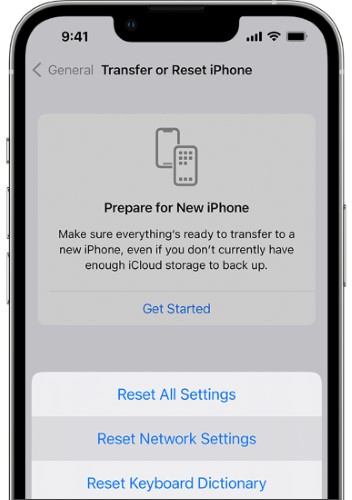
Step 3. Enter your password and confirm.
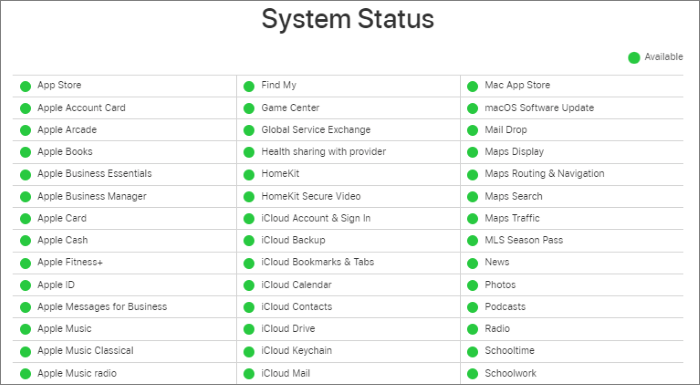
If iCloud, iMessage, or Apple ID services are undergoing maintenance or experiencing issues, message restoration may still fail even if your network is functioning properly. Therefore, checking Apple's system status can quickly rule out server-related problems.
To do this, follow the steps below:
Step 1. Visit the Apple System Status webpage.
Step 2. Look for iCloud Backup, iMessage, or Apple ID.
Step 3. If any service shows a yellow or red indicator, wait until Apple resolves the issue.
If your iCloud storage is full or nearly full, your backup may be incomplete, which is a common reason why messages are not restored from iCloud backup.
To check your iCloud storage, follow the steps below:
Step 1. Open "Settings" > "Apple ID" > "iCloud".
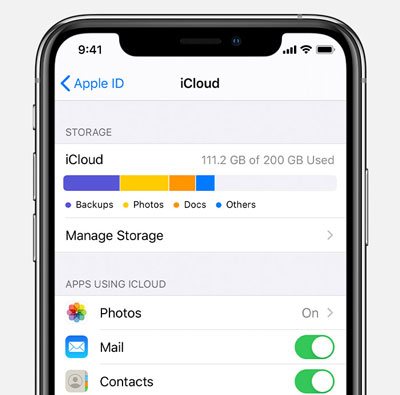
Step 2. Check your storage usage.
Step 3. If storage is full, you can:
Sometimes, the iCloud Messages sync feature can get stuck and needs to be re-enabled.
Here are the steps:
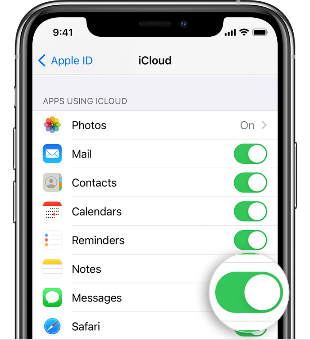
Step 1. Open "Settings" > Tap on "Apple ID" > "iCloud" > "Messages".
Step 2. Turn off the switch > Wait for 10 seconds > Turn it back on.
When there's an authentication issue with your Apple ID, the device may not be able to successfully retrieve backup content from iCloud. Signing out and signing back in can refresh the account authorization and restore normal synchronization.
Here is how to resign in your iCloud account:
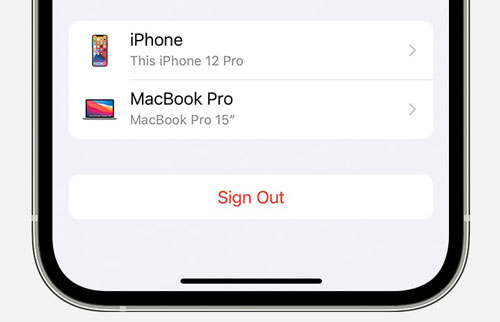
Step 1. Go to "Settings" > "Apple ID".
Step 2. Scroll down and tap "Sign Out". (Can't sign out of your Apple ID?)
Step 3. Sign in to your Apple ID again.
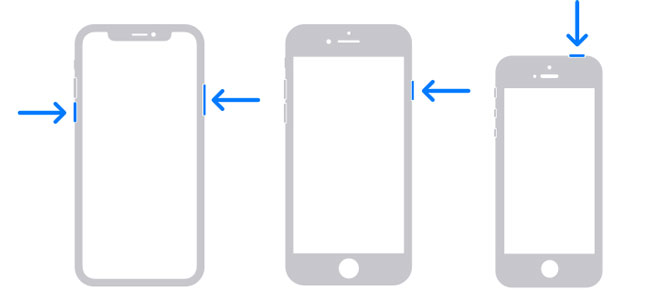
Restarting can quickly clear system cache and background errors, making it a simple yet common and effective fix. Especially when iCloud restoration is stalled, restarting may trigger the sync to resume.
For iPhone X, 11, 12, 13, or later:
For iPhone 6, 7, 8, or SE (2nd or 3rd generation):
For iPhone SE (1st generation), 5, or earlier:
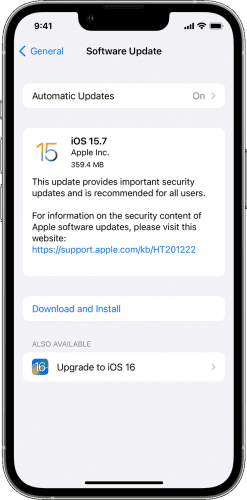
If your iOS is not up to date, it's a good idea to update to the latest version. The update will fix various bugs and errors, improving system performance. Once updated, try restoring your messages from iCloud backup again.
Here are the steps:
Step 1. Go to "Settings" > "General" > "Software Update". (iPhone software update failed?)
Step 2. Tap "Download and Install" to update to the latest version of iOS.
If the restoration process is interrupted or corrupted, retrying the restore often resolves the issue. This method is suitable for users who have tried other steps but are still unable to restore their messages.
Here is how to do it:
Step 1. Open "Settings" > "General" > "Transfer or Reset iPhone" > "Erase All Content and Settings". (iPhone won't erase?)

Step 2. Select "Erase iPhone" and wait for the device to reset.
Step 3. Set up your iPhone again.
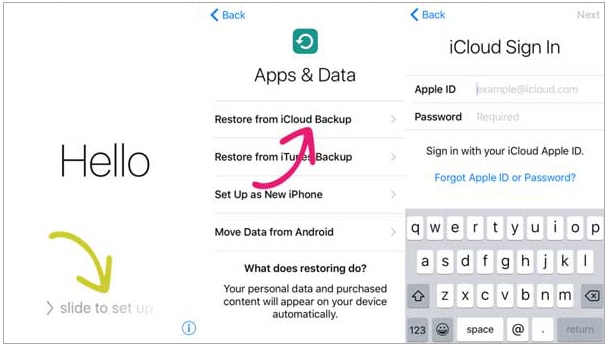
Step 4. On the "Apps & Data" screen, choose "Restore from iCloud Backup".
Step 5. Select your most recent backup.
If multiple attempts to restore from iCloud still fail to recover your messages, a professional tool is the best option. iPhone Data Recovery supports direct access to iCloud backups, allowing you to selectively restore messages, contacts, photos, and other data types. The main advantage over official methods is that it won't affect the existing data on your phone, and it lets you preview and choose the data you want to restore, making it especially suitable for users who only want to recover specific data. What's more, you can also recover messages directly from your iPhone, even without a backup.
Main features of iPhone Data Recovery:
Here is how to recover messages from iCloud using iPhone Data Recovery:
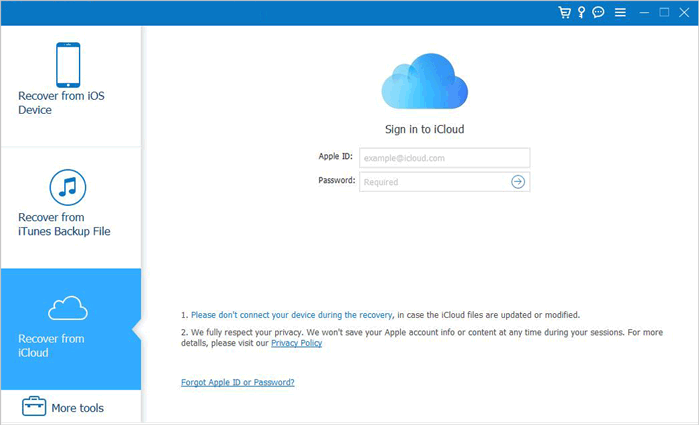
01Download and launch the software, then select "Recover from iCloud". Log in to your iCloud account. If you have two-factor authentication enabled, tap "Trust" on your iPhone. Apple will send a verification code to your device. Enter the code into the software.
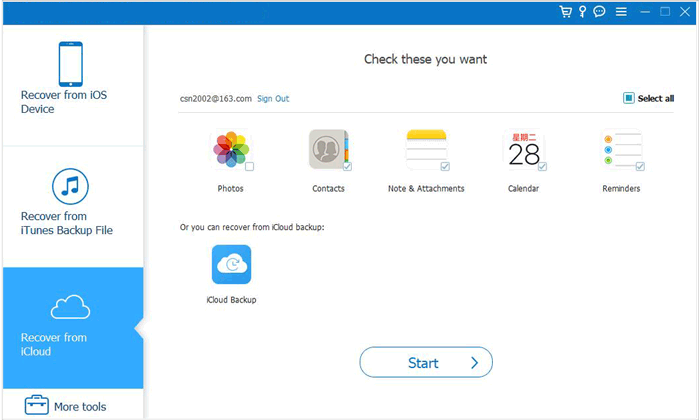
02Once connected, choose the "iCloud Backup" option and click "Start" to begin scanning the iCloud backup.
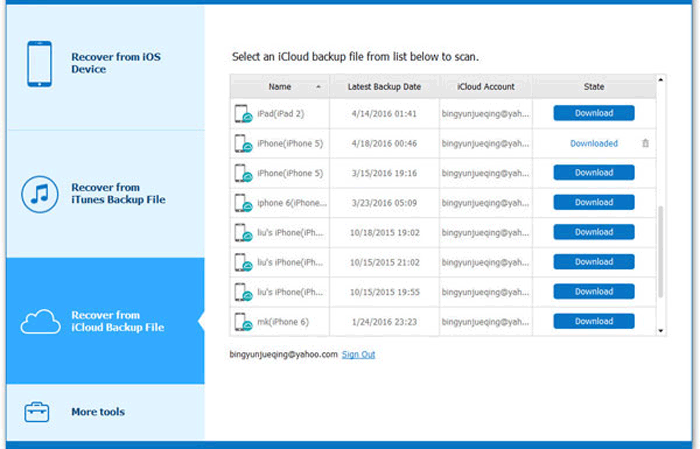
03The software will list all backup files associated with your iCloud account. Select a backup based on the device name and backup date, then click "Download" to proceed.
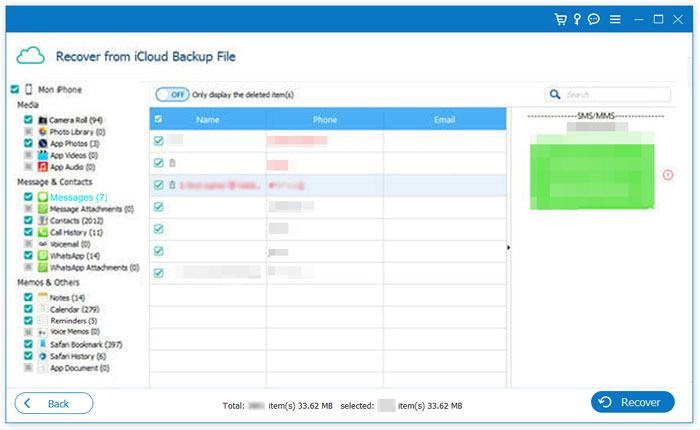
04A pop-up window will appear showing all the data types in the iCloud backup. Select "Messages" and "Message Attachments", then click "Next". The software will start scanning the iCloud backup.
05Once the scan is complete, the results will appear on the right side of the screen. Choose the deleted messages you wish to recover, and click the "Recover" button to export the selected data from the iCloud backup to your computer.
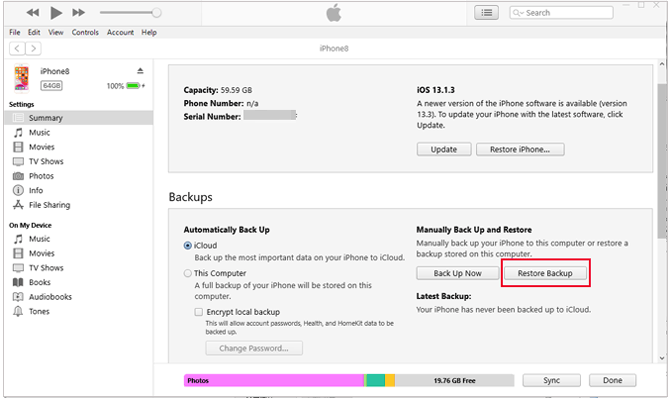
If you've previously backed up your data on your computer, restoring from iTunes or Finder may be faster and more stable. However, keep in mind that this method will overwrite the current data on your phone.
To restore messages from iTunes backup, follow the steps below:
Step 1. Connect your iPhone to your computer and open iTunes or Finder.
Step 2. Select your iPhone when it appears in iTunes, then click "Restore Backup" under the "Summary" tab.
Step 3. Choose the most recent backup file, click "Restore", and confirm the operation by entering your password.
If you're still unable to restore your messages from iCloud Backup after trying the methods above, you can reach out to the Apple Support Team for further assistance. They will get in touch with you as soon as possible.
If you're unable to restore your messages from iCloud, don't panic; most issues can be resolved using the 11 methods outlined in this article. For regular users, the most recommended solution is iPhone Data Recovery, as it can directly extract messages from your device or iTunes/iCloud backups. Its success rate is typically higher than the built-in system methods, and it doesn't overwrite your data, making it the best option for recovering lost messages.
Related Articles:
iPhone Downloading Messages from iCloud Stuck (Reasons & Fixes)
How to Fix Restore from iCloud Paused? Solved in 9 Quick Fixes
Restore from iCloud Time Remaining Estimating Stuck? Fix It Now!
How to Restore from iCloud Backup Without Reset? [2 Quick Solutions]







 Free Download for PC
  Free Download for Mac


