"After updating my iPhone 16 Pro Max to iOS 26, I can no longer use Personal Hotspot. In Settings, the option shows as 'Personal Hotspot – Off', and it is grayed out. Is anyone else facing the same issue? Any fix or workaround until Apple releases a patch?"
- from Apple Community
The iPhone's Personal Hotspot is a handy feature that allows you to share your mobile data with other devices, such as laptops or tablets, when Wi-Fi is unavailable. However, when your iPhone hotspot isn't working, it can be incredibly frustrating, especially if you need to stay connected on the go. Fortunately, there are several solutions you can try to get your hotspot back up and running. In this guide, we'll walk you through the reasons why your iPhone hotspot isn't working and how to resolve the issue.
When encountering the issue of the iPhone hotspot not working, it's important to first understand the possible causes. Common reasons include:
Below are several common solutions to help you restore the hotspot feature.
If your iPhone's personal hotspot is not working, the first step is to check if both mobile data and the hotspot feature are turned on. Sometimes the settings might be accidentally disabled, and enabling them can solve the problem.
To enable Mobile Data: Go to "Settings" > "Cellular" > Ensure "Cellular Data" is turned on.
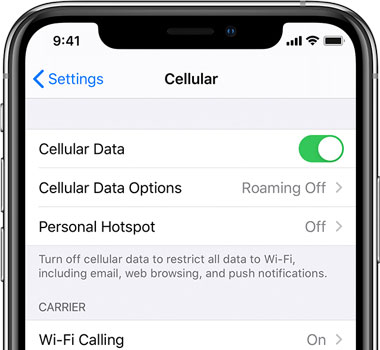
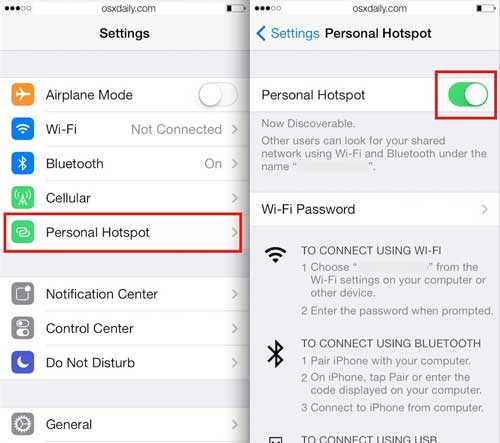
To enable the Hotspot feature: Go to "Settings" > "Personal Hotspot", and make sure "Allow Others to Join" is turned on.
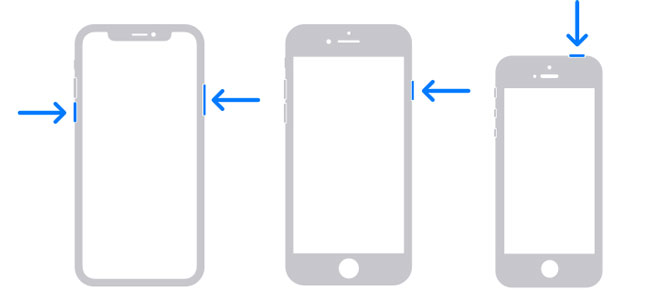
If the settings are correct and your iPhone hotspot still isn't working, the next thing you should try is restarting your iPhone. Restarting your device can resolve many temporary software glitches that might be causing the hotspot feature to malfunction.
For iPhone X, 11, 12, 13, or later:
For iPhone 6, 7, 8, or SE (2nd or 3rd generation):
For iPhone SE (1st generation), 5, or earlier:
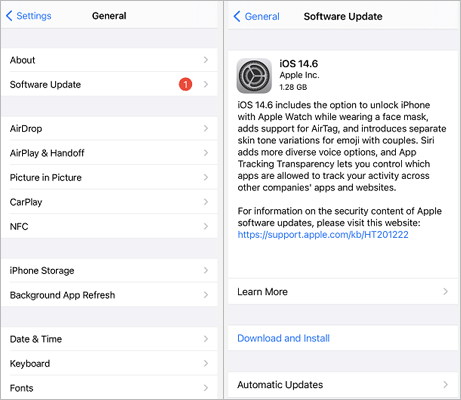
Sometimes, outdated iOS versions can cause compatibility issues with certain features, including the Personal Hotspot. If your iPhone hotspot is not showing up, updating to the latest iOS version might fix the problem by resolving bugs or improving the hotspot feature.
To update the iPhone, follow these steps:
Step 1. Go to "Settings" > "General" > "Software Update". (iPhone stuck on software update?)
Step 2. If an update is available, tap "Download and Install".
Step 3. Wait for the update to finish, and your iPhone will restart.
Step 4. Once your iPhone reboots, check the personal hotspot again in Settings.
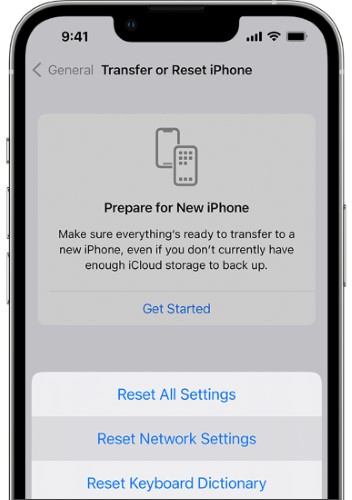
If your iPhone hotspot still cannot be found despite trying the above solutions, a more comprehensive step is to reset your network settings. This action will restore network-related settings, including Wi-Fi and cellular network configurations, to their default state.
Here are the steps:
Step 1. Go to "Settings" > "General" > "Reset".
Step 2. Select "Reset Network Settings".
Step 3. Enter your passcode to confirm.
Step 4. Your iPhone will reboot, and you'll need to reconnect to Wi-Fi networks and re-enter any VPN settings.
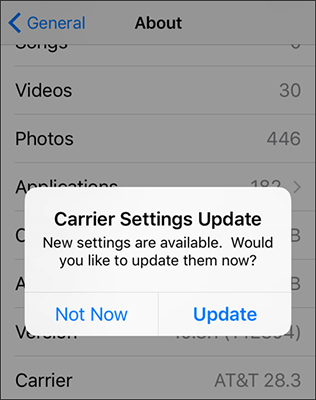
Carrier settings are periodically updated to enhance your iPhone's connection to your carrier's network. If your Personal Hotspot isn't working, it's a good idea to check for any available Carrier Settings Updates.
Here is how to do it:
Step 1. Go to "Settings" > "General" > "About".
Step 2. If there's a carrier settings update available, you'll receive a prompt to update.
Step 3. Tap "Update" if prompted and wait for the process to complete.
If none of the above solutions fix your iPhone hotspot issue, it could be due to restrictions or settings imposed by your carrier. Some carriers limit or charge extra for hotspot services, and in some cases, they may even disable the feature.
Here are the steps:
Step 1. Contact your mobile carrier's customer service or technical support team.
Step 2. Ask them to confirm whether hotspot services are available on your plan and if there are any restrictions.
Step 3. If necessary, request them to enable the hotspot feature on your account.
If you have tried all the methods and the issue is still unresolved, or if there is a serious system malfunction on your iPhone, using a professional tool for repair is a good option. iOS System Recovery is a powerful iPhone repair tool that can help fix various iOS system issues, including the problem of the iPhone Personal Hotspot not working, without any data loss during the repair process.
Main features of iOS System Recovery:
Here is how to fix the hotspot not working on iPhone 13/14/15/16/17 using iOS System Recovery:
01Download and install the software on your computer. It will launch automatically after installation.
02Connect your iOS device to the computer using a functional USB cable. Select "iOS System Recovery" and click "Start" on the next screen.

03Choose between "Standard Mode" or "Advanced Mode", then click "Confirm" to proceed.

04Verify your device information and click "Repair" to start the process. Wait for the process to complete, and your device will be restored to normal.

The issue of iPhone hotspot not working can be caused by various factors, but with the methods mentioned above, you can usually find a solution. If the problem persists, using iOS System Recovery is a safe and efficient choice to help you quickly fix the issue while protecting the data on your device from being lost.
We hope this article helps you successfully resolve the problem of your iPhone's personal hotspot not working and restore a smooth network sharing experience.
Related Articles:
9 Simple Ways to Fix the iPhone Keeps Restarting [Ultimate Guide]
[Solved] How to Fix AirDrop No People Found Problem on iPhone/iPad?
iPhone Touch Screen Not Working or Responding? Here's The Fix
How to Fix iPhone Recovery Mode Not Working? - 5 Reliable Fixes




 Free Download for PC
  Free Download for Mac


