"When scrolling through instagram reels, I will sometimes open the comments to post a comment or read them, while this is happening, the phone will lock itself in the middle of typing or reading comments, it doesn't happen when videos are playing".
- from Apple Community
If your iPhone keeps locking itself while you're using it, you're definitely not alone. Many users report that their iPhone keeps locking itself randomly even though they didn't press the Side button or wait long enough for the screen to time out. This issue can interrupt typing, gaming, video watching, or even important tasks.
Why does my iPhone keep locking itself? This guide explains why your iPhone keeps going to the lock screen unexpectedly and provides step-by-step solutions to fix the problem completely.
Before we get into the solutions, let's first understand the possible reasons that could cause the iPhone keeps locking itself when using. The following are some possible reasons:
1. Auto-lock time is set too short
The system may be set to 30 seconds or even 15 seconds, causing the screen to lock quickly.
2. Low Power Mode automatically shortens screen-on time
When the iPhone enters Low Power Mode, the system automatically shortens the screen-on duration, causing the screen to lock more frequently.
3. Temporary system failure or software bug
Minor system errors in iOS may cause the screen to remain black or automatically lock.
4. Accessibility settings are abnormal
For example, "Guided Access" or certain accessibility features may cause abnormal screen-lock behavior.
5. Battery health deterioration
If the battery is significantly degraded, the device may automatically lock the screen to save power.
6. Hardware damage
A faulty power button or screen may cause the phone to mistakenly trigger the lock screen, especially when the button is accidentally pressed.
Below, we will introduce how to fix iPhone keeps going to lock screen while scrolling, with detailed steps and applicable scenarios for each method.
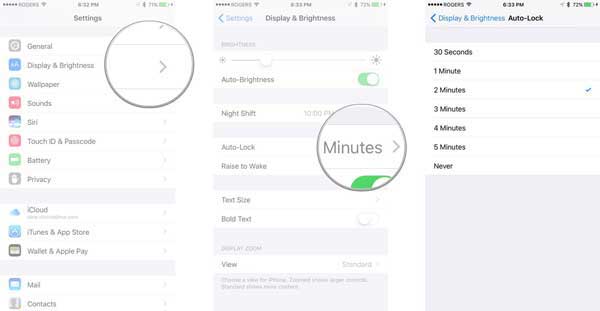
The Auto-Lock setting determines how quickly your iPhone locks the screen when there is no activity. If it's set too low, your iPhone may lock itself even while you momentarily pause your usage. This is one of the most common causes of the issue.
Here is how to check Auto-Lock settings to fix iPhone keeps going to lock screen on its own:
Step 1. Open "Settings" on your iPhone.
Step 2. Go to "Display & Brightness" and tap "Auto-Lock".
Step 3. Choose a longer duration, such as 2 Minutes, 5 Minutes, or Never.
Step 4. Test your iPhone to see if the behavior improves.
When you enable Low Power Mode, the system automatically shortens the auto-lock time to extend battery life. Therefore, even if your Auto-Lock is set to a longer time or "Never," Low Power Mode may override this setting and cause the iPhone to lock the screen after a very short period. Therefore, turning off Low Power Mode is also one of the key steps in troubleshooting.
Here is how to fix the iPhone keeps locking itself when using it by turning off the Low Power Mode:
Step 1. Open "Settings" on your iPhone.
Step 2. Tap "Battery" and toggle "Low Power Mode" off.
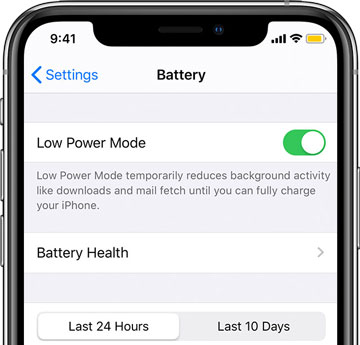
After turning it off, your iPhone should follow your regular Auto-Lock settings again.
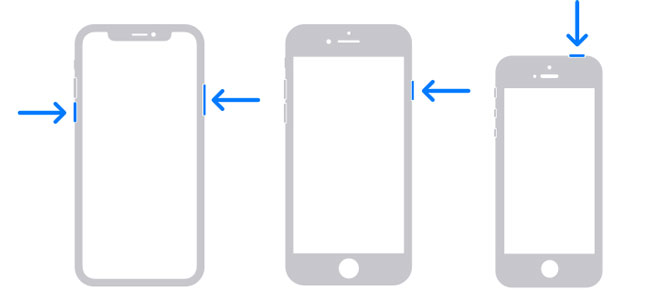
Sometimes the reason your iPhone keeps going to the lock screen is simply a temporary software glitch. Restarting your iPhone refreshes system processes, clears minor errors, and can immediately eliminate unexpected screen behavior.
For iPhone X, 11, 12, 13, or newer:
For iPhone 6, 7, 8, or SE (2nd or 3rd generation):
For iPhone SE (1st generation), 5, or earlier:
If your iPhone is running on an outdated or buggy iOS version, this could explain why your iPhone keeps locking itself randomly. Apple frequently releases updates to patch software issues and improve system stability.
Here is how to update iOS to fix iPhone 16/17 keeps going to the lock screen:
Step 1. Open "Settings" > Tap "General" > Select "Software Update". (iPhone software update failed?)
Step 2. Download and install the available update.
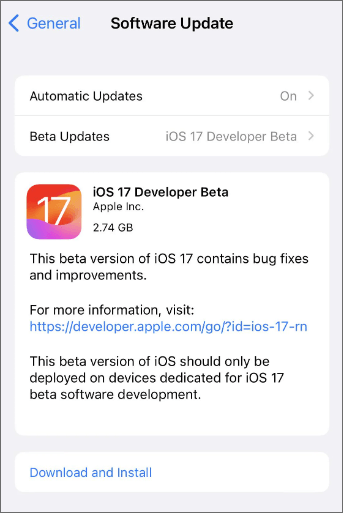
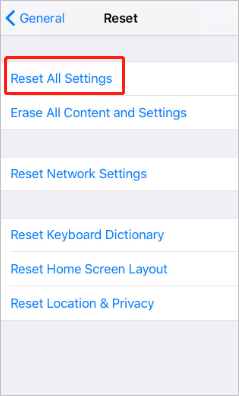
If the problem persists, it is possible that certain system configurations are conflicting with iOS operations. Resetting all settings restores every system preference to default without deleting your data. This is a powerful way to eliminate hidden software conflicts that might cause your iPhone to lock itself.
Here is how to reset all settings on your iPhone to fix iPhone keeps going to lock screen on its own:
Step 1. Go to "Settings" > Tap "General" > Select "Transfer or Reset iPhone".
Step 2. Tap "Reset" and choose "Reset All Settings".
Step 3. Enter your passcode and confirm.
When basic troubleshooting steps don't fix iPhone keeps locking itself, it could signal a more serious system malfunction that requires advanced tools.
iOS System Recovery is a powerful software designed to resolve common iOS problems with ease. This tool can fix system errors without losing any data, making it a great solution for issues like iPhone keeps going to the lock screen. Additionally, it can address a wide range of iOS glitches, including iPhones stuck on the Apple logo, black or white screens, and endless reboot loops.
Highlights of iOS System Recovery:
How to use iOS System Recovery to fix iPhone keeps locking itself without losing data:
01Install and launch iOS System Recovery on your Windows/Mac computer. Connect your iPhone via USB and select "iOS System Recovery".

02Click "Start", and the software will begin detecting issues with your iPhone.

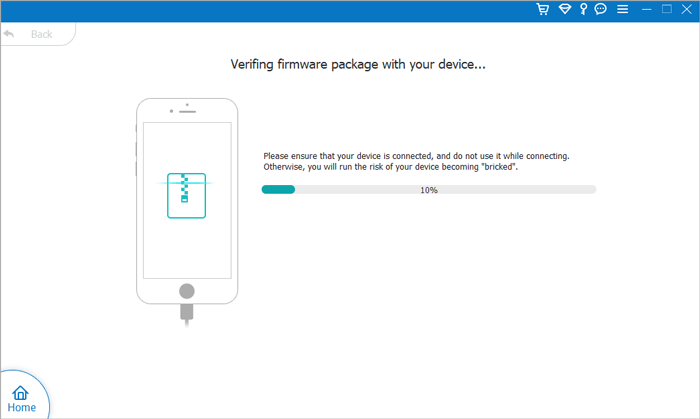
03Choose your repair mode, select your iPhone model from the list, and click "Repair".

04The software will download the necessary firmware to fix your iPhone. Once the download is complete, your iPhone will be restored to normal.
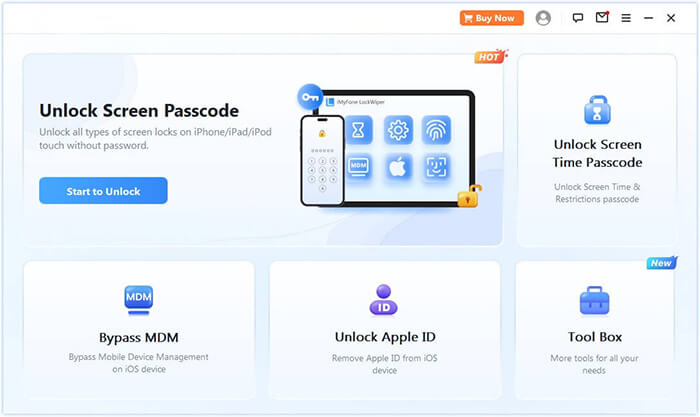
If your iPhone locks itself repeatedly and you eventually get locked out, or if you forgot the screen passcode, iPhone Unlocker can help you unlock your device without requiring a password. It's designed for situations where you lose access to your iPhone. What's more, this iOS unlocking tool can also remove Apple ID from iOS devices, bypass MDM restrictions, and bypass screen time limits.
Here is how to use this tool to unlock the iOS screen without a password:
01Launch iPhone Unlocker, select the "Unlock Screen Passcode" mode, and click "Start to Unlock". Then, connect your iPhone to your computer using a USB cable.
02Follow the on-screen instructions to put your device into Recovery Mode or DFU Mode. Once your iPhone is detected, choose a destination to save the firmware package and click "Download".
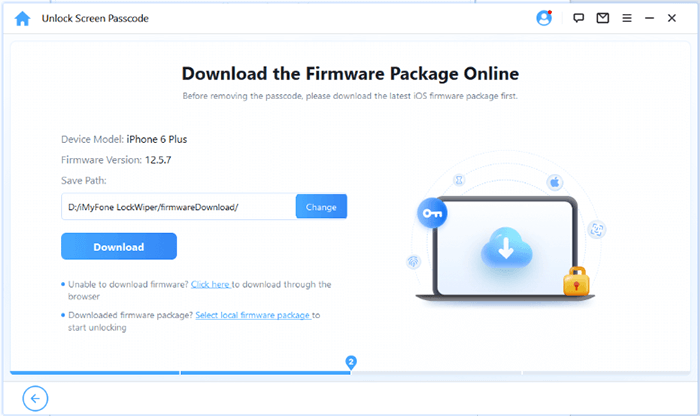
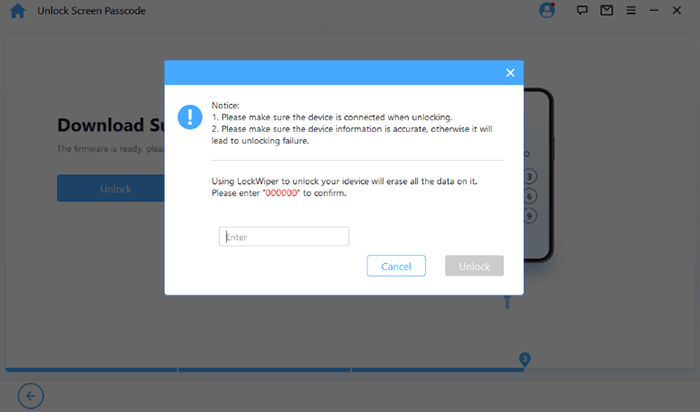
03After the firmware has finished downloading, click "Unlock". Carefully review the warning message, enter "000000" to confirm, and click "Unlock" again to proceed.
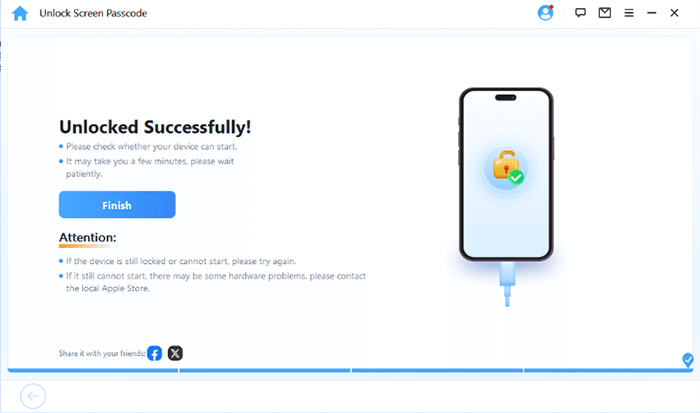
04In just a few minutes, your iPhone's screen passcode will be completely removed. You can then set up a new passcode, Face ID, or Touch ID as needed.
When you encounter the "iPhone keeps locking itself" issue, it is usually caused by auto-lock settings, low power mode, or system bugs. You can follow the methods outlined in the article to troubleshoot and fix the issue, and in most cases, your iPhone will return to normal quickly. If you need a more thorough solution with no data risk, you may also consider using iOS System Recovery. And if you face difficulties unlocking your device due to repeated auto-locking or forgotten passwords, iPhone Unlocker is also a helpful tool.
By following the above methods, you should be able to resolve the "iPhone keeps going to lock screen" issue and get your phone back to normal. If you have any questions, feel free to leave a comment below.
Related Articles:
iPhone Unavailable Lock Screen? Here're 4 Solutions to Fix It!
How to Fix iPhone Clicking on Its Own in 11 Practical Ways?
5 Ways to Fix the iPhone Frozen on Lock Screen Issue with Ease
How to Fix an iPhone Stuck on Loading Screen Quickly & Safely?







 Free Download for PC
  Free Download for Mac


