TL;DR: iPhone not receiving texts? Don't miss important messages, verification codes, or notifications anymore. This guide reveals 10 proven solutions to fix iPhone message issues, from network and iMessage settings to advanced iOS repair. If common fixes don't work, iOS System Recovery can quickly repair system errors and restore your iPhone's messaging function without data loss.
Have you ever repeatedly checked your iPhone only to find that you still haven't received any new messages? iPhone not receiving texts is a common issue that many users experience. Whether your iPhone cannot receive regular SMS messages, iMessages, or verification code texts, this problem can affect daily communication and account verification.
If your iPhone suddenly stops receiving texts, there is no need to panic. In this article, we will explain why your iPhone is not receiving texts and provide 10 effective solutions to help you quickly restore normal message reception.
Why am I not getting incoming texts on my iPhone? Before troubleshooting the issue, it is important to understand the common reasons why your iPhone is not receiving texts. Here are some possible causes:
If your iPhone cannot receive text messages, you can follow the methods below to troubleshoot the issue one by one.
iPhone not receiving texts on Wi-Fi? Text messaging relies on your carrier network. If your iPhone has no signal, it may not be able to receive text messages. You can try the following steps:
Step 1. Check the status bar at the top of your iPhone screen to confirm whether you have a cellular signal.
Step 2. Open "Control Center" and make sure "Airplane Mode" is turned off.
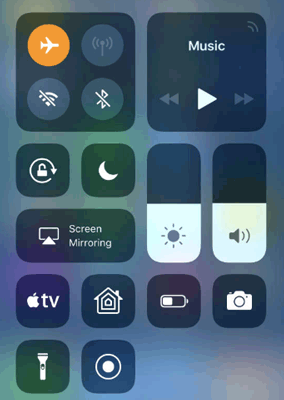
Step 3. Turn cellular data off and then turn it back on.
Step 4. If you are currently connected to Wi-Fi, try switching to a mobile network.
Step 5. Wait a few seconds and allow your iPhone to reconnect to your carrier network.
Your iPhone relies on network settings to send and receive SMS messages and iMessages. If these settings are incorrect or corrupted, you may not receive texts from Android devices or other iPhones. Resetting the network settings can help resolve this issue.
Here is how to do it:
Step 1. Go to "Settings" > "General" > "Transfer or Reset iPhone" > "Reset" > "Reset Network Settings".
Step 2. Enter your passcode if required, then confirm the reset.
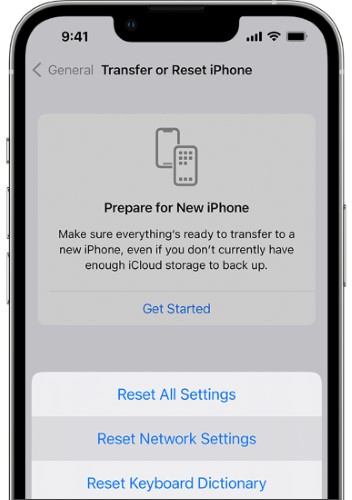
Keep in mind that resetting network settings will remove saved Wi-Fi networks, passwords, and other network-related settings.
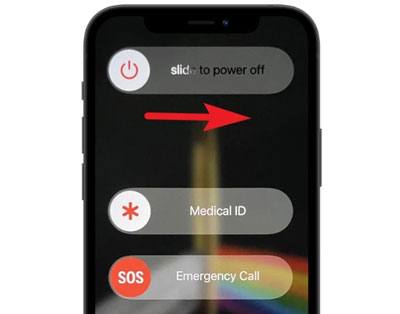
Many iPhone text message receiving issues are caused by temporary system glitches, and restarting the device can refresh system services and resolve these problems. To restart the iPhone, follow these steps:
Step 1. Press and hold the "Side" button and either "Volume" button until the power-off slider appears, then drag the slider to turn off your iPhone.
Step 2. Wait for about 30 seconds, then press and hold the "Side" button until the Apple logo appears to restart your device.
Step 3. Open the Messages app and check whether your iPhone can receive new text messages.
If you can only receive iMessages but cannot receive regular text messages (green bubble messages), there may be an issue with your iMessage settings.
You can check it using the following steps:
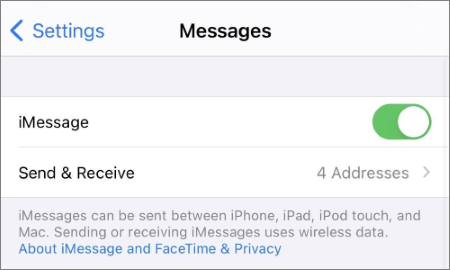
Step 1. Go to "Settings" > "Messages", then make sure "iMessage" is enabled.
Step 2. Tap "Send & Receive" and verify that your phone number and Apple ID are correctly connected.
Step 3. If iMessage is not working properly, try turning off iMessage, waiting a few seconds, and then turning it back on.
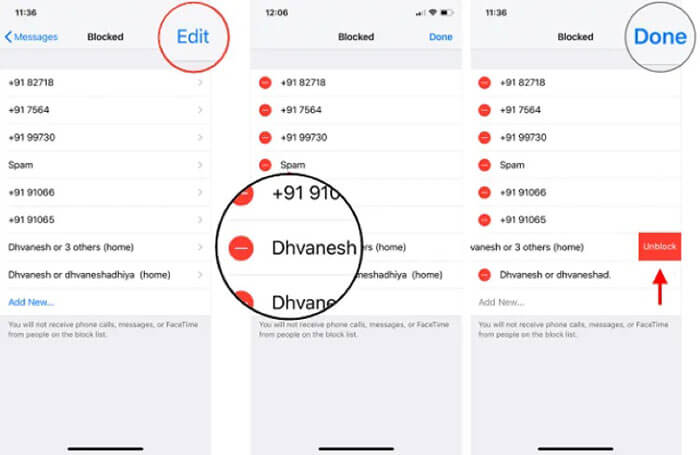
If your iPhone is not receiving texts from one person, the contact may have been blocked accidentally. When a number is blocked, all incoming messages from that contact will be automatically stopped. Checking your blocked contacts list can help you quickly identify whether this is causing the issue.
Here is how to do it:
Step 1. Open "Settings" > "Messages" > "Blocked Contacts" to view your blocked numbers.
Step 2. Swipe left on the contact or number you want to unblock, then tap "Unblock".
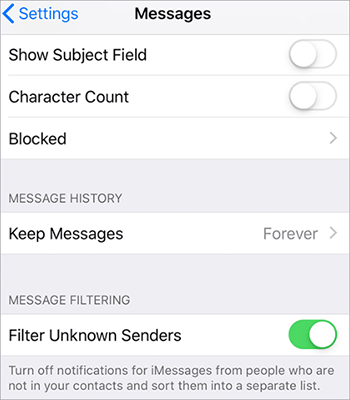
If you are not receiving messages from unknown senders, they may be filtered into a separate list. You can disable message filtering or add the sender to your contacts. Here are the steps:
Step 1. Go to "Settings" > "Messages" and check whether "Filter Unknown Senders" is enabled.
Step 2. If it is turned on, disable this feature to allow messages from unknown senders to appear in your inbox.
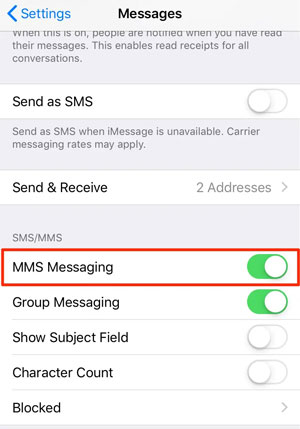
If your iPhone is not receiving pictures or videos, the problem may be related to MMS settings. MMS requires both carrier support and mobile data, so incorrect settings can prevent these messages from appearing. Turning on MMS messaging allows your iPhone to receive multimedia content properly. Follow these steps:
Step 1. Go to "Settings" > "Messages" and find the "MMS Messaging" option.
Step 2. Turn on "MMS Messaging" and make sure "Cellular Data" is enabled.
Step 3. Restart your iPhone and try sending or receiving MMS messages again.
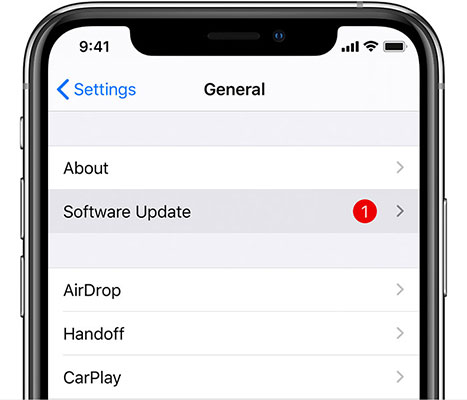
Apple regularly releases iOS updates to fix bugs and improve system performance. If your iPhone is running an outdated version, system errors may affect the Messages app and cause the iPhone not receiving texts or calls problem. Updating iOS can repair compatibility issues and improve overall stability.
Here is how to do it:
Step 1. Open "Settings" > "General" > "Software Update".
Step 2. If a new iOS update is available, tap "Download and Install" to update your iPhone.
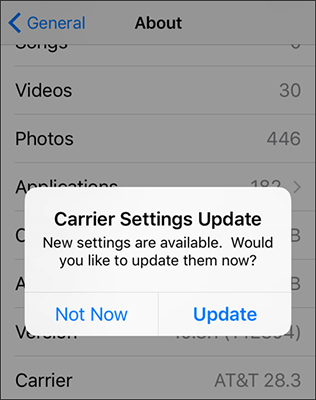
Carrier settings manage the connection between your iPhone and your mobile network. If these settings are outdated, they may prevent your iPhone from receiving text messages properly. Follow the steps below to update your carrier settings:
Step 1. Go to "Settings" > "General" > "About" and wait a few seconds.
Step 2. If a carrier settings update notification appears, tap "Update".
Step 3. After the update is completed, restart your iPhone and check whether text messages are working normally.
If the above methods fail to fix the iPhone not receiving texts issue, the problem may be caused by a deeper iOS system error. In this case, you can try a professional iOS system repair tool, such as iOS System Recovery.
It can help fix various iPhone system issues, including not receiving texts on iPhone, iPhone stuck in recovery mode, iPhone black screen or Apple logo issues, iOS update failures, and more, without requiring advanced technical skills. Additionally, the Standard Mode can repair system problems without causing data loss.
The highlights of iOS System Recovery:
Here is how to fix iPhone not receiving texts after update using iOS System Recovery:
01Download and install iOS System Recovery on your computer, then launch the program and connect your iPhone with a USB cable.
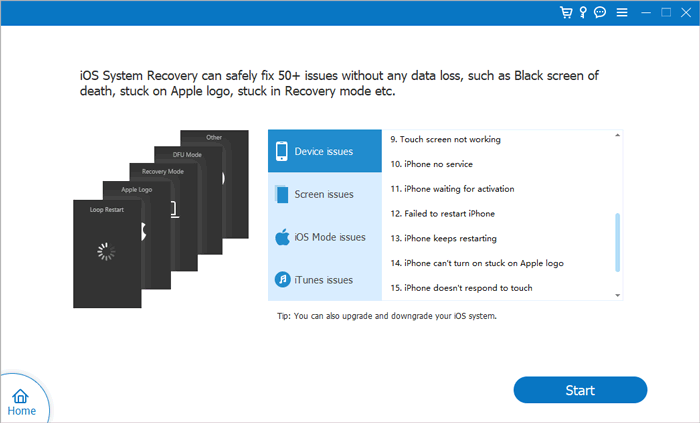
02Select "iOS System Recovery" from the main interface and click "Start" to detect and fix iOS system issues that may cause your iPhone not to receive texts.
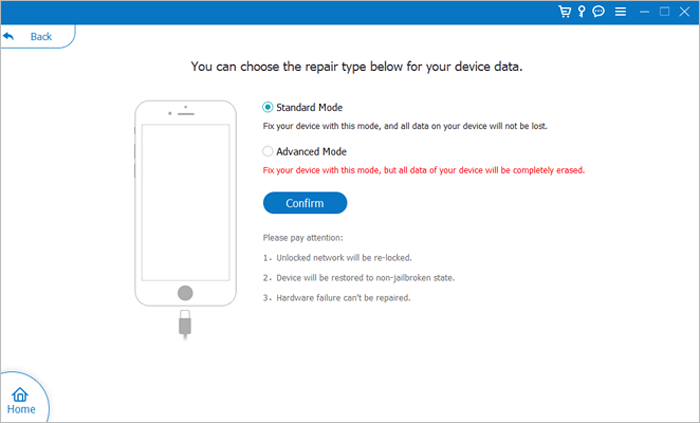
03Choose "Standard Mode" to repair iOS system errors without deleting your personal data, then click "Confirm" to proceed.
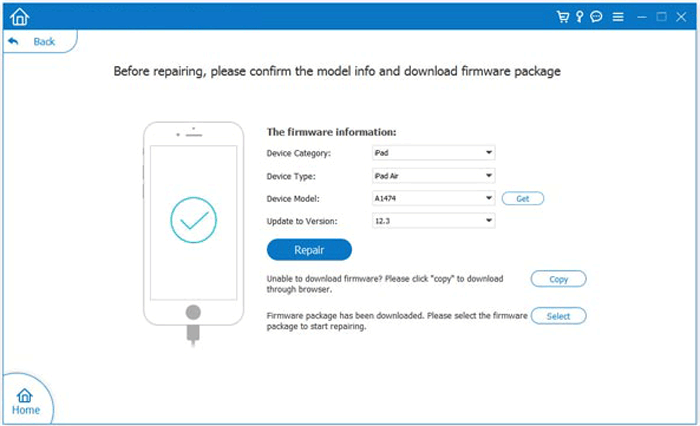
04Check your iPhone information, download the matching firmware package, and click "Repair" to start fixing the system problems causing the iPhone not receiving texts issue.
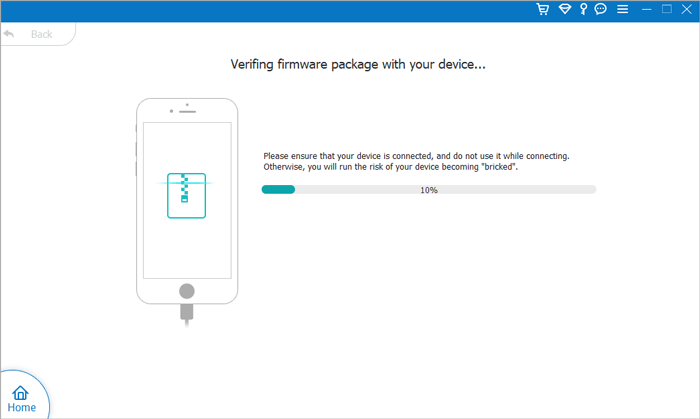
05Wait for the repair process to complete. Your iPhone will restart automatically. After that, open the Messages app and check whether you can receive text messages normally.
iPhone not receiving texts can interrupt your daily communication and cause you to miss important messages, verification codes, or notifications. Fortunately, this article provides 10 effective solutions to help you fix the issue and restore normal messaging functions.
If you need a safer and more efficient way to solve system-related problems, iOS System Recovery can help repair iPhone issues without complicated operations. Try these methods today and make sure you never miss an important text again.
Related Articles:
Fix Switched from iPhone to Android Not Receiving Texts with 7 Solutions
Android Not Receiving Texts from iPhone? Reasons and 10 Solutions
How to Fix iPhone Not Sending Texts to Android (2026 Full Guide)




 Free Download for PC
  Free Download for Mac


