TL;DR: Not receiving verification code texts on iPhone can prevent you from accessing important accounts and completing verification steps. This guide explains the common reasons behind iPhone verification code issues and provides 11 effective fixes, including refreshing network connections, checking settings, updating system configurations, and repairing iOS system problems. If the issue persists, iOS System Recovery offers a professional solution to help restore normal SMS verification without data loss.
Not receiving verification code texts on iPhone is a common issue faced by many users, especially when logging into Apple ID, bank accounts, social media platforms, or other services that require SMS verification. When verification codes fail to arrive on your iPhone, it can prevent you from accessing accounts and completing important actions.
There are many possible reasons why your iPhone is not receiving verification code texts. This article will analyze the common causes of not receiving verification code texts on iPhone and provide multiple effective solutions to help you quickly restore the ability to receive verification messages.
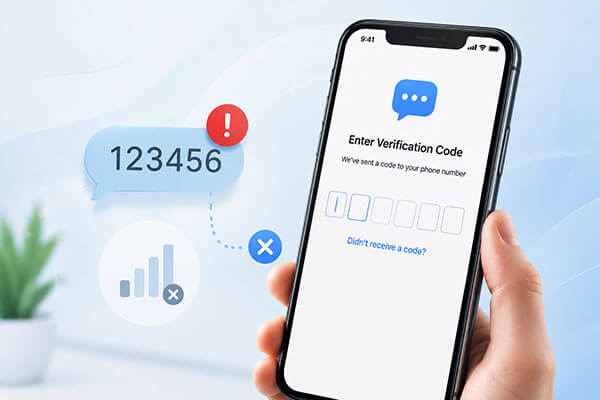
There are many reasons why an iPhone may not receive verification code texts. Common causes include:
What do I do if I haven't received my SMS verification code? You can find the solutions in the next part.
If your iPhone is not receiving verification code texts, you can follow the methods below to troubleshoot and fix the issue step by step.
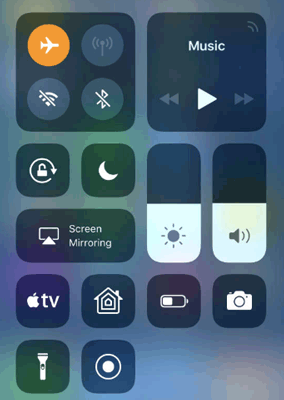
Airplane Mode can quickly refresh your iPhone's network connection. Turning it on and off forces your device to reconnect to the carrier network, which may fix temporary issues preventing verification texts from arriving. Here are the steps:
Step 1. Open Control Center, turn on "Airplane Mode", wait for 10 seconds, then turn it off to reconnect your iPhone to the cellular network.
Step 2. Request a new verification code and check if the SMS is received.
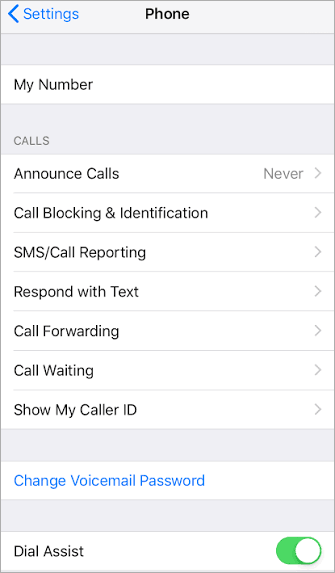
In many cases, not receiving iPhone verification texts is not caused by an iPhone issue, but by an incorrect phone number linked to your account. To check your phone number, follow the steps below:
Step 1. Open "Settings", scroll down, and tap "Phone".
Step 2. Tap "My Number" and make sure the phone number is correct.
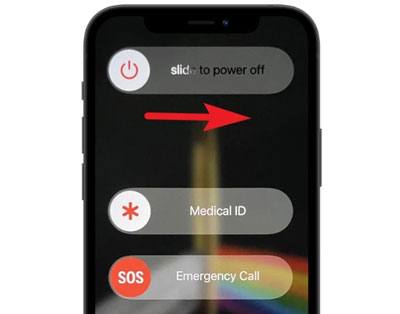
Restarting your iPhone can clear temporary system errors and refresh background services related to Messages and network connections. If your device has been running for a long time, minor software glitches may prevent SMS messages from being delivered properly. Here is how to restart the iPhone:
Step 1. Press and hold the "Side" button and either "Volume" button, then drag the power-off slider to turn off your iPhone.
Step 2. Wait a few seconds, then restart your iPhone by holding the "Side" button and requesting a new verification code.
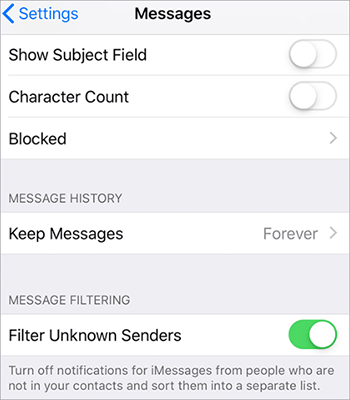
iPhone includes a message filtering feature that separates messages from unknown senders. While this feature helps reduce spam, it may sometimes hide important verification texts from services that are not saved in your contacts. If you receive other SMS messages normally but cannot find verification codes, checking your message filtering settings may solve the problem.
Here is how to do it:
Step 1. Open "Settings", tap "Messages", and select "Unknown & Spam".
Step 2. Turn off "Filter Unknown Senders" to prevent verification texts from being filtered as spam.
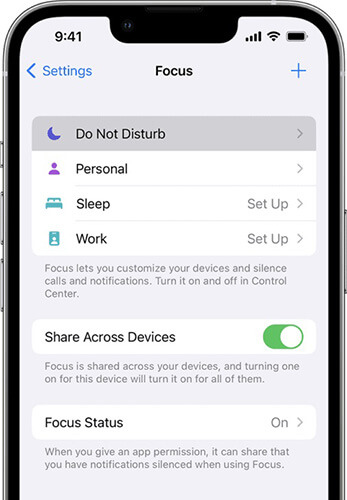
Focus Mode and Do Not Disturb are designed to minimize interruptions, but they may prevent you from seeing SMS notifications immediately. In some cases, users think they are not receiving verification texts when the messages are actually arriving silently.
Checking your notification settings can help confirm whether the problem is caused by hidden alerts rather than failed SMS delivery. Here are the steps:
Step 1. Open "Settings", tap "Focus", and check if "Do Not Disturb" or another Focus mode is enabled.
Step 2. Turn off "Focus Mode" temporarily and make sure Messages notifications are allowed.
Step 3. Request the verification code again and check if the message arrives.
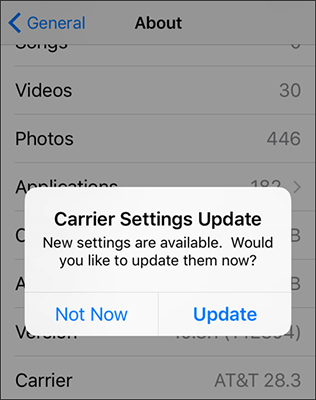
Carrier settings help your iPhone communicate correctly with your mobile network provider. These settings control important features such as cellular connectivity, SMS messaging, and network performance. If your carrier settings are outdated, your iPhone may experience problems such as not receiving verification code texts on iPhone or delayed SMS delivery. Updating carrier settings is a simple but effective solution.
Follow these steps:
Step 1. Connect your iPhone to Wi-Fi or enable cellular data, then open "Settings" > "General" > "About".
Step 2. If a carrier settings update appears, tap "Update" and restart your iPhone.
Step 3. Request a new verification code to check if the SMS is received.
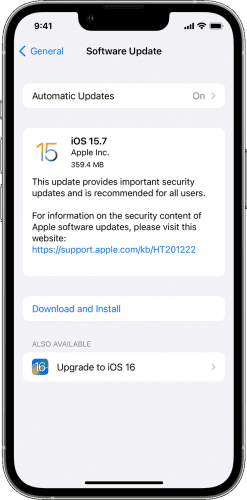
An outdated iOS version may cause issues like iPhone not getting verification texts. Updating to the latest iOS can fix software bugs and improve system performance. Make sure your iPhone has enough storage and a stable internet connection before updating.
To update your iPhone, follow the steps below:
Step 1. Open "Settings", tap "General", and select "Software Update" to check for available updates.
Step 2. Tap "Download and Install" to update your iPhone. (iPhone won't update?)
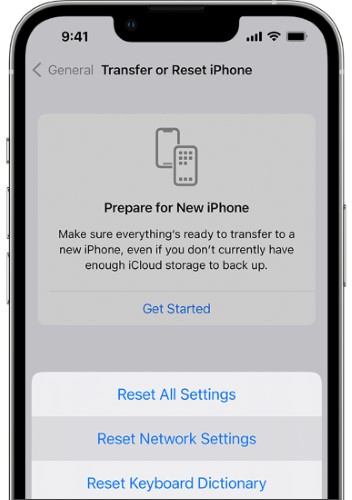
Incorrect network settings can prevent your iPhone from connecting to carrier messaging services. Resetting network settings can reconfigure Wi-Fi, cellular, and SMS-related connections. Here is how to do it:
Step 1. Open "Settings", tap "General", and select "Transfer or Reset iPhone".
Step 2. Tap Reset and choose "Reset Network Settings".
Step 3. Enter your iPhone passcode if prompted.
Step 4. Confirm the reset and wait for your iPhone to restart.
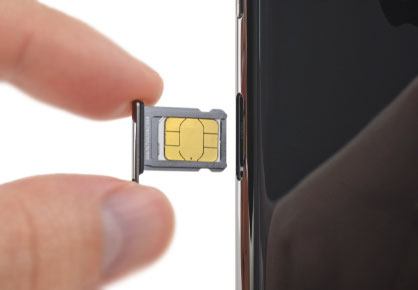
The SIM card allows your iPhone to connect with your mobile carrier. If the SIM card is loose, damaged, or incorrectly installed, your device may lose cellular communication and fail to receive SMS verification codes.
Follow these steps to reinsert the SIM card:
Step 1. Turn off your iPhone, then use a SIM ejector tool to remove the SIM card.
Step 2. Wait about 10 seconds and reinsert the SIM card into the slot.
Step 3. Turn on your iPhone and check if you can receive verification texts.
If the above methods do not fix the iPhone not receiving verification code texts issue, there may be a deeper software problem with the iOS system. In this case, you can use a professional iOS system repair tool, such as iOS System Recovery. It can help fix various iPhone system issues, including SMS receiving problems, system crashes, and device malfunctions. By repairing iOS system files, it resolves software-related errors without deleting your personal data.
Key features of iOS System Recovery:
Here is how to fix not receiving verification code texts on iPhone using iOS System Recovery:
01Download and install iOS System Recovery on your computer, then launch the program and connect your iPhone using a USB cable.
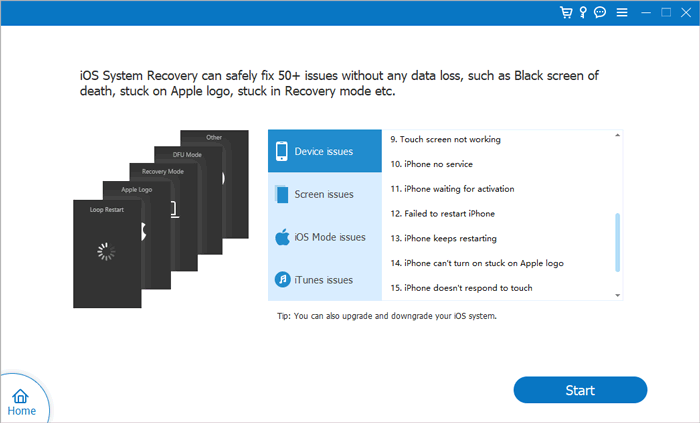
02Choose "iOS System Recovery" from the main interface and click "Start" to diagnose and fix iPhone system problems that may prevent verification code texts from arriving.
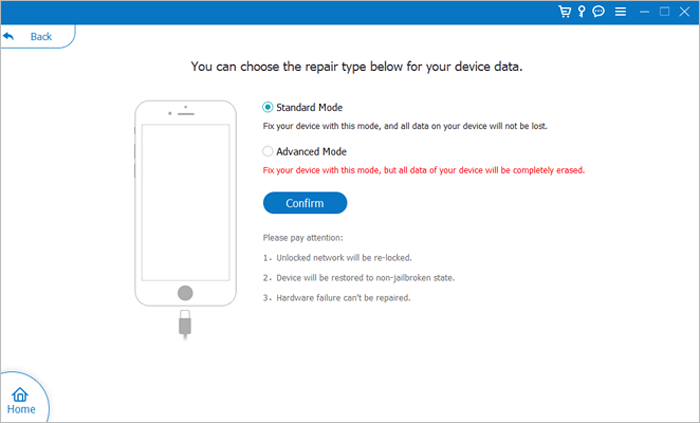
03Select "Standard Mode" to repair iOS system errors without deleting your personal data, then click "Confirm" to continue.
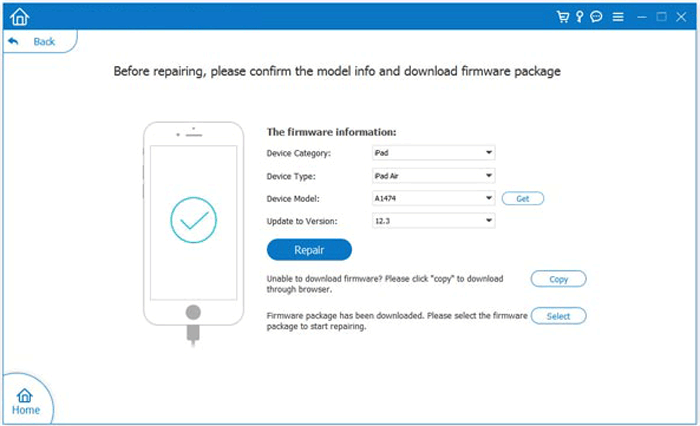
04Check your iPhone information, download the appropriate firmware package, and click "Repair" to begin fixing the system issues related to not receiving verification code texts on iPhone.
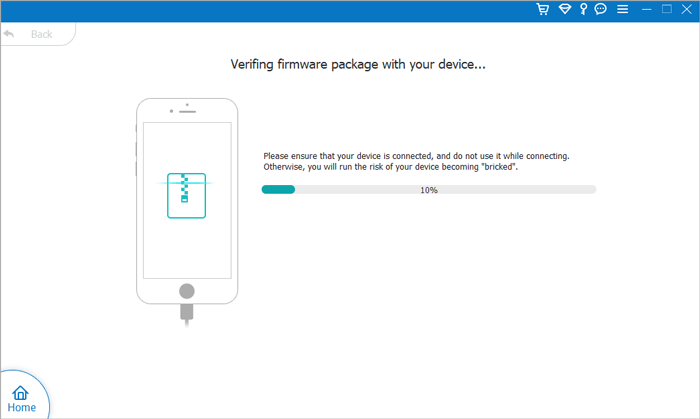
05Wait until the recovery process is completed. Your iPhone will restart automatically. After that, request a new verification code and check whether SMS verification messages are received normally.
If everything appears to be working properly but you still are not receiving verification code texts on your iPhone, the issue may be related to your mobile carrier.
Some carriers block certain types of messages, including short-code SMS messages used by verification services. There may also be account restrictions, network outages, or SMS service issues that can only be resolved by your carrier. When other troubleshooting methods fail, contacting your carrier is the best option.
If you are facing the issue of not receiving verification code texts on iPhone, using the right solution can help restore normal SMS verification and ensure that you receive important codes without delays. When common troubleshooting methods cannot solve the problem, iOS System Recovery provides a professional way to repair iPhone system issues and bring your device back to normal operation. With its simple process and effective repair capabilities, you can quickly fix verification code problems and continue accessing your accounts smoothly.
Related Articles:
11 Ways to Fix Not Receiving Verification Code Texts on Android
Fix Switched from iPhone to Android Not Receiving Texts with 7 Solutions
[Top 4 Ways] How to View iPhone Text Messages on Computer (PC & Mac)




 Free Download for PC
  Free Download for Mac


