TL;DR:
To fix iPhone notification sounds not working, check sound settings first, then troubleshoot possible iOS issues.
A notification pops up on your iPhone, but there's no sound to go with it. You might miss an important message, overlook a work email, or keep checking your phone just to see whether anything new has arrived. What's confusing is that your iPhone may still display notifications normally, making the problem harder to pinpoint. The good news is that silent alerts don't necessarily mean a hardware failure. Here are 10 ways to troubleshoot the issue and get your iPhone notification sounds working again.
If your iPhone receives notifications but makes no sound, several settings or software issues could be responsible. The most common causes include:
If your iPhone is in Silent Mode, incoming notifications may not play sound alerts. So, check whether Silent Mode is enabled and turn it off if necessary.
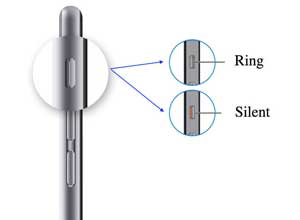
After that, ask someone to send you a test message or notification to see whether the sound works again.
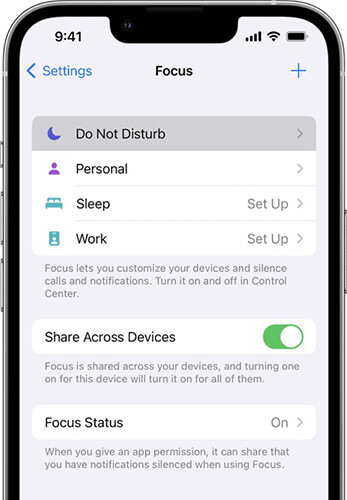
Focus modes, especially Do Not Disturb, can silence incoming notifications on your iPhone. If you have enabled one of these modes, you may receive messages and app alerts without hearing a sound.
To check, open Control Center by swiping down from the upper-right corner of your screen. Tap "Focus" and select the currently active mode to turn it off. If Do Not Disturb, Sleep, or another Focus mode is enabled, disable it temporarily. (iPhone Do Not Disturb Not Working?)
You can also go to "Settings" > "Focus" to check whether any Focus schedules or automatic activation rules are keeping your iPhone silent. Once disabled, ask someone to send you a test notification and see if the sound returns.
Your iPhone may be receiving notifications normally, but the alert volume could be too low to hear. Unlike media volume, notification volume is controlled by the "Ringtone and Alerts" setting.
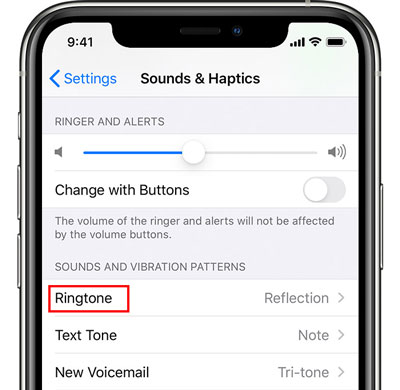
Once adjusted, wait for a new notification or ask someone to send you a test message to see if you can hear the alert.
If notification sounds work for some apps but not others, the problem may be related to individual app settings. Your iPhone lets you control notification sounds separately for each app, so make sure the sound option hasn't been disabled.
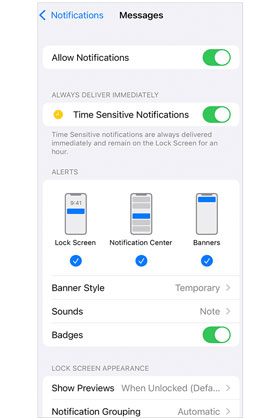
Repeat these steps for other affected apps. Then, wait for a new notification to see if the sound has returned.
Note: Some apps manage notification sounds through their own in-app settings. If you still don't hear alerts, open the app and check its notification preferences as well. (iPhone Text Sound Not Working?)
If your iPhone notification sounds are still not working, try changing the current alert tone. The selected sound may be too quiet, or a temporary glitch may be affecting how it plays. Choosing a different tone can help you check whether the problem is related to the sound itself.
Now, wait for a new alert to see whether your iPhone plays the newly selected sound.
If your iPhone is connected to AirPods, wireless headphones, or a Bluetooth speaker, audio routing may affect where notification sounds are played. Disconnecting these devices can help you determine whether they're causing the problem.
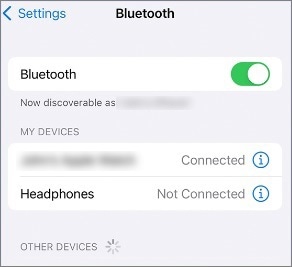
If notification sounds work again after disconnecting the device, reconnect your Bluetooth accessories one at a time to identify the possible source of the issue. (How to Fix iPhone Keeps Beeping?)
Sometimes, notification sounds stop working because of temporary iOS glitches or background processes. A simple restart can clear these minor issues and restore normal sound alerts without affecting your personal data.
The restart process varies slightly depending on your iPhone model:
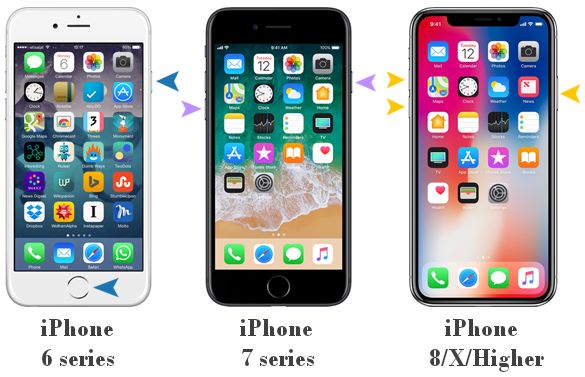
If your iPhone notification sounds stopped working after a software update or have been affected by system bugs, installing the latest iOS version may help. Apple regularly releases updates to fix known issues and improve system stability.
To check for updates:
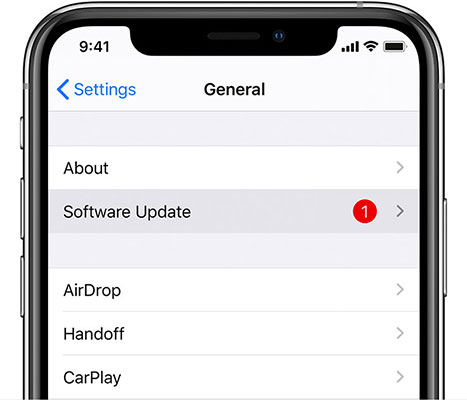
Make sure your iPhone has enough battery power and a stable Wi-Fi connection before updating. Once the update is complete, check whether notification sounds have returned.
If none of the previous methods work, some incorrect system settings may be preventing notification sounds from playing. In this case, resetting all settings can help restore the default configuration without deleting your personal files, photos, or apps.
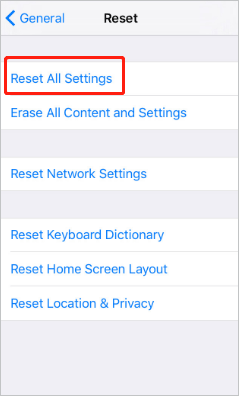
After the reset, check whether notification sounds work normally again.
Note: This process won't erase your personal data, but it will reset settings such as Wi-Fi passwords, network preferences, privacy permissions, and location settings. You'll need to configure some of them again. (Reset All Settings vs Erase All Content: How to Choose?)
If your iPhone notification sounds are still not working after trying the previous solutions, an underlying iOS system issue may be responsible. In this case, you can try iOS System Recovery to repair potential system errors without complicated manual troubleshooting. It offers several repair and management features to help restore normal iPhone operation, making it worth considering when ordinary fixes don't work.
Key features of iOS System Recovery include:
How to use iOS System Recovery to repair your iPhone notification sounds:
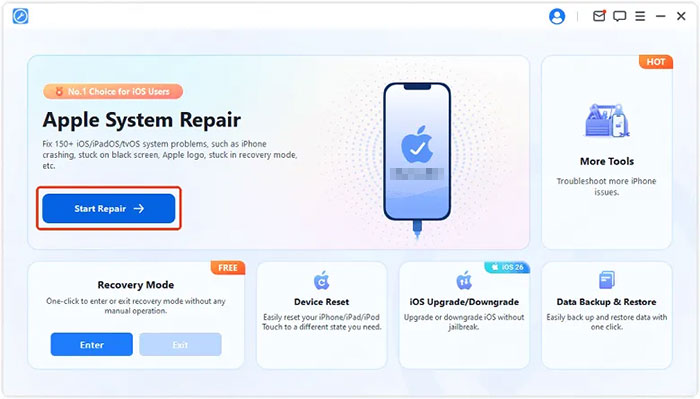
01Download and launch iOS System Recovery on your computer. Select "Apple System Repair" and click "Start Repair".
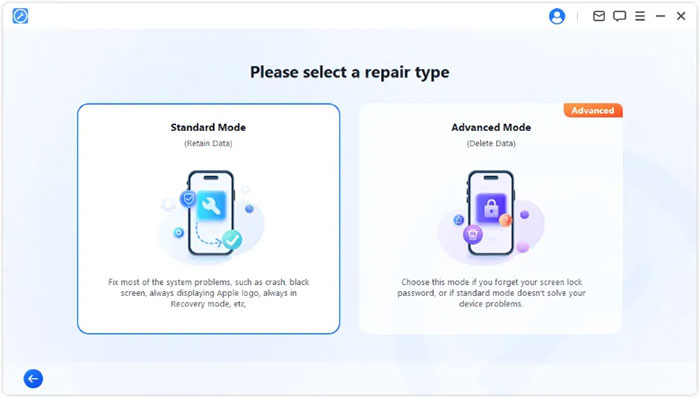
02Choose "Standard Mode" to fix common iOS issues without losing data. If the repair fails, you can try again or switch to "Advanced Mode".
03Connect your iPhone to the computer. The program will detect your device and display compatible firmware versions. Select one and click "Download". If your iPhone isn't detected, follow the prompts to enter Recovery Mode.
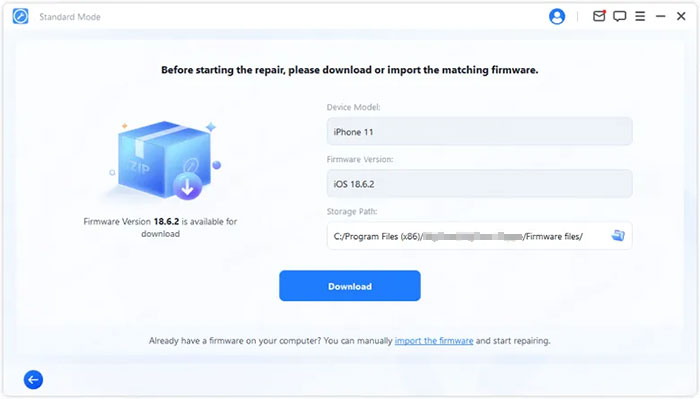
04After downloading the firmware, click "Start Standard Repair" and wait for the process to finish. Keep your iPhone connected and avoid using it during the repair. Your device will restart automatically when the repair is complete.
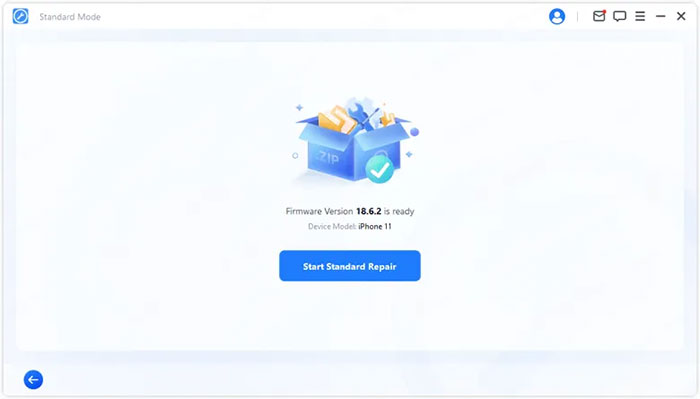
Once finished, check whether your iPhone notification sounds are working again.
Q1: Why does my iPhone only vibrate but not make notification sounds?
This may happen if your iPhone is set to Silent Mode, the alert volume is too low, or the notification sound settings are disabled. Some apps also allow vibration alerts without sound. Check both your iPhone's sound settings and the notification preferences of the affected apps.
Q2: Why are my iPhone notifications silent even when I'm using the phone?
Some notifications may be delivered quietly depending on your notification settings. Also, certain apps may use different alert behaviors when you're actively using them. Check whether the affected app has sound alerts enabled and whether any Focus settings are restricting notifications.
Q3: Why do I hear notification sounds on my iPhone but not see any alerts?
Your iPhone may play notification sounds without displaying banners if the alert style is configured differently. Go to "Settings" > "Notifications", select the affected app, and check whether "Lock Screen", "Notification Center", and "Banners" are enabled as needed.
Q4: Why does my iPhone make notification sounds randomly?
Random notification sounds may come from different apps, background activities, or system alerts. To identify the source, check your recent notifications and review which apps are allowed to send alerts. You can also temporarily disable notifications for individual apps to narrow down the cause.
Q5: Why are notification sounds not working on my iPhone after a call?
If notification sounds stop after a phone call, a temporary audio or software glitch may be responsible. Try locking and unlocking your iPhone, disconnecting any connected audio accessories, or restarting the device. If the issue keeps happening, check whether an iOS update is available.
Q6: Can I receive iPhone notifications without sound?
Yes. iPhone allows you to receive notifications silently while still displaying them on the Lock Screen or in Notification Center. You can disable sounds for individual apps while keeping their visual alerts enabled. This is useful when you want to stay informed without being disturbed.
When iPhone notification sounds stop working, the cause is often something simple, such as Silent Mode, Focus settings, or an app-specific notification option. Work through the solutions above to identify what's preventing your alerts from playing. If the usual adjustments and iOS update don't help, consider using iOS System Recovery to address potential system issues. With the right fix, you can get your notification alerts back without unnecessary troubleshooting.
Related Articles:
Not Enough iCloud Storage? Fix This Issue with This Full Guide
4 Ways on How to Delete Music from iPhone But Not iTunes
[Full Guide] How to Delete Messages from iCloud But Not iPhone?
How to Free up Space on iPhone/iPad without Deleting Apps [9 Possible Ways]




 Free Download for PC
 Free Download for Mac


