Are you missing important messages because your iPhone text sound is not working? Whether your iPhone text sound is not working when locked, or even your iPhone text sound is not working for one contact, this issue can be frustrating and confusing. The good news is that most cases of Apple iPhone text sound not working are caused by simple settings or minor system glitches, not hardware damage.
In this guide, we'll explain why my iPhone text message sound is not working and walk you through 10 proven fixes step by step.
Before jumping into solutions, it's important to understand why my text message notification sound is not working on my iPhone. Identifying the root cause helps you fix the problem faster and avoid unnecessary steps. When the iPhone text sound is not working, it may be caused by the following reasons:
Below are 9 effective methods to fix the iPhone text message sound not working. Follow them in order for the best results.
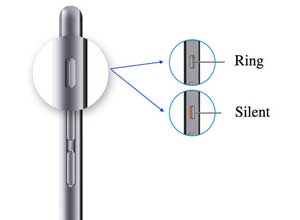
One of the most overlooked reasons for iPhone text sound not working is that the device is accidentally set to silent mode. This disables all notification sounds, including text alerts. To turn off this mode, follow the steps below:
Step 1. Check the Ring/Silent switch on the left side of your iPhone.
Step 2. If you see an orange indicator, silent mode is ON.
Step 3. Flip the switch upward to turn it OFF.
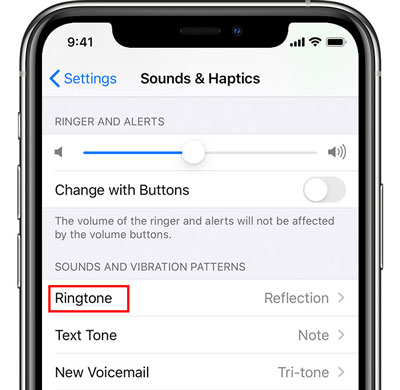
If your iPhone volume is too low, it may seem like the iPhone text message sound is not working, especially in noisy environments or when the phone is locked. Here is how to adjust it:
Step 1. Navigate to "Settings" > "Sounds & Haptics", then adjust the "Ringer" and "Alerts" sliders.
Step 2. Enable "Change with Buttons" and use the volume buttons to increase the sound, then test the message alerts again.
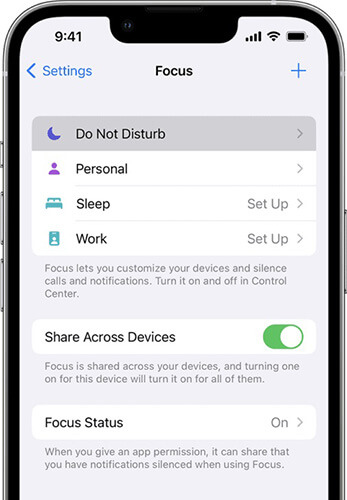
Do Not Disturb or Focus mode will mute notification sounds, even if text messages are received normally. If you have enabled this feature, it's likely the cause of the iPhone 17 text sound not working. Please follow the steps below to turn it off.
Step 1. Open "Settings" > "Focus".
Step 2. Tap "Do Not Disturb" and toggle it OFF.
You can also swipe down from the top of the screen to open the Control Center, then find the moon icon and tap it. This will disable Do Not Disturb mode on your iPhone.
If your iPhone text sound is still not working, check if notifications are enabled for incoming messages. If not, it's easy to turn them on; just follow the simple steps below.
Step 1. Go to "Settings" > "Messages" > "Notifications".
Step 2. Toggle on "Allow Notifications", then under the "ALERTS" section, enable all three options and choose a tone for the "Sounds" option.
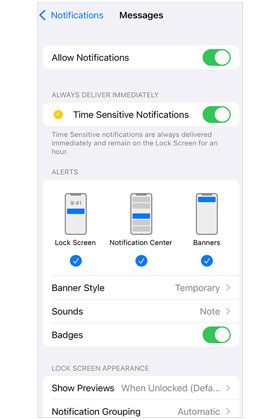
Note: Is your iPhone text sound not working when locked? You can go to "Settings" > "Notifications" > "Messages" and make sure "Show on Lock Screen" is enabled.
Temporary system glitches can also cause the Apple iPhone text sound not to work. A force restart refreshes the system and often resolves hidden issues. Here are the steps to force restart the iPhone:

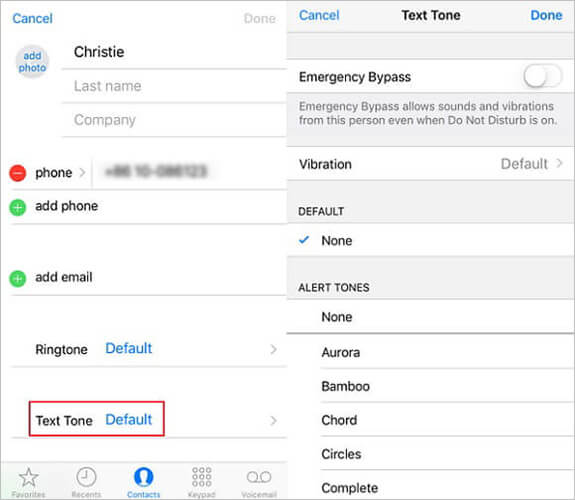
If your iPhone text sound is not working for one contact, the issue is likely due to a custom setting applied to that contact. Here is how to do it:
Step 1. Open the Contacts app and locate the contact whose text tone is not working.
Step 2. Tap "Edit" in the top-right corner, then scroll down to find the "Text Tone" option. If it's set to "None", change it to any available ringtone.
Step 3. After selecting the desired tone, tap "Done" in the top-right corner to save the changes.
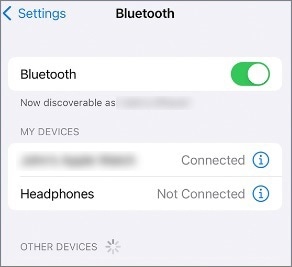
When your iPhone is connected to Bluetooth headphones or a car device, the text message sound may play through these devices instead of the phone itself, making you think there's no sound. Simply disconnecting Bluetooth will resolve this.
Here are the steps:
Step 1. Go to "Settings" > "Bluetooth", then check the connected devices.
Step 2. Tap the "i" icon next to the device name and select "Disconnect", or simply turn off Bluetooth.
If your system version is outdated, there may be known bugs affecting the text message sound functionality. Updating iOS promptly can fix these issues and improve system stability.
Here are the steps to update the iOS version to fix the iPhone text sound not working:
Step 1. Go to "Settings" > "General" and tap "Software Update".
Step 2. Download and install any available updates, then restart your iPhone. (iPhone won't update?)

If none of the above methods work, resetting all settings can fix deeper configuration issues, causing the iPhone text sound not to work. It will not delete your data, but it will restore the system settings to their default state.
Step 1. Go to "Settings" > "General" and tap "Transfer or Reset iPhone".
Step 2. Select "Reset", then tap "Reset All Settings" and enter your passcode to confirm.
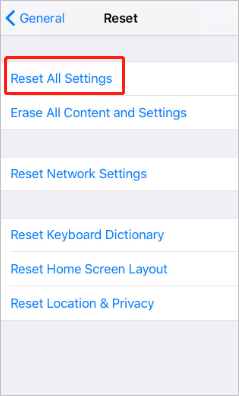
Do you want to know the difference between "Reset All Settings" and "Erase All Content and Settings"? You can read the article below.
Reset All Settings vs Erase All Content [Informative Comparison]If you've tried all the fixes above and your iPhone text message sound not working issue still persists, the problem may be caused by deeper iOS system errors. In this case, a professional iPhone repair tool like iOS System Recovery is your best option.
It can deeply fix iOS system issues without complex procedures, and in Standard Mode, it won't cause data loss. You can confidently use it to restore text message sound and resolve other iPhone problems.
What can iOS System Recovery do for you?
* Fix iPhone text sound not working without data loss.
* Repair various iOS system issues, including boot loops, iPhone won't turn on, or iPhone stuck on a black/white/green screen, etc.
* Upgrade and downgrade your iOS to the supported versions.
* Easy to use and highly successful.
* Work well with the latest iPhone 17 series and iOS 26.
Here is how to fix iPhone text message sound not working using iOS System Recovery:
01Download and install the tool on your Mac or Windows computer. Open the app and select "iOS System Recovery".

02The tool will automatically detect any issues with your iPhone. Once detected, click "Start" to continue.

03Choose "Standard Mode" to repair your iPhone without losing any data, then click "Confirm" to proceed.

04Click the "Repair" button to fix the iPhone 17 text sound not working issue. Wait a few minutes, and the problem will be permanently resolved.

Dealing with iPhone text sound not working can be annoying, but in most cases, it's easy to fix with the right steps. If basic fixes don't work, using iOS System Recovery can save you time and effort by resolving system-level problems quickly.
Follow this guide step by step, and you'll have your iPhone message notifications working perfectly again in no time.
Related Articles:
How to Fix iPhone No Sound: Reasons and 11 Easy Solutions
How to Fix Music Not Playing on iPhone/iPad? 12 Easy Tricks
Is iPhone Keeps Beeping? Why & How to Fix It in 8 Useful Ways
13 Best Ways to Fix an iPhone Stuck in Headphone Mode Like a Pro




 Free Download for PC
  Free Download for Mac


