"I have an iPhone 14 Pro with iOS 16.4.1, and I still cannot get Focus/Do Not Disturb to actually work. It's turned on, yet every call still comes through. I tried resetting the settings on the phone, but that did nothing. I'm not sure how else to fix this, so as a last resort, I have to actually shut my phone off whenever I do not want to be disturbed and want all calls to go to voicemail, which is highly inconvenient. Does anyone have any other suggestions?"
- from Apple Community
"Do Not Disturb" is a very useful feature on the iPhone. It can automatically silence calls and notifications during sleep, work, study, or meetings, helping users minimize interruptions. However, many users encounter the following issue: even when "Do Not Disturb" is enabled, the iPhone still rings, receives notifications, or even lights up the screen. If you are also troubled by the iPhone Do Not Disturb not working problem, don't worry. This article will thoroughly analyze the reasons why iPhone Do Not Disturb may fail and provide 12 verified solutions to help you quickly restore its normal functionality.
Why am I still getting messages on Do Not Disturb iPhone? The following are some possible reasons:
If your iPhone 17 Do Not Disturb is not working properly, below are 12 effective methods to fix the Apple iPhone Do Not Disturb not working issue with ease. You can try them one by one.
One of the most overlooked causes is that Do Not Disturb may not actually be active. Some users accidentally enable another Focus mode instead of DND, while others think the button is enabled even though it is not. If the iPhone Do Not Disturb button is not working properly, manually enabling the feature again may help.
Steps to enable Do Not Disturb on iPhone:
Step 1. Open "Settings", then tap "Focus".
Step 2. Select "Do Not Disturb" and turn on the toggle.
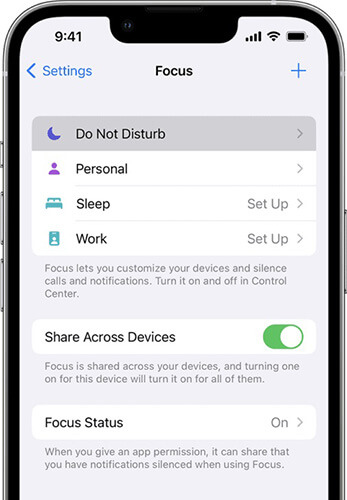
You can also swipe down from the top-right corner of the screen to open Control Center, tap "Focus", make sure "Do Not Disturb" is enabled, and check that the crescent moon icon is visible.
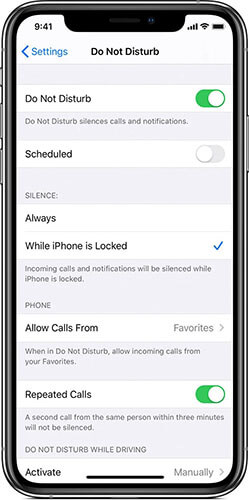
By default, Do Not Disturb only silences incoming calls and alarms when your iPhone is locked. To mute all notifications while using your iPhone, go to "Settings" > "Do Not Disturb" and set "Silence" to "Always".
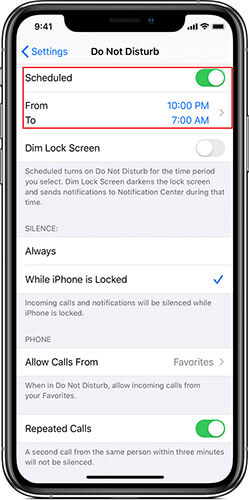
Why is my iPhone Do Not Disturb schedule not working? If Do Not Disturb only activates at certain times, check whether a schedule has been accidentally set. Here are the steps:
Step 1. Go to "Settings" > "Do Not Disturb" and make sure the "Scheduled" option is turned off.
Step 2. If you want to create a schedule, confirm that the start and end times are set correctly.
iPhone has a special feature: if the same number calls twice within three minutes, the second call will bypass Do Not Disturb. Apple designed this feature to prevent missing urgent calls, but many users are unaware of it, which can lead them to think that iPhone Do Not Disturb is not working.
To disable it, go to "Settings" > "Do Not Disturb" to turn off the "Repeated Calls" option.
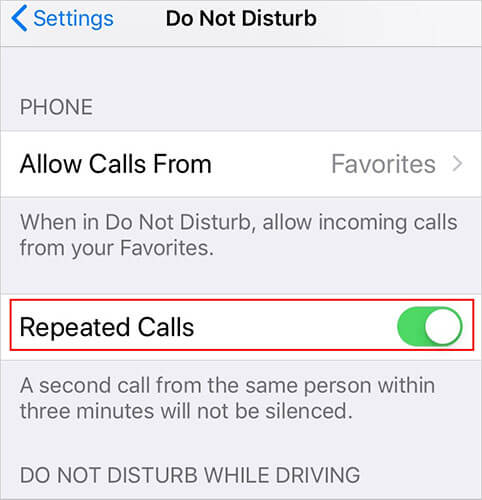
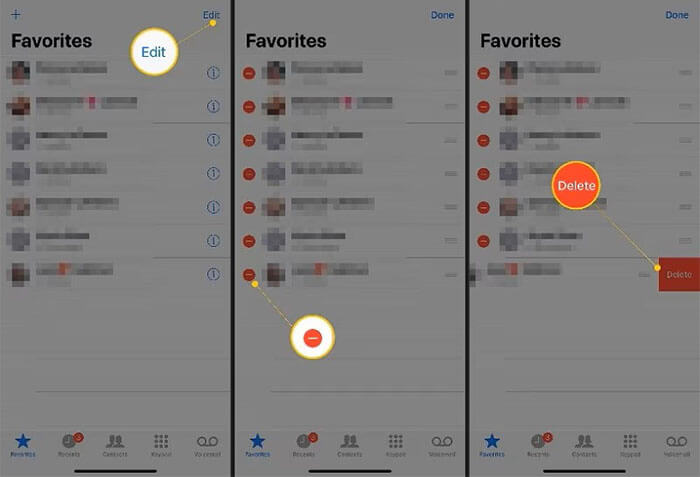
Like repeated calls, favorite contacts can bypass Do Not Disturb on your iPhone. When a contact is marked as a favorite, they can reach you even when Do Not Disturb is on. To remove a favorite:
Step 1. Open the Phone app and tap "Favorites" in the bottom-left corner.
Step 2. Find the contact, tap "Edit" in the top-right corner.
Step 3. Tap the "red minus" button, then "Delete" to remove them from your favorites.
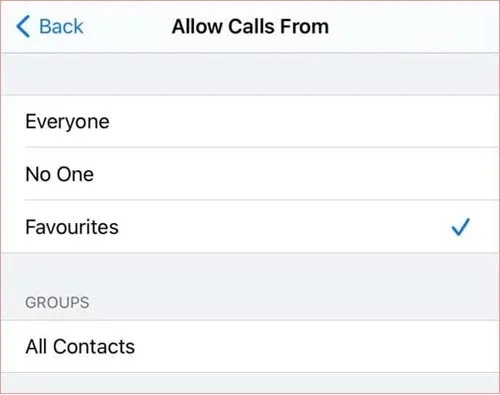
If Do Not Disturb is set to allow all incoming calls, you'll still receive calls when it's on. To fix this, go to "Settings" > "Do Not Disturb" > "Allow Calls From" and choose either "Favorites" or "No One".
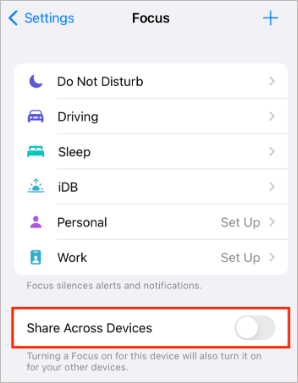
If you use multiple Apple devices, they can sync via iCloud. Enabling Do Not Disturb on your Mac or iPad may automatically activate it on your iPhone. To disable it, follow the steps below:
Step 1. Go to "Settings" and tap "Focus".
Step 2. Find "Share Across Devices" and turn it off.
Step 3. Check Control Center—if the moon icon disappears, the Do Not Disturb command was coming from another device, not your iPhone.
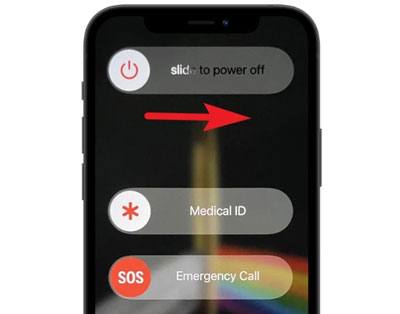
Temporary iOS glitches may cause iPhone Do Not Disturb to malfunction. Restarting your iPhone refreshes system processes and can resolve minor software issues quickly.
Here is how to restart the iPhone:
Step 1. Press and hold the "Volume" and "Power" buttons, then drag the power slider.
Step 2. Wait 30 seconds, then turn your iPhone back on.
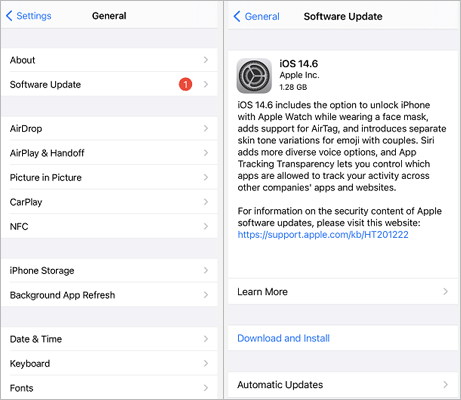
Sometimes, the "iPhone Do Not Disturb button not working" is caused by iOS bugs or glitches. Outdated software can make features behave incorrectly, so keeping your device updated is important.
To check for updates, go to "Settings" > "General" > "Software Update" on your iPhone and install any available updates. (iPhone software update failed?)
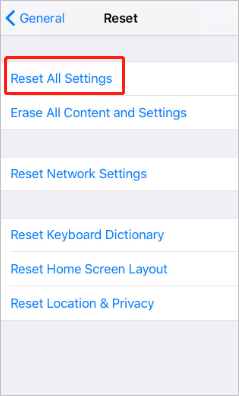
If your iPhone settings are corrupted, resetting all settings can restore Focus functionality without deleting personal data.
Here is how to do it:
Step 1. Open "Settings" from the main menu.
Step 2. Navigate to "General" > "Transfer or Reset iPhone" > "Reset All Settings".
Step 3. Enter your passcode to confirm.
If none of the previous methods work, your iPhone may have deeper iOS system issues. In this case, using a professional iOS repair tool is often the most effective solution. iOS System Recovery is one such tool. It can repair many iOS issues, including iPhone Do Not Disturb not working, without data loss.
The highlights of iOS System Recovery:
Here is how to fix iPhone 17/16 Do Not Disturb not working without losing data:
01Download and install the software on your computer. It will launch automatically.
02Connect your iPhone via a working USB cable. Select "iOS System Recovery" and click "Start".
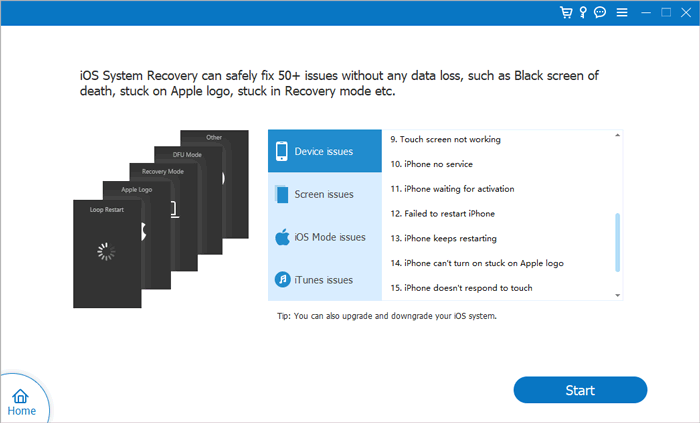
03Choose a repair mode—Standard or Advanced—and click "Confirm".
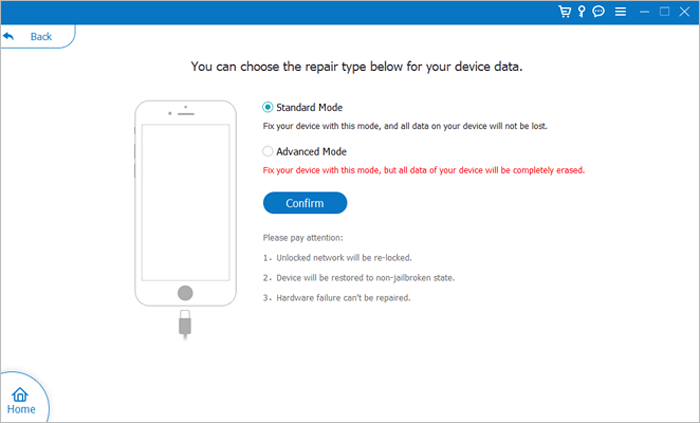
04Verify your device information, click "Repair", and wait. Your iPhone will be restored to normal once complete.
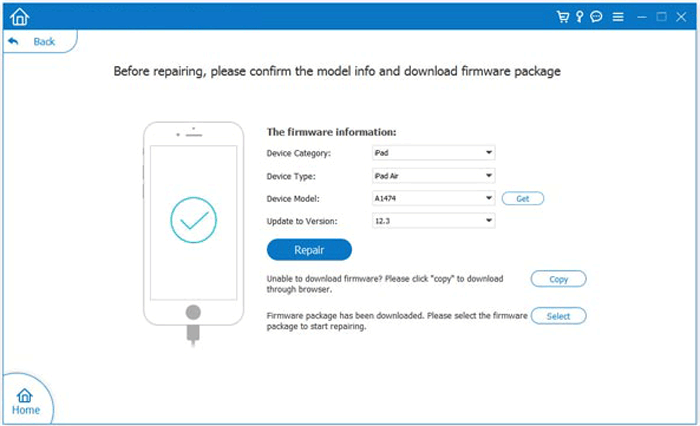
If the above solutions don't resolve the Do Not Disturb (DND) issue, you may consider restoring your iPhone to factory settings. This can effectively fix most iOS problems, though it may result in data loss.
Before performing a factory reset, it's highly recommended to back up your iPhone using iTunes or iCloud to keep your data safe.
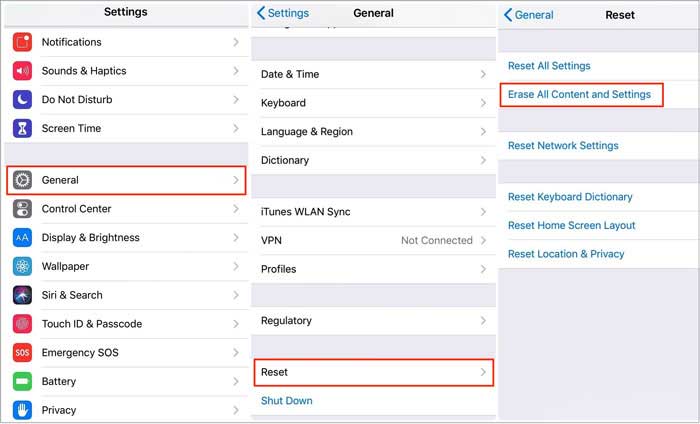
Here is how to erase your iPhone:
Step 1. Open "Settings" → "General" → "Transfer or Reset iPhone".
Step 2. Select "Erase All Content and Settings", then enter your passcode to confirm.
We've gone through the main steps to fix Do Not Disturb not working on your iPhone. If these standard solutions don't resolve the issue or you want a more reliable approach, using a professional iOS system repair tool - iOS System Recovery can help. It's designed to handle iPhone and iPad software problems efficiently, completing the process in just a few simple steps while keeping all your data safe.
Related Articles:
iOS 18/26 Notifications Not Showing on Lock Screen? - 7 Quick Fixes
iPhone Vibration Not Working? 12 Fixes That Actually Work
How to Fix iPhone Text Message Sound Not Working? [Easy Guide]




 Free Download for PC
  Free Download for Mac


