When you eagerly upgrade your iPhone to the latest iOS, only to find the progress bar stuck or the download/installation taking an unusually long time, it can be quite anxiety-inducing. iPhone taking forever to update is not uncommon and can happen at any stage, whether during the update download, preparation, or even installation.
This article will begin with an analysis of the causes and offer a series of effective solutions to help you complete the iPhone system update as quickly as possible.
Updating an iPhone to iOS 26 involves several stages, including downloading the firmware, preparing the update, installing the system, and restarting the device.
Under normal conditions, the entire process usually takes 30 minutes to 1 hour. However, the exact time depends on factors such as internet speed, iPhone model, available storage, and the current load on Apple servers.
If your iPhone has been updating for more than 1–2 hours with no visible progress, it's a strong sign that the update is stuck and needs troubleshooting rather than more waiting.
Why is my iOS 26.1 taking so long to update? The following are some possible reasons:
1. Unstable or Slow Network Connection
iOS update packages are usually quite large. If the Wi-Fi signal is weak, the network is unstable, or multiple devices are using up the bandwidth, the download progress may be very slow or even stuck at a certain percentage for a long time.
2. Apple Servers Are Overloaded
When a new iOS version is first released, a large number of users simultaneously request updates from Apple's servers. This puts too much pressure on the servers and may slow down the download and update verification processes.
3. Insufficient Storage Space on iPhone
System updates require a certain amount of available space to download and unpack files. If the device's storage is nearly full, the update process may slow down significantly or even freeze.
4. Low Battery or Battery-Saver Mode
When the iPhone battery is too low or when Low Power Mode is enabled, the system restricts background activities, which can affect the update speed or even pause the installation altogether.
5. Corrupted System Cache or Update Files
Leftover system cache or corrupted update files can also cause the iOS update process to freeze. It may seem like the update is "in progress", but in reality, nothing is actually happening.
Next, we will start with the simplest and safest methods to gradually resolve the issue of the iOS 26 update taking forever.
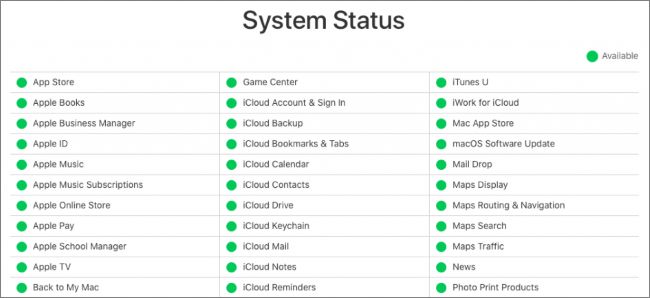
When iOS 26 is first released, or during major version updates, Apple's update servers can easily become congested. If there's an issue on the server side, no matter what you do on your phone, it won't speed up the process.
Open your browser and visit Apple's official system status page to check if "iOS Software Update" is marked in green. If it shows as abnormal or under maintenance, it's recommended to wait a few hours or try updating the next day.
Unstable network connections are one of the most common reasons for an iPhone taking forever to update. Make sure you are connected to a stable Wi-Fi network (using cellular data is not recommended).
Here are the steps:
Step 1. Go to "Settings" > "Wi-Fi".
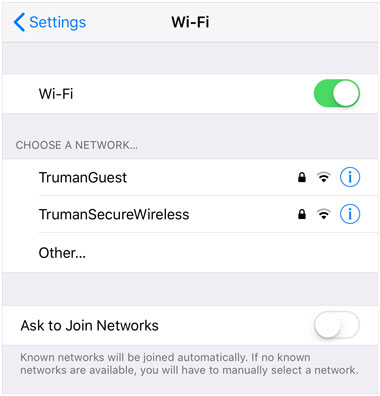
Step 2. Confirm that you are connected to a stable Wi-Fi network.
Step 3. Try disconnecting and reconnecting, or switch to a faster network if available.
Step 4. Avoid using public Wi-Fi or networks with weak signals.
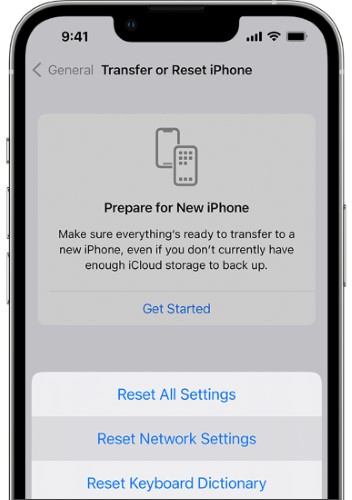
If the issue persists, go to "Settings" > "General" > "Transfer or Reset iPhone" > choose "Reset" > "Reset Network Settings". This will reset your network settings, which may help resolve the issue.
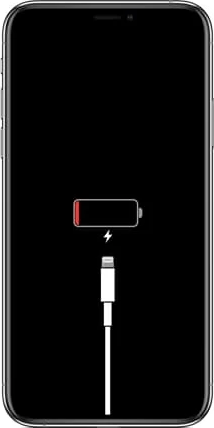
When the battery is too low, iOS will automatically pause the update process to prevent the device from shutting down during the upgrade. Use the original or certified charger to connect your iPhone to a power source and keep it charging. Make sure the battery is above 50%, and it's best to update while the phone is plugged in to avoid any interruptions.
If the update screen hasn't changed for a long time, it's possible that the system process has temporarily frozen. A force restart can interrupt the abnormal process and reload the system.
To force restart your iPhone, follow the steps below:
iPhone 8 and newer:
For iPhone 7 and 7 Plus: Press and hold the "Volume Down" and "Sleep/Wake" buttons at the same time until the Apple logo appears.
For iPhone 6s and earlier: Press and hold the "Home" and "Sleep/Wake" buttons simultaneously until the Apple logo appears.

The iOS 26 update not only requires download space but also extra space for unpacking and installation. If there isn't enough space, the update may get stuck.
Steps to free up space on iPhone:
Step 1. Go to "Settings" > "General" > "iPhone Storage".
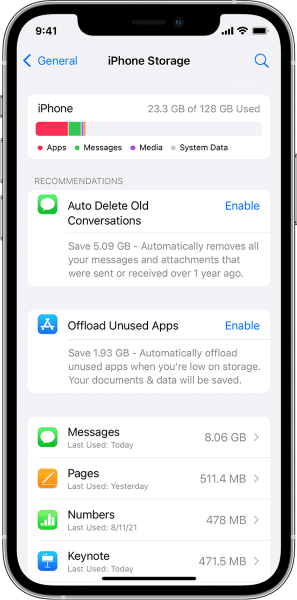
Step 2. Check if the available space is at least 6–8GB.
Step 3. Delete unnecessary photos, videos, or apps to free up space.
Step 4. After cleaning up, try the update again.
This should help ensure that the update has enough space to process and install properly.
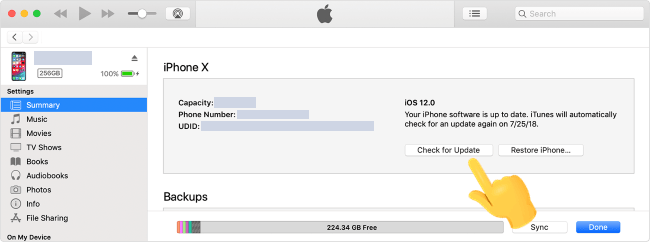
If the OTA (over-the-air) update keeps failing, using a computer to update is often more stable because it can avoid network fluctuations on your phone.
Using a Mac with macOS Catalina or later:
Step 1. Open Finder and connect your iPhone to the Mac using a USB cable.
Step 2. Select your iPhone in the Finder sidebar.
Step 3. Click on "Check for Update".
Step 4. If an update is available, click "Update" and follow the on-screen instructions.
Using a Windows PC or Mac with macOS Mojave or earlier:
Step 1. Open iTunes and connect your iPhone to the computer.
Step 2. Select your iPhone when it appears in iTunes.
Step 3. Click "Summary" > "Check for Update".
Step 4. If an update is available, click "Update" and follow the prompts.
If the update file itself is corrupted, re-downloading it can often fix the issue.
Here are the steps:
Step 1. Go to "Settings" > "General" > "iPhone Storage".
Step 2. Find the iOS update file in the list.
Step 3. Tap on it and select "Delete Update".
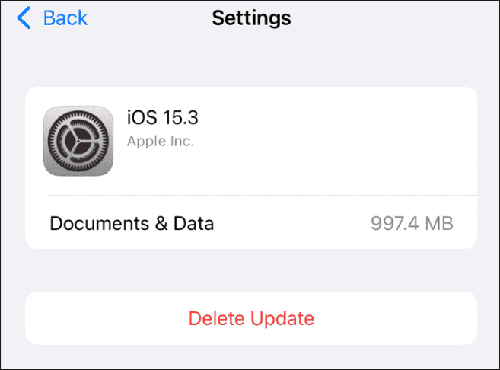
Step 4. Go back to "Software Update" and re-download and install the update.
This will remove any corrupted update files and allow you to get a fresh copy of the update.
If none of the above methods can fix the issue of iPhone taking forever to update to iOS 26, it likely means there is an underlying system-level problem. Continuing to retry the update at this point may only waste time and could even make the situation worse. In such cases, using a professional iOS system repair tool is a more reliable option. iOS System Recovery can resolve issues such as updates getting stuck, the iPhone being trapped in an Apple logo loop, or update failures—all without causing any data loss.
Main features of iOS System Recovery:
Here is how to fix iPhone taking forever to update with iOS System Recovery:
01Launch the program on your computer and connect your iPhone via USB cable. In the program, click "More tools" and select "iOS System Recovery".

02Click "Start" at the bottom of the screen. The program will automatically scan your iPhone and display possible issues, such as the red screen of death, unresponsive screen, iTunes Error 21, iPhone Error 2009, and more.

03Verify your iPhone's details. If everything looks correct, click "Repair" to begin fixing your device. If needed, select the correct model before clicking "Repair".

If your iPhone is taking forever to update to iOS 26, the problem is usually fixable with proper troubleshooting. But if the update keeps getting stuck and can't be completed for a long time, it indicates a deeper system issue.
Instead of repeatedly attempting and failing, directly using iOS System Recovery for system repair is often a more efficient and hassle-free option, especially for users who don't want to risk losing data.
Related Articles:
How Long Does It Take to Update iPhone & How to Speed Up?
How to Fix iTunes/iPhone Stuck on Preparing iPhone for Restore?
How to Fix iPhone Slow After iOS 18/17 Update? - 12 Effective Fixes
[SOLVED] iCloud Backup Taking Forever? 7 Easy Ways to Fix It







 Free Download for PC
  Free Download for Mac


