Recovery Mode is one of Apple's official solutions for fixing serious iOS issues such as system crashes, failed updates, boot loops, or an iPhone stuck on the Apple logo. However, many users report a frustrating problem: the iPhone enters Recovery Mode successfully, but the restore process fails or gets stuck.
If you're facing the iPhone won't restore in Recovery Mode, you're not alone. This issue is more common than you might think. In this guide, we'll explain why an iPhone won't restore in Recovery Mode and walk you through proven fixes step by step.
Before attempting any fixes, understanding the root cause can help you choose the best solution. Typically, when an iPhone won't restore in Recovery Mode, it's due to one of the following reasons:
After you know the possible reasons, you can follow the solutions below to fix iPhone 17/16 won't restore in Recovery Mode step by step.
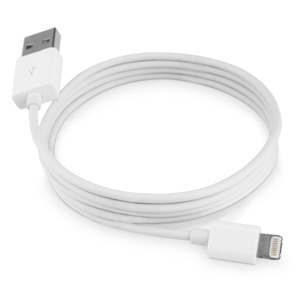
Sometimes, your iPhone won't restore in Recovery Mode may simply be because you're using a damaged or faulty cable. Non-Apple or uncertified cables can also cause issues, preventing the restore process.
If you're using a non-certified cable, it's recommended to switch to an Apple-certified one or, ideally, use the original cable that came with your iPhone.
If the cable isn't the issue, the problem might lie with your computer's USB port or system. Faulty ports, insufficient power, or driver issues can disrupt the restore process.
To fix this, try switching to a different USB port (preferably a rear port on desktops), close any unnecessary applications running in the background, and if possible, attempt the restore on another computer. Then, reconnect your iPhone and try the restore again.
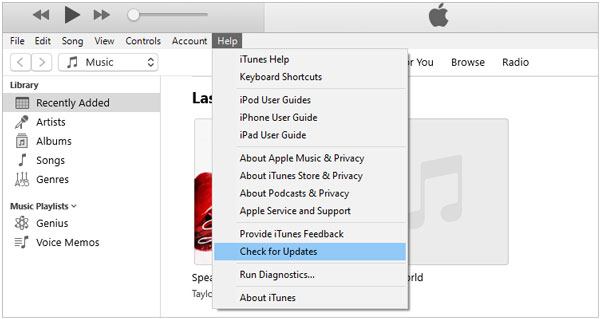
Sometimes, an outdated version of iTunes can prevent your iPhone from restoring in Recovery Mode. Keeping iTunes up to date is essential for ensuring the best compatibility and performance with your iOS devices. To update iTunes to the latest version, follow the steps below:
On Windows PC: Open iTunes on your computer, then click "Help" > "Check for Updates" from the top menu. If a newer version is available, click Install and follow the on-screen instructions.
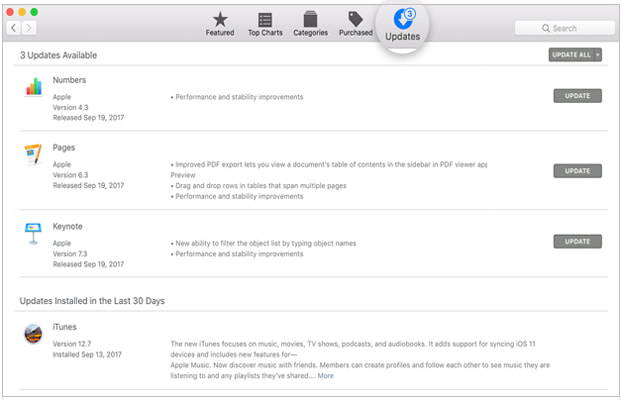
On Mac: Open the App Store, go to the "Updates" tab, and check for available updates. If iTunes shows an update, click "Install" to update it to the latest version.
If you downloaded iTunes from the Microsoft Store, open the Microsoft Store and check for updates there.
Another possible solution is to temporarily remove security software from your computer. Some antivirus or firewall programs may interfere with iTunes and prevent it from properly detecting your iPhone. By uninstalling these programs, you may be able to complete the restore successfully. After the restore is finished, you can reinstall your security software to keep your system protected.
If your iPhone won't restore in Recovery Mode, you can try restoring it using DFU mode. Keep in mind that this method will erase all data on your device, so make sure you have a backup before proceeding. (How to back up iPhone to a computer?)
Here is how to do it:
Step 1. First, open iTunes and connect your iPhone to your computer.
Step 2. Put your iPhone into DFU mode according to your iPhone model.
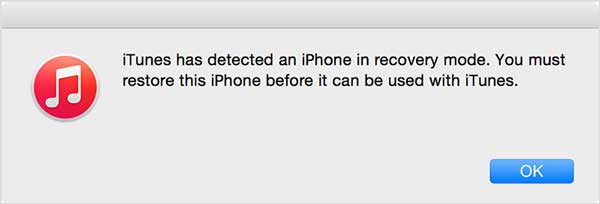
Step 3. iTunes will recognize your iPhone in recovery mode. Simply click "OK", then select "Restore iPhone" to begin the restoration.
If the iPhone still won't restore in Recovery Mode, an iPhone system repair tool is your best option. These tools can restore your iPhone without losing any data. iOS System Recovery is one such tool—it allows you to restore your iPhone without using iTunes and can fix a variety of iOS issues, including black screen, white screen, or being stuck on the Apple logo.
The highlights of iOS System Recovery:
* Fix a wide range of iOS system issues with just one click, including iTunes connection problems, activation issues, battery drain, blue/white/red/black screen errors, and devices stuck in DFU or Recovery mode.
* Repair your iPhone without any data loss or changes.
* Provide Standard and Advanced modes to meet different needs.
* Allow upgrading or downgrading your iPhone to a supported iOS version.
* Fully support all iPhone and iPad models (compatible with iOS 26 and later), including the iPhone 17 series.
Here is how to fix an iPhone stuck in Recovery Mode and won't restore using iOS System Recovery:
01Install and open the program on your computer. Connect your iPhone via USB, then go to "More Tools" > "iOS System Recovery".

02The program will detect any issues with your iPhone and display them on the screen. Click "Start" to continue.

03Check the iPhone information shown on the interface. If anything is incorrect, select the correct details from the drop-down menus. Finally, click "Repair" to automatically fix the iPhone issue.

If none of the methods above work, the issue may be caused by a hardware problem, which can prevent your iPhone from restoring in Recovery Mode. In this case, contacting Apple Support is your best option. They can explain why your iPhone is stuck and provide an effective solution. Alternatively, you can take your device to a local Apple Store for professional repair.
Hopefully, this guide has helped you fix the issue of your iPhone not restoring in recovery mode. If iTunes still can't restore your iPhone, I recommend using iOS System Recovery. This tool can quickly resolve problems like an iPhone stuck in Recovery or DFU mode, frozen on the Apple logo, and other iOS issues, all without deleting your data.
Related Articles:
How to Fix iPhone Recovery Mode Not Working? - 5 Reliable Fixes
6 Easy Ways to Fix iPhone Stuck on Restore Screen [Proven Tips]
iPhone in Recovery Mode Not Recognized by iTunes? - 8 Quick Fixes




 Free Download for PC
  Free Download for Mac


