TL;DR: Accidentally deleted important iCloud emails? Don't panic. This guide explains how to recover deleted emails from iCloud using the Trash folder, iCloud Data Recovery, iCloud Backup, and professional recovery tools. Learn how to restore lost emails within 30 days and recover permanently deleted iCloud data without resetting your iPhone.
"I am in desperate need of recovering emails and need them as a reference for my new job. I cleared all of my iCloud email and deleted them from the trash to make more storage, as my phone was telling me I needed to clear space. Is there any way of getting these emails back? The sender is still listed as a VIP in my emails - not sure if this will help? Thank you, I will be grateful for any advice!"
- from Apple Community
Accidentally deleting important emails from iCloud can be stressful, especially when those messages contain work details, receipts, or account verification information. Fortunately, there are several ways to recover these emails. This guide focuses on how to recover deleted emails from iCloud, so you can choose the most suitable solution based on your specific situation.
If you have just deleted the emails and it has been less than 30 days since the deletion, the method with the highest chance of success is to recover them directly from the Trash folder. Here is how to recover deleted emails from iCloud within 30 days:
1.1 from the Mail App
Step 1. Launch the Mail app on your iPhone or iPad.
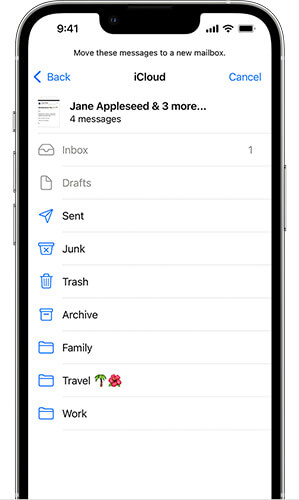
Step 2. Go to the mailbox where the email was deleted from, then open the "Trash" folder for that account.
Step 3. Locate the email you want to recover. Swipe left on it and tap "More".
Step 4. Choose "Move" > "Inbox" to restore the email to your inbox.
1.2 from iCloud.com
Step 1. Go to the official iCloud website and log in with your account. From the iCloud home screen, select "Mail".
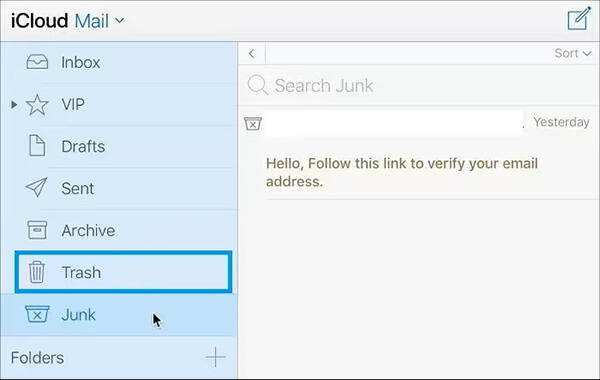
Step 2. Once the iCloud Mail interface opens, click on the "Trash" folder in the sidebar.
Step 3. All deleted emails stored in Trash will appear. Select the emails you want to recover and click the "Move" icon in the toolbar.
Step 4. Choose "Inbox" to restore the selected emails, making them accessible in your inbox again.
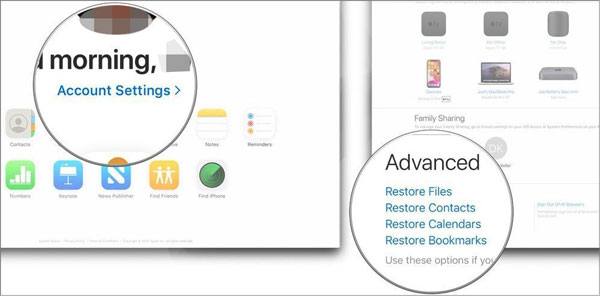
If you find that the email is no longer in the Trash folder, iCloud offers a hidden but very useful "Data Recovery" feature on the web version, which can help restore recently deleted emails, contacts, or calendar data.
Here is how to restore deleted emails from iCloud via iCloud.com:
Step 1. Open your browser and go to iCloud.com, then log in with your Apple ID.
Step 2. Click on your account avatar in the top-right corner and select "Account Settings".
Step 3. Scroll down to the "Advanced" section.
Step 4. Click on "Restore Files".
Step 5. Select the emails you want to recover and confirm the restoration.
How to recover deleted emails from iCloud after 30 days? If you regularly back up your iPhone data to iCloud, you can restore deleted emails from an iCloud backup. Here's how to do it:
Step 1. Go to "Settings" > "General" > "Reset", then tap "Erase All Content and Settings".
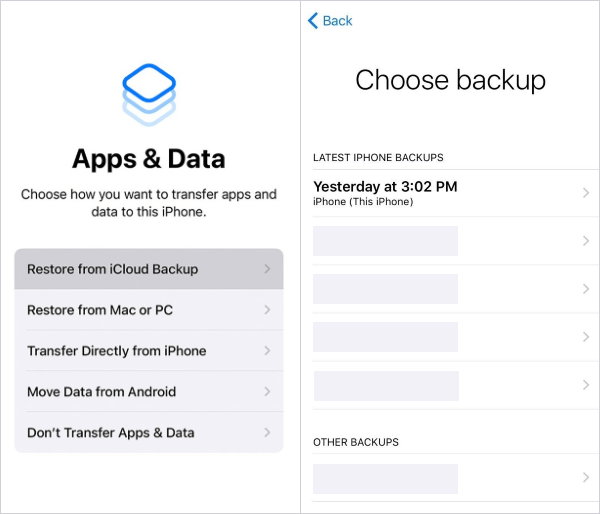
Step 2. During the setup process, select "Restore from iCloud Backup" and sign in to your iCloud account.
Step 3. Pick the backup that contains the deleted emails you want to recover.
In some cases, you may not only lose iCloud emails but also other important data, such as contacts, photos, notes, calendars, or app data. Apple's official recovery methods are limited, especially when you want to selectively recover specific data without restoring the entire iCloud backup.
This is where Coolmuster iCloud Backup Recovery becomes a practical solution. It allows you to access iCloud backups directly, scan for deleted data, and restore only the files you need—without erasing or overwriting your current device data.
Key features of Coolmuster iCloud Backup Recovery:
Here is how to recover permanently deleted files from iCloud selectively:
01Launch this Software and enter your Apple ID and password in the interface, then click the arrow icon to log in. The software will then move to the next screen.
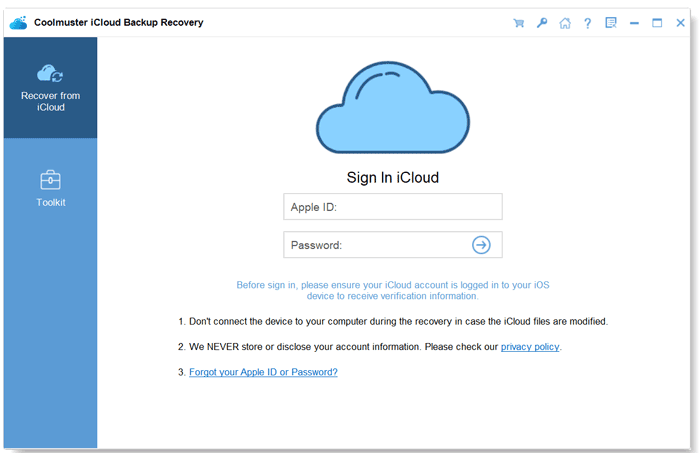
Note: If you have two-factor authentication enabled on your iOS device, the software will prompt you to enter the verification code. Simply tap "Verify" to complete the authentication process.
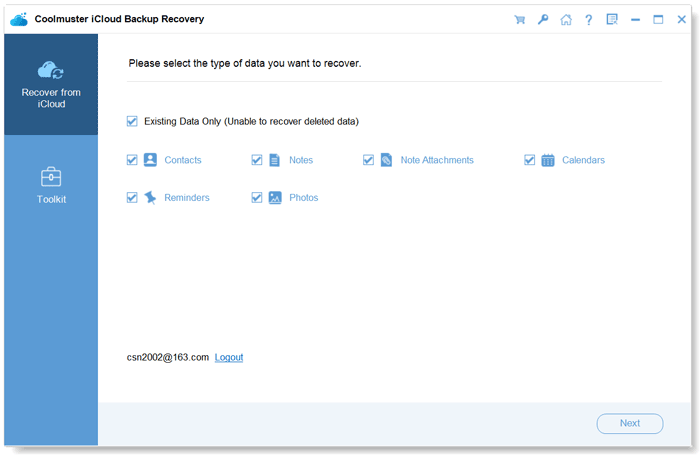
02Select the file types you wish to recover, then click "Next". The software will begin scanning and display a list of your iCloud backup files.
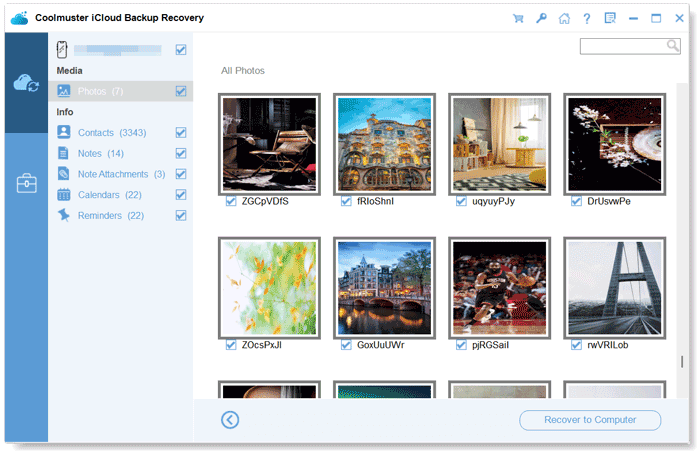
03You can now choose the specific files you want to restore directly from the interface. Once you've made your selections, click "Recover to Computer" to save the chosen files.
Video Tutorial:
Q1. Can I use an iTunes backup to restore iCloud emails?
Not effectively. iTunes backups focus on local device data, while iCloud emails are cloud-synced. iTunes backups usually cannot restore iCloud emails independently.
Q2. How long does iCloud keep deleted emails?
Deleted iCloud emails remain in the Trash folder for up to 30 days. After that, they are permanently removed and become much harder to recover.
Q3. Why can't I find my deleted emails in the Trash folder?
Possible reasons include:
In practice, how to recover deleted emails from iCloud is not a one-size-fits-all process. The right solution depends on how long ago the emails were deleted and the current state of your device. If you want to recover other deleted iCloud data in addition to emails, Coolmuster iCloud Backup Recovery is a reliable solution. It allows you to directly access iCloud backups, preview the lost data, and selectively restore only the files you need—making it a safe and flexible choice for iCloud data recovery.
Related Articles:
[Solved] How to Download iCloud Backup to PC/Mac/iPhone/iPad?
How to Recover Deleted iCloud Backup - Exploring 4 Powerful Strategies
[3 Ways] How to Recover Permanently Deleted Photos from iCloud?
How to Restore Messages from iCloud Backup in 2 Effective Ways?






 Free Download for PC
  Free Download for Mac


