"As of recently, any VPN has stopped working on my iPhone 15 Pro Max version iOS 17.4.1. When I turn on the VPN, the sites in the browser won't load as if the internet disappears, I have my own VPN server (I am use Streisand app), and it definitely works on other devices. I also tried 2 other different VPN apps to make sure the problem is with the iPhone. I've rebooted the device, reset network settings, removed and re-added VPN configurations, but it hasn't helped."
- from Apple Community
In daily use of the iPhone, many users rely on VPNs to protect their privacy, access specific content, or enhance network security when using public Wi-Fi. However, sometimes you may encounter issues such as the VPN failing to connect, frequent disconnections, or connecting successfully but being unable to access the internet.
If your VPN is not working on your iPhone, there's no need to worry too much. This article will analyze common reasons why VPNs may not work on iPhones and provide several effective solutions to help you quickly restore your VPN connection.
Before you start fixing the issue, understanding the cause can help you find the right solution more quickly. Typically, "VPN not working on iPhone" can be caused by the following situations:
1. Unstable Network Connection
VPN requires a stable internet connection. If the Wi-Fi or mobile data network is unstable, the VPN might fail to establish a connection.
2. VPN Server Issues
If the VPN service provider's server is experiencing problems or undergoing maintenance, it can also lead to connection failures.
3. Incorrect VPN Configuration
When manually configuring the VPN, incorrect server addresses, account details, or protocol settings can prevent the VPN from connecting properly.
4. iOS System Bugs
Sometimes, after an iOS update, system compatibility issues may arise, affecting the VPN functionality.
5. VPN App Malfunctions
If the VPN app has bugs, cache errors, or is outdated, it can cause the VPN to stop working.
If your VPN is not working properly on your iPhone, you can try the following methods to troubleshoot the issue one by one.
A stable internet connection is essential for VPN functionality. If your iPhone is not connected to Wi-Fi or mobile data properly, your VPN may fail to connect.
Steps to check network connection:
Step 1. Open "Settings" > "Wi-Fi" and ensure you are connected to a stable network.
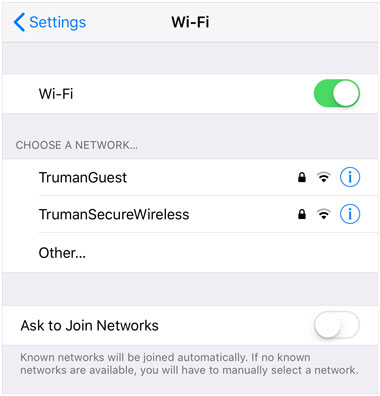
Step 2. If using mobile data, check if data is working properly by opening a website in Safari.
Step 3. If necessary, toggle Airplane Mode on and off to reset network connections.
Step 4. Try connecting to a different Wi-Fi network if available.
Sometimes, the VPN connection may be interrupted due to network fluctuations, causing it to stop working properly. In this case, reconnecting the VPN is a simple and effective solution.
In the VPN app on your iPhone, tap the Disconnect button (or similar) to stop the service, then wait a few seconds before reconnecting.
If your VPN configuration is corrupted or incorrectly set up, deleting and re-adding the configuration may resolve the problem.
Step 1. Open the "Settings" app and go to "General" > "VPN & Device Management" > "VPN".
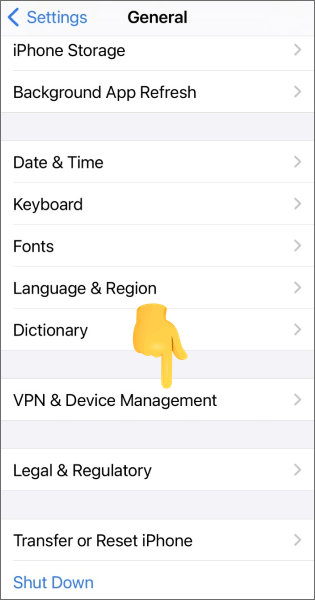
Step 2. Tap the "info" button (i) next to the VPN profile you added.
Step 3. Select "Delete VPN" and confirm.
Step 4. Next, open the VPN app and tap the "Connect" button. iOS will prompt you for permission to add the VPN profile.
Step 5. Tap "Allow" and authorize with Face ID, Touch ID, or your passcode. (If you don't see the prompt, try deleting and reinstalling the VPN app.)
Just like any other app, VPN apps can experience temporary glitches that cause the VPN app not to work on an iPhone. These glitches can be caused by background processes, app conflicts, or temporary software errors. Restarting the VPN app closes all background processes and resets the app, often resolving minor issues that prevent the VPN from working. This fix is especially useful if the app is frozen, unresponsive, or showing an error message when you try to connect.
To restart the VPN app, follow the steps below:
Step 1. Double-tap the "Home" button or swipe up on devices without a Home button to bring up the app switcher.
Step 2. Find your VPN app and swipe it off the screen to close it. Wait 10-15 seconds to allow the app to fully shut down.
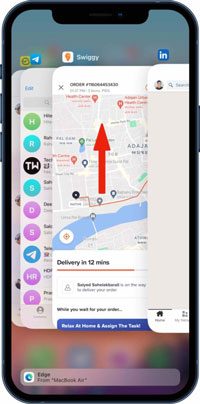
Step 3. Locate the VPN app on your iPhone's home screen and tap to open it.
Step 4. Once the app is open, wait a few seconds for it to load completely, and then tap the "Connect" button to attempt to connect to the VPN server.
If restarting the VPN app didn't help, it might be time to restart your iPhone. A simple restart can clear temporary glitches that might be affecting the VPN connection.
Here is how to restart your iPhone:
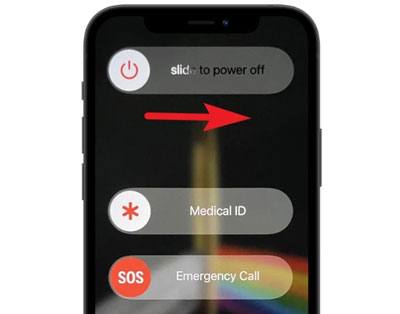
Step 1. Press and hold the "Power" button until the slide to power off option appears.
Step 2. Slide to turn off the phone.
Step 3. Wait for about 30 seconds, then press and hold the "Power" button again to turn the phone back on.
Step 4. Once your iPhone is rebooted, try connecting to the VPN again.
Outdated VPN apps are a major cause of VPN not working on iPhone, including VPN not working on iPhone 17 and iPhone VPN not working after update. VPN providers regularly release updates to fix bugs, improve compatibility with the latest iOS versions, and enhance security. If your VPN app is outdated, it may not work with your iPhone's current iOS version, leading to connectivity issues. Updating the app is a simple fix that can resolve many common problems.
Here is how to do it:
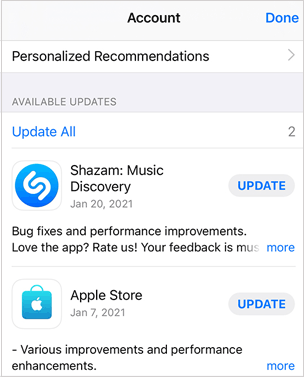
Step 1. Open App Store on your iPhone.
Step 2. Tap on "Updates" at the bottom of the screen.
Step 3. Look for the VPN app in the list and tap "Update".
If updating the VPN app doesn't fix the VPN app not working on iPhone, the app may be corrupted. Corrupted app files can cause a variety of issues, including crashes, unresponsive buttons, and failed connections. Uninstalling and reinstalling the app removes all corrupted files and installs a fresh copy, which often resolves more persistent issues. This fix is especially useful if the app is frozen, won't open, or consistently fails to connect to the VPN server.
Here are the detailed steps to uninstall and reinstall your VPN app:
Step 1. On your iPhone's home screen, locate the VPN app icon.
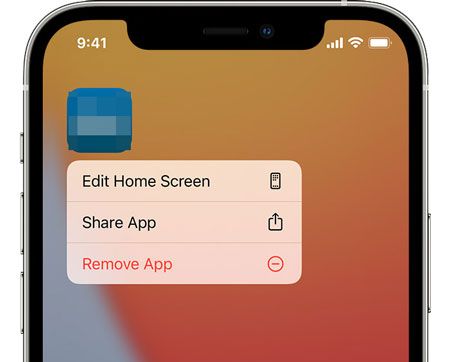
Step 2. Press and hold the app icon until a menu appears.
Step 3. Tap "Remove App" or "Delete App" on older iOS versions.
Step 4. Tap "Delete App" again to confirm. (Can't delete app on iPhone?)
Step 5. Open the App Store and search for the VPN app by name.
Step 6. Tap "Get" (or the download icon) to reinstall the app. You may need to enter your Apple ID password or use Face ID/Touch ID to confirm the download.
Step 7. Once the app is installed, open it and follow the setup instructions (you may need to log in to your VPN account again).
Step 8. After setup, tap "Connect" to test if the VPN now works. This should resolve any issues caused by corrupted app files.
Sometimes, network settings may cause the VPN to fail to connect. By resetting the network settings, you can clear all Wi-Fi passwords and network configurations and then reconfigure the network connection. To do it, follow the steps below:
Step 1. Open the "Settings" app on your iPhone or iPad.
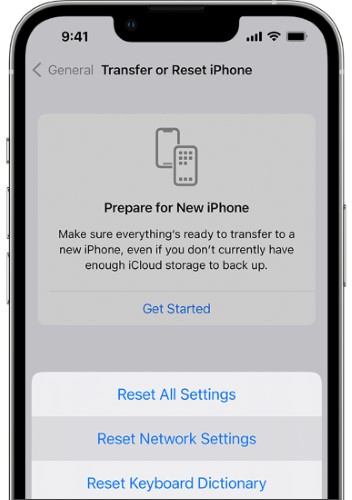
Step 2. Tap "General", then scroll down and select "Transfer or Reset iPhone" (or "Reset" on older iOS versions).
Step 3. Tap "Reset", then choose "Reset Network Settings" from the list.
Step 4. Enter your iPhone passcode (or confirm with Face ID/Touch ID), then tap "Reset Network Settings" again. Your device will restart automatically.
Step 5. After the restart, reconnect to your Wi-Fi network and open the VPN app. Tap "Connect" to check whether the VPN is working properly.
Outdated iOS versions are a common cause of the iPhone VPN not working. Apple regularly releases iOS updates to fix bugs, improve compatibility with apps (including VPN apps), and enhance security. If your iPhone is running an outdated iOS version, it may conflict with your VPN app, leading to connectivity issues. Updating your iOS system ensures that your device is compatible with the latest VPN apps and fixes any software bugs that may be causing the VPN to fail.
Here is how to update iOS:
Step 1. Open the "Settings" app on your iPhone and tap "General".
Step 2. Select "Software Update" to check for available updates.
Step 3. If an update appears, tap "Download and Install". (iPhone won't update?)
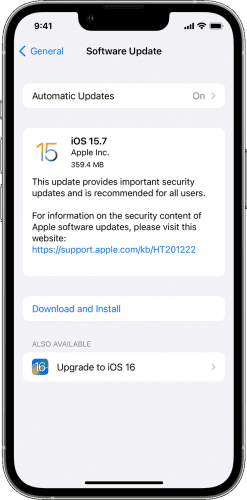
Step 4. Enter your passcode or confirm with Face ID/Touch ID, then wait for the download and installation to complete. Your iPhone will restart automatically.
Step 5. After the update finishes, open your VPN app and tap "Connect" to see if the VPN is working properly.
Sometimes, a VPN not working on an iPhone is not a problem with your device or app, but with the VPN server you're trying to connect to. VPN servers can go down due to maintenance, high traffic, or technical issues, which can prevent you from connecting. This is especially common if you're using a free VPN service with limited servers. Switching to a different VPN server can often resolve the issue, as it connects you to a working server.
If the above methods do not resolve the VPN issue, there may be a deeper system problem with iOS. In this case, you can use a professional tool to fix iOS system issues. iOS System Recovery is a powerful tool that can repair system faults on various iOS devices, including issues like VPN connectivity problems. It can restore your device's system without data loss, allowing the VPN to function properly again.
Key features of iOS System Recovery:
Here is how to fix VPN not working on iPhone 17:
01Launch the program on your computer and connect your iPhone using a USB cable. On the main interface, go to "More Tools" > "iOS System Recovery".

02The software will automatically detect any issues with your device. Click "Start" to proceed.

03Confirm your iPhone details as prompted, then click "Repair" to begin the repair process.

If none of the above fixes resolve the VPN not working on iPhone, the issue may be with your VPN provider. VPN providers may have server outages, technical issues, or account-related problems that prevent you from connecting. Contacting their support team can help you identify and resolve the issue.
The proper functioning of VPN on iPhone is crucial for protecting privacy. If you encounter issues with VPN connectivity, you can try the methods listed above to resolve the problem. If the issue persists, iOS System Recovery is a powerful repair tool that can effectively fix iOS system issues and restore VPN functionality. We hope this article helps you restore your VPN to normal use, ensuring network security and privacy protection.
Related Articles:
Easy Guide to Fix iPhone Won't Connect to the Internet: 11 Ways
How to Fix iPhone Cannot Connect to App Store Issue Easily
How to Change iPhone location Without VPN? [Solved with 5 Ways]




 Free Download for PC
  Free Download for Mac


