When an Android device has been rooted and backed up several times, there would be more and more storage space on Android device while lots of photos, videos and app data are stored on your device. To be honest, as time goes on, there might be some Android backup files become useless, but they are taking up large amount of storage space on the Android device. So how to delete backup on Android devices? Let's see how to make it together.
The easiest and most common way to manage your Android backups is directly through the Google Drive application, as your device backups are stored there. As long as you log in to your Google Account on the app, you can easily manage your backup data.
Here's how to delete backup on Android via the Google Drive app:
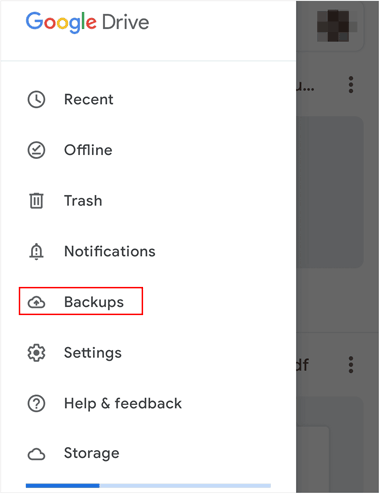
Step 1: Open the Google Drive App on your Android device. Then tap the "Menu" icon (usually three horizontal lines) in the top-left corner.
Step 2: Tap "Backups". This will display a list of all devices that have backed up data to your Google Account.
Step 3: Find the backup you want to delete, and tap the three-dot menu (More options) next to the device's backup entry. Finally, click "Delete backup".
Read more: What if you just want to free up storage space on Android without deleting any backup files? Take a quick look at this guide.
When you turn off the backup feature on your Android device, or you don't use your Android device for 57 days, your backup data will be erased. Thus, as long as you toggle off the backup feature, Google will automatically delete your backup.
Here's how:
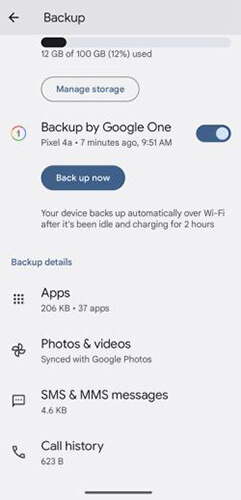
Step 1: Go to Settings, and choose "Google" or "Accounts and backup".
Step 2: Click "Back up data", and switch off the "Backup by Google One" option. Then your backup data will be removed soon.
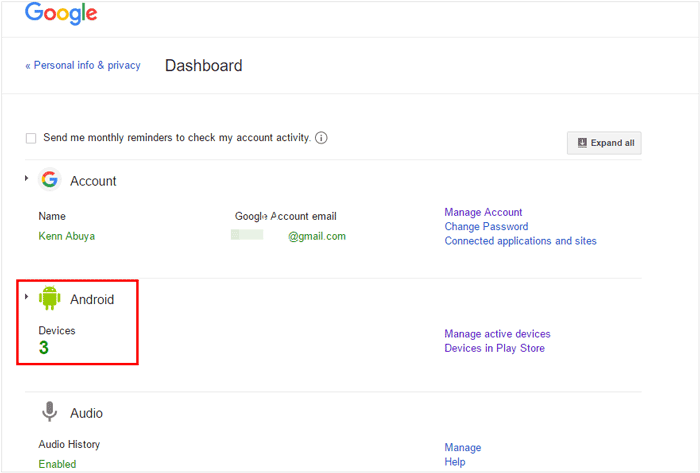
For users who want to manage backups from a computer or a web browser, the Google Dashboard provides a centralized control panel for all your Google Account data. You can use it to delete your backup files with ease.
Here's how to delete backup files on Android:
Step 1: Open a web browser on your computer or phone and go to the Google Dashboard (myaccount.google.com/dashboard).
Step 2: Sign in with the Google Account linked to the Android device. Scroll down to the "Android" section. You will see a list of your backed-up devices.
Step 3: Click on the device you wish to remove. Depending on your current Google interface, you may see a "Delete backup" or similar option next to the device's name.
If your goal is to sell, donate, or recycle your old Android phone, or completely delete your backup files from your Android device, simply deleting backup files is not enough. To ensure the data on the device is completely and permanently unrecoverable, you need a specialized data erasure tool like Coolmuster Android Eraser. It can erase all your data at once, and no one can recover your information.
Note: Please back up your important data on your Android device in advance.
Highlights of this Android Eraser software:
* Delete all data from Android at once, including your backup data and Google Account.
* Wipe photos, videos, documents, music, contacts, messages, call history, accounts, passwords, apps, etc.
* The medium and high levles can overwrite deleted data completely.
* Support the U.S. DoD 5220.22-M standard.
* Compatible with Android 6.0 or later, including Android 16.
Download Coolmuster Android Eraser.
To delete backup files on Android completely with Android Eraser:
01Install the Coolmuster Android Eraser software on your computer. Then connect your Android phone to the computer using a USB cable and enable USB Debugging on the device.
02Open the software and click "Erase" after connecting. Next, click "Medium" to choose the desired security level for the erasure, and then type "delete".
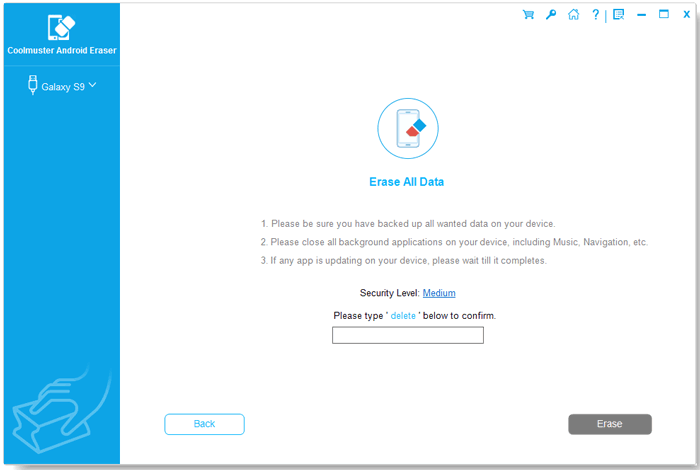
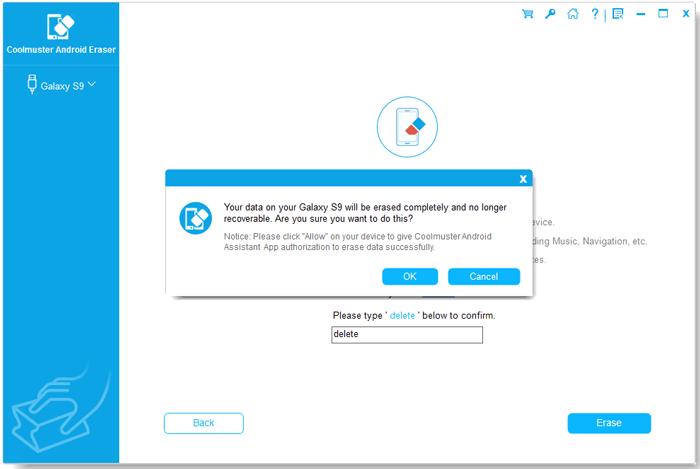
03Tap on "Erase" at the bottom, and click "OK" on the pop-up window. Then click "Yes" on your Android device. Then the program will start to erase all the data. Once done, your backup data will be removed.
You can watch the video guide to erase your Android data (2 minutes and 35 seconds):
With this guide, you can easily delete your backup files on your Android device. If you want to erase your backup data and overwrite your deleted files permanently, you can try Coolmuster Android Eraser, a professional data erasure tool for Android devices. It can delete not only your backup files but also other data on your device.
Related Articles:
How to Delete Game Data on Android Like a Pro [3 Solutions]
[4 Proven Ways] How to Delete Apps on Android Devices?






 Free Download for PC
  Free Download for Mac


