"I just upgraded from an S10+ to the S22+. I used Smart Switch and it was able to transfer all my apps, contacts, and other data, but keeps failing on transferring text messages. Does anyone have any suggestions?"
- From Reddit
Samsung Smart Switch is widely regarded as a go-to tool for transferring data, including messages, photos, contacts, and apps, when switching to a new Samsung device. It offers a simple, one-click transfer experience, making it a popular choice for users upgrading their phones. However, many users encounter a frustrating issue: Smart Switch not transferring messages. Whether messages fail to transfer completely or only partially, this problem can disrupt the entire migration process.
In this guide, we'll explore why Smart Switch is not transferring messages, walk you through practical solutions to fix the issue, and introduce a reliable alternative when Smart Switch doesn't work as expected.
Before diving into solutions, it's crucial to understand the root causes behind Smart Switch's message transfer failure. These issues often stem from compatibility, software glitches, or incorrect settings, and identifying the cause can help you resolve the problem more efficiently. Here are the most common reasons:
Now that you know the common causes, let's explore step-by-step solutions to fix Smart Switch not transferring messages.
Smart Switch's message transfer relies on compatible operating systems for both devices and any computers used (if transferring via desktop). Ensure all devices meet the following requirements to avoid compatibility issues:
Android Requirements
Android 4.3 or higher is required for general transfers. To transfer encrypted data (including encrypted messages), you must have Android 7.0 or higher. Older Android versions may not support the latest Smart Switch features or secure message transfer.
iOS Requirements
For cable transfers from an iPhone to another device, you must have iOS 5 or higher. To transfer using Wi-Fi (wireless transfer), you must have iOS 12 or higher. Note that some iOS features may limit message transfer if the version is outdated.
Mac Requirements
If using Smart Switch for Mac to transfer messages, your Mac must be running macOS 10.9 or later. Outdated macOS versions may not recognize the app or connect to your mobile devices properly.
Windows Requirements
For Windows users, Smart Switch requires Windows 10 or later. Windows 7 or 8 may not support the desktop app, leading to connection and transfer failures.
If your devices don't meet these requirements, update the operating system (if possible) or use a wired connection instead of Wi-Fi to bypass compatibility limitations.
Smart Switch needs specific permissions to access your messages and transfer them between devices. If these permissions are missing, the app can't retrieve or send your messages. Here's how to check and grant permissions:
Step 1. On your source device (the one with the messages you want to transfer), open the Smart Switch app.
Step 2. When prompted, grant permissions for "Messages", "Storage", "Contacts", and "Wi-Fi/Camera" (for wireless connection). These permissions are essential for the app to access your messages and establish a connection.
Step 3. If you previously denied permissions, go to your device's "Settings" > "Apps" > "Smart Switch" > "Permissions". Ensure all required permissions are enabled, especially "Messages" and "Storage".
After granting all necessary permissions, restart Smart Switch and try transferring messages again.
Note: For Android devices, enable USB debugging if you are using a cable connection. For iOS devices, tap "Trust" when prompted during the connection process.
Temporary connectivity issues (such as Wi-Fi interference or cellular signal disruptions) can prevent Smart Switch from transferring messages. Turning Airplane Mode on and off resets your device's network connections, which often fixes these issues:
Step 1. On both the source and target devices, swipe down from the top of the screen to open the Quick Settings panel.
Step 2. Tap the "Airplane Mode" icon to turn it on (this disables all wireless connections).
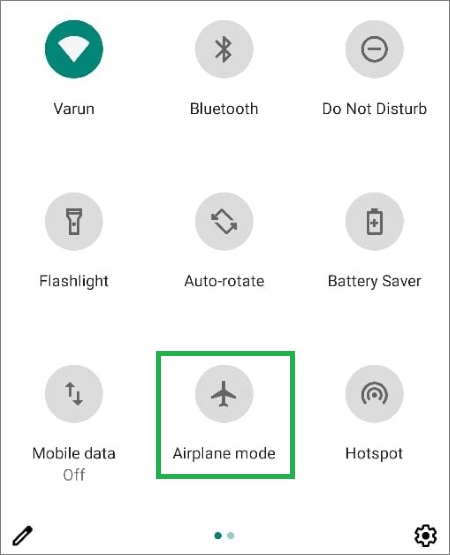
Step 3. Wait 10-15 seconds, then tap the Airplane Mode icon again to turn it off.
Step 4. Ensure both devices are connected to the same Wi-Fi network (for wireless transfer) or paired via cable (for wired transfer).
Step 5. Open Smart Switch and retry the message transfer.
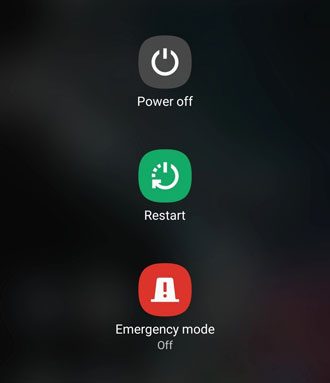
Minor software glitches on either device (such as frozen apps, cached data errors, or background processes) can interfere with Smart Switch's functionality. Restarting both devices clears these glitches and refreshes the system, which is often enough to fix message transfer issues:
For Android Devices
Press and hold the "Power" button, then select "Restart" from the menu. If the device is unresponsive, press and hold the "Power" button + "Volume Down" button for 10-15 seconds to force a restart.
For iOS Devices
For iPhone 8 or later, press and hold the "Side" button + "Volume Down" button until the slider appears, then slide to power off. Wait 30 seconds, then press the "Side" button to turn it back on. For older iPhones, press and hold the "Power" button until the slider appears.
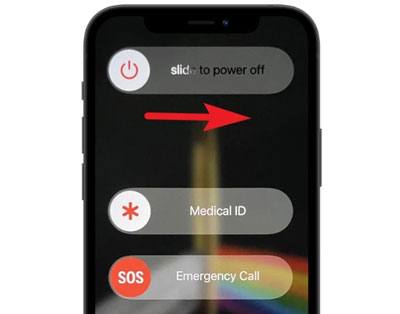
After both devices restart, open Smart Switch and attempt to transfer messages again. This step fixes most temporary software-related issues.
Wireless transfers are convenient but prone to connectivity issues (such as weak Wi-Fi signals or interference). If Smart Switch isn't transferring messages wirelessly, using a USB cable (wired transfer) is a more reliable alternative. Here's how to do it:
Step 1. Use a high-quality USB cable (preferably the original cable that came with your device) to connect the source and target devices. For iOS-to-Samsung transfers, you may need a Lightning-to-USB-C adapter.
Step 2. On both devices, open the Smart Switch app. The app should automatically detect the wired connection.
Step 3. On the source device, select "Send Data", and on the target device, select "Receive Data".
Step 4. Choose the "Cable" option when prompted, then select "Messages" from the list of data to transfer.
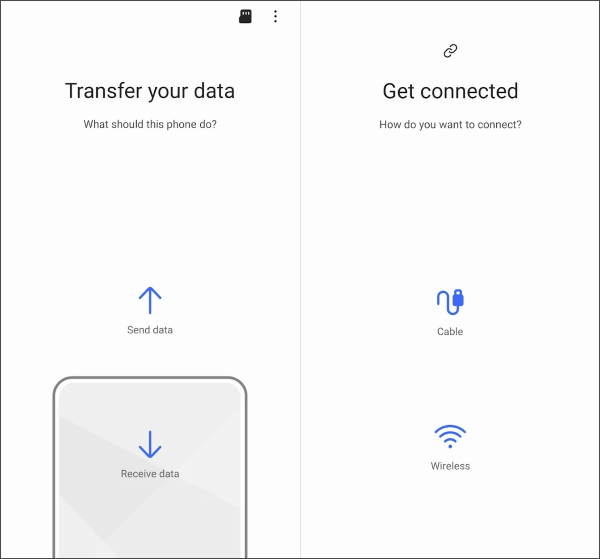
Step 5. Follow the on-screen instructions to complete the transfer. Wired transfers are faster and more stable, reducing the risk of message transfer failure.
If the cable doesn't work, try a different USB cable (ensure it supports data transfer, not just charging) or a different USB port on your computer (if using desktop Smart Switch).
Smart Switch requires sufficient storage space on both the source and target devices to transfer messages. If either device is low on storage, the app may skip messages to avoid filling up the device's memory. Here's how to free up storage:
Step 1. On your device, go to "Settings" > "Storage" to check available space. Aim for at least 500MB of free space on both devices for a smooth transfer.
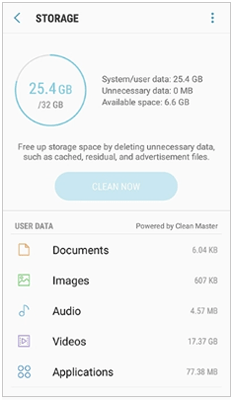
Step 2. Delete unnecessary files, such as old photos, videos, unused apps, or cached data, to free up space.
Step 3. On the target device, ensure there's enough space to accommodate the messages (plus any other data you're transferring). If the estimated transfer size exceeds available space, deselect non-essential data (like large videos) to prioritize messages.
After freeing up storage, restart Smart Switch and retry the message transfer.
Outdated versions of Smart Switch often have bugs that prevent message transfer, while corrupted installations can disrupt the app's functionality. Updating or reinstalling the app can fix these issues:
Update Smart Switch
Reinstall Smart Switch
After updating or reinstalling, open Smart Switch and try transferring messages again.
If Samsung Smart Switch still fails to transfer messages after trying all the fixes above, it may be time to switch to a more reliable solution. In many cases, using a dedicated data transfer tool is faster, more stable, and less affected by device compatibility or system bugs.
One of the most effective alternatives is Coolmuster Mobile Transfer. It is designed specifically for transferring data between Android and iOS devices, with strong support for SMS migration. Unlike Smart Switch, which may fail due to system limitations or permission issues, this tool focuses on stable direct device-to-device transfer, making it a practical option when message migration is the priority.
Why choose Coolmuster Mobile Transfer?
How to use Mobile Transfer to move messages:
01First, install Mobile Transfer on your computer and launch the program.
02Then, connect both your old and new devices using USB cables and ensure that the software correctly detects them. If the devices are in the wrong order, use the "Flip" button to switch the source and destination positions.
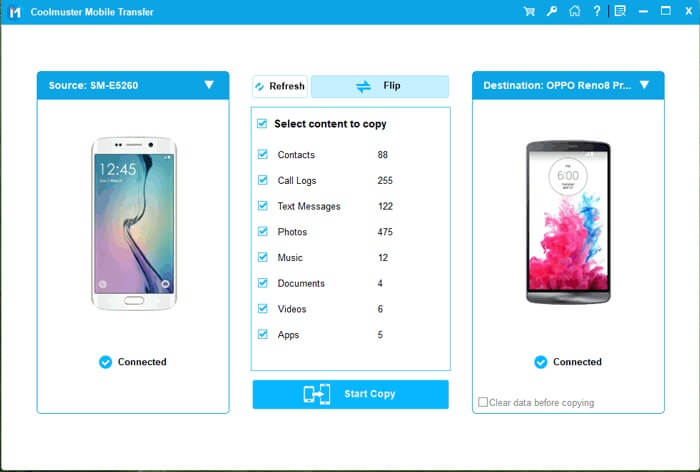
03Next, select "Messages" from the list of transferable data types and click "Start Copy". The program will begin transferring your SMS data directly from the source device to the target device. Keep both devices connected throughout the process until it is fully completed.
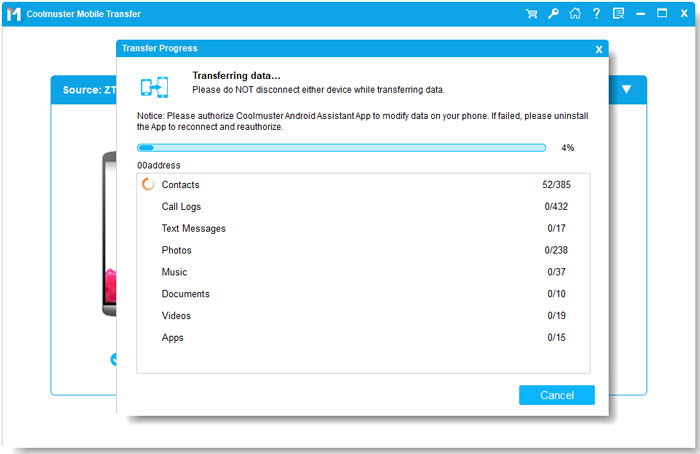
When transferring messages from an iPhone to a Samsung device, keep your iPhone unlocked during the entire process. If a prompt appears asking you to unlock the device, make sure to follow it promptly, as the transfer may not continue while the phone is locked.
You can also watch the video tutorial below to better understand the transfer process step by step.
When Samsung Smart Switch is not transferring messages, the issue is usually caused by compatibility limitations, missing permissions, unstable connections, or temporary system glitches. In most cases, these problems can be resolved by following the step-by-step solutions introduced above, such as checking device requirements, granting permissions, using a cable connection, or updating the app.
However, if Smart Switch still fails after troubleshooting, switching to a dedicated tool like Coolmuster Mobile Transfer can help ensure a more stable and complete message transfer experience, especially when SMS data is your priority. In the end, choosing the right method will help you move your messages safely and without unnecessary hassle.
Related Articles:
Smart Switch Failed to Connect the Device? Step-by-Step Fix Guide
Samsung Smart Switch Stuck? Here’s How to Fix It Effectively
Samsung Smart Switch Not Working: Troubleshooting and Solutions
Smart Switch Not Enough Space? 6 Solutions and 2 Alternatives







 Free Download for PC
  Free Download for Mac


