TL;DR:
Switching from an itel phone to an iPhone doesn't mean losing your contacts. This guide introduces four ways to transfer contacts from itel to iPhone:
If you're switching from an itel phone to an iPhone and wondering how to transfer contacts, you're not alone. Migrating contacts between different phone brands and operating systems may seem daunting, but there are several straightforward methods to ensure a smooth transition. In this guide, we'll walk you through four different ways to transfer contacts from itel to iPhone, with detailed steps for each method.
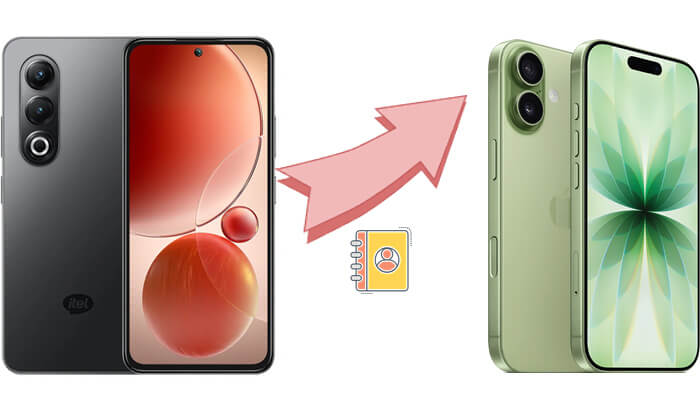
Coolmuster Mobile Transfer is a professional mobile data transfer tool that helps you easily transfer contacts from an itel phone to an iPhone. With this software, you can follow simple, step-by-step instructions to transfer data from your old phone to your new one without any complicated setup. This method requires no complex configuration, supports batch transfer, and retains all original contact information, including names, phone numbers, and more.
Key features of Coolmuster Mobile Transfer:
* Easily transfer contacts from itel to iPhone with a single click.
* Quickly move eBooks (PDFs and ePubs) and contacts from Android to iPhone without hassle.
* Four versatile transfer modes: iOS to iOS, Android to iOS, iOS to Android, and Android to Android.
* Fully compatible with the latest iOS 27 and Android 17 systems.
* Experience fast, seamless, and secure transfers with no data loss.
Here's how to transfer contacts from itel to iPhone using Mobile Transfer:
01Download and install the software on your Windows or Mac computer. Use USB cables to connect both your itel phone and your iPhone to the computer.
02Open this tool, and it will automatically detect both devices. Make sure itel phone is set as the Source and the iPhone as the Destination. If not, click "Flip" to switch them.
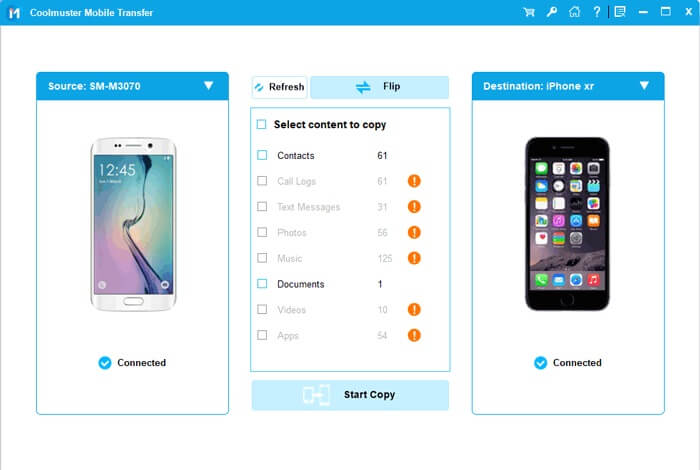
03In the software interface, select "Contacts" as the data type you want to transfer, then click the "Start Copy" button. The software will begin transferring contacts from your itel phone to your iPhone.
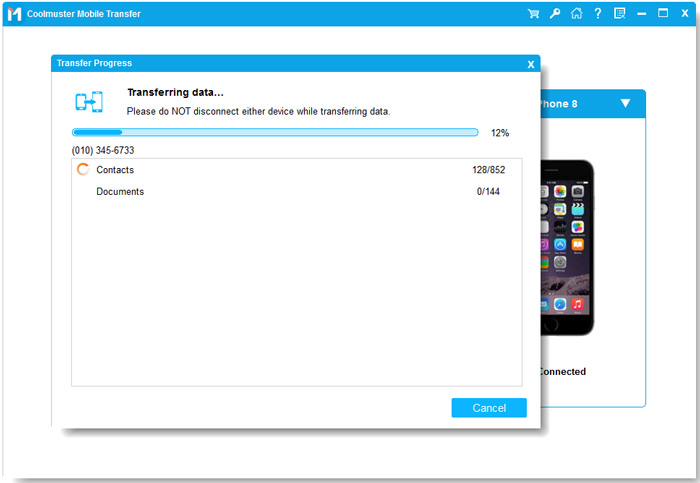
Video guide
If you choose to use the Move to iOS app during your device switch, this is an official and very convenient mobile data migration tool provided by Apple. It helps you transfer data (including contacts) from your Android device to your iPhone. Move to iOS is ideal for first-time iPhone users, as it allows you to transfer various types of data, such as contacts, photos, apps, and more, to your new iPhone in one easy step.
How do I transfer contacts from itel to iPhone via Move to iOS? Here are the steps:
Step 1. Go to the Google Play Store on your itel phone and install the Move to iOS app.
Step 2. Turn on your new iPhone and start the setup process. When prompted, select the "Move Data from Android" option.
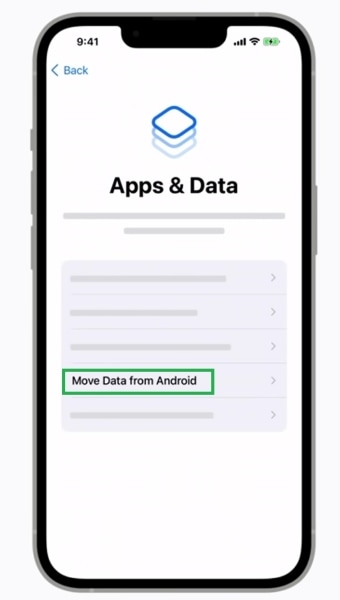
Step 3. Open the Move to iOS app on your itel phone, then enter the code displayed on your iPhone to connect the two devices. (Move to iOS code not showing up?)
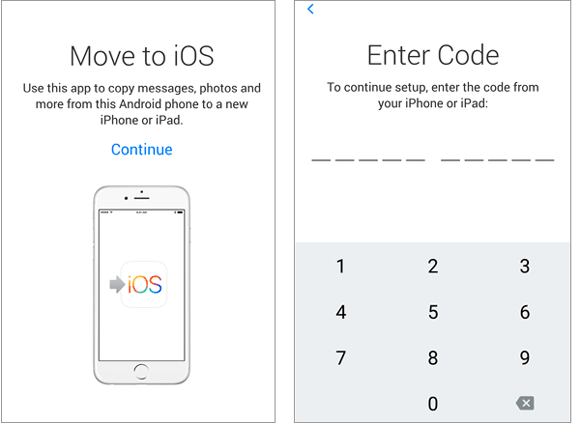
Step 4. After the connection is made, choose the data you wish to transfer, including contacts. You can also select other data like messages, photos, and apps.
Step 5. Tap "Next" on the itel phone to begin the transfer. Wait for the process to complete. This may take a few minutes, depending on the number of contacts.
If you've been using a Google account on your itel phone, you can easily sync your contacts to your iPhone by signing in with the same account. It's wireless, fast, and doesn't require a computer or additional apps. Plus, it automatically keeps your contacts updated across devices.
Here is how to send contacts from itel to iPhone using a Google Account:
Step 1. On your itel phone, go to "Settings" > "Accounts" > "Google", and make sure that "Contacts" syncing is enabled.
Step 2. On your iPhone, go to "Settings" > "Mail" > "Accounts", and select "Add Account". Choose "Google" and sign in using the same account you used on your itel phone.
Step 3. After logging in, make sure the "Contacts" toggle is turned on for syncing.
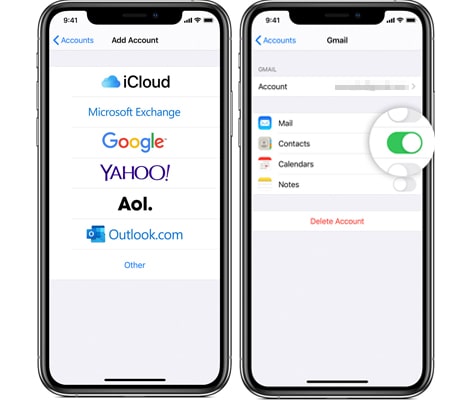
Step 4. Once your Google account is set up, your iPhone will automatically sync the contacts. Open the "Contacts" app, and you should see all of your contacts from your itel phone.
Transferring contacts via a SIM card is a basic yet effective method, especially when there is no network or transfer tool available. This method is suitable for cases with a small number of contacts. Although transferring contacts via SIM card is simple, it may not always transfer all contacts, especially if they are stored in the phone's internal memory rather than on the SIM card. It is best used for scenarios with a limited number of contacts.
Here is how to transfer contacts from an itel to an iPhone using a SIM card:
Step 1. On your itel phone, go to the "Contacts" app, then select the option to export your contacts to the SIM card. You may need to select which contacts you want to move.
Step 2. Remove the SIM card from your itel phone and insert it into the SIM card slot of your iPhone.
Step 3. On your iPhone, go to "Settings" > "Contacts" > "Import SIM Contacts". Select the option to import to your iPhone's internal memory.
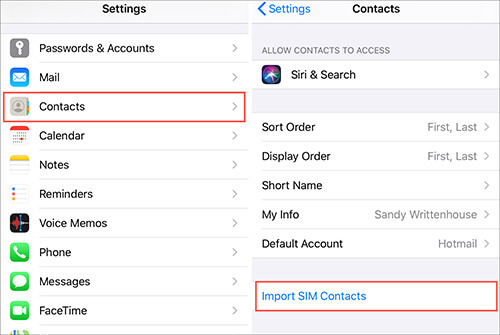
Step 4. Once the import is complete, open the "Contacts" app on your iPhone and ensure that all your contacts have been successfully transferred.
With the methods mentioned above, you can easily transfer contacts from your itel phone to your iPhone. For most users, Coolmuster Mobile Transfer is the recommended choice as it offers an efficient and stable data transfer experience. It supports not only contacts but also the migration of other data, such as photos, videos, and more. Whether you're using an iPhone for the first time or looking to simplify the contact transfer process, Coolmuster Mobile Transfer can help you complete the task with ease.
Related Articles:
How to Transfer Contacts from iPhone to itel Easily [2026 Guide]
How to Transfer Text Messages from itel to iPhone? Solved in 2 Easy Ways
How to Export itel Contacts to Excel Without Losing Any Data







 Free Download for PC
  Free Download for Mac


