Upgrading to a new Xiaomi phone can be exciting, but the thought of transferring your contacts, photos, and messages might seem like a hassle. Whether you're switching to a model such as the Xiaomi 17, ensuring that your contacts are transferred smoothly is crucial for staying connected with friends, family, and colleagues. Fortunately, there are several simple and reliable ways to transfer contacts from Xiaomi to Xiaomi, each designed to suit different needs and preferences.
In this guide, we'll cover 4 effective methods to move contacts from Xiaomi to Xiaomi. These solutions include both wireless and offline options, giving you flexibility to choose what works best for your situation.
If you're looking for the most efficient and reliable way to transfer contacts, using a professional phone transfer tool is often the best option. Compared with manual or wireless methods, a desktop-based solution provides a more stable connection and avoids common issues like transfer interruptions, missing data, or compatibility problems.
Coolmuster Mobile Transfer is designed specifically for phone-to-phone data migration, allowing you to move contacts from one Xiaomi device to another in just one click. It is especially useful when you have a large number of contacts or want to ensure that all details are transferred completely without errors.
Why choose Mobile Transfer?
Steps to transfer contacts from Xiaomi to Xiaomi with 1-click:
01Start by downloading and installing Mobile Transfer on your computer. Once installed, open the program.
02Connect both your old and new Xiaomi phones to the computer using USB cables. Make sure you enable USB debugging on both devices so the program can recognize them. If the phones are detected in the wrong order, simply click the "Flip" button to swap their positions.
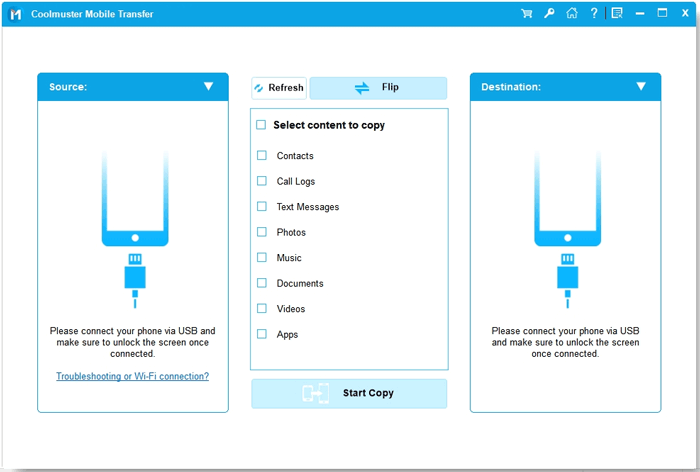
03In the program's interface, choose "Contacts" from the list of data types available for transfer. If you wish, you can select additional types of data, such as messages or photos.
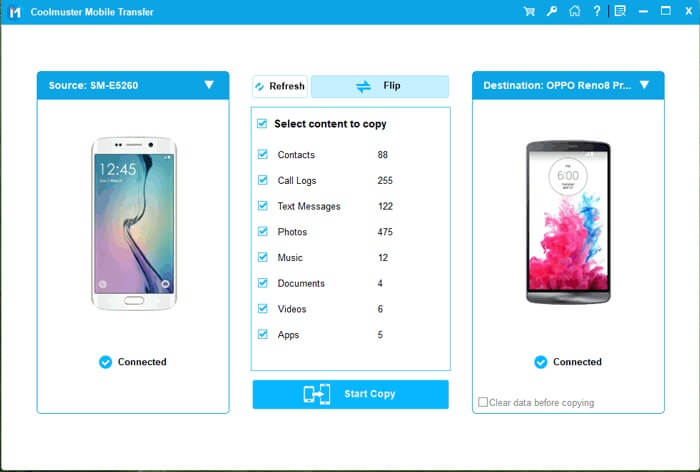
04Click the "Start Copy" button to begin the transfer. The program will quickly move your contacts from the old Xiaomi device to the new one, ensuring that everything is transferred smoothly.
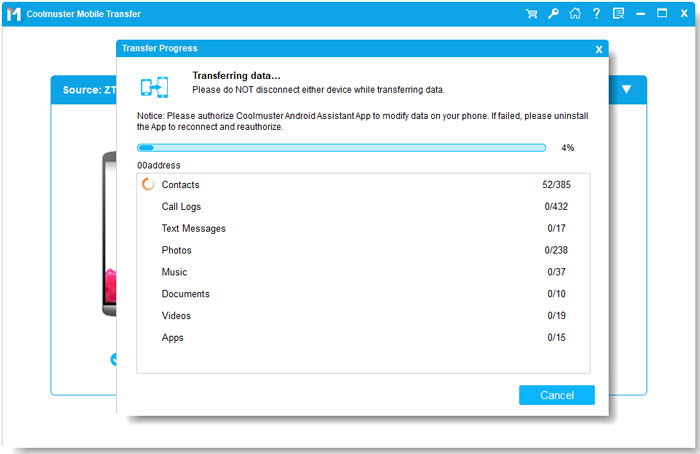
If you'd like to see a detailed walkthrough of the process, check out the video tutorial below.
If you prefer a free and official solution provided by Xiaomi, Mi Mover is a great choice. It is a built-in app on most Xiaomi devices and allows you to transfer data wirelessly without needing a computer or cables.
However, since it relies on wireless connectivity, the transfer speed and stability may be affected by distance, interference, or device performance.
Step 1. Open Mi Mover on both devices. On the new phone, choose "New", and on the old phone, choose "Old".
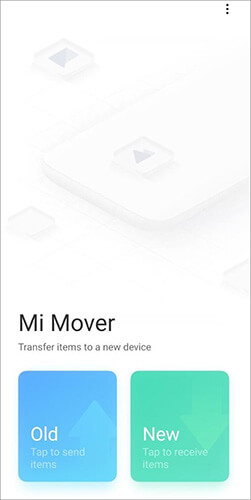
Step 2. Use the old phone to scan the QR code displayed on the new phone to establish a connection.
Step 3. Once connected, select "Contacts" from the data list and tap "Start Transfer" to begin.
Step 4. Keep both devices close together and wait for the transfer to complete.
If you use a Google account on your Xiaomi phone, syncing contacts to your Google account can be one of the easiest and most efficient ways to transfer contacts. By syncing your contacts to Google, they are stored in the cloud, allowing you to easily access them on any other device linked to the same account. This method is especially useful for users who want to ensure their contacts stay up to date across multiple devices. However, it does require an internet connection, and you need to make sure that your contacts are properly synced before switching devices.
Here is how it works:
Step 1. First, make sure that your source Xiaomi phone is connected to a Google account. Go to "Settings" > "Accounts" > "Add Account", and select "Google". Sign in with your Google account credentials.
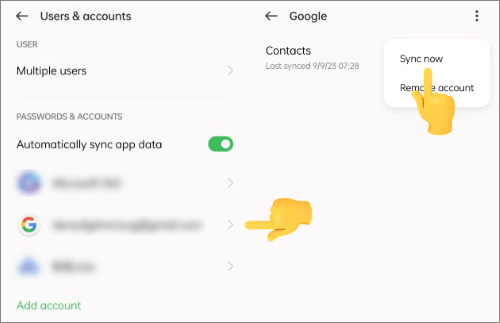
Step 2. Once your Google account is added, go back to "Settings" > "Accounts" > "Google". From there, make sure that "Contacts" is selected to sync. Tap "Sync now" to start uploading your.
Step 3. On your new Xiaomi device, go to "Settings" > "Accounts" > "Add Account" and sign in with the same Google account. This ensures that the same contacts stored in your Google account are available on the new device.
Step 4. After signing in to your Google account, go to "Settings" > "Accounts" > "Google", and select "Contacts". Tap on "Sync now" to begin syncing your contacts from Google to your new Xiaomi device. Once completed, your contacts will be transferred, and you can access them in the Contacts app.
If you don't want to use apps, accounts, or internet connections, transferring contacts via a SIM card is a traditional but straightforward option. This method involves exporting contacts to the SIM card on your old phone and then importing them to your new device. However, due to the limited storage capacity of SIM cards and their inability to store full contact details, this method is generally less recommended for large or complex contact lists.
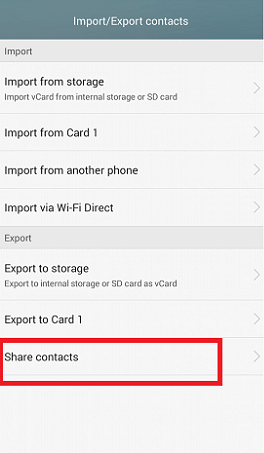
Step 1. On your old Xiaomi phone, open Contacts, go to "Settings" or "Import/Export", and choose "Export to SIM card".
Step 2. Power off the device, remove the SIM card, and insert it into the new Xiaomi phone.
Step 3. On the new phone, open Contacts, go to "Import/Export", and select "Import from SIM card" to save contacts.
1. Why are some contacts missing after transfer?
This usually happens when contacts are stored in different locations (SIM card, phone storage, or cloud). Make sure all contacts are visible and synced before transferring.
2. How can I prevent losing contacts during the transfer process?
To prevent losing contacts, it is crucial to back up your data before initiating the transfer. You can back up your contacts to a Google account, or even export them to a SIM card or local storage. Ensuring that your contacts are synced or backed up before transferring is the best way to keep them safe.
3. Will my contacts be automatically updated across devices if I use Google sync?
Yes, once your contacts are synced to your Google account, any changes you make to your contacts on one device will automatically update across all devices linked to that Google account.
Transferring contacts from Xiaomi to Xiaomi is easy with methods like Google account syncing, Mi Mover, or a SIM card. However, while syncing via Google or Mi Mover is convenient, it requires an internet connection, and SIM card transfers are limited by storage capacity and only transfer contacts saved to the SIM.
For a fast, secure, and error-free transfer, Coolmuster Mobile Transfer is the best option. It offers a one-click solution to move all your contacts quickly without any data loss, making the process seamless and efficient.
Related Articles:
How to Transfer Contacts from Redmi to Redmi with 5 Easy Ways
How to Transfer Data from Mi to Mi in 5 Possible Ways (Proven Tips)
7 Ways on How to Transfer Contacts to New Phone [Simple & Fast]







 Free Download for PC
  Free Download for Mac


