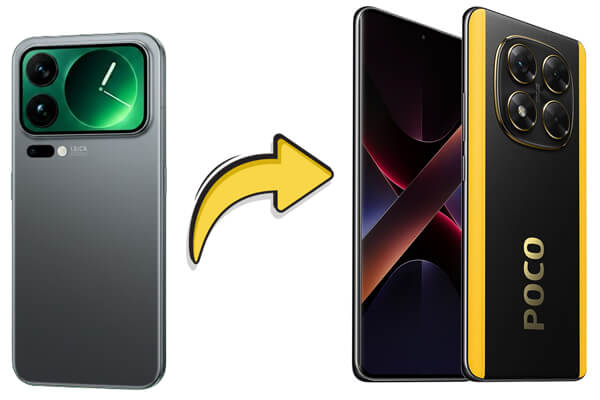
Switching from a Xiaomi phone to a POCO device is a common upgrade, especially since both brands belong to the same ecosystem. However, many users still wonder how to transfer data from Xiaomi to POCO safely and completely, without losing important files like contacts, messages, photos, or apps.
The good news is that there are several effective ways to move your data, whether you prefer wireless tools, cloud syncing, or a one-click computer-based solution. In this guide, we'll walk you through five practical methods, from Xiaomi's built-in tools to the most reliable third-party transfer software.
Mi Mover is Xiaomi's official wireless transfer tool, tailor-made for seamless data migration between Xiaomi, Redmi, and POCO devices running MIUI or HyperOS. It leverages Wi-Fi Direct to transfer data without an internet connection, ensuring fast speed and full compatibility, making it the top choice for complete device cloning.
Here are these steps:
Step 1. On both your Xiaomi and POCO phones, open Mi Mover. You can usually find it under "Settings" > "Additional settings" > "Mi Mover". If it's not available, download it from the app store.
Step 2. On your POCO phone, select "New". A QR code will be generated on the screen.
Step 3. On your Xiaomi phone, choose "Old", then scan the QR code shown on the POCO device to establish a connection.
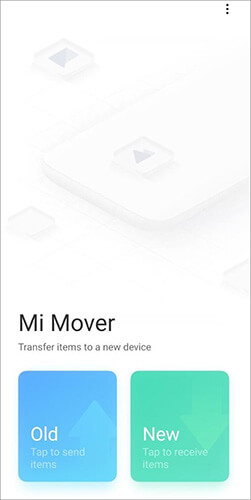
Step 4. Once the two phones are successfully connected, choose the data types you want to transfer, such as contacts, messages, photos, videos, apps, or documents.
Step 5. Tap "Send" on the Xiaomi phone to start the transfer process. Keep both devices close and wait until the transfer is complete. The selected data will then appear on your POCO phone.
If you're setting up your POCO phone for the first time, syncing data through a Google account is a convenient built-in option. This method relies on Google's cloud backup service to transfer essential data such as contacts, calendar events, photos, and certain app data, without installing any extra apps. It works best during the initial device setup process.
Steps to sync Xiaomi data to POCO via Google account:
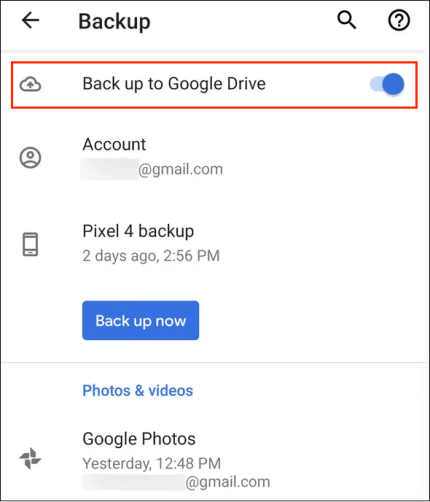
Step 1. On your Xiaomi phone, make sure Google backup is enabled. Go to "Settings" > "Google" > "Backup", turn on "Back up to Google Drive", select the data types you want to sync (such as contacts, calendar, and photos), and tap "Back up now".
Step 2. Power on your new POCO phone and follow the on-screen setup instructions. When you see the option to Copy data or Sign in to a Google account, log in using the same Google account linked to your Xiaomi device.
Step 3. After signing in, choose "Restore from Google Backup". Select the most recent backup from your Xiaomi phone and confirm the data categories you want to restore.
Step 4. Wait for the sync process to finish. Once setup is complete, the selected data will automatically appear on your POCO phone.
Note: This method mainly supports basic data syncing and may not transfer SMS, call logs, or all app data. For a more complete transfer, consider a dedicated phone-to-phone transfer tool.
Cloud services such as Xiaomi Cloud (designed for the Xiaomi/POCO ecosystem) and third-party platforms like Google Drive or Dropbox provide a flexible way to transfer data. This method works by uploading data from your Xiaomi phone to the cloud and then downloading it to your POCO device. It's especially useful for users who want remote access or prefer to transfer files gradually.
Step 1. On your Xiaomi phone, go to "Settings" > "Xiaomi Account" > "Cloud", and sign in with your Xiaomi account.
Step 2. Enable sync for the data types you want to transfer, such as contacts, messages, gallery, notes, and settings, then start the backup process.
Step 3. On your POCO phone, open "Settings" > "Xiaomi Account" > "Cloud" and log in using the same Xiaomi account.
Step 4. Turn on sync for the corresponding data categories or choose to restore data from the existing cloud backup. The selected data will be downloaded to your POCO device automatically.
Step 1. Install Google Drive or Dropbox on your Xiaomi phone, sign in, and upload the files you want to move, such as photos, videos, or documents.
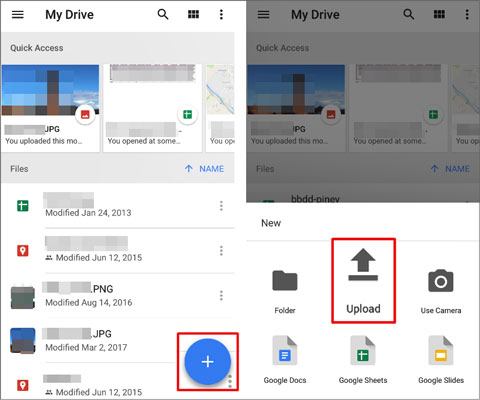
Step 2. Install the same cloud app on your POCO phone and log in with the same account.
Step 3. Locate the uploaded files and download them to your POCO device.
While cloud services are convenient, their free storage is often limited, and the transfer speed largely depends on your network connection. For large data transfers, this method may not be the most efficient.
If you're looking for a more comprehensive, stable, and time-saving solution, using a professional phone transfer tool is often the best choice. While built-in methods like Mi Mover or Google account syncing are helpful, they may fall short when dealing with large data volumes, multiple data types, or important information that must remain intact.
In this case, Coolmuster Mobile Transfer stands out as a reliable solution designed specifically for direct phone-to-phone data migration, making it ideal for transferring data from Xiaomi to POCO in one smooth process. It allows you to move data between two phones via a computer connection, ensuring fast transfer speeds, stable performance, and zero data loss.
Key features of Coolmuster Mobile Transfer:
Steps to transfer data from Xiaomi to POCO with Coolmuster Mobile Transfer:
01Download and install Coolmuster Mobile Transfer on your computer (Windows or Mac).
02Connect both your Xiaomi phone and POCO phone to the computer using USB cables. When prompted, enable USB debugging on both devices.
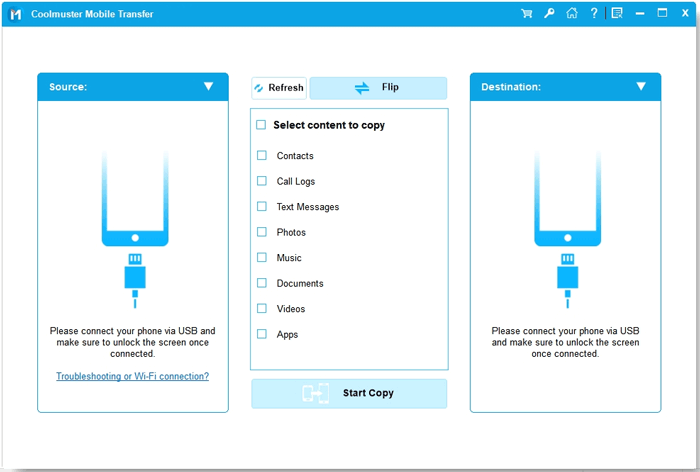
03Once detected, make sure the Xiaomi phone is set as the source device and the POCO phone as the destination device. If needed, click the "Flip" button to switch their positions.
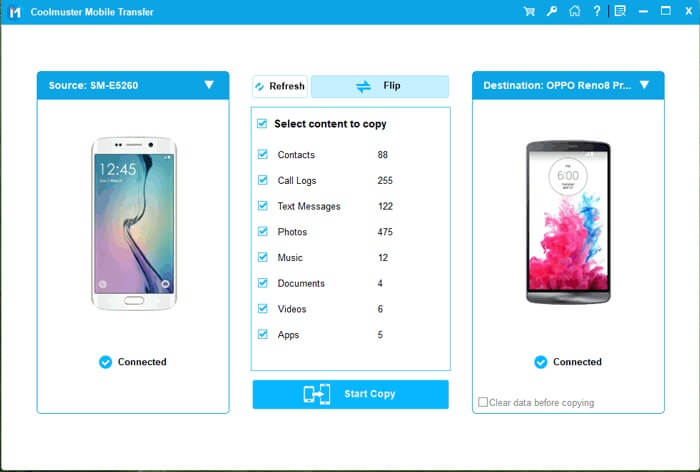
04Select the data types you want to transfer, such as contacts, messages, photos, videos, or other supported files. Then, click "Start Copy" to begin the transfer. The selected data will be moved to your POCO phone automatically within minutes.
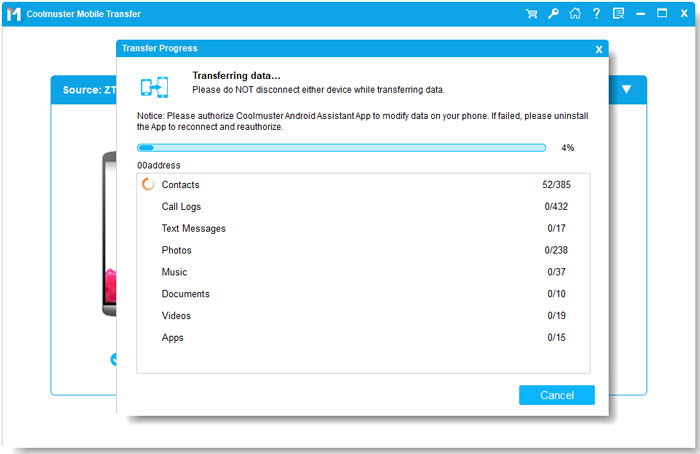
For users who prefer visual guidance, Coolmuster also provides a step-by-step video tutorial that walks you through the entire transfer process, making it even easier to follow.
If you only need to transfer specific files, such as photos, videos, music, or documents, and don't want to rely on cloud storage or a computer, a wireless direct transfer method can be the most convenient option. For Xiaomi and POCO users, this can be easily achieved using ShareMe, an official Xiaomi file-sharing tool designed for fast transfers between Android devices.
ShareMe (formerly known as Mi Drop) uses Wi-Fi Direct to transfer files locally, making it ideal for sending large files while maintaining high transfer speeds. However, it is mainly designed for file sharing and does not support full system or app data migration. (You can read this ShareMe review to learn more.)
Steps to transfer files from Xiaomi to POCO with ShareMe:
Step 1. Install ShareMe on both your Xiaomi and POCO phones from the Google Play Store. On some MIUI or HyperOS devices, the app may already be pre-installed.
Step 2. Open ShareMe on both devices. On the Xiaomi phone, tap "Send", and on the POCO phone, tap "Receive".
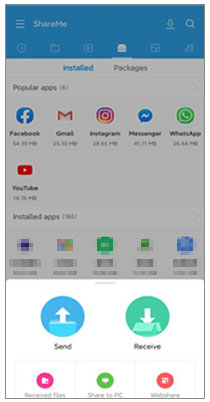
Step 3. On the Xiaomi device, select the files or folders you want to transfer. You can browse by categories such as Photos, Videos, Documents, or Apps.
Step 4. Pair the two devices by scanning the QR code displayed on the POCO phone or selecting the POCO device from the list of nearby devices. Make sure both phones are close to each other.
Step 5. Accept the connection request on the POCO phone to start the transfer. You can monitor the transfer progress in real time until it completes.
There are several effective ways to transfer data from Xiaomi to POCO, and each method fits a different scenario:
If you want a safe, efficient, and hassle-free way to transfer all your important data at once, Coolmuster Mobile Transfer is the most reliable choice, especially when dealing with large data volumes or critical information.
Related Articles:
How to Transfer Data from Mi to Mi in 5 Possible Ways (Proven Tips)
How to Transfer Data from Xiaomi to iPhone with 4 Easy Methods
How to Transfer Files from Xiaomi to PC with or without USB? [5 Easy Ways]
How to Perform POCO Backup and Restore Easily [Full Guide 2026]







 Free Download for PC
  Free Download for Mac


