If you've recently switched from an iPhone to a OnePlus device, one of your first questions might be: how to transfer photos from iPhone to OnePlus safely and efficiently? Since iPhone runs on iOS and OnePlus operates on Android, these two systems don't communicate directly. However, there are several reliable methods to move your photos seamlessly.
In this guide, we'll walk you through five effective methods on how to transfer photos from iPhone to OnePlus step by step. Let's delve in.
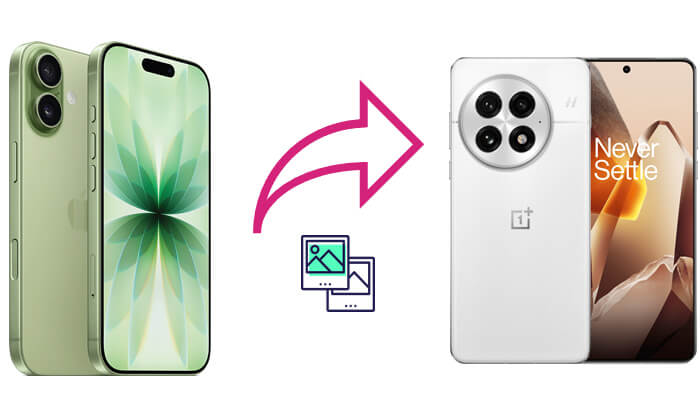
If you want a professional, one-click solution, Coolmuster Mobile Transfer is your best choice. This tool supports direct data transfer between iOS and Android devices, including photos, videos, contacts, messages, music, and more. With an intuitive interface and stable connection, it ensures that your photos remain in their original quality.
Main features of Coolmuster Mobile Transfer:
How do I transfer photos from my iPhone to OnePlus in just one click? Follow the simple steps below:
01Download and install Coolmuster Mobile Transfer on your computer (available for both Windows and macOS). Connect both your iPhone and your OnePlus device to the computer using USB cables.
02Launch the program, and the software will detect both devices automatically. Make sure iPhone is the Source and OnePlus is the Destination. Click "Flip" if needed.
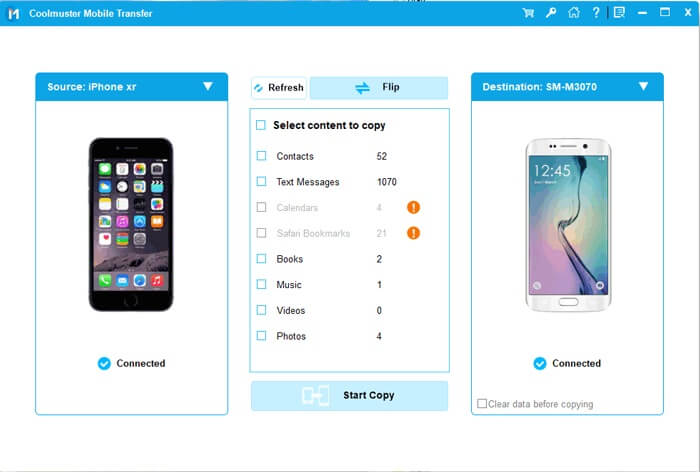
03Check the box next to "Photos", then click "Start Copy" to begin the transfer process.
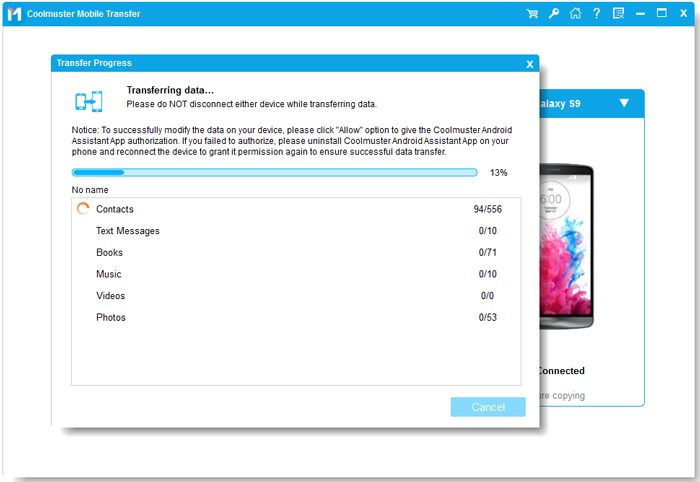
Video guide
Another effective option is to use the OnePlus Clone Phone app, the official migration tool developed by OnePlus. It enables you to move data like photos, videos, and contacts wirelessly from your iPhone to your new OnePlus phone. The entire process doesn't require a computer, making it very convenient.
Follow these steps to move photos from iPhone to OnePlus using Clone Phone:
Step 1. Download and install the OnePlus Clone Phone app on both your iPhone and your OnePlus device.
Step 2. Log in to iCloud on your iOS device and enable sync options like "Contacts" and "Photos" as needed.
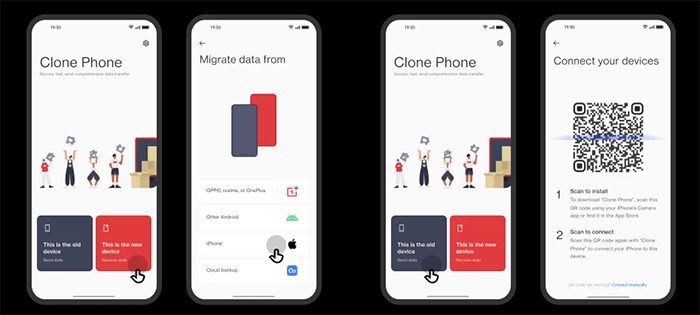
Step 3. On your OnePlus phone, open the Clone Phone app, select "This is the new device", and choose "iPhone" as the type of the old phone.
Step 4. Next, open Clone Phone on the iOS device, select "This is the old device", and choose the data you wish to transfer.
Step 5. Use the iOS device to scan the QR code displayed on the OnePlus phone to connect the two devices. Finally, select "Start migration" to begin transferring the data.
If you prefer a manual method, you can use Windows File Explorer to copy photos from your iPhone to a PC first, and then move them to your OnePlus phone. This method is simple and doesn't require third-party apps.
Here's how to transfer photos from iPhone to OnePlus using File Explorer:
Step 1. Connect your iPhone to your computer via a USB cable.
Step 2. Tap "Trust This Computer" on your iPhone and enter your passcode.
Step 3. Open "This PC" on your computer, locate "Apple iPhone", and open "Internal Storage" > "DCIM".
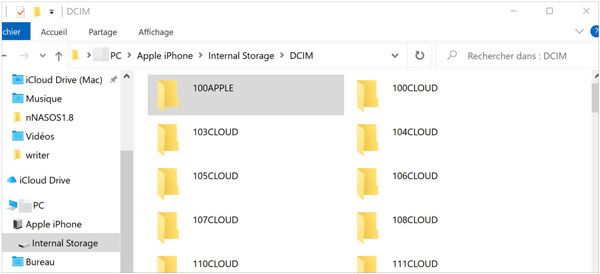
Step 4. Copy the photos you want to transfer and paste them into a folder on your computer.
Step 5. Disconnect your iPhone, then connect your OnePlus phone to the computer.
Step 6. Open the OnePlus storage folder and paste the copied photos into it.
If you prefer a cloud-based method, Google Photos offers a convenient way to sync your photos between your iPhone and OnePlus automatically. By uploading your pictures to the cloud, you can easily access them on your OnePlus device anytime.
Follow the steps below to sync photos from your iPhone to your OnePlus via Google Photos:
Step 1. Install Google Photos on your iPhone from the App Store.
Step 2. Sign in with your Google account and enable "Backup & Sync".
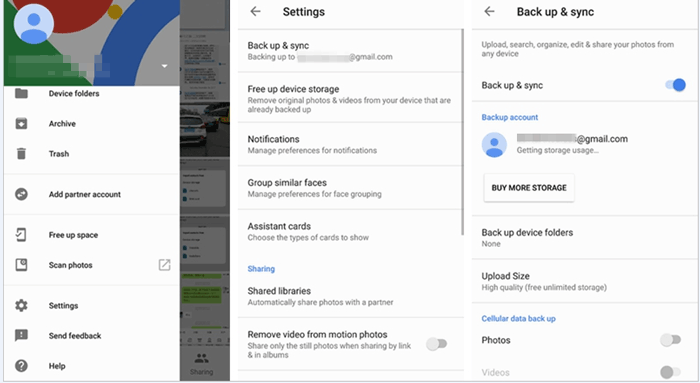
Step 3. Wait for your iPhone photos to finish uploading to your Google account.
Step 4. On your OnePlus phone, install and open Google Photos, then sign in with the same Google account.
Step 5. All your iPhone photos will appear automatically; you can download them to your OnePlus if desired.
If you want to know the difference between Google Photos and Google Drive, you can read this article.
Google Drive vs Google Photos: Which One Is More Suitable for You?For those who only need to transfer a few photos quickly, SHAREit is a fast and convenient wireless transfer app that works across iOS and Android devices.
Here's how to send photos from iPhone to OnePlus using SHAREit:
Step 1. Download and install the SHAREit app on both your iPhone and your OnePlus devices.
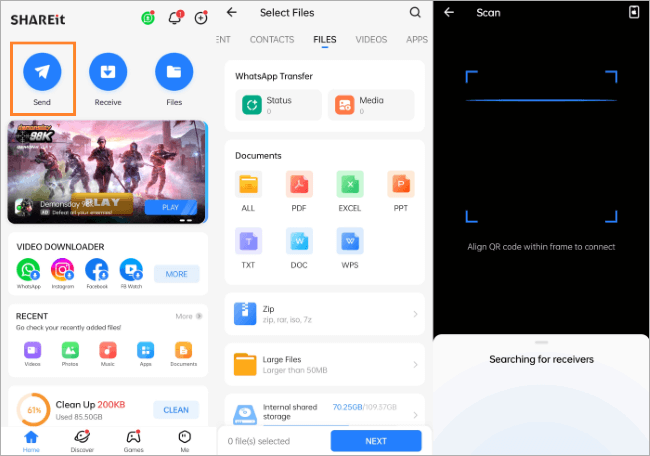
Step 2. Open SHAREit on your iPhone, tap "Send", and select the photos you wish to transfer.
Step 3. Open SHAREit on your OnePlus phone and tap "Receive".
Step 4. Ensure both phones are connected to the same Wi-Fi network.
Step 5. When your OnePlus phone appears on your iPhone's screen, tap it to start the transfer.
Transferring photos from an iPhone to a OnePlus is not complicated as long as you choose the right tool. If you want to transfer multiple types of files at once, avoid compatibility issues, and ensure data quality remains intact, Coolmuster Mobile Transfer is the ideal choice. It's easy to use, offers stable transfers, and is the perfect helper when switching between phone systems.
Related Articles:
How to Transfer Music from iPhone to OnePlus Without Hassle?
[Solved] How to Transfer Contacts from iPhone to OnePlus Easily?
OnePlus Backup and Restore: 4 Simple Ways to Keep Your Data Safe
How to Transfer Photos from OnePlus to iPad: 5 Quick Methods







 Free Download for PC
  Free Download for Mac


