TL;DR:
Fixing voice message not working on WhatsApp depends on whether you are facing playback or recording issues.
"Since Sunday, my WhatsApp has had a problem. My voice notes automatically become an error when I send them, and when I record, the line is straight silent. When people call me, I can hear them, but they can't hear me. I checked my microphone settings on my iphone but it's enabled, got plenty of storage too. Even tried to delete and reinstall the app,p but it still isn't working. Can someone please tell me what the problem is with my whatsapp and how to fix it?"
- From Reddit
WhatsApp voice messages make conversations faster and easier, allowing users to send audio instead of typing long texts. However, many users may encounter the issue of voice messages not working on WhatsApp, such as voice messages not playing, failing to record, or not being sent successfully.
This problem can affect both Android and iPhone users and may happen in different situations. Before trying random fixes, it is important to identify what type of issue you are experiencing. In this guide, we will explain the common reasons why WhatsApp voice messages stop working and provide step-by-step solutions to help you restore normal audio messaging.
If your WhatsApp voice message is not working, the problem may come from different parts of the app or your device. Common causes include:
If WhatsApp voice messages are received successfully but you cannot hear them, try these fixes.
Sometimes WhatsApp voice messages have no sound simply because your phone volume is too low or audio output settings have changed.
On Android:
On iPhone:
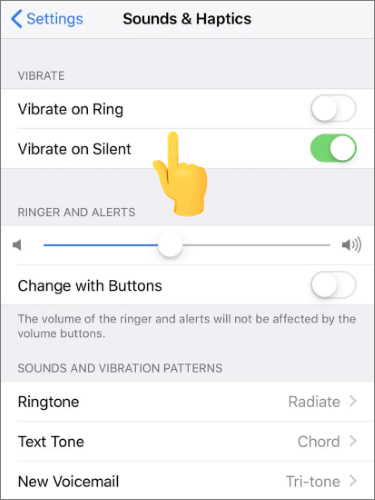
You can also play audio from another app to check whether the issue is related to your phone speaker.
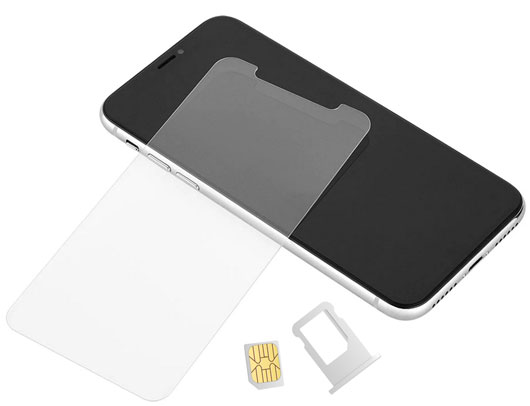
A damaged or incorrectly installed screen protector may block the proximity sensor on your phone. When this happens, WhatsApp may switch the voice message audio from the speaker to the earpiece unexpectedly. Try removing the screen protector temporarily and play the voice message again. If the sound returns, replace it with a protector that does not cover the sensor area.
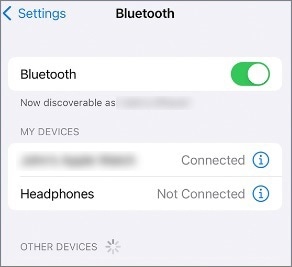
Connected Bluetooth devices may redirect WhatsApp voice message audio to headphones, earbuds, or speakers instead of your phone.
On Android:
On iPhone:
Temporary bugs in WhatsApp or your phone system may sometimes affect audio playback, causing voice messages to have no sound or fail to play correctly. Restarting the app and device can refresh background processes and fix these temporary issues.
Try the following steps:
On Android:
On iPhone:
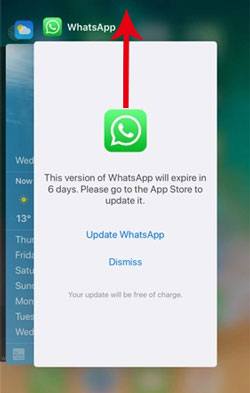
If restarting WhatsApp does not solve the issue:
Android:
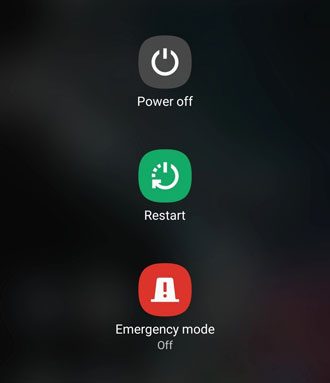
iPhone:
If a WhatsApp voice message cannot be played, the audio file may not have been downloaded properly due to incorrect media settings. Checking WhatsApp's media settings can help ensure voice messages are downloaded and stored correctly.
On Android:
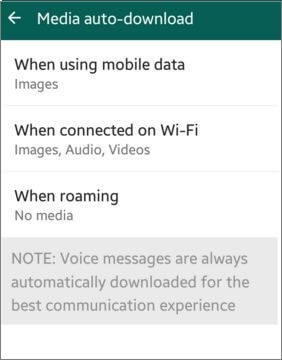
On iPhone:
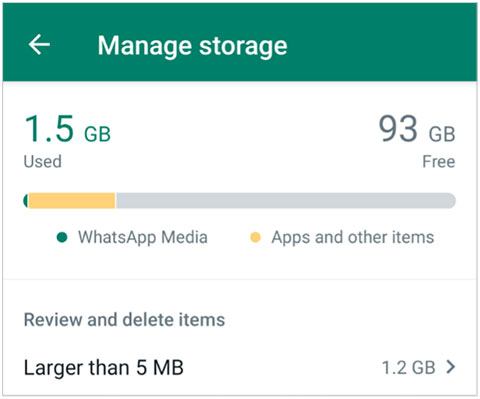
If WhatsApp has accumulated too many media files, it may affect how new voice messages are downloaded or loaded. You can remove unnecessary files from WhatsApp:
On Android and iPhone:
If you cannot record WhatsApp voice messages or the recorded audio fails to send, the problem can be solved with the following fixes.
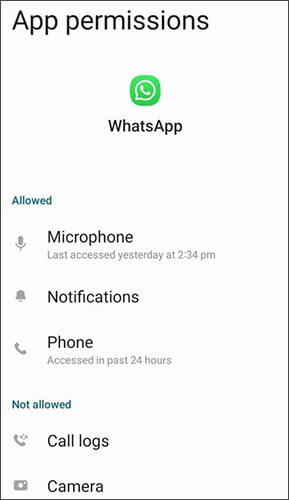
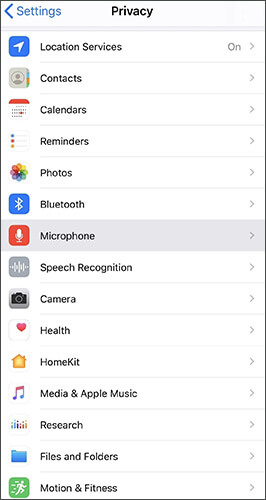
WhatsApp needs microphone permission to record voice messages. If access is disabled, you may not be able to record audio or the voice message button may not work properly.
On Android:
On iPhone:
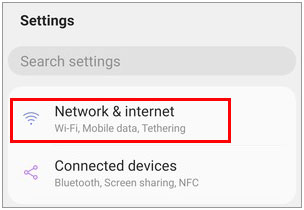
A weak or unstable internet connection can prevent WhatsApp voice messages from being sent. Although voice messages are usually small files, WhatsApp still requires a reliable connection to upload audio successfully.
Try these solutions:
Other apps that use the microphone may prevent WhatsApp from recording voice messages properly. This can happen with apps for video calls, voice recording, meetings, or screen recording.
On Android:
On iPhone:
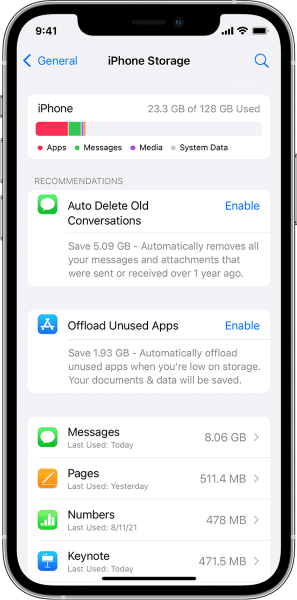
When your phone storage is full or nearly full, WhatsApp may not be able to save newly recorded voice messages or send audio files successfully. Freeing up some space on your device can help restore normal voice messaging.
On Android:
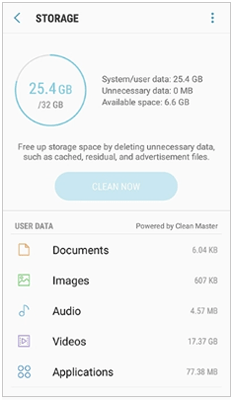
On iPhone:
If WhatsApp voice messages are still not working after trying the previous fixes, the issue may be caused by an outdated app version or temporary problems within WhatsApp. Updating the app can fix known bugs and improve compatibility with your device.
On Android:
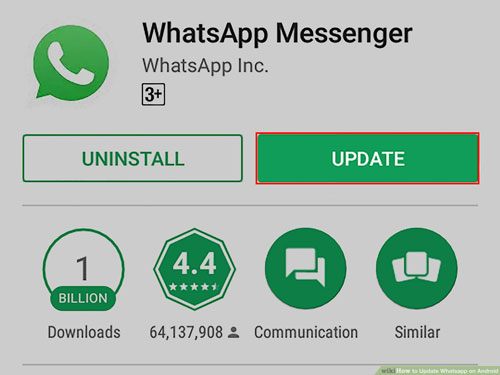
On iPhone:
If updating WhatsApp does not solve the issue, you can try reinstalling the app. However, uninstalling WhatsApp may remove locally stored data, so make sure to back up your important chats and media before reinstalling.
Before reinstalling WhatsApp or making major changes to the app, creating a backup is a good way to protect your important conversations and media files. This helps prevent the loss of WhatsApp voice messages, photos, videos, and other attachments during the troubleshooting process.
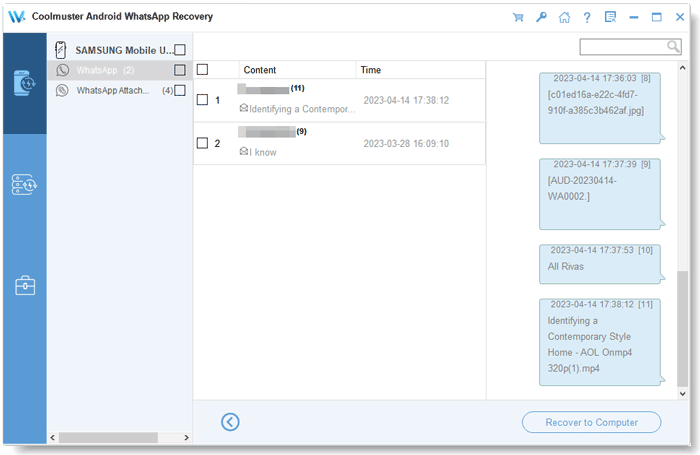
For Android users, Coolmuster Android WhatsApp Recovery allows you to export WhatsApp chats and attachments from your Android phone to a computer. Follow the steps below to back up your Android WhatsApp data to your computer.
01Download and open Android WhatsApp Recovery on your computer, then use a USB cable to connect your Android device.
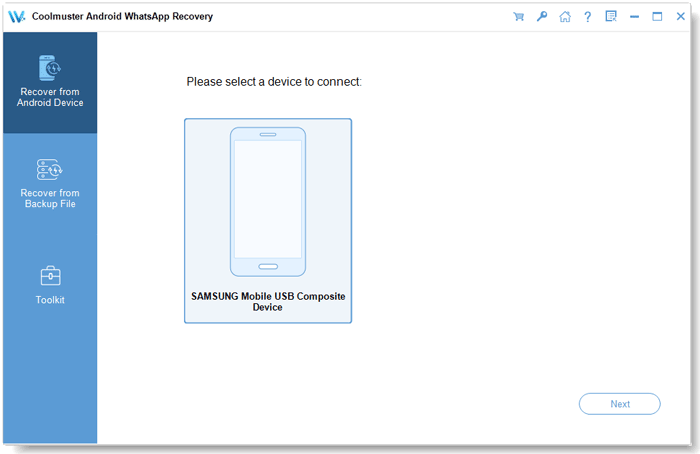
02After your phone is recognized by the program, choose your device from the available list and click "Next". The software will then check your phone for stored WhatsApp conversations and related files.
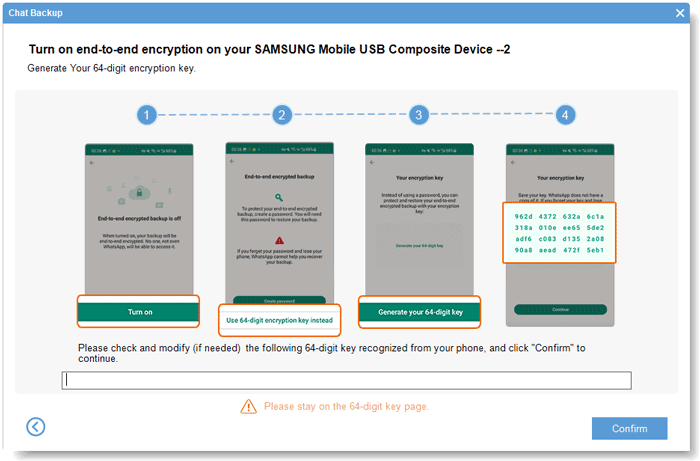
03Follow the instructions shown on the screen to set up WhatsApp end-to-end encrypted backup. Once the required encryption key is created, the program will automatically identify it and insert the key for you. Click "Confirm" to proceed.
04When the scanning process finishes, you can view the available WhatsApp chats and attachments. Select the voice messages or other data you want to preserve, then click "Recover to Computer" to export the selected files.
For a more detailed guide, you can watch the following video tutorial to see how to back up WhatsApp data with Coolmuster Android WhatsApp Recovery step by step.
If you are an iPhone user, you can use Coolmuster iPhone WhatsApp Recovery to back up and recover iOS WhatsApp messages, voice messages, and attachments. It is designed to help protect important WhatsApp data before troubleshooting app issues or reinstalling WhatsApp. Here are 3 amazing ways to back up WhatsApp from iPhone to PC.
When a voice message is not working on WhatsApp, the cause can vary from simple audio setting changes to microphone permission issues, network problems, or app-related errors. Identifying whether the problem is related to playback or recording/sending can help you apply the right fix more efficiently.
Most WhatsApp voice message issues can be resolved by adjusting device settings, checking permissions, improving the network connection, or updating the app. However, if you need to reinstall WhatsApp or try more advanced troubleshooting methods, creating a backup beforehand is highly recommended. Tools like Coolmuster Android WhatsApp Recovery can help you save important WhatsApp chats, voice messages, and attachments to your computer, reducing the risk of data loss during the repair process.
Related Articles:
How to Delete WhatsApp Voice Messages on iPhone [Updated]
How to Recover Audio Files from WhatsApp on Android & iPhone
Fixed: WhatsApp Download Failed | Fix the Issue with 8 Solutions
[Stepwise Guide] How to Manage WhatsApp Account on Android Devices?







 Free Download for PC
  Free Download for Mac


