TL;DR:
If your Android phone is locked after too many incorrect password attempts, wait for the lockout to end or use an unlocking tool or reset method to regain access.
Getting locked out of your Android phone after several incorrect password attempts can be frustrating, especially when you need to access something urgently. The tricky part is that not every lockout works the same way. Some phones only require you to wait, while others may need a more involved recovery process. Whether you have forgotten your PIN, entered the wrong pattern repeatedly, or cannot get past the lock screen, this guide covers several ways to regain access, from simple fixes to dedicated unlocking tools.
Entering the wrong PIN, password, or pattern repeatedly can trigger a security lockout on your Android phone. You may see a "Try again later" message, and the waiting period may increase with each failed attempt. On some devices, repeated incorrect attempts can lead to a more serious lockout that prevents further password entry. If you cannot remember the correct screen lock, you may have to factory reset your phone to regain access, which usually erases all locally stored data.
If your Android phone remains locked after too many incorrect password attempts and you cannot remember the correct passcode, Android Unlocker is worth trying. This desktop tool helps remove Android screen locks without entering the original PIN, password, or pattern. It supports two removal modes, including a data-loss-free option for selected Samsung devices and a general screen lock removal mode for other Android devices.
Why Choose this Android Unlocker?
Steps to Unlock Android Screen Passcode with Android Unlocker:
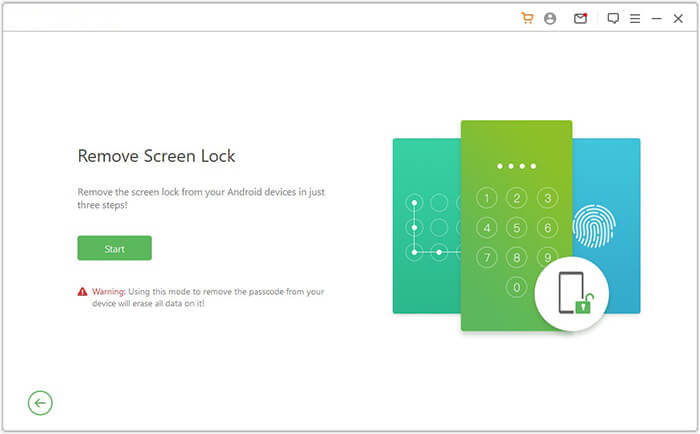
01Download and install Android Unlocker on your computer. Launch the program, select "Remove Screen Lock", and click "Start".
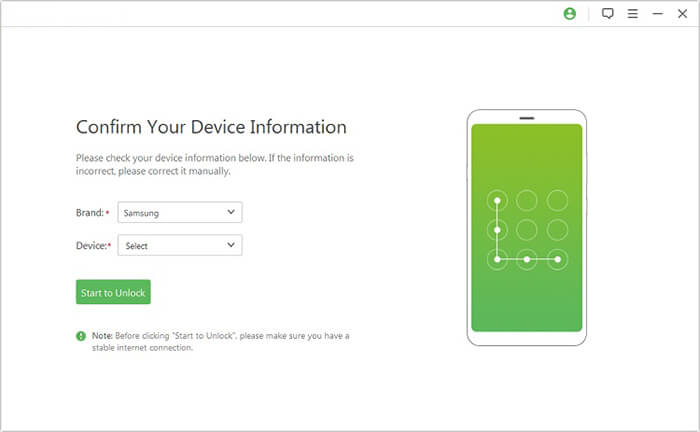
02Connect your locked Android phone to the computer using a USB cable. The program will automatically detect your device information. Check the detected device information carefully. If everything is correct, click "Start to Unlock" to continue.
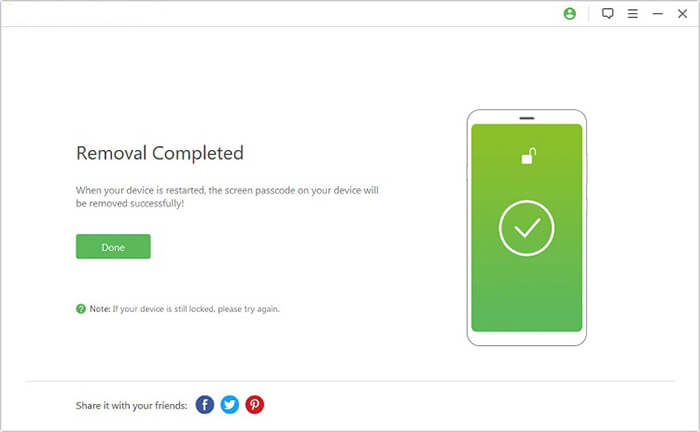
03Wait while the program downloads and prepares the required data package for your device. Follow the on-screen instructions to reset your Android phone and remove its screen lock. Once the process finishes, your device will be unlocked.
If you entered the wrong Android password too many times, your phone may temporarily prevent further attempts. In this case, waiting is the simplest thing to try. Check the lock screen for a countdown or a "Try again later" message, and avoid entering more passwords until the waiting period ends.
Once you can try again, enter your most likely PIN, password, or pattern carefully. If you still cannot remember it, don't keep guessing, as this may trigger another lockout. Instead, try another unlocking method.
Google Find Hub (formerly Find My Device) lets you remotely locate, secure, or erase a lost Android phone. If you cannot unlock your device after too many incorrect password attempts, you can use its erase feature to remove the existing screen lock. However, this process will delete the data stored on your phone.
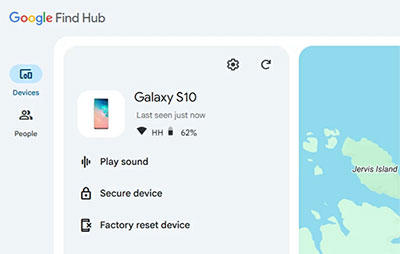
Note: Your phone must meet Google's requirements for remote erasure, including being powered on and connected to the internet. After the reset, you may need to verify the Google account previously linked to the device through Factory Reset Protection (FRP).
If you cannot unlock your Android phone and cannot use Google Find Hub, a factory reset through Recovery Mode is another option. This method does not require you to enter your screen password, but it will erase your phone's local data, including photos, apps, and settings. The button combination for entering Recovery Mode varies by brand, but the general process is similar.
1. Turn off your Android phone completely.
2. Press and hold the appropriate button combination to enter Recovery Mode. On many devices, this involves holding the Power and Volume Up buttons together.
3. Use the volume buttons to navigate to "Wipe data/factory reset".
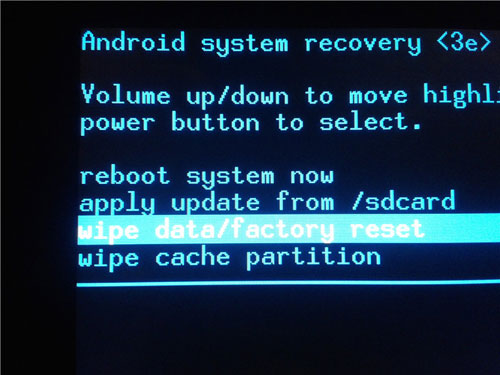
4. Press the Power button to select the option, then confirm your choice.
5. Wait for the reset to finish, then select "Reboot system now".
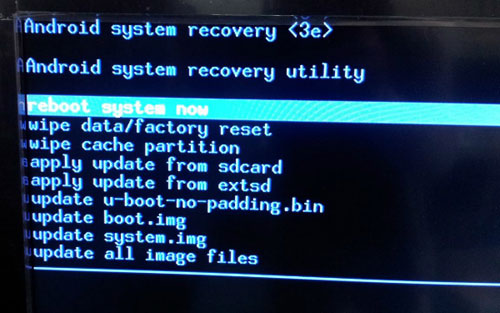
6. Set up your Android phone and create a new screen lock.
Note: The exact Recovery Mode steps may vary depending on your phone model (here is a detailed guide on how to put your Android phone into Recovery Mode). After resetting, Android may ask you to sign in with the Google account previously linked to the device due to Factory Reset Protection (FRP).
If none of the methods above works, contact your phone manufacturer or mobile carrier for help. They can check whether your device has any available recovery options and guide you through the next steps. This is especially useful if your phone remains locked after repeated password attempts or you are unsure how to reset it safely.
Visit the manufacturer's official support website or a nearby service center. Be ready to provide your phone model and proof of ownership. Keep in mind that support staff may recommend a factory reset if the original screen lock cannot be recovered.
To avoid another lockout, take a few simple precautions when setting up your Android screen lock. Keep these tips in mind:
Q1: Can I unlock my Android phone with my Google account password instead of the screen lock?
No. On most modern Android phones, your Google account password cannot directly replace your screen PIN, pattern, or password. Google account credentials are mainly used for account verification and device protection, rather than bypassing the existing screen lock.
Q2: Will my Android phone delete itself after too many wrong password attempts?
Not necessarily. Most Android phones temporarily restrict further attempts rather than automatically erasing all data. However, some devices may have additional security settings that trigger a data wipe after a specified number of failed attempts. The exact behavior depends on the manufacturer and device configuration.
Q3: Can I unlock an Android phone using my fingerprint after entering the wrong password too many times?
It depends on your device's security state. Android may require you to enter your PIN, password, or pattern instead of using fingerprint or face recognition after certain security events, such as a restart or repeated failed unlock attempts. In that case, biometric authentication alone may not get you back into the phone.
Q4: Does removing the SIM card unlock an Android phone?
No. Removing the SIM card will not remove the screen lock because Android stores this security setting on the device itself. You will still need the correct screen credentials or another supported recovery method to access your phone.
Q5: Can I unlock my Android phone with ADB without the password?
Generally, no. ADB cannot normally bypass an Android screen lock unless USB debugging was enabled beforehand and the computer was already authorized. If these requirements are not met, ADB is unlikely to help you access a locked phone.
Q6: What should I do if my Android phone keeps rejecting the correct password?
First, check whether you are entering the correct password format and keyboard characters, especially if your device uses an alphanumeric password. Also, make sure the touchscreen is responding properly and that you are not accidentally entering different characters. If the phone still rejects the correct credentials, contact the manufacturer for further assistance.
Being locked out of an Android phone does not always mean you need a new device or an expensive repair. Start with the simplest option, such as waiting for the temporary lockout to end. If that does not work, consider a dedicated Android unlocking tool like Android Unlocker or the available reset options. Most importantly, keep your Google account details handy and back up your data regularly to make future lockouts easier to handle.
Related Articles:
How to Unlock Android Phone from PC [3 Tested Methods]
6 Best Android Unlock Apps to Unlock Your Phone [Updated]




 Free Download for PC


