When creating tutorials, presentation videos, or product demos, many people use PowerPoint's built-in screen recording feature. However, sometimes users encounter issues with PowerPoint screen recording not working—for example, the record button may be grayed out and unclickable, there may be no audio after recording, or the recorded video might fail to insert into the slide.
If you've experienced any of these issues, don't worry. This article will analyze the common causes of PowerPoint screen recording not working and provide several practical solutions to help you quickly restore the screen recording functionality.

Before troubleshooting, it's important to understand the common causes of PowerPoint screen recording not working. Knowing these can help you find the right solution more quickly. Common causes include:
When any of these issues occur, PowerPoint's screen recording feature may fail to start, freeze, or produce unsuccessful recordings.
Here are 14 effective solutions that can help you fix the issue of PowerPoint screen recording not working. You can try them one by one in order.
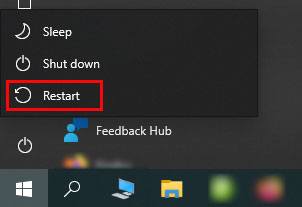
In many cases, PowerPoint screen recording not working is caused by a temporary system glitch. Restarting the program or your computer usually resolves the issue quickly.
Restart PowerPoint:
Step 1. Close PowerPoint.
Step 2. Close PowerPoint completely and make sure no windows are open.
Step 3. Press "Ctrl" + "Shift" + "Esc", open Task Manager, and end any POWERPNT.EXE processes.
Step 4. Reopen PowerPoint and try screen recording again.
Restart the Windows Computer:
Step 1. Click the "Start" menu.
Step 2. Select "Power" → "Restart".
Step 3. Wait for the computer to reboot, then open PowerPoint and try screen recording.
Sometimes, PowerPoint doesn't have the necessary permissions to access your system's recording hardware. Running it with elevated privileges can fix these permission-related issues.
Here is how to run PowerPoint as an administrator on your PC:
Step 1. Close PowerPoint first and then right-click the "PowerPoint" icon.
Step 2. Select "Run as administrator".
This allows PowerPoint to access the system resources it needs for screen recording.

If the PowerPoint 2019 screen recording is not working, the issue may be caused by a conflicting add-in. Some third-party extensions can interfere with the screen recording module. Running PowerPoint in Safe Mode disables all add-ins, helping you determine whether they are causing the problem.
Here is how to do it:
Step 1. Press "Windows" + "R" to open the Run dialog box.
Step 2. Type "powerpnt /safe" (with a space after "powerpnt"), and press "Enter". PowerPoint will open in Safe Mode.
Step 3. Try using the screen recording feature. If it works, the problem is caused by an add-on.

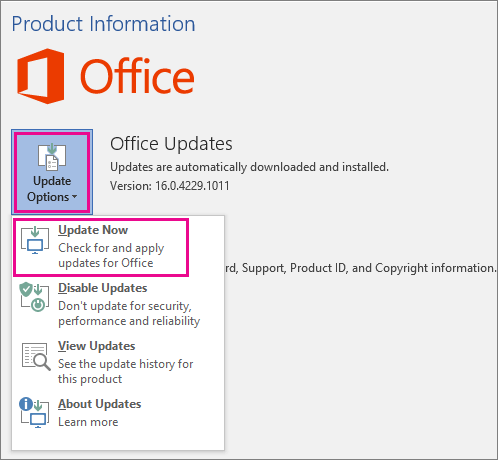
An outdated Office version may contain bugs that affect recording features. Many users experiencing PowerPoint screen recording not working found that updating Office fixed the issue.
To update PowerPoint, follow the steps below:
Step 1. Open any Office application, such as PowerPoint or Word.
Step 2. Go to the "File" tab and select "Account" or "Help" in older versions.
Step 3. Click the "Update Options" dropdown and choose "Update Now".
Step 4. Wait for the update to complete.
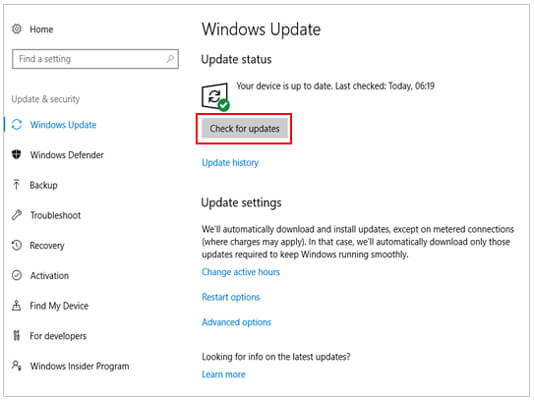
An outdated Windows system may cause compatibility issues with Office applications, leading to PowerPoint screen recording not working on Windows 10/11. Updating Windows ensures all necessary system components are functioning properly.
To update the Windows system, go to "Settings" > "Update & Security" > "Windows Update", then click "Check for updates".
Screen recordings generate video files, which require adequate storage space. If your disk is nearly full, PowerPoint may fail to record or save the video. Checking your disk space is important if the recording stops unexpectedly.
Here is how to do it:
Step 1. Empty your computer's Recycle Bin.
Step 2. Run the Disk Cleanup utility to remove temporary files and unnecessary downloads.
Step 3. Make sure the drive where your PowerPoint file is stored has at least 2–5 GB of free space.
Graphics acceleration can sometimes conflict with the recording engine, especially on older GPUs or outdated drivers. Disabling it may resolve the issue of PowerPoint screen recording not working.
Here are the steps:
Step 1. Open PowerPoint, go to "File" > "Options" > "Advanced", and scroll down to the "Display" section.
Step 2. Check "Disable hardware graphics acceleration" and click "OK".
Step 3. Restart PowerPoint.

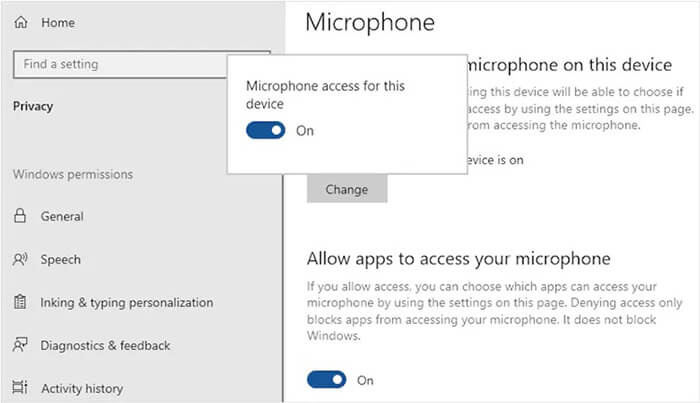
If the PowerPoint screen recording sound is not working, the problem might be related to Windows microphone permissions. When PowerPoint cannot access the microphone, the recording may have no sound.
To check microphone permissions on Windows, open Windows "Settings", go to "Privacy & Security" > "Microphone", and turn on "Allow apps to access your microphone".
If the PowerPoint screen recording audio is not working, your audio driver might be outdated or corrupted. Updating the driver can restore recording functionality.
Here is how to do it:
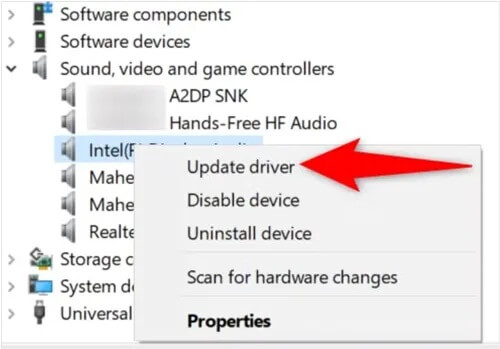
Step 1. Right-click the "Start" menu, open "Device Manager", and expand "Sound, video and game controllers".
Step 2. Right-click your audio device and select "Update driver".
Step 3. Follow the on-screen instructions to complete the update.
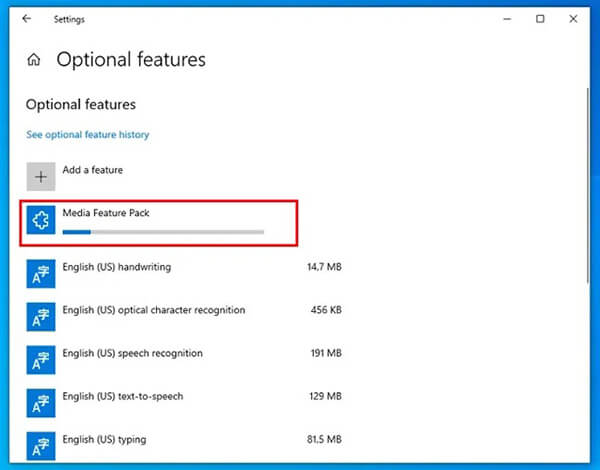
If you're using a Windows "N" edition, it does not include the media components required for recording. To enable these features, you need to install the Media Feature Pack from Microsoft.
Go to "Settings" → "Apps" → "Optional features" → "Add a feature", then select "Media Feature Pack" from the list and install it. After the installation finishes, restart your computer to apply the changes.
Add-ins can extend PowerPoint functionality, but sometimes cause conflicts with recording tools. Disabling them can help fix PowerPoint screen recording not working. To do this, follow the steps below:
Step 1. Open PowerPoint, then go to "File" → "Options" → "Add-ins".
Step 2. At the bottom, select "COM Add-ins" from the dropdown and click "Go".
Step 3. Uncheck all add-ins, then restart PowerPoint.

If other screen recording software is running on your computer—such as game recording tools or third-party screen capture programs—they may compete for screen recording resources, which can cause PowerPoint screen recording to stop working. Closing these programs can prevent resource conflicts.
Here are the steps:
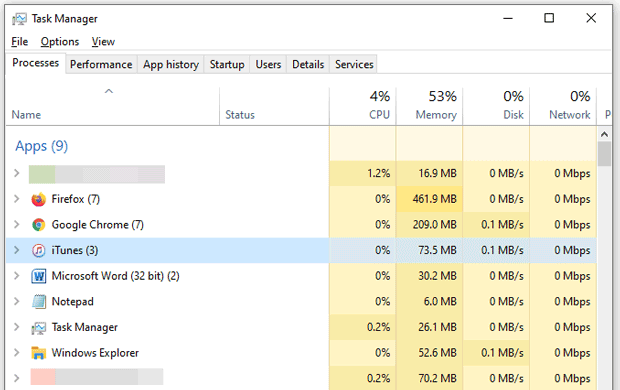
Step 1. Press "Ctrl" + "Shift" + "Esc" to open Task Manager, then check the list for any screen-recording programs currently running.
Step 2. Select the program and click "End Task", then reopen PowerPoint and try recording again.
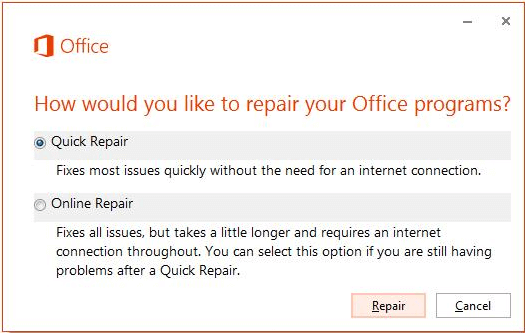
Corrupted Office files can prevent features like PPT screen recording from working correctly. Fortunately, Microsoft provides a built-in repair tool. Here is how to do it:
Step 1. Open Control Panel and go to "Programs and Features".
Step 2. Locate "Microsoft Office", then click "Change".
Step 3. Select "Quick Repair" or "Online Repair", and wait for the repair process to finish.
If none of the above methods resolve the issue, the PowerPoint program itself may have a serious error. Reinstalling the software can usually fix these problems completely. To reinstall PowerPoint, follow the steps below:
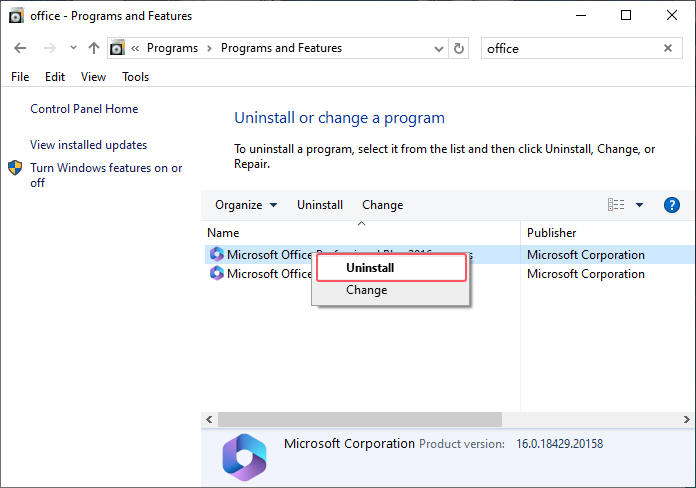
Step 1. Open the Control Panel and click "Uninstall" a program.
Step 2. Find "PowerPoint", right-click it, and select "Uninstall". After that, reinstall PowerPoint or reinstall Microsoft Office.
If you have tried multiple fixes but still encounter the PowerPoint screen recording not working issue, it may be time to switch to a more stable and professional recording tool. While PowerPoint’s built-in recorder is convenient for simple tasks, it often lacks advanced features and may experience compatibility or audio problems on some Windows systems.
In this situation, Coolmuster Screen Recorder is an excellent alternative for recording presentations, tutorials, online meetings, gameplay, and more. Compared with the built-in PPT screen recording feature, it offers smoother performance, better recording stability, and more flexible audio settings.
Key features of Coolmuster Screen Recorder:
Here is how to use Screen Recorder to record a screen on Windows:
01Launch the software and choose either "Full Screen" or "Custom" mode to set the recording area.
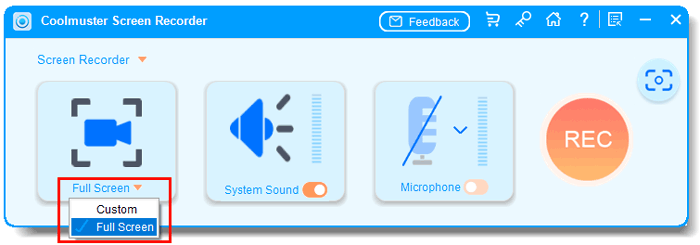
02Select your audio source by enabling "System Sound", "Microphone", or neither.
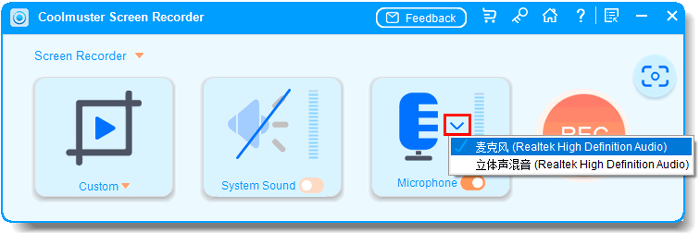
03Click the orange "REC" button and select "Start Recording". A brief countdown will appear before recording starts.

04Once finished, click "Stop Recording". Your video will be automatically saved locally in MP4 format, and you can use the "Copy" option for quick sharing.

Video Tutorial:
When you encounter the PowerPoint screen recording not working issue, there's no need to worry. In most cases, simply restarting the software, updating PowerPoint, checking permissions, updating drivers, or repairing Office can easily resolve the problem.
However, if you continue experiencing issues such as PowerPoint screen recording audio not working, recording failures, or unstable performance, switching to a dedicated recording tool is often the better solution. Compared with the built-in PPT screen recording feature, Coolmuster Screen Recorder offers a more stable recording experience, higher video quality, and more flexible audio settings.
Related Articles:
Ultimate Guide to Screen Recorders for Windows: 8 Best Tools Inside!
Best Screen Recorder for Mac: Top 10 Screen Recording Software for macOS
How to Screen Record on Mac Step by Step: Comprehensive Guide
How to Record Screen on Windows 10/11 with Audio in 4 Useful Ways







 Free Download for PC


