5G technology has revolutionized the way we connect to the internet, offering lightning-fast speeds, lower latency, and a smoother online experience. Many countries, such as the UK, China, and the USA, are actively expanding their 5G network coverage, and most major phone manufacturers have already released 5G-enabled models.
After getting a new phone, many users naturally wonder, "Is my phone 5G?" or "Does my phone have 5G?" If you're asking the same question, you're not alone. In this article, we'll show you several simple and reliable ways to check if your Android or iPhone supports 5G.
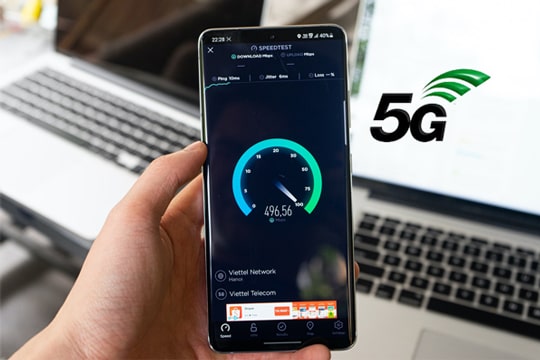
5G, or the fifth-generation mobile network, is the latest evolution of mobile connectivity. Compared to 4G LTE, 5G offers significantly faster download and upload speeds, more reliable connections, and the ability to support many devices at once.
Here are a few key benefits of 5G:
There are several ways to tell if your phone supports 5G. You don't need special tools; just follow the simple methods below.
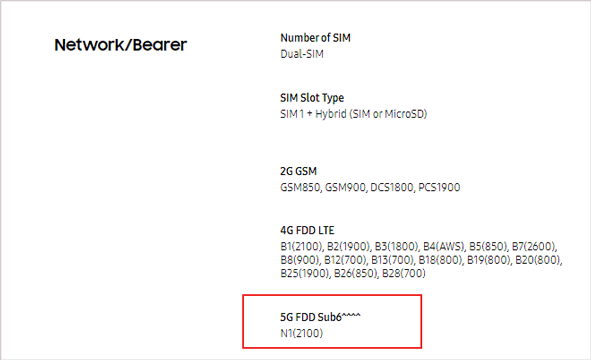
A simple way to check if your smartphone is 5G compatible is to search its phone specs online. For example, you want to know if your Samsung S25 is 5G supported or not, just simply Google Samsung S25, and you will see the official Samsung website from the search results. Enter the website to see the detailed specs of your phone. You can see if your phone supports 5G from the Network/Bearer section.
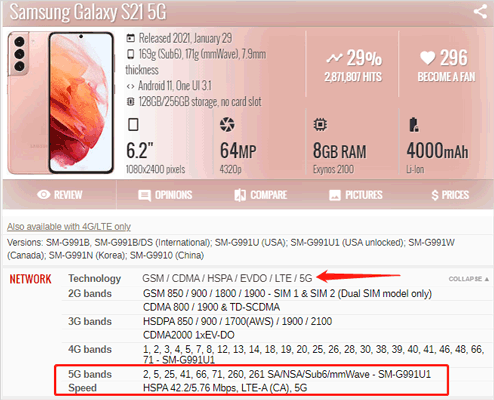
Or, you can visit gsmarena.com, which offers the ultimate resource for mobile phone specifications. Simply search for the phone you are looking for in the search bar; you can then see all the information about the phone listed below. On the network section, you will see if there's 5G available.
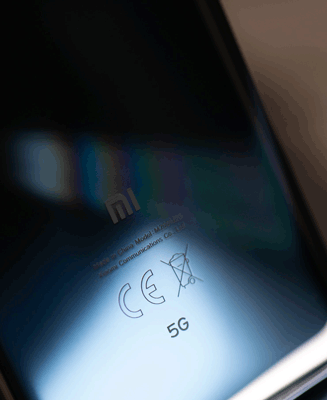
Another simple way to tell if your phone is 5G supported is to look for the 5G logo on the back of your smartphone. If there's one, that means your smartphone supports 5G. But it is to be noted that the recently released 5G phones no longer have the 5G logo on the back. Therefore, even if you don't see to 5G logo, and you are not sure, it is better to look for the specs online or check the phone settings by following the steps below.
Besides checking your phone's specifications online, you can also confirm whether your phone supports 5G directly from the device settings. The process varies slightly between Android and iPhone.
How to Check If My Android Is 5G?
If you've just got a new Android phone, you can verify its 5G compatibility through the settings menu. Here's what to do:
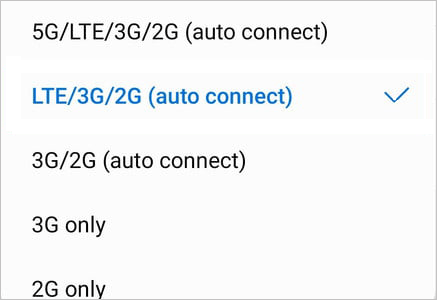
Step 1. Open "Settings" on your Android phone and select "Preferred network type" or "Network & internet".
Step 2. You can then check if your phone supports 5G from the network type screen. If you have the 5G option available on the list of network types, that means your mobile phone has the 5G capability.
How to Check If My iPhone Supports 5G?
If you want to find out about 5G options on your iPhone, here's how:
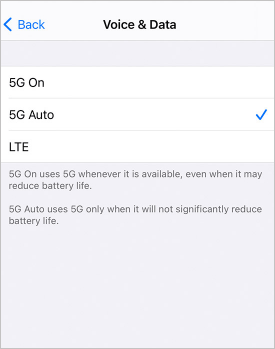
Step 1. Open "Settings" on your iPhone, then tap "Cellular".
Step 2. Tap "Cellular Data Options" > "Voice & Data".
Step 3. You will see three options from the Voice & Data screen:
If you see "5G On" or "5G Auto", your iPhone supports 5G.
If you recently bought a budget or mid-range smartphone, it might not include 5G support. Generally, 5G phones are priced higher than older 4G models because they include advanced chips and antennas.
If your phone is an entry-level model released before 2020, it's likely 4G-only. You can check your model's release year to confirm.
If you want to know if your mobile phone is 5G enabled and see its performance, you can download the Speedtest app on your phone to record the speed. Speed is one of the key differences between 4G and 5G. Using the app, you can determine connection speeds and see if your smartphone is using the 5G network.
1. What is the difference between 4G and 5G?
The major differences between 4G and 5G are speed, latency rate, capacity, and coverage. 5G is up to 100 times faster than 4G. The latency rate in 5G is almost zero. And more devices can be connected to 5G. Besides, 5G is safer to use. However, 5G is not as widely used as the 4G network in terms of coverage. For more information, please check this article: What Is the Difference between 4G and 5G?
2. Will 5G work on a 4G phone?
No. 5G requires specific hardware components. If your phone only supports 4G, you'll need a 5G-capable device to access 5G networks.
3. How do I know if my SIM card supports 5G?
Most newer SIM cards are 5G-ready. However, older SIMs may not work with 5G networks. You can contact your carrier to confirm and request a replacement if necessary.
Getting a new phone is always exciting, especially when it's a faster, more powerful 5G device. But before you can start enjoying your new phone, there's an important task ahead: transferring your data from the old phone.
Coolmuster Mobile Transfer makes this process much easier and faster. With this professional phone data transfer software, you can move everything - contacts, messages, photos, videos, and more - from one device to another with just one click. It supports both Android and iPhone, so you don't have to worry about compatibility.
Let's take Android to Android transfer as an example.
01Download and install Coolmuster Mobile Transfer on your computer.
02Connect both your old and new phones to the computer via USB. Then, follow the on-screen prompts to get your phones detected by the software.
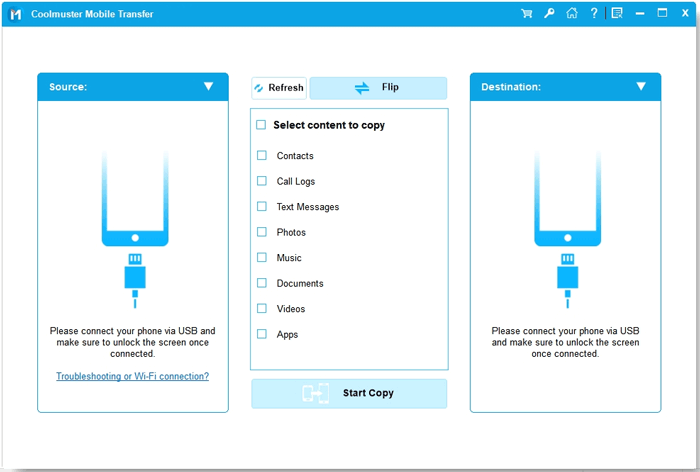
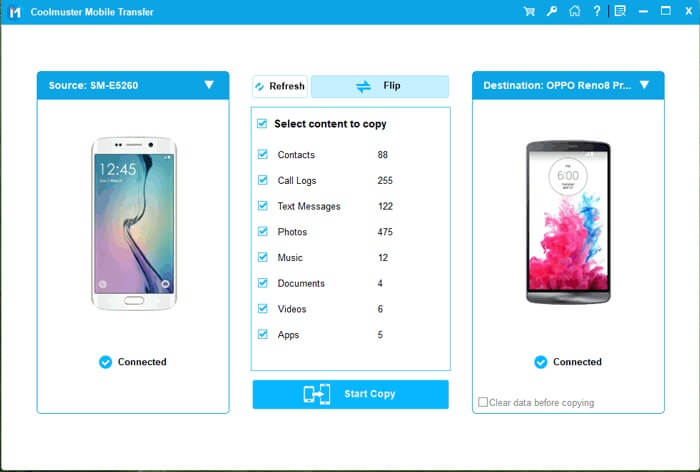
03After the software detects both your devices, please make sure they are in the correct positions. Then, select the data type you want to transfer > and hit the "Start Copy" button to start the transfer process.
Knowing whether your phone supports 5G helps you make smarter upgrade decisions and get the best network performance possible. By checking your phone specs, settings, or speed, you can easily confirm 5G compatibility.
And if you're ready to switch to a faster 5G phone, don't forget to transfer your old data safely using a reliable tool like Coolmuster Mobile Transfer, so you can enjoy 5G with all your data right where it belongs.
Related Articles:
Apple Has 5G Phones Now, Here's the iPhone 5G List
7 Useful Methods to Transfer Data from Samsung to Huawei
How to Transfer Data from Samsung to Samsung: Step-by-Step Guide
How to Set Up a New Android Phone (Full Guide with Data Transfer Tips)







 Free Download for PC
  Free Download for Mac


