Samsung phones are widely used for personal and professional communication, which makes call logs an important part of your data. Whether for record-keeping, auditing, or simply saving your history, transferring call logs from your Samsung device to a computer can be very useful. Fortunately, there are multiple ways to achieve this, ranging from professional software to official Samsung tools, as well as convenient third-party apps. In this guide, we will cover four effective methods to help you transfer call logs from Samsung to a computer safely and efficiently.
If you want to preview and selectively transfer call logs from a Samsung phone to a computer, Coolmuster Android Assistant is a highly practical choice. This professional Android data manager allows you to export Samsung call logs to a PC securely, without overwriting or losing existing data. Beyond call logs, it also helps you manage various Android files directly on your computer, making it a well-rounded solution for Samsung users.
Key features of Coolmuster Android Assistant:
How to transfer call logs from Samsung to a computer?
01Download and install Coolmuster Android Assistant on your computer, then launch the program on Windows or Mac.
02Connect your Samsung phone to the computer using a USB cable and enable USB debugging as prompted until the device is successfully recognized.
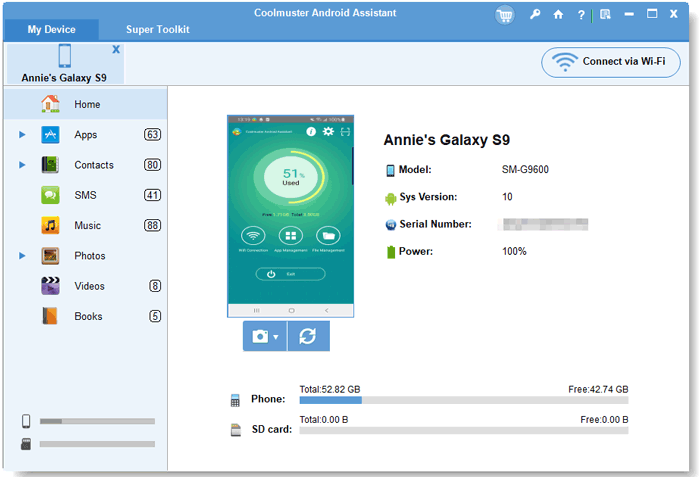
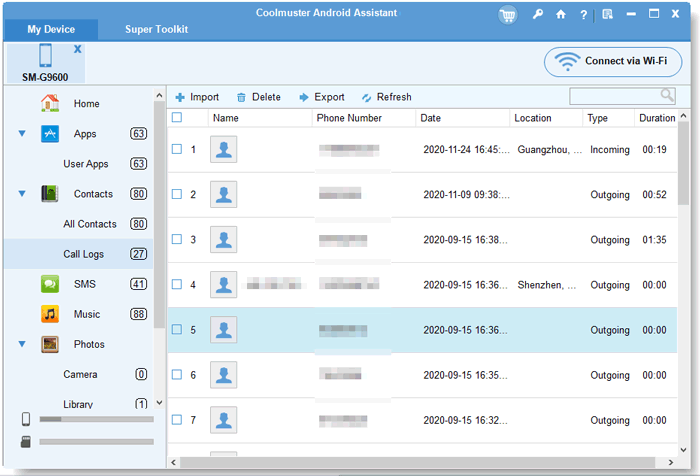
03Select "Call Logs" from the left panel, preview the call history on your Samsung phone, choose the call logs you want to export, and click "Export" to save them to your computer.
If you prefer a more intuitive walkthrough, you can also follow the video tutorial below to see how to transfer call logs from Samsung to a computer in real time.
Samsung Smart Switch is the official data transfer tool developed by Samsung, designed to help users transfer data between Samsung devices and computers, or from phones to Samsung devices. While it's primarily used for transferring data when switching to a new Samsung phone, it also supports backing up call logs (along with other data) from your Samsung device to a computer. This method is free and reliable, as it's developed by Samsung itself.
Step 1. Visit the official Samsung Smart Switch website, download the software for your Windows or Mac computer, and install it following the prompts.
Step 2. Launch Samsung Smart Switch, then connect your Samsung phone to the computer using a USB cable. If prompted, enable USB debugging on your Samsung device.
Step 3. The software will automatically detect your Samsung device. Once detected, you'll see the main interface with options to "Backup" and "Restore" data.
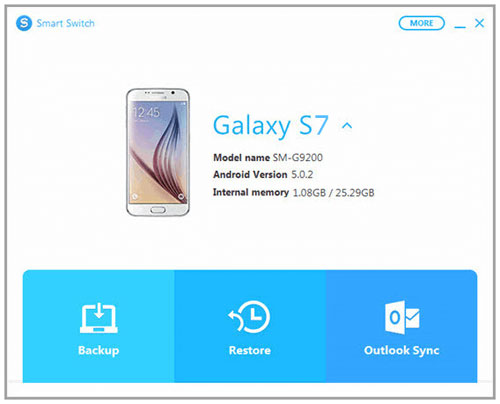
Step 4. Click the "Backup" button. A pop-up window will appear, showing all the data types you can back up, including Call Logs, Contacts, Messages, Photos, etc. Make sure the "Call Logs" option is checked.
Step 5. Choose a save path on your computer where you want to store the backup file (you can change the path by clicking "More Options"). Then, click "Backup" to start the process.
Samsung Cloud is a cloud storage service provided by Samsung, allowing users to back up and sync data (including call logs, contacts, photos, etc.) from their Samsung devices to the cloud. Once you back up your call logs to Samsung Cloud, you can access and download them to your computer via the Samsung Cloud website. This method is convenient if you don't want to use a USB cable or third-party software.
Step 1. On your Samsung phone, go to "Settings" > "Accounts and backup" > "Samsung Cloud".
Step 2. Sign in with your Samsung account and ensure "Call Logs" is selected for backup.
Step 3. Tap "Back up now" to sync your call logs to Samsung Cloud.
Step 4. On your computer, open a web browser and visit the Samsung Cloud website, then sign in to the same account.
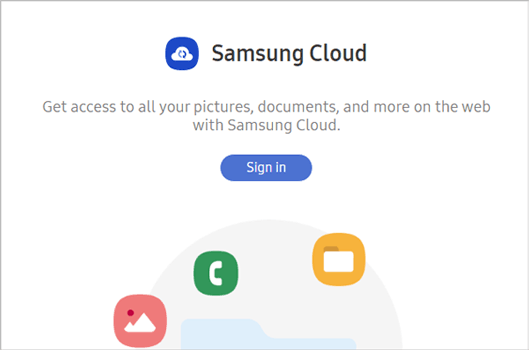
Step 5. Download the available backup containing your call logs to your computer.
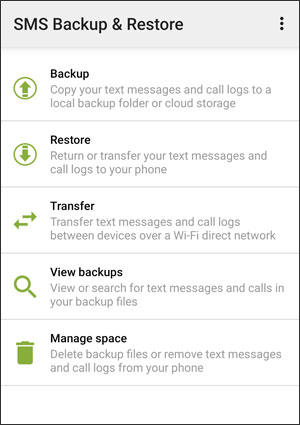
SMS Backup & Restore is a popular third-party app available on the Google Play Store. Although it is mainly designed to back up and restore SMS and MMS messages, it also supports backing up Samsung call logs and exporting them as XML files. You can then transfer these files to your computer via USB cable, email, or cloud storage. This method is completely free, easy to use, and does not require installing any software on your computer, making it a practical option for basic call log backups.
How to transfer call logs from Samsung to a computer with SMS Backup & Restore?
Step 1. Open the Google Play Store on your Samsung phone, search for SMS Backup & Restore, download the app, and complete the installation.
Step 2. Launch the app and grant the required permissions, tap "Backup" on the main screen, select "Call logs only" (you can uncheck SMS and MMS), then start the backup to save your call logs as an XML file on your phone's internal storage or SD card.
Step 3. Transfer the XML file to your computer by connecting your Samsung phone via a USB cable and copying the file from the SMSBackupRestore folder, or by sharing the backup file through email or cloud services such as Google Drive or Dropbox and downloading it on your PC.
Step 4. Open the exported XML file on your computer using a text editor or XML viewer, or convert it to CSV or Excel format with online tools for easier reading if necessary.
Transferring call logs from Samsung to a computer becomes straightforward once you choose the method that matches your needs. The four solutions discussed above each serve a different purpose, so you can decide based on how you want to access and manage your call history.
Overall, for users who want full control, preview options, and the easiest way to transfer call logs from Samsung to a computer, Coolmuster Android Assistant remains the most efficient choice.
Related Articles:
[Solved] How to Transfer Call Log from Android to PC in 2026
How to Transfer Call Logs from Android to Android (Best 5 Ways)
Wireless File Transfer for Samsung with 5 Methods (Updated)
4 Easy Ways to Perform Android Call Log Backup & Restore [Must Read]





 Free Download for PC
  Free Download for Mac


