TL;DR:
There are several ways to transfer videos from a Xiaomi phone to a computer. This guide will walk you through each method step by step so you can choose the one that works best for your needs. You can generally divide these methods into a dedicated tool, wired connections, and wireless options.
Videos captured on Xiaomi phones often contain precious memories, but managing or editing them on a larger screen can be more convenient. Whether you want to free up storage, back up important clips, or edit videos on your PC, transferring videos from Xiaomi to computer is a common need.
Fortunately, there are multiple ways to do this, including professional tools, USB connection, and wireless transfer options. In this guide, we will introduce 6 practical methods to help you transfer videos from Xiaomi to computer quickly and safely.
If you are looking for a reliable and professional solution to manage and transfer Xiaomi videos in bulk, using a dedicated Android management tool, like Coolmuster Android Assistant, is the most efficient option. Unlike manual methods, this approach allows you to preview, organize, and selectively export videos from your phone to your computer without losing quality. It is especially useful for users who frequently back up large video files or need better file management control.
Key features of Android Assistant:
Steps to transfer videos from Xiaomi to computer:
01Install Android Assistant on your computer and launch the program after installation.
02Connect your Xiaomi phone to the computer using a USB cable or Wi-Fi. For the USB cable, you need to enable USB debugging if prompted, so the device can be recognized properly.
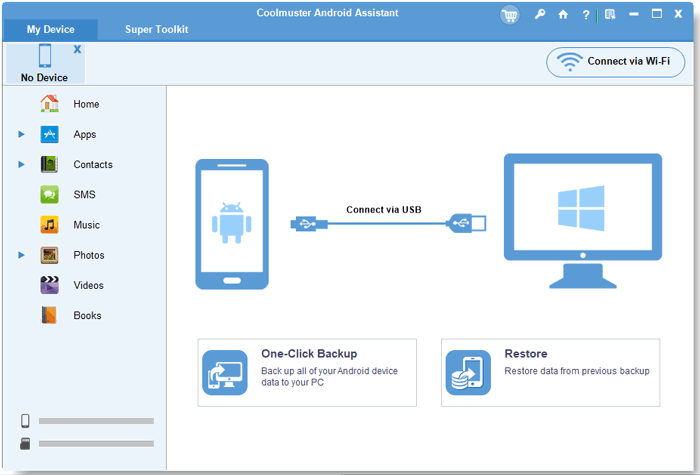
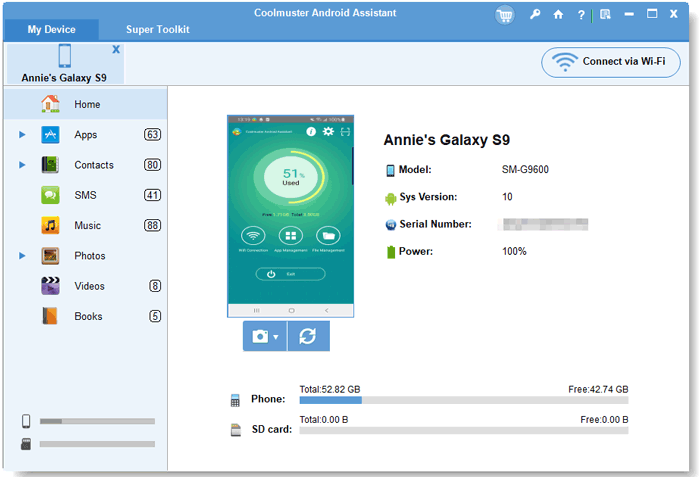
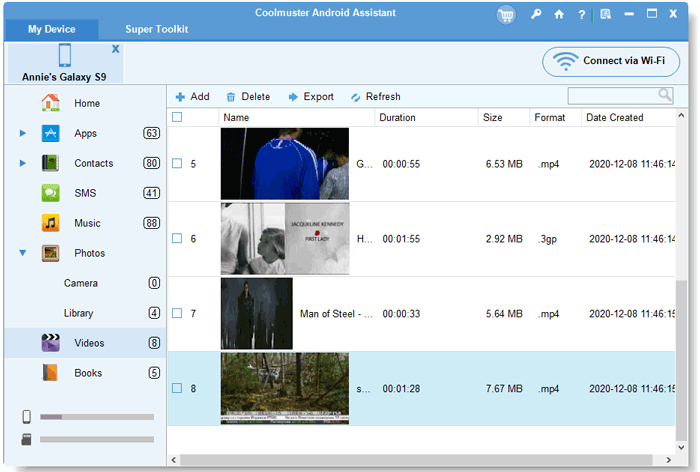
03Once your device is detected, navigate to the left panel and click on the "Videos" category to view all stored video files.
04Select the videos you want to transfer, then click the "Export" button to begin moving them from your Xiaomi device to the computer.
You can also watch a detailed video tutorial below to see the whole process in action.
The USB cable method is the most traditional, free, and reliable way to transfer videos from a Xiaomi phone to a computer. It does not require any third-party software or internet connection, making it ideal for quick, direct file transfers. Since the connection is wired, it delivers stable and high-speed performance, especially when moving large 4K video files. In addition, this method preserves the original video quality without compression or delay.
Key Advantages:
Limitations:
Step-by-Step Guide:
Step 1. Connect your Xiaomi phone to the computer using a functional USB data cable.
Step 2. On your phone, select "File Transfer (MTP)" mode when the connection prompt appears (avoid charging-only mode).
Step 3. Open "This PC" on Windows or the device folder on Mac, then locate your Xiaomi device.
Step 4. Navigate to "DCIM" > "Camera" for recorded videos, or check "Download/Video" folders for saved clips.
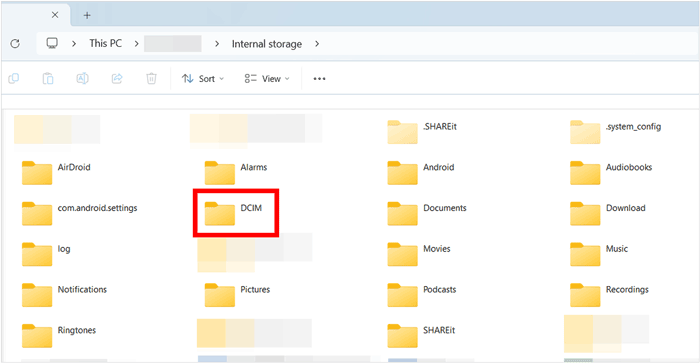
Step 5. Select the videos you want, then copy and paste them into a local folder on your computer to complete the transfer.
Cloud services offer a convenient wireless solution for transferring Xiaomi videos to a computer without using cables. They also enable automatic backup and remote access, allowing you to download videos anytime from any device. Two of the most commonly used options are Mi Cloud (Xiaomi's official service) and Google Photos (a widely supported cross-platform solution).
Mi Cloud is Xiaomi's official cloud storage service that allows users to sync gallery videos automatically. It provides seamless access through both web browsers and desktop clients, making video transfer simple and cable-free. The free storage limit is 5GB, which is suitable for everyday video backup, while larger storage plans are available for extended use.
Key Advantages:
Limitations:
Step-by-Step Guide:
Step 1. Go to "Settings" > "Mi Account" > "Xiaomi Cloud" on your phone, sign in, and enable Gallery Sync to upload videos automatically.
Step 2. Ensure a stable Wi-Fi connection and wait for the sync process to finish.
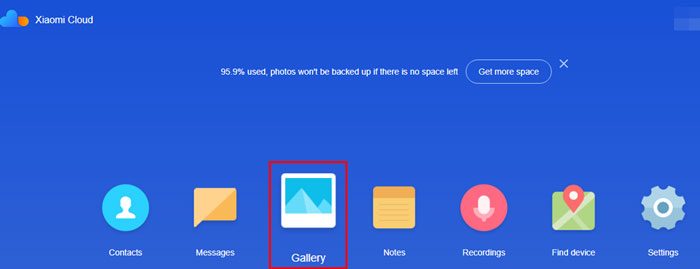
Step 3. On your computer, visit i.mi.com and log in with the same Xiaomi account.
Step 4. Open the "Gallery" section, select the synced videos, and click Download to save them locally.
Google Photos is a widely used cloud platform that works seamlessly with Xiaomi devices. It allows users to back up videos automatically and access them later from any computer. Its cross-platform compatibility makes it a flexible option beyond the Xiaomi ecosystem. (Google Photos backup stuck?)
Key Advantages:
Limitations:
Step-by-Step Guide
Step 1. Open Google Photos on your Xiaomi phone and sign in with your Google account.
Step 2. Enable "Backup & sync" from the profile menu and adjust upload settings if needed.
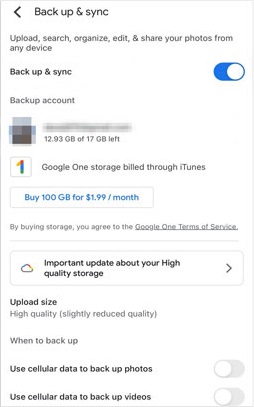
Step 3. Wait for your videos to be uploaded to the cloud.
Step 4. On your computer, go to photos.google.com and log in with the same account.
Step 5. Select the videos you want and click "Download" to export them to your computer.
ShareMe is Xiaomi's built-in wireless file transfer app designed for fast local sharing. It allows users to transfer large video files without using mobile data or an external internet connection. Compared to cloud services, ShareMe offers significantly faster speeds and no storage limitations, making it ideal for transferring high-resolution videos.
Key Advantages:
Limitations:
Step-by-Step Guide:
Step 1. Open ShareMe on your Xiaomi phone and select "Connect to Computer" from the menu.
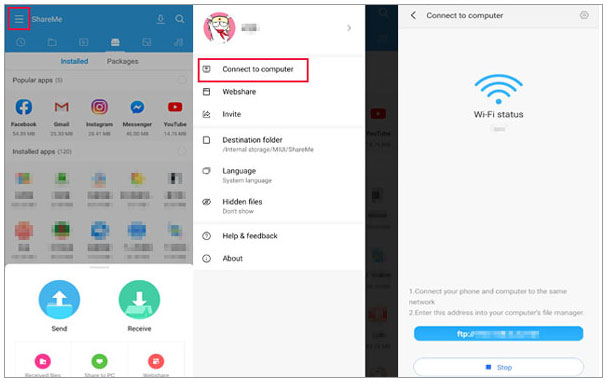
Step 2. Follow the instructions to create a local hotspot connection.
Step 3. Connect your computer to the hotspot and enter the provided IP address in a browser.
Step 4. Once connected, browse your phone storage, locate the video folder, and download the files directly to your computer.
Bluetooth is a universal wireless option available on most Xiaomi phones and computers. It requires no additional apps or internet connection, making it convenient for basic file sharing. However, due to its limited speed, it is only suitable for transferring small or short video clips.
Key Advantages:
Limitations:
Step-by-Step Guide:
Step 1. Turn on Bluetooth on both your Xiaomi phone and computer and make them discoverable.
Step 2. Pair your devices from the computer's Bluetooth settings.
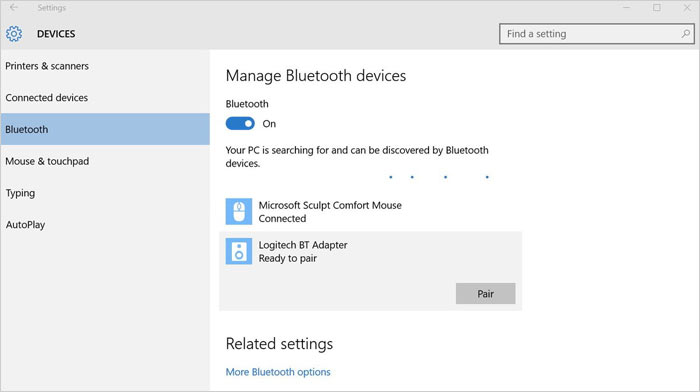
Step 3. Select the videos on your phone and choose "Share via Bluetooth".
Step 4. Select your computer as the receiving device and confirm the transfer request.
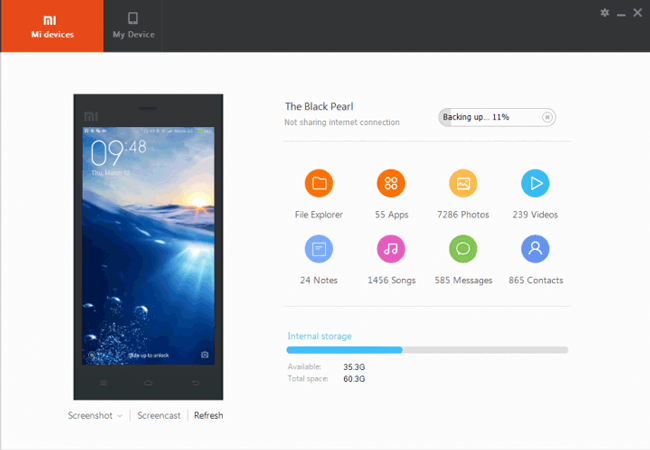
Mi PC Suite is Xiaomi's official desktop software designed for managing and syncing data between Xiaomi phones and computers. It supports video backup, preview, and transfer in one platform. However, it is mainly compatible with older Xiaomi models and certain MIUI versions, so it may not work properly on newer devices. (6 Mi PC Suite alternatives you may need.)
Key Advantages:
Limitations:
Step-by-Step Guide:
Step 1. Install Mi PC Suite on your computer.
Step 2. Connect your Xiaomi phone via USB cable and authorize the connection.
Step 3. Wait for the software to detect your device successfully.
Step 4. Open the "Videos" section, select the files, and click "Backup" or "Export" to save them to your computer.
There are many ways to transfer videos from a Xiaomi phone to a computer, depending on your needs and how you prefer to manage your files. If you are looking for the fastest and most reliable option for handling large video collections, Coolmuster Android Assistant is highly recommended. It allows you to transfer videos in bulk while also giving you better control over your files compared to manual methods like USB transfer. For everyday use, wireless options such as ShareMe, Mi Cloud, and Google Photos offer more flexibility, while Bluetooth and Mi PC Suite can still be useful in specific situations.
Overall, the best method depends on your priorities, such as speed, convenience, and file size. Once you choose the right approach, managing and backing up Xiaomi videos becomes much easier and more efficient.
Related Articles:
How to Transfer Files from Xiaomi to PC with or without USB? [5 Easy Ways]
How to Transfer Data from Mi to Mi in 5 Possible Ways (Proven Tips)
How to Achieve Xiaomi Backup to PC with 5 Workable Methods
4 Easy Ways to Perform Mi Backup and Restore in 2026 (Proven Tips)






 Free Download for PC
  Free Download for Mac

 Download for PC
 Download for Mac

