TL;DR:
You can export iMessage attachments by extracting an iTunes backup, saving files on Mac, downloading synced photos, or using a USB connection.
Scrolling through old iMessage conversations just to find a photo or document you received months ago can be frustrating. It gets even harder when you want to export iMessage attachments from iPhone to a computer but don't know where to start. The good news is that you don't have to handle everything the same way. Depending on whether you use a Windows PC or Mac, or already have an iTunes or iCloud backup, you can choose a different approach to export your iMessage attachments.
Coolmuster iPhone Data Recovery is a professional iOS data recovery tool that helps you retrieve lost or deleted files from your iPhone. It offers three recovery modes: recovering data directly from an iOS device, extracting files from iTunes backups, and retrieving supported data from iCloud backups. For exporting iMessage attachments, its iTunes recovery mode is particularly useful. You can scan an existing backup, preview messages and their attachments, and selectively export the items you need to your computer without restoring the entire backup.
Key features of Coolmuster iPhone Data Recovery:
Free download Coolmuster iPhone Data Recovery on your computer now:
How to export iMessage attachments from an iTunes backup:
01 Download, install, and launch Coolmuster iPhone Data Recovery on your computer. You don't need to connect your iPhone for this recovery mode. Select "Recover from iTunes Backup File" from the left panel. The program will automatically scan the default iTunes backup location and display the available backup files.
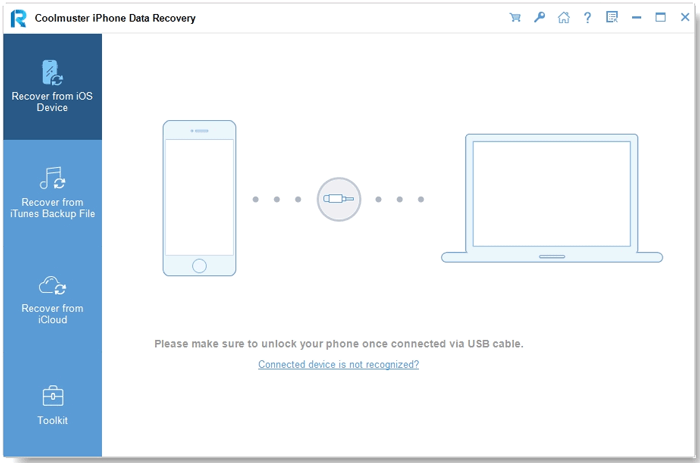
02 Choose the backup containing your iMessage data and click "Start Scan". If the desired backup isn't listed, click "Select" to locate it manually.
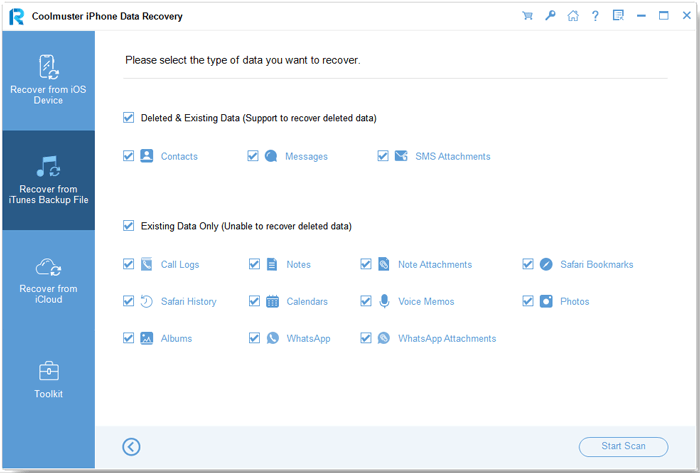
03 Select "Messages" and "SMS Attachments" from the available data categories, then click "Start Scan" to load the corresponding content.
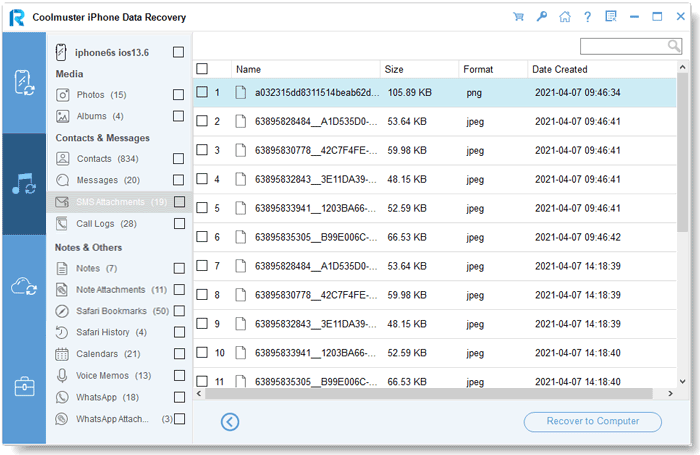
04 Preview the available messages and attachments after scanning, and select the iMessage attachments you want to export. Click "Recover to Computer" and choose a destination folder to save the selected attachments. Once the export is complete, open the folder to access your files.
Video Guide:
If you have a Mac, you can save iMessage attachments directly through the built-in Messages app without installing extra software. As long as your messages are synced with your Mac, you can browse photos, videos, and other files in your conversations and save the ones you need. This method works well for exporting a few attachments at a time.
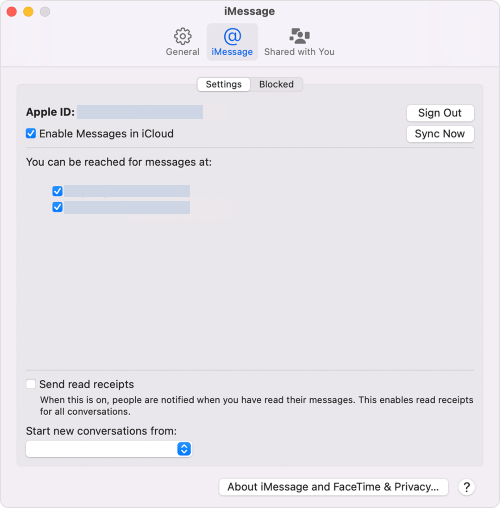
If you have enabled Messages in iCloud on your iPhone, your messages and attachments can sync across your Apple devices. You can use iCloud to access these files on a computer and download the attachments you want. However, keep in mind that this method requires Messages in iCloud to be enabled and your attachments to have finished syncing.
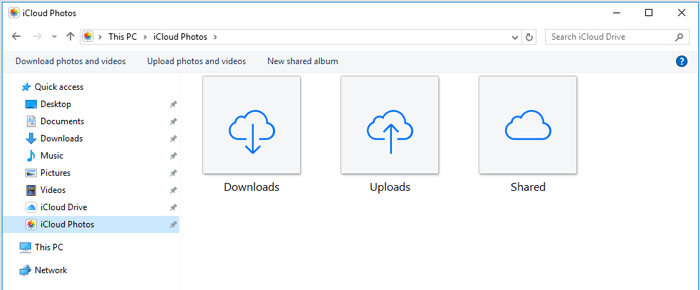
Note: iCloud.com does not provide a general interface for browsing and downloading all attachments from your Messages conversations. Messages in iCloud syncs message content across Apple devices, but it is different from iCloud Photos. If you want to save attachments directly from Messages, use the Mac method in Part 2.
If you only need to export a few iMessage photos or videos, you can save them to your iPhone's Photos app first and then copy them to your PC using a USB cable. This is a straightforward option that doesn't require iCloud or third-party software. Just make sure your iPhone has enough free storage for the files.
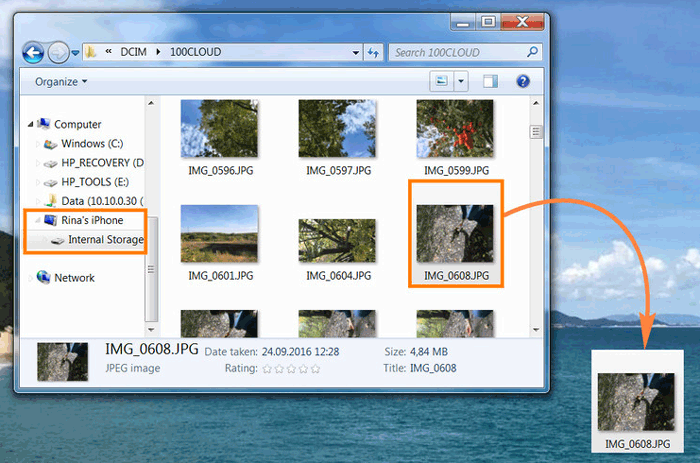
Once the transfer is complete, open the copied files on your PC to make sure everything is saved properly. Note that this method mainly works for photos and videos. Other iMessage attachments, such as documents, may need to be saved separately using the Share menu. (How to Copy Text Messages from iPhone?)
Q1. Can I export all iMessage attachments from my iPhone at once?
Yes, but the available options depend on how you export them. If you use Coolmuster iPhone Data Recovery to scan an iTunes backup, you can preview and select multiple message attachments for export. By comparison, saving attachments through Messages on Mac or the iPhone Photos app usually involves more manual work.
Q2. Where are iMessage attachments stored on an iPhone?
iMessage attachments are stored within the Messages app and its associated data on your iPhone. You can find shared photos, videos, and files by opening a conversation and tapping the contact's name or group icon. Photos and videos saved to your Photos library are stored separately in the Photos app.
Q3. Can I export iMessage attachments without iTunes?
Yes. You can save attachments through Messages on Mac, download photos synced with iCloud Photos, or save photos and videos to your iPhone and transfer them to a PC using a USB cable. If you want to use Coolmuster iPhone Data Recovery, you can also load an existing iTunes backup without opening iTunes manually.
Q4. Does exporting iMessage attachments delete them from my iPhone?
No. Normally, exporting or copying attachments to a computer does not remove the original files from your iPhone. However, be careful when deleting conversations or attachments afterward, especially if Messages in iCloud is enabled, as those changes may sync across your Apple devices.
Q5. Can I recover deleted iMessage attachments from an iTunes backup?
Yes, if the backup contains the deleted messages or attachments. Coolmuster iPhone Data Recovery lets you scan an available iTunes backup, preview its messages and SMS attachments, and selectively recover the supported files to your computer. You don't need to restore the entire backup to your iPhone.
Q6. How can I transfer iMessage attachments from iPhone to a Windows PC?
For photos and videos, save them to your iPhone's Photos app first, then connect your device to the PC with a USB cable and copy them through File Explorer. If you need to extract message attachments directly from an iTunes backup, you can also use Coolmuster iPhone Data Recovery.
There isn't just one way to get iMessage attachments off an iPhone. Mac users can work directly with their conversations, while Windows users can save photos to the Photos app and copy them through File Explorer. For attachments stored in an iTunes backup, Coolmuster iPhone Data Recovery offers another route. The best choice comes down to where your files are stored and how many you need to export.
Related Articles:
3 Best Way to Export iPhone Messages to HTML
How to Search iPhone Text Messages/iMessages in 4 Ways






 Free Download for PC
 Free Download for Mac


