With the increasing use of smartphones for photography and the growing availability of HD video content, many people prefer to store their videos on external hard drives to free up space on their iPhones. But how can you transfer videos from an external hard drive to your iPhone when you want to watch these cherished videos anytime, anywhere? This article will introduce five common methods, catering to different scenarios, so you can easily import videos to your iPhone, whether or not you have a computer.
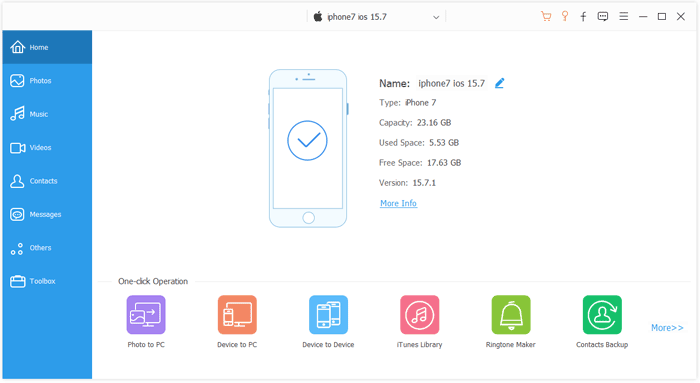
If you want to quickly import videos in bulk without compromising on quality, iOS Transfer is a highly recommended professional iOS data management tool. It supports direct transfer of videos, photos, music, and other content from your computer or external hard drive to your iPhone, without needing iTunes. The process is simple, and it offers strong compatibility. Whether you're transferring a single video or a batch of files, it can handle the task effortlessly, making it ideal for users who frequently need to manage iOS device data.
Key features of iOS Transfer:
Here is how to transfer videos from an external hard drive to an iPhone using iOS Transfer:
01Install and launch iOS Transfer on your computer. Connect your iPhone via a USB cable. The software will automatically detect your device and display its contents. Don't forget to connect the external hard drive to the computer.
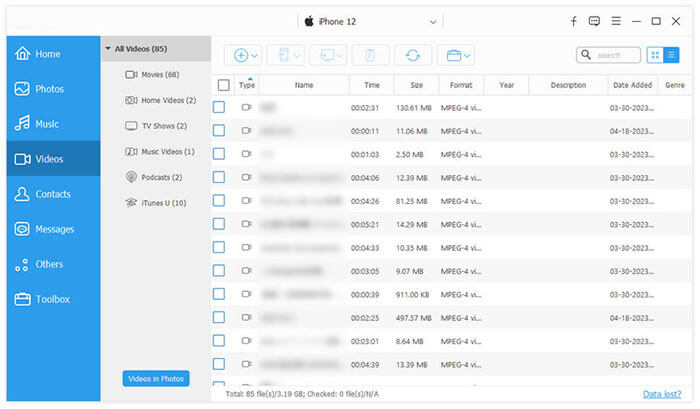
02Click the "Videos" option in the left menu, then click the "Add" button at the top. In the file browser window that pops up, locate the video files on your external hard drive, select the content you want to import and click "Open" to begin the transfer. Once completed, your videos will appear on your iPhone, ready to watch.
For users who find it inconvenient to connect via a data cable or prefer to sync videos wirelessly to their iPhone, iCloud can also be used for video transfer. Simply upload the videos from your external hard drive to iCloud, and then download them to your iPhone. However, keep in mind that iCloud has limited storage, with only 5GB available for free. (How to free up iCloud storage?)
Here is how to copy videos from external hard drive to iPhone with iCloud:
Step 1. Connect the external hard drive to your computer and ensure the video files are accessible.
Step 2. Open a browser on your computer, log in to iCloud.com, and go to the "iCloud Drive" page, or open the "iCloud Drive" folder on your computer.
Step 3. Drag or upload the video files from your external hard drive to any folder within "iCloud Drive".
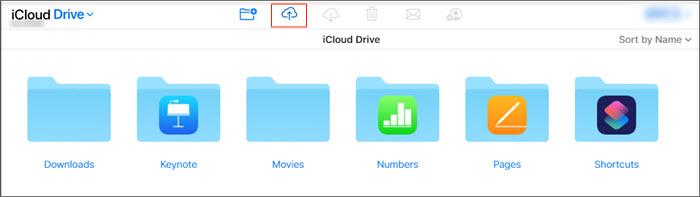
Step 4. Wait for the videos to upload, depending on your internet speed and the size of the videos.
Step 5. On your iPhone, open the "Files" app and sign in with the same Apple ID used on your computer.
Step 6. Go to "iCloud Drive" and locate the videos you just uploaded. (iCloud Drive not syncing?)
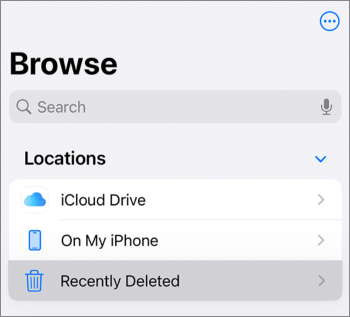
Step 7. Tap the download icon in the upper-right corner of the video, or long-press the video and select "Save Video" to your Photos.
Transferring videos from an external hard drive to your iPhone using iTunes or Finder is a straightforward process. This method works by syncing the videos from your computer to your iPhone via iTunes (for Windows or macOS Mojave and earlier) or Finder (for macOS Catalina and later). It's reliable, but requires the videos to be in a compatible format, and iTunes or Finder needs to recognize your device. Be mindful that syncing may overwrite existing content, so backup important files on your iPhone beforehand.
Step 1: Connect your external hard drive to your computer.
Step 2: Copy the videos from the external hard drive to a folder on your computer.
Step 3: Open iTunes (Windows/macOS Mojave and earlier) or Finder (macOS Catalina and later).
Step 4: Connect your iPhone to the computer using a USB cable.
Step 5: In iTunes/Finder, select your iPhone from the device list.
Step 6: Go to the "Movies" or "TV Shows" section, depending on the video type.
Step 7: Check the box to sync videos, and select the videos you want to transfer.
Step 8: Click "Apply" to sync the videos to your iPhone.
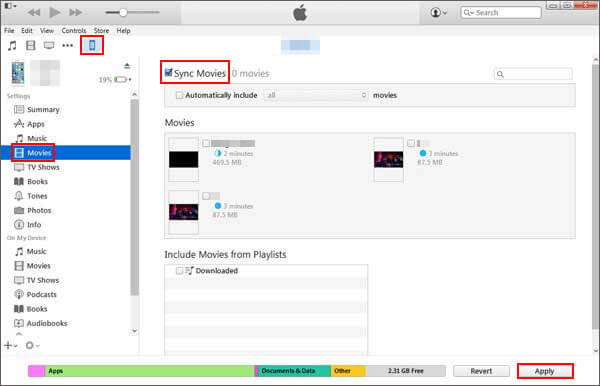
Step 9: Once the sync is complete, you can find the videos in the respective app on your iPhone (e.g., Videos, TV app).
Starting with iPadOS and iOS 13+, Apple added support for external drives. This allows you to transfer files directly between your external hard drive and your iPhone or iPad, and you can view files without saving them to the device.
For most external drives, you'll need one that is self-powered. If not, you can use a powered hub or Apple's Lightning to USB 3 Camera Adapter, which provides power through its Lightning connector.
To connect the external drive, plug the Lightning to USB Camera Adapter or Lightning to USB 3 Camera Adapter into the charging port. For newer iPads, you can connect directly via the Lightning or USB-C port.
Here is how to transfer videos from external hard drive to iPhone without a computer:
Step 1. Open the Files app on your device.
Step 2. Tap "Browse" (on iPhone) and locate your external hard drive under "Locations".
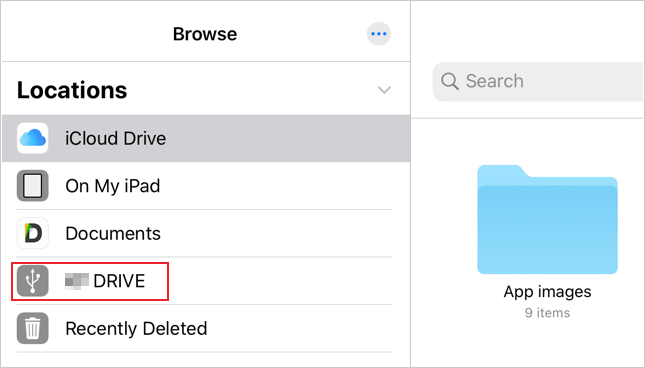
Step 3. Select the videos you want to transfer by tapping "Select".
Step 4. Tap "Move" > Choose "On My iPhone" or "On My iPad" > Select a folder.
Step 5. Tap "Copy" and wait for the transfer to finish.
AirDrop provides a quick and wireless way to transfer videos from your external hard drive to your iPhone. It works seamlessly between Apple devices, ensuring high-quality transfers without cables. However, keep in mind that AirDrop requires both devices to be in close proximity and connected to Wi-Fi or Bluetooth. It's perfect for smaller files but may not be ideal for large video transfers.
Step 1. Connect your external hard drive to your Mac.
Step 2. Open Finder and locate the video files on your external hard drive.
Step 3. On your iPhone, enable AirDrop by opening Control Center and tapping the AirDrop icon. (AirDrop is not working?)
Step 4. On your Mac, right-click the video files you want to send, then select "Share" and choose AirDrop.
Step 5. Select your iPhone from the list of available devices.
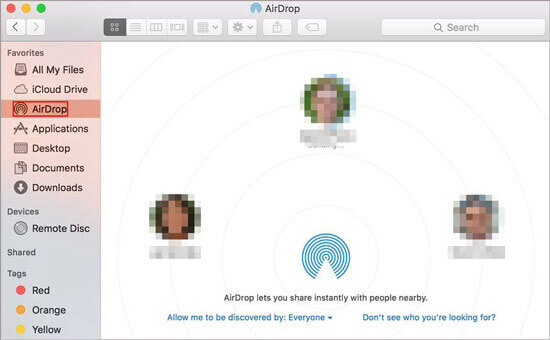
Step 6. Accept the transfer on your iPhone when prompted. The videos will be saved in your Photos app.
This article summarizes five practical methods for transferring videos from an external hard drive to an iPhone, catering to different needs. If you're looking for efficient, stable, lossless, and bulk transfer, I personally recommend using iOS Transfer. It not only handles external hard drive video imports with ease but also manages iPhone photos, music, contacts, and more. With its comprehensive features and user-friendly interface, it's a highly recommended iPhone management tool.
Related Articles:
How to Transfer Photos from iPhone to External Hard Drive in 7 Ways?
[Solved] How to Use iPhone as USB Drive in a Few Simple Steps
How to Back Up iPhone to External Hard Drive on Windows or Mac
[Solved] How to Transfer Music from iPhone/iPad to External Hard Drive?







 Free Download for PC
  Free Download for Mac


