TL;DR:
Wondering whether AirDrop reduces photo or video quality? This article explains the truth about AirDrop quality and shows you how to transfer files without losing original details.
AirDrop makes it easy to wirelessly transfer photos, videos, documents, and other files between Apple devices. However, many users wonder: Does AirDrop reduce quality? The good news is that AirDrop does not compress files by default and can preserve the original quality of photos and videos. In this article, we will explain how AirDrop affects file quality, why files may sometimes look different after transfer, and how to transfer photos and videos without losing quality.
No, AirDrop does not reduce the quality of photos, videos, or other files. It transfers files directly between Apple devices without compression, preserving the original resolution, file size, and metadata.
However, in some situations, the transferred files may appear different. For example, if you use iCloud Photos with Optimize iPhone Storage enabled, your device may need to download the original files from iCloud before sending them. Also, when transferring files to non-Apple devices, some photos or videos may be converted depending on your transfer settings. To keep the original quality and format, choose Keep Originals in your Photos settings. (Best 10 AirDrop Alternatives)
Since AirDrop does not compress files by default, you can send photos and videos in their original quality with the right settings. If you want to keep the original format, resolution, and metadata, try the following methods.
The Photos app allows you to enable All Photos Data before sharing. This option keeps additional information, such as edit history and metadata, when transferring photos and videos through AirDrop.
Step 1. Open the Photos app on your iPhone.
Step 2. Select the photos or videos you want to transfer.
Step 3. Tap the "Share" icon. If you want to send multiple files, tap "Select" in the upper-right corner, choose the items, and tap "Share".
Step 4. Tap "Options" at the top of the sharing menu, turn on "All Photos Data", and tap "Done".
Step 5. Select "AirDrop" and choose the receiving device. (AirDrop No People Found?)
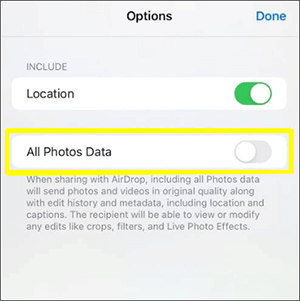
After that, AirDrop will send the selected photos and videos while keeping their original data.
If you transfer photos from iPhone to Mac or PC, choosing Keep Originals prevents your device from automatically converting HEIC or HEVC files into more compatible formats. This helps preserve the original file format and quality.
Step 1. Open Settings on your iPhone.
Step 2. Scroll down and tap Photos.
Step 3. Under Transfer to Mac or PC, select Keep Originals. (How to AirDrop from iPhone to Mac?)
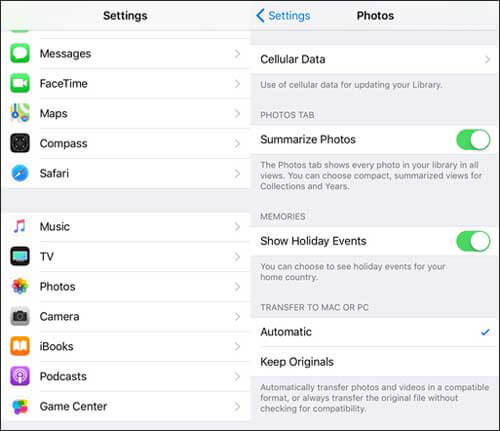
Now, when you transfer photos and videos from your iPhone, they will remain in their original formats instead of being converted.
Although AirDrop allows you to transfer photos without reducing quality, it may not be the best choice when you need to move a large number of photos or manage your iPhone data on a computer. In this case, Coolmuster iOS Assistant provides a simple way to transfer photos and videos from iPhone to computer while keeping their original quality.
With this iOS data management tool, you can preview and select the files you need before transferring, avoid unnecessary compression, and manage various types of iPhone data directly from your computer.
Key Features of Coolmuster iOS Assistant:
Download the right version of this software to your computer to have a try.
Follow the steps below to use Coolmuster iOS Assistant to transfer photos from iPhone to Computer without losing quality:
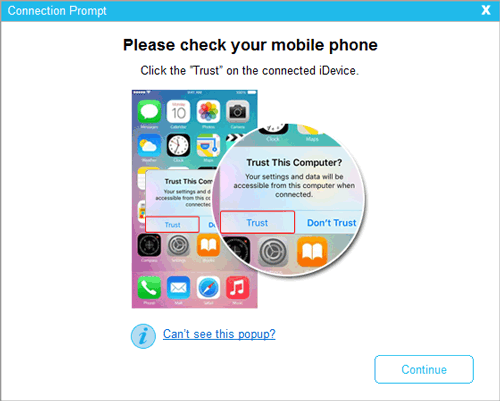
01After downloading the correct version of the software, open it and then connect your device to the computer using a USB cable. Usually, the software will automatically detect your connected device, and a pop-up window will appear on your computer. Click on the "Trust" option on your device, and then click "Continue" to proceed.
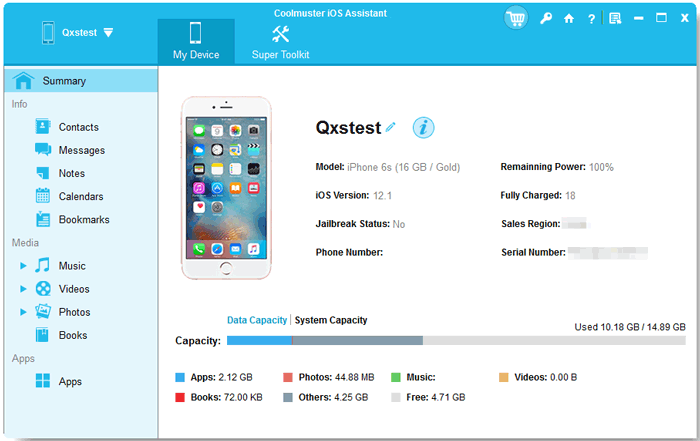
02Upon successful detection of your device by the software, the main interface will be displayed, as depicted in the provided screenshot. At this point, you will observe the organization of different folders on the main interface.
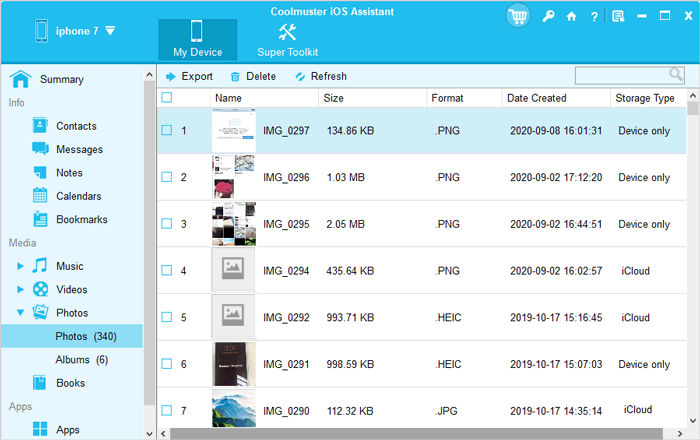
03Navigate to the "Photos" folder and preview more detailed file information. While previewing, select the photos you want to export to the computer, then click on the "Export" option to initiate the process.
Video Tutorial:
Q1. Does AirDrop compress photos?
No. AirDrop does not compress photos. It transfers photos directly between Apple devices while preserving the original resolution, file size, and metadata. If your photos appear lower quality after transfer, the issue is usually related to iCloud storage settings, file conversion, or the app used to view or share the files afterward.
Q2. Does AirDrop reduce video quality?
No, AirDrop does not reduce video quality by default. It transfers videos in their original resolution and quality between compatible Apple devices. However, when transferring photos or videos to a Mac or PC, choosing Keep Originals under Settings > Photos > Transfer to Mac or PC can help prevent automatic format conversion.
Q3. Why Do Videos and Photos Look Worse After AirDrop?
AirDrop itself does not make photos or videos blurry or lower their quality. If transferred files look worse, possible reasons include incomplete iCloud downloads when Optimize iPhone Storage is enabled, format changes during transfer, or quality loss caused by another app after receiving the files. Make sure the original files are downloaded and transferred using the appropriate settings.
Q4. Is Airdrop better quality than iMessage?
Yes, AirDrop generally provides better quality than iMessage for transferring photos and videos. AirDrop sends original files directly between devices, while iMessage may compress media files to reduce transfer size. If maintaining the highest quality is your priority, AirDrop is the better choice.
Q5. How long does Airdrop take to transfer files?
The AirDrop transfer time depends on the file size, the number of files, and the distance between devices. Small photos usually transfer within seconds, while large videos or many files may take several minutes. For large-scale transfers, a professional tool like Coolmuster iOS Assistant can be a more efficient option.
Q6. How to fix Airdrop not working?
If AirDrop is not working, make sure both devices have AirDrop enabled and are within close range. You can also check that Wi-Fi and Bluetooth are turned on, update your devices to the latest system version, restart both devices, or reset network settings if needed.
In conclusion, AirDrop does not reduce the quality of photos or videos when transferring files between Apple devices. By using the right settings, you can keep your original files, formats, and metadata intact. However, if you need to transfer a large number of photos or manage iPhone data more efficiently, Coolmuster iOS Assistant is a reliable alternative that allows you to move files to your computer without compromising quality.
Related Articles:
How to AirDrop from iPhone to PC in 4 Proven Ways
Airdrop iPhone to Android: Your Best Transfer Alternatives
[Step-by-Step Guide] How to Convert HEIC to JPG Without Losing Quality







 Free Download for PC
  Free Download for Mac


