TL;DR:
Wondering where your iTunes Library is stored? This guide will show you how to find and manage your iTunes files easily.
iTunes has long been a popular tool for managing and backing up iPhone and iPad data on a computer. However, its file storage structure can be confusing, making it difficult for many users to find the exact location of their iTunes Library, media files, or backups.
Where is the iTunes Library stored? In this guide, we will explain the default iTunes Library locations on Windows and Mac, show you how to change the storage location, and introduce an easier way to manage and back up your iOS data.
How do I find the location of an iTunes file? The default storage location of the iTunes library varies depending on the operating system you are using. This section explains how to locate the folder on a PC or Mac computer.
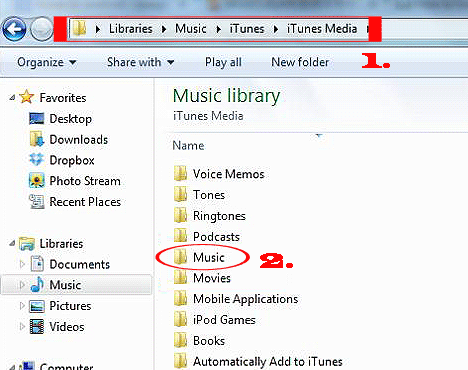
If you are using iTunes on a Windows PC, you can find the default iTunes Library location by following these steps:
Step 1. Open File Explorer on your Windows computer.
Step 2. Navigate to "C:\Users\[username]\Music\iTunes\". Replace [username] with your Windows account name.
Step 3. Here, you can find the iTunes Library.itl file and the iTunes Media folder, which contains your music, videos, and other iTunes content.
On a Mac, the default iTunes Library location is usually stored in the Music folder. Follow these steps to find it:
Step 1. Open Finder on your Mac.
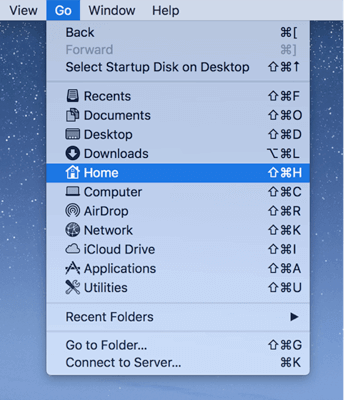
Step 2. Click Go in the menu bar and select Home from the drop-down menu.
Step 3. Open the Music folder and locate the iTunes folder.
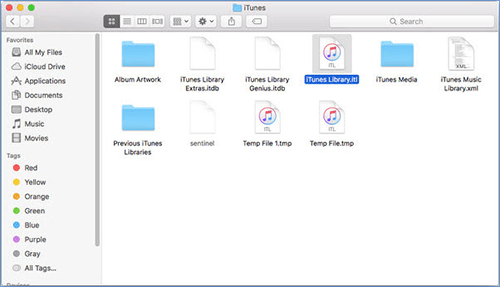
Step 4. Open the folder to find your iTunes Library files, including the iTunes Library.itl file and iTunes media files.
Note: If you are using macOS Catalina or later, iTunes has been replaced by the Apple Music app. Your music library is usually stored in: "~/Music/Music/".
If you have changed the default location of your iTunes Library or cannot find it, you can check the current location directly in iTunes.
Step 1. Launch iTunes on your computer.
Step 2. Click Edit (Windows) or iTunes (Mac) in the menu bar, then select "Preferences".
Step 3. Go to the "Advanced" tab.
Step 4. Check the iTunes Media folder location field to view where your iTunes files are currently stored.
Step 5. If needed, click "Change" to select a new folder location for your iTunes Media files.
Besides the location of the iTunes library, you can read this article to find the location of the iTunes backup.
iTunes Backup Location: Where Do iTunes Store Backups and How to Change Backup Location?By default, iTunes stores your music, videos, and other media files in the iTunes Media folder. If you want to save your files to another drive or folder, you can change the iTunes Library location manually.
Note: Changing the iTunes Media folder location only affects new content imported into iTunes. Your existing iTunes files will remain in the original location unless you move them manually.
Follow these steps to change where iTunes stores new media files on a Windows PC:
Step 1. Open iTunes on your Windows computer.
Step 2. Click "Edit" in the top menu bar and select "Preferences".
Step 3. Go to the "Advanced" tab.
Step 4. Click Change next to iTunes Media folder location and choose a new folder.
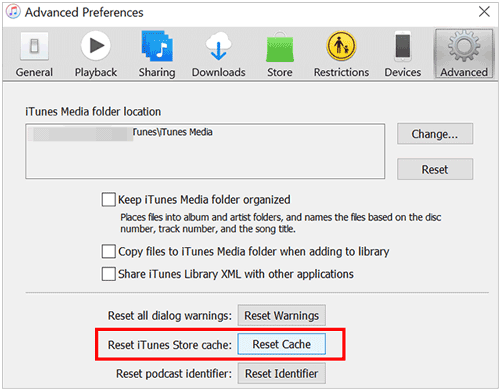
Step 5. Click OK to save the changes.
After that, any new music, videos, or other media imported into iTunes will be saved in the new location.
If you are using iTunes on a Mac, follow these steps:
Step 1. Launch iTunes on your Mac.
Step 2. Click iTunes in the menu bar and select "Preferences".
Step 3. Open the "Advanced" tab.
Step 4. Click "Change" next to iTunes Media folder location and select a new storage folder.
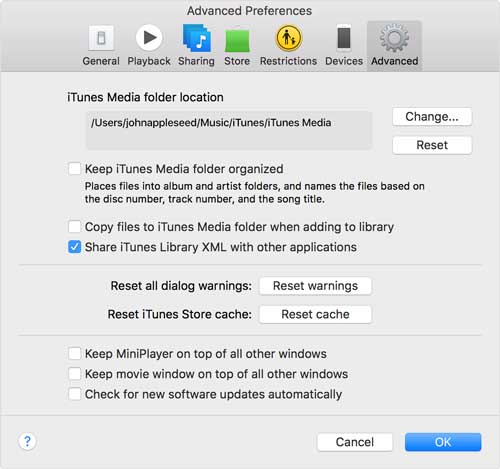
Step 5. Click "OK" to confirm the changes.
If you want to move your entire iTunes Library to another drive or external hard drive, follow these steps:
Step 1. Open iTunes and go to "Preferences" > "Advanced".
Step 2. Make sure the option Keep iTunes Media folder organized is enabled.
Step 3. Select "File" > "Library" > "Organize Library", then check "Consolidate files".
Step 4. Copy the entire iTunes folder to your new storage location.
Step 5. Hold the Shift key (Windows) or Option key (Mac) while opening iTunes, then select the new iTunes Library file.
Your iTunes Library will now load from the new location.
Bonus: Want to know where iPhone backups are stored? Here is a guide you can't miss.
Although iTunes is a useful tool for managing iOS devices, its backup and data management features can be complicated and limited. If you need a simpler way to transfer, back up, and manage iPhone data, an iTunes alternative can be a better choice.
Coolmuster iOS Assistant is a powerful iTunes alternative that helps you manage iPhone and iPad data on Windows and Mac. It allows you to transfer files, back up data, restore files, and manage iOS content without complicated syncing steps.
What can Coolmuster iOS Assistant do for you?
Follow the steps to use iOS Assistant to back up your iOS device:
01Download and install the software on your computer, then connect your iOS device using a USB cable.
02On your iOS device, tap "Trust" to proceed, and follow the on-screen instructions to ensure the software detects your device. Once recognized, you will see the main interface.
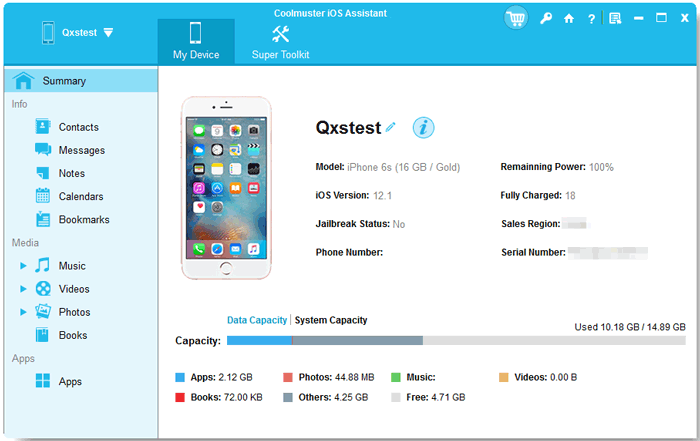
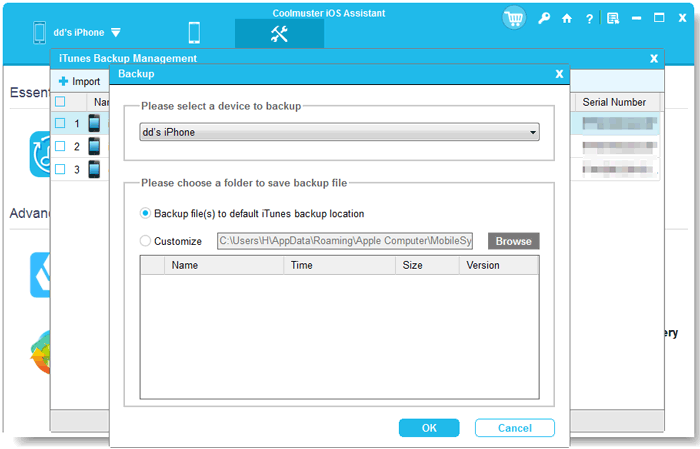
03To back up your entire iOS device, go to the "Super Toolkit" section, select "iTunes Backup & Restore", choose "Backup", then pick your device from the drop-down menu. Click "Browse" to select a save location on your computer, then click "OK" to begin the backup.
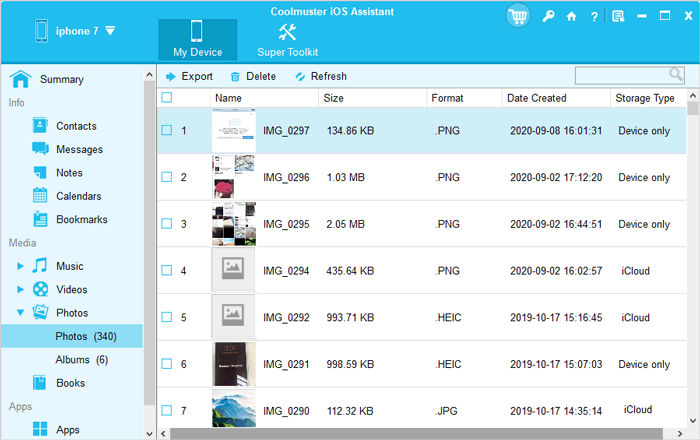
For backing up specific files, navigate to the "My Device" section, select file types from the left panel, preview and choose the files you wish to transfer, and then click "Export".
Video Tutorial:
Q1: Is iTunes Library the same as iPhone backup?
No. The iTunes Library and iPhone backup store different types of data. The iTunes Library mainly contains media files, such as music, videos, and playlists, while an iPhone backup saves device data, settings, and app information.
Q2: Can I move my iTunes Library to an external hard drive?
Yes. You can move your iTunes Library to an external hard drive by copying the iTunes folder to the new location and selecting it when opening iTunes. Make sure the drive has enough storage space before moving your files.
Q3: Why can't I find my iTunes Library?
Your iTunes Library may have been moved, renamed, or stored in a different folder. You can check the current location through "iTunes" > "Preferences" > "Advanced" or search your computer for the iTunes Library.itl file.
Finding the iTunes Library location is easy once you know where to look. This guide has explained how to locate iTunes files on Windows and Mac, as well as how to change the iTunes Media folder location when needed.
If you want a simpler way to manage and back up your iPhone or iPad data, Coolmuster iOS Assistant is a great iTunes alternative. It allows you to transfer, back up, and manage iOS data more efficiently without the complicated syncing process of iTunes.
Related Articles:
How to View My iTunes Backup Files with or without Restoring Data? (Solved)
[Can't-Miss] How to Delete iTunes Backup on a Windows PC or Mac?
What Does iTunes Backup Include? [A Comprehensive Guide]
[Stepwise Guide] How to Reinstall iTunes without Losing Data Like Music?







 Free Download for PC
  Free Download for Mac


