TL;DR:
Want to combine two iCloud accounts but don't know where to start? This guide explains whether iCloud accounts can be merged and shows you practical ways to move your data between accounts.
Managing multiple iCloud accounts can be confusing, especially when your photos, contacts, files, and other important data are stored across different accounts. Many users wonder whether they can merge two iCloud accounts into one for easier management. So, can you really combine two iCloud accounts? While Apple does not provide a direct merge option, there are still practical ways to transfer data between accounts. In this guide, we will explain what you need to know and show you how to combine two iCloud accounts step by step.
What Does Merging iCloud Accounts Mean?
Merging iCloud accounts means combining data from two different iCloud accounts into one account, so you can manage files, photos, contacts, and other information in a single place. However, Apple does not currently offer a direct feature to merge two iCloud accounts into one.
If you want to "merge" two iCloud accounts, what you actually need is to move or copy data from one account to another. Although the accounts themselves cannot be combined, there are several practical ways to transfer your important iCloud data. In the following sections, we will show you how to combine data from two iCloud accounts step by step.
After understanding that Apple does not support directly merging two iCloud accounts, the next step is to move your data from one account to another. Below are several practical methods to combine important iCloud data, including photos, contacts, files, and other information.
If you want to move data from an old iCloud account to a new one, you can use iCloud.com to manually download and upload certain types of data. This method works for data such as photos, contacts, calendars, and files stored in iCloud. However, some information, including iCloud backups and app data, cannot be transferred this way.
Here is how to transfer iCloud data from one account to another via iCloud.com:
Step 1. Open a web browser on your computer, visit iCloud.com, and sign in with the iCloud account you no longer want to use.
Step 2. Select the type of data you want to transfer. For example, click "Photos" to access "iCloud Photos".
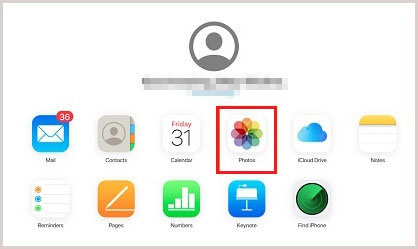
Step 3. Select the photos you need, and click the "Download" button to save them to your computer. (Click here to learn more about how to download iCloud photos to your computer.)
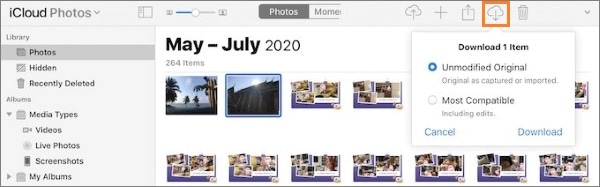
You can also export other types of data, such as contacts, calendars, and files, from iCloud.com if needed.
Step 4. Sign out of the old iCloud account and sign in with the iCloud account you want to keep. Then upload the downloaded data to the corresponding iCloud services.
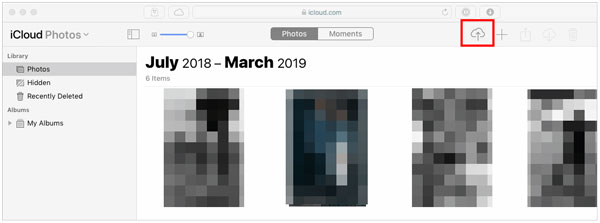
For example, you can open iCloud Photos and upload the photos from your computer to the new iCloud account.
Another way to combine iCloud data is to save the information from your old iCloud account on your iPhone and then sync it with another account. This method is useful when you want to move contacts, calendars, notes, and other synced data.
Before starting, make sure your iPhone has enough storage space to keep the downloaded data. A stable Wi-Fi connection is also recommended, especially when transferring a large amount of information.
Here is how to move data between two iCloud accounts through iPhone Settings:
Step 1. Sign in to the iCloud account you want to move data from on your iPhone or iPad.
Step 2. Go to "Settings" > [Your Name] > "iCloud". Tap "Show All" to view all apps and services using iCloud.
Step 3. Turn off iCloud syncing for the data you want to transfer. When prompted, choose "Keep on My iPhone" to save a copy of the data locally. For example, if you want to download contacts from iCloud, toggle off "Contacts" and select "Keep on My iPhone".
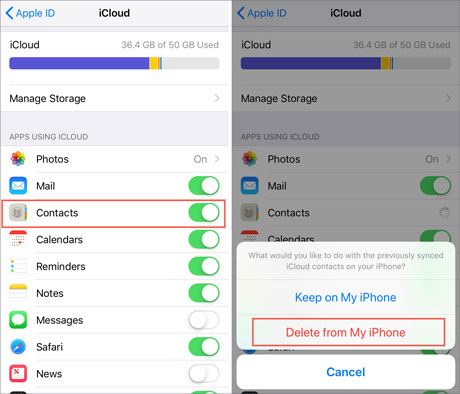
Step 4. Return to "Settings" > [Your Name], scroll down, and tap "Sign Out" to log out of the current iCloud account. (Can't sign out of your Apple ID?)
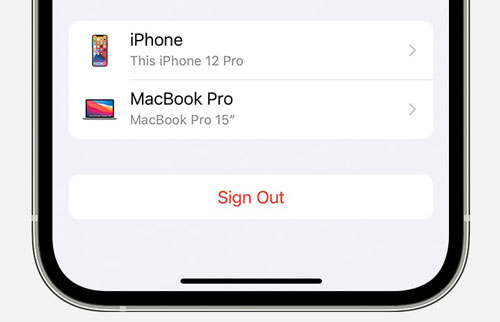
Step 5. Sign in with the iCloud account you want to continue using on your iPhone.
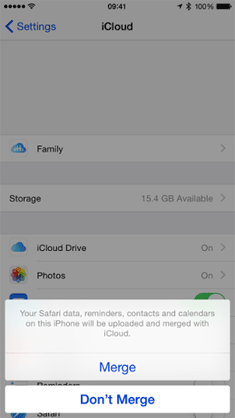
Step 6. Enable iCloud sync again. You may see a "Merge" option during this process. Note that this does not merge two iCloud accounts. Instead, it combines the data currently stored on your iPhone with the data already available in the newly signed-in iCloud account.
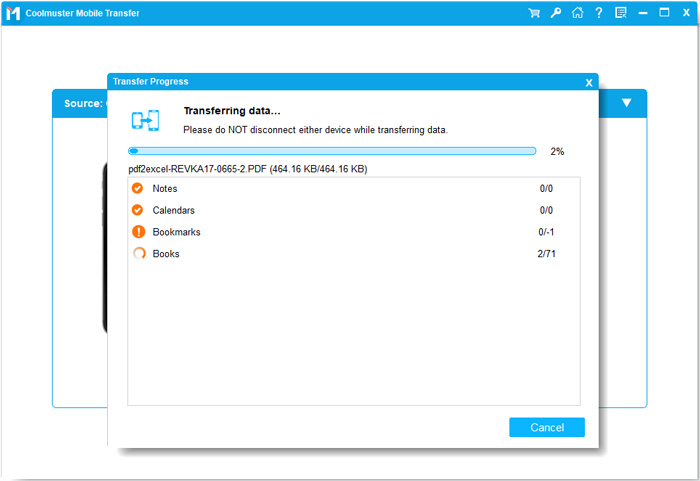
If your goal is to combine data from two iPhones rather than merge iCloud accounts, transferring data directly between devices can be a simpler solution. A professional tool like Coolmuster Mobile Transfer can help you move important files between iPhones without relying on iCloud storage.
Highlights of Coolmuster Mobile Transfer:
How to Transfer Data from iPhone to iPhone with Coolmuster Phone Transfer:
01 Download and install Coolmuster Phone Transfer on your computer. Launch the program and connect both iPhones to the computer using USB cables.
02Unlock your devices and tap Trust when prompted. The program will detect both devices and display them on the interface. Make sure the source and target iPhone are placed correctly.
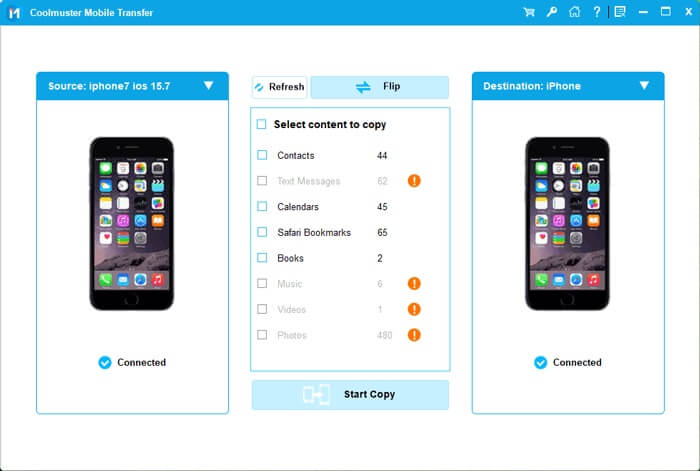
03Select the data types you want to transfer and click "Start Copy" to begin moving data from one iPhone to another.
Video Tutorial:
Since Apple does not support directly merging two iCloud accounts, combining them means moving or syncing data from one account to another. Before switching accounts, it is important to understand what happens to your photos, contacts, backups, and other data.
1. Photos and Videos Will Not Be Automatically Combined
Photos and videos stored in your old iCloud account will remain there. Signing in with another iCloud account will not move them automatically. You need to manually download and upload them or use another transfer method.
2. iCloud Backups Cannot Be Merged
iCloud backups are linked to the Apple ID that created them and cannot be combined. Your previous backups will remain with the old account unless you restore them to a device and create a new backup.
3. Contacts, Calendars, and Notes Can Be Moved Manually
Some iCloud data, including contacts, calendars, and notes, can be transferred by exporting them from the old account and importing them into the new one.
4. Apps and Purchases Stay with the Original Apple ID
Apps, subscriptions, and App Store purchases remain linked to the Apple ID used to get them. They cannot be transferred to another iCloud account.
5. Only One iCloud Account Can Be Used for iCloud Services
An iPhone can only use one main iCloud account for services like iCloud Photos, iCloud Backup, and Find My. However, another Apple ID can still be used for App Store purchases.
Understanding these limitations can help you choose the right way to move your data and avoid losing important information when combining iCloud accounts.
Q1. Can I merge two iCloud accounts into one?
No. Apple does not provide a direct feature to merge two iCloud accounts into one. However, you can manually transfer data, such as photos, contacts, and files, from one account to another.
Q2. Can I transfer iCloud photos from one account to another?
Yes. You can download photos from the old iCloud account through iCloud.com and then upload them to the new account. Alternatively, you can transfer photos between iPhones using a data transfer tool.
Q3. Can I merge iCloud backups from two accounts?
No. iCloud backups are tied to their original Apple ID and cannot be combined. If you need the data from an old backup, you must restore it to a device first.
Q4. What happens if I sign out of iCloud and sign in with another account?
When you sign out, some synced data can be kept on your iPhone. After signing in with another account, you can choose to sync or merge the local data with the new iCloud account.
Q5. Can I use two iCloud accounts on the same iPhone?
You can use only one iCloud account for services like iCloud Photos, iCloud Backup, and Find My. However, you can use another Apple ID for App Store purchases.
Although Apple does not provide a direct way to merge two iCloud accounts, you can still combine your data by manually transferring files, photos, contacts, and other information through iCloud.com or iPhone settings. If you need to move data between iOS devices more efficiently, tools like Coolmuster Mobile Transfer can help transfer important data directly without relying on iCloud.
Related Articles:
[Step-by-Step Guide] How to Change iCloud Account on iPhone/iPad?
How to Transfer Photos from One iCloud Account to Another?
How to Delete iCloud Account without Password (iOS 27 Supported)
How to Transfer Contacts from One Apple ID to Another without Trouble






 Free Download for PC
  Free Download for Mac


