TL;DR:
Need to cancel an accidental AirDrop transfer or prevent unwanted file sharing? This guide covers everything you need to know:
AirDrop makes it easy for Apple users to share files wirelessly between iPhones, iPads, and Mac devices. However, mistakes can happen, such as sending files to the wrong person or starting an unwanted transfer. In this guide, we will show you how to stop an AirDrop transfer in progress, turn off AirDrop to prevent unwanted requests, and explore a reliable AirDrop alternative for transferring data between devices.

Fortunately, you can cancel an AirDrop transfer between Apple devices before or during the process. However, once the AirDrop transfer is completed, there is no way to undo it or remove the file from the recipient's device.
To stop an AirDrop transfer, tap the sender's profile icon while the status shows "Waiting", which means the recipient has not accepted the file yet. If the recipient taps "Accept" and the status changes to "Sending", you may still have a short window to cancel the transfer by tapping the profile icon again.
After you cancel the AirDrop transfer, the selected file will not be sent to the other device.
Sometimes, turning off AirDrop receiving can help prevent accidental transfer requests or unwanted files from other users. You can disable AirDrop on your iPhone, iPad, or Mac and turn it back on whenever you need it.
Method 1: Turn Off AirDrop from Settings
Step 1. Open "Settings" on your iPhone or iPad. (Is AirDrop not working on iPhone or iPad?)
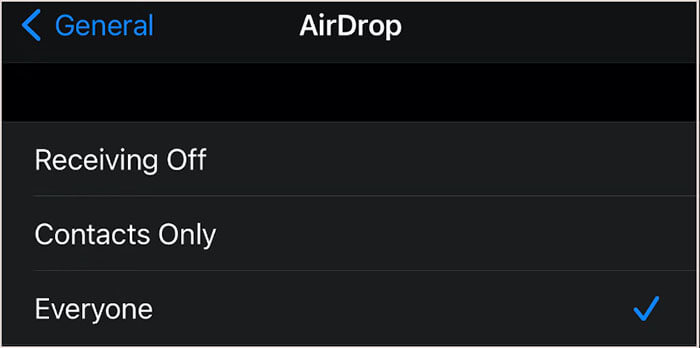
Step 2. Go to "General" > "AirDrop".
Step 3. Select "Receiving Off".
Method 2: Turn Off AirDrop from Control Center
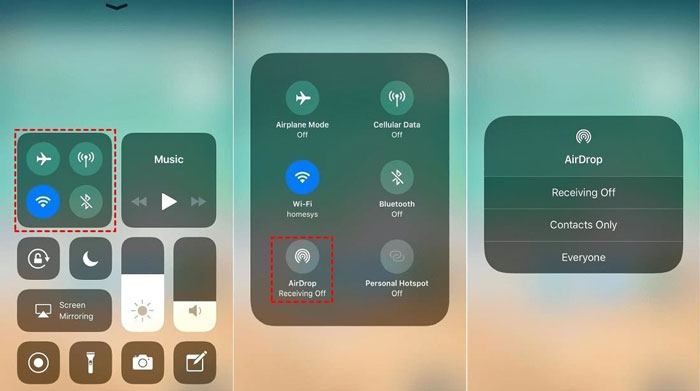
Step 1. Swipe down from the top-right corner of the screen to open "Control Center".
Step 2. Press and hold the network settings panel that includes Airplane Mode, Cellular Data, Wi-Fi, and Bluetooth.
Step 3. Tap "AirDrop" and choose "Receiving Off".
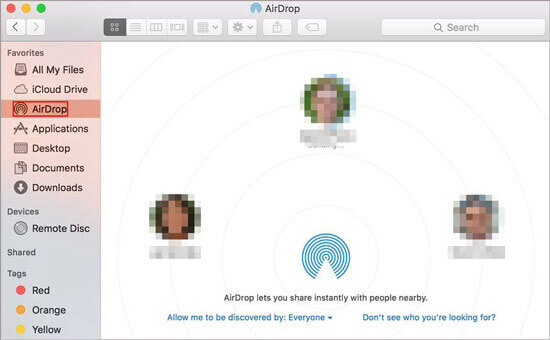
Step 1. Open "Finder" on your Mac.
Step 2. Select "AirDrop" from the left sidebar.
Step 3. Click the drop-down menu next to "Allow me to be discovered by" at the bottom of the window and select "No One".
Once AirDrop is turned off, your device will no longer be available as an AirDrop receiving option for nearby Apple devices, helping prevent unwanted file transfers.
Although AirDrop provides a convenient way to share files between Apple devices, it has some limitations. For example, it only works within the Apple ecosystem, requires both devices to be nearby, and supports limited types of data transfer. If you want to transfer more data between phones or migrate data between iOS and Android devices, Coolmuster Mobile Transfer is a reliable AirDrop alternative worth trying.
Coolmuster Mobile Transfer is a professional phone-to-phone transfer tool that allows you to transfer data directly between iOS and Android devices. During the transfer process, the source and destination devices remain clearly displayed, helping you avoid transferring data to the wrong device while keeping your information secure.
Highlights of Coolmuster Mobile Transfer:
Here's how to transfer data from iPhone to iPhone using Mobile Transfer:
01Download and install the appropriate version of the software on your computer. Launch the program and connect both iOS devices to the computer using USB cables. Unlock your devices and tap "Trust" when prompted.
02You'll then see the interface showing the connected devices. Before transferring, please ensure that the Source and Destination devices are positioned correctly. If they're not, click the "Flip" button to switch their positions.
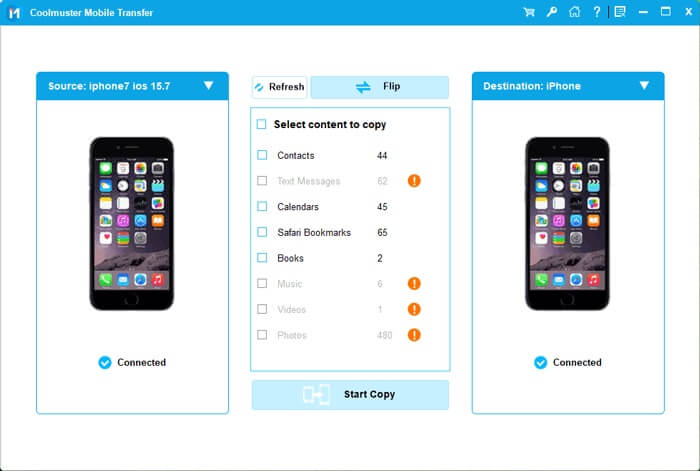
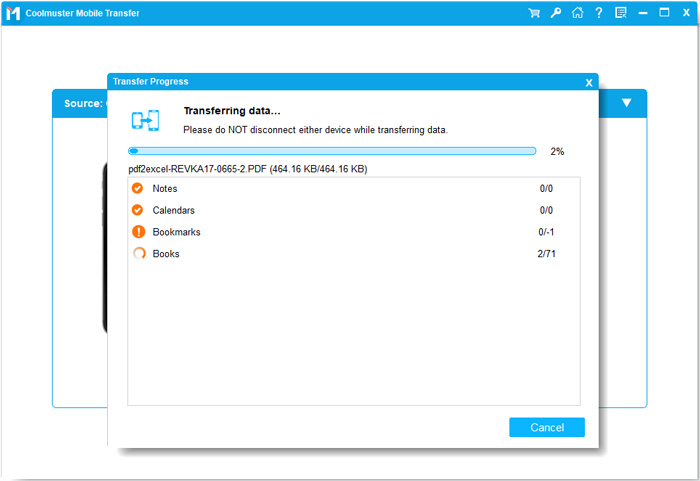
03Select the content you want to transfer from the list and click "Start Copy" to begin the transfer process.
Video Tutorial:
Q1. Why can't AirDrop find other devices?
If AirDrop cannot find other devices, it may be due to the following reasons:
Q2. How to know if an AirDrop was successful?
If the AirDrop goes through, you'll hear an alert tone or feel a vibration on your device. Additionally, the status will appear under the recipient's profile picture as "Sent".
Q3. Is AirDrop safe? How can I avoid receiving files from strangers?
AirDrop is generally safe, but enabling "Everyone" mode may increase the risk of receiving files from unknown users. To prevent this, it's recommended to use "Contacts Only" or "Receiving Off" mode to avoid unnecessary file transfer requests.
That’s all about how to stop an AirDrop transfer. If you notice a mistake before the transfer is completed, you can cancel it while AirDrop is still in the "Waiting" or "Sending" stage. You can also turn off AirDrop to prevent unwanted transfer requests. For users who need a more flexible way to move data between iOS and Android devices, Coolmuster Mobile Transfer offers a simple and efficient solution for transferring contacts, calendars, notes, and other supported data.
Related Articles:
How to AirDrop from iPhone to PC Windows 11/10/8/7 in Six Ways?
12 Fixes for AirDrop Stuck on Waiting or Stopped Working
Does Airdrop Reduce Quality? Here're the Answers
[Answered] Where Do AirDrop Files/Photos/Videos Go on iPhone/Mac?







 Free Download for PC
  Free Download for Mac


