"Can I have a main iCloud account that's my personal, and a secondary account so me and my father can share certain contacts for our business? Not sure if this is possible or if I need to use a google contact sort of thing."
- from Reddit
With the growing Apple ecosystem, iCloud has become an essential service for iPhone users to sync and back up photos, contacts, calendars, notes, and more important data. However, some users may need to manage multiple iCloud accounts on one iPhone for different purposes, such as separating work and personal data or sharing services with family members. Can you use two iCloud accounts on one iPhone? Is it possible to add another iCloud account without switching the primary one? This guide explains everything you need to know.

An iPhone can only be linked to one primary iCloud account (Apple Account, formerly known as Apple ID) for iCloud syncing, backups, iCloud Photos, iCloud Drive, App Store purchases, and other Apple services. However, iOS allows users to add additional iCloud accounts for specific functions, such as Mail, Contacts, Calendars, and Notes.
This means you can use certain features from multiple iCloud accounts on the same iPhone without changing the primary account. However, you cannot fully sync or merge data from two iCloud accounts at the same time. If you need to use another iCloud account for backups, photos, or other core services, you will need to switch the primary account on your device.
As mentioned above, an iPhone can only use one primary iCloud account for core services like iCloud backup, iCloud Photos, and iCloud Drive. However, you can add another iCloud account to your iPhone for specific features, such as Mail, Contacts, Calendars, Notes, and Reminders.
If you only need to access certain data from another iCloud account, you can add it through the account settings on your iPhone. Here, we use Contacts as an example.
Step 1. Open the "Settings" app on your iPhone and tap "Contacts".
Step 2. Tap "Accounts" and select "Add Account".
Step 3. Choose "iCloud" from the list of account providers, then enter the iCloud account and password you want to add.
Step 4. Follow the on-screen instructions to verify the account if required. After adding the account, turn on the services you want to sync, such as Contacts, Mail, Calendars, Notes, or Reminders.
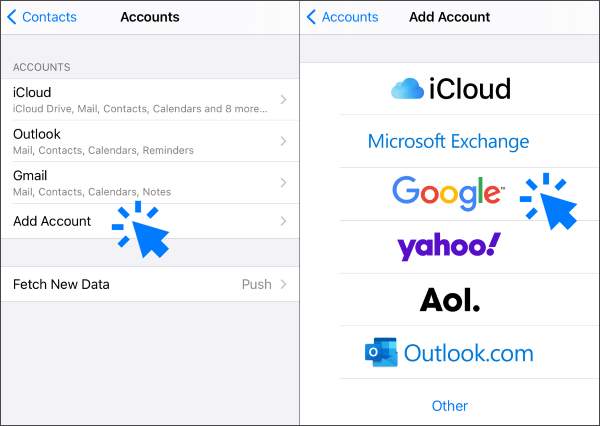
Once completed, the second iCloud account will be available for the selected services without replacing your primary iCloud account.
If you want to use another iCloud account for iCloud backup, Photos, iCloud Drive, or other main Apple services, you need to sign out of your current iCloud account and sign in with another one.
Step 1. Open "Settings" and tap your name at the top.
Step 2. Scroll down and tap "Sign Out". (Can't Sign Out of Apple ID on iPhone?)
Step 3. Enter your Apple Account password and choose the data you want to keep on your iPhone.
Step 4. Tap "Sign Out" again, then return to Settings and sign in with another iCloud account.
Keep in mind that switching iCloud accounts may affect synced data, backups, and other Apple services connected to the previous account. Make sure important data is backed up before switching.
If your goal is to share iCloud storage, purchases, subscriptions, or other Apple services with family members, Family Sharing may be a better option than adding multiple iCloud accounts to one iPhone.
With Family Sharing, each person can keep their own iCloud account while sharing selected Apple services, such as iCloud+ storage plans, App Store purchases, and subscriptions.
Are you facing the problem of family sharing iCloud storage not working? Don't worry! Our guide will help you figure out how to fix this issue and make family sharing work for the entire family.
6 Ways to Fix Family Sharing iCloud Storage Not WorkingAlthough iCloud provides a convenient way to back up iPhone data, it has some limitations, such as limited free storage space and fewer options for managing files directly. If you want more control over your iPhone data, a desktop-based backup and management tool can be a practical solution.
Coolmuster iOS Assistant is a powerful iCloud alternative that helps you back up, transfer, and manage iPhone data directly from your computer. It allows you to selectively manage contacts, messages, photos, videos, music, notes, and other files without relying on iCloud storage.
Key features of Coolmuster iOS Assistant:
Here's how to use iOS Assistant to back up your iPhone to your computer:
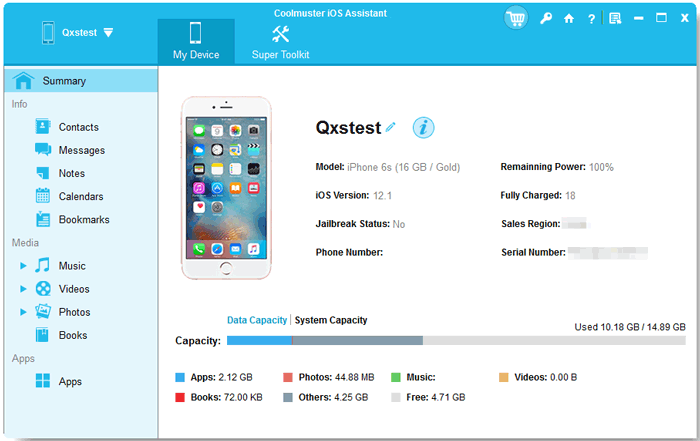
01Install and launch Coolmuster iOS Assistant on your computer. Connect your iPhone using a USB cable. If prompted, tap "Trust" on your iPhone, then click "Continue" in the program. Once connected successfully, you will see your iPhone information on the main interface.
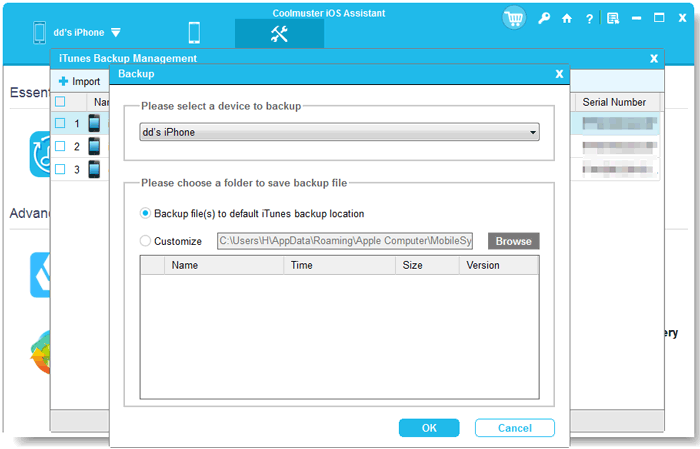
02Go to the "Super Toolkit" section from the top menu and select "iTunes Backup & Restore". Click "Backup", choose your iPhone from the device list, select a backup location, and click "OK" to start the backup process.
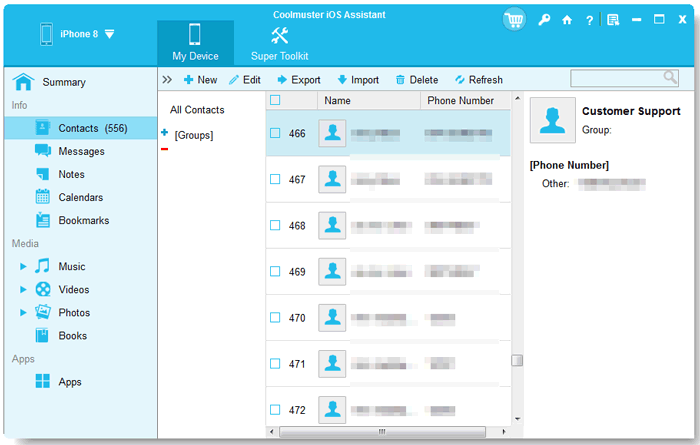
03If you only need to save specific files, go to the "My Device" section and select the data category you want to back up. Then click the "Export" button to transfer the selected files to your computer.
Video Guide:
Q1. Can I use two iCloud accounts at the same time on my iPhone?
You cannot use two iCloud accounts simultaneously for full iCloud services on one iPhone. Only one account can be signed in as the main iCloud account. If you need to use another account, you can either add it for specific apps and services or switch the primary iCloud account in Settings.
Q2. Can I merge two iCloud accounts?
No. Apple does not provide a direct option to merge two iCloud accounts into one. If you want to combine data from different accounts, you need to manually transfer files, contacts, photos, and other information between accounts or use a third-party data management tool.
Q3. Can I use two Apple IDs on the same iPhone?
Yes. You can use different Apple Accounts (formerly Apple IDs) for different purposes on the same iPhone. For example, you can use one account for iCloud services and another for App Store purchases. However, switching accounts may affect access to purchased apps and synced data.
Q4: Can I Have Two iCloud Accounts on One Mac?
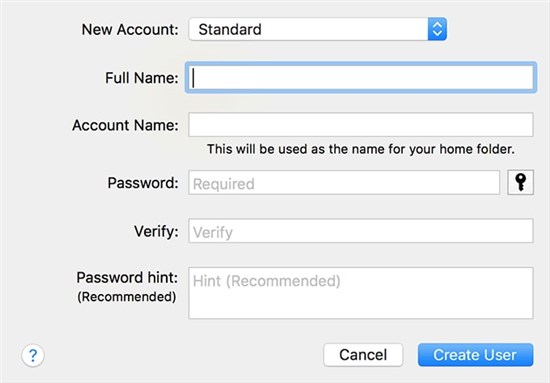
Yes, you can use multiple iCloud accounts on a Mac, but only one iCloud account can be used as the primary account for system-wide services at a time. If you need to access different iCloud accounts, the easiest way is to create separate user accounts on your Mac and sign in with a different iCloud account in each profile.
To create another user account, go to the Apple menu and select "System Settings" > "Users & Groups". Click "Add User" and follow the on-screen instructions to create a new profile. After switching to the new user account, you can sign in with another iCloud account and access its associated data and services.
Q5. What happens if I sign out of iCloud on my iPhone?
When you sign out of iCloud, your iPhone will stop syncing with that iCloud account. Some data, such as iCloud Photos, iCloud Drive files, and contacts, may be removed from the device unless you choose to keep a copy. Before signing out, make sure important data is backed up.
Although an iPhone can only use one primary iCloud account for core services like iCloud Backup, iCloud Photos, and iCloud Drive, you can still add another iCloud account for specific features such as Contacts, Mail, Calendars, and Notes. If you need a more flexible way to back up and manage your iPhone data, Coolmuster iOS Assistant is a practical solution. It allows you to back up, restore, transfer, and manage iPhone files directly on your computer, giving you greater control over your data without relying solely on iCloud.
Related Articles:
How to Transfer Contacts from One Apple ID to Another without Trouble
[Step-by-Step Guide] How to Change iCloud Account on iPhone/iPad?
[Solved] How to Transfer Data from One Apple ID to Another Seamlessly?






 Free Download for PC
  Free Download for Mac


