"I have a brand new iPhone 14 Pro. Out of the box, the Auto-Lock was set to 5 minutes, as this was what was set on my previous iPhone when I migrated to the new one. However, when you engage the screen (touch it), the screen comes up but only stays up for maybe 10-15 seconds and shuts off. No matter what setting you set it to in Auto-Lock, the screen goes away in a few seconds. Do I have a defective unit? My previous phone, an iPhone 11 Pro, honors the Auto-Lock setting just fine. It's driving me kinda crazy! Thanks for any help!"
- from Apple Community
The Auto Lock feature on iPhone is designed to automatically turn off the screen after a period of inactivity, helping save battery life and protect your privacy. However, many users report that their screen stays on no matter how long the device is idle. If you're experiencing iPhone auto lock not working, you're not alone. In this guide, we'll explain why your iPhone auto lock is not working and walk you through 10 effective fixes to help you restore your iPhone's auto-lock function.
Why does my auto lock not work on my iPhone? There are many possible reasons why the iPhone screen auto lock not working. Below are some of the most common causes:
After you know the reasons for the iPhone display auto lock not working, here are 10 solutions you can try to fix it.
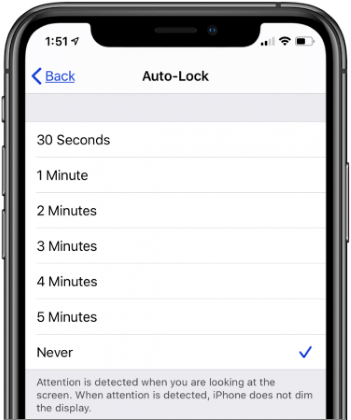
The most common reason the iPhone 17/16 auto lock is not working is incorrect settings. Sometimes, after a system update or changes to your preferences, the Auto Lock time may be reset to "Never", causing the screen to stay on continuously.
Here is how to fix iPhone auto lock not working after update:
Step 1. Open "Settings" > Tap "Display & Brightness" > Select "Auto-Lock".
Step 2. Choose a time such as "30 Seconds", "1 Minute", or "2 Minutes". Make sure "Never" is not selected.
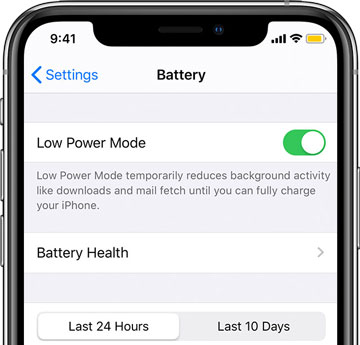
If your iPhone is running in Low Power Mode, it may cause the Apple iPhone auto lock not to work. To fix this issue, try turning off Low Power Mode by following these steps:
Step 1. Open "Settings" on your iPhone and tap "Battery".
Step 2. Under the Battery section, locate "Low Power Mode" and toggle the switch off to disable it.
Step 3. Once Low Power Mode is turned off, the Auto Lock feature should start working normally again.
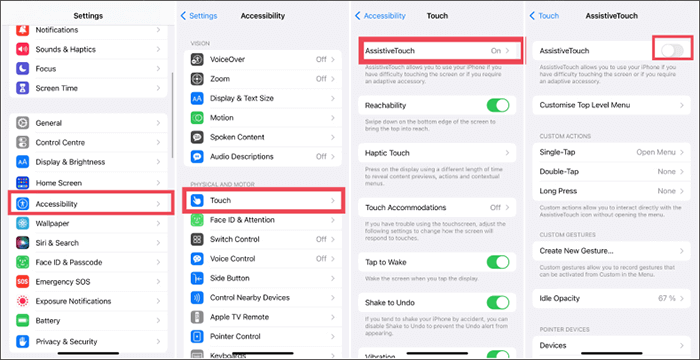
In addition to Low Power Mode, AssistiveTouch can sometimes interfere with the Auto Lock feature. If AssistiveTouch is enabled on your iPhone, try turning it off to see if that resolves the issue.
Steps to disable AssistiveTouch:
Step 1. Go to "Settings" > "General" > "Accessibility" > "AssistiveTouch".
Step 2. Toggle AssistiveTouch off, and check whether the Auto Lock feature is now working properly.
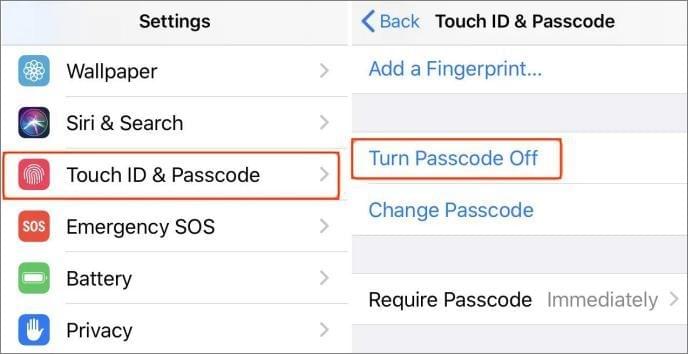
Many users have reported that resetting the passcode lock settings on their iPhone helps resolve Auto Lock issues. You can try this method as well by following the steps below:
Step 1. Go to "Settings" > "Touch ID & Passcode" (or "Face ID & Passcode", depending on your iPhone model), then enter your lock screen passcode when prompted.
Step 2. Scroll down and tap "Turn Passcode Off", and enter your passcode again to confirm.
Step 3. Restart your iPhone, then return to "Settings".
Step 4. Tap "Turn Passcode On" and set a new passcode.
If the "iPhone auto lock not working on iOS 17/18/26" issue is caused by a temporary system glitch or a frozen background process, a force restart can often quickly restore normal functionality. Follow the steps below to force restart your iPhone:

Some iOS versions contain known bugs that can cause the iPhone auto lock not to work. Apple usually fixes these issues in newer updates. To ensure your iPhone is running the latest version of iOS, follow these steps:
Step 1. Open "Settings" > "General" > "Software Update".
Step 2. If an update is available, tap "Download and Install".
Step 3. Once the download is complete, tap "Install Now" to start the update process. (iPhone won't update?)

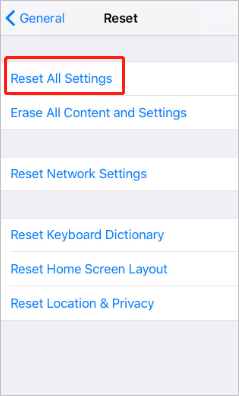
If the methods above don't resolve your iPhone Auto Lock issue, you can try resetting all settings on your device. This will restore your iPhone's settings to their default state without deleting your data.
Here is how to reset all settings on your iPhone:
Step 1. Open "Settings" and tap "General".
Step 2. Scroll to the bottom and select "Reset".
Step 3. Tap "Reset All Settings" and enter your passcode to begin the reset process.
If you've checked all the settings above and your iPhone's auto-lock is still not working, it may be caused by a system issue. iOS System Recovery, which has specialized in fixing iOS system problems for years, is highly effective for resolving issues like Auto Lock not working and other iPhone system problems without data loss.
Main features of iOS System Recovery:
Steps to fix iPhone auto-lock not working using iOS System Recovery:
01Launch the software on your computer and connect your iPhone via USB. On the main interface, click "More Tools" > "iOS System Recovery".

02The program will automatically detect system issues on your iPhone, such as being stuck on the Apple logo, in recovery mode, screenshot malfunctions, or a disabled iPhone. Click "Start" to proceed.

03Verify your iPhone's details when prompted. After confirmation, click "Repair" to begin fixing your device.

If none of the above solutions work, you may need to restore your iPhone to factory settings. This should be considered a last resort, as it will erase all data and settings on your device. Make sure to back up your iPhone before proceeding.
Steps to restore your iPhone:
Step 1. Back up your iPhone using iCloud or iTunes.
Step 2. Go to "Settings" > "General" > "Transfer or Reset iPhone" > "Erase All Content and Settings", then follow the prompts to set up your iPhone again. (iPhone won't erase?)

If all software solutions fail, the issue may be hardware-related, such as a faulty sensor or internal component. At this point, you should contact Apple Support or visit an Apple Store or authorized service provider for a professional diagnosis.
If your iPhone becomes inaccessible due to Auto Lock issues and you've forgotten the passcode, you can try using a professional iOS unlocking tool—iPhone Unlocker. It can remove or bypass the passcode, Face ID, Touch ID, Screen Time restrictions, MDM, and more, helping you regain access to your device.
Here is how to unlock an iPhone without a passcode:
01Launch iPhone Unlocker and select "Unlock Screen Passcode". Click "Start to Unlock", then click "Start" and connect your iPhone to your computer using a USB cable.
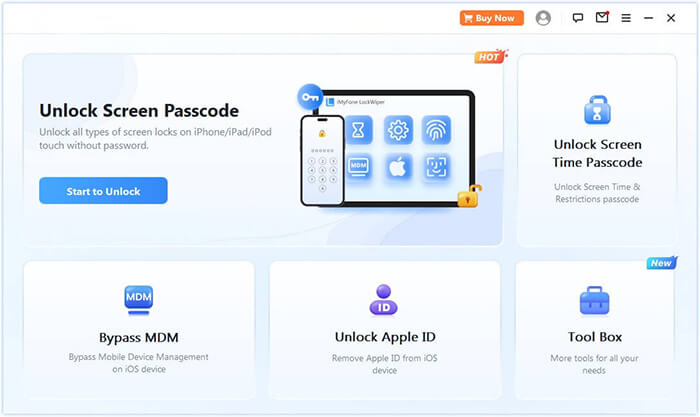
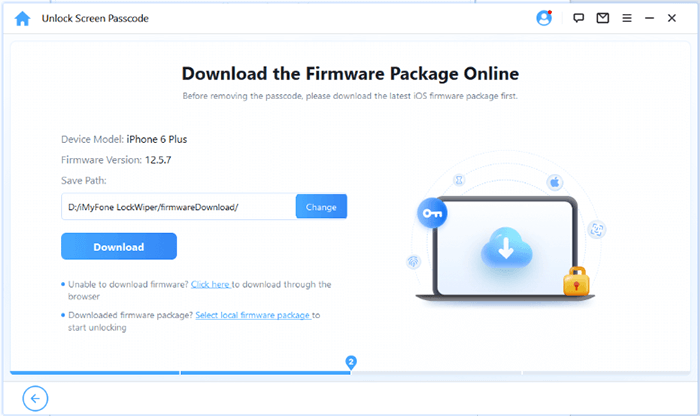
02Next, put your iPhone into Recovery Mode or DFU Mode. The software will automatically detect your device model. You can choose a different storage location for the firmware package if needed, then click "Download" to start downloading the firmware.
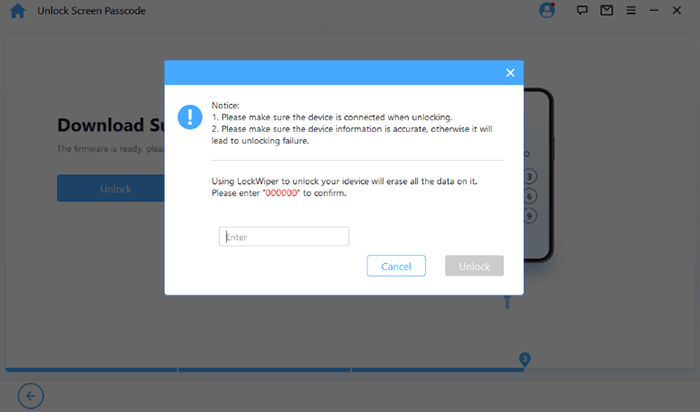
03Once the download is complete, click "Unlock" to continue. Carefully read the on-screen notice, enter "000000" to confirm your authorization, and click "Unlock" again.
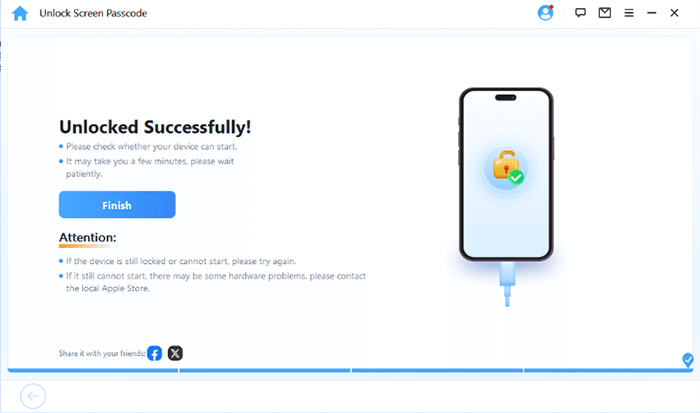
04After a few minutes, the screen passcode on your iPhone will be successfully removed.
When dealing with iPhone auto lock not working, start with simple settings checks and gradually move to deeper solutions. If standard fixes fail, iOS System Recovery is the most reliable way to repair system issues without data loss.
For situations where the device is locked and inaccessible, iPhone Unlocker can serve as a practical backup solution.
Related Articles:
How to Fix iOS 26 Lock Screen Clock Not Working? - 9 Proven Tips
[Solved] How to Fix the iPhone Screen Keeps Going Black Issue?




 Free Download for PC
  Free Download for Mac


