TL;DR: The iPhone camera black screen issue can be caused by software glitches, frozen Camera apps, iOS update problems, permission errors, overheating, or hardware damage. You can fix it by switching cameras, restarting the Camera app, force restarting your iPhone, disabling VoiceOver, resetting settings, updating iOS, or restoring your device.
If the problem is caused by deeper system errors, iOS System Recovery can repair iPhone system issues without data loss. For persistent black screen problems caused by hardware damage, contacting Apple Support is recommended.
"I've heard a lot of people are having a black screen in the Camera app after the iOS 16 update, and I'm one of them. Is there already a fix for this, because it's been almost a month and now you can't even downgrade to iOS 15. Is Apple even aware of this problem?"
- from Apple Community
When you open your iPhone's Camera app to take a photo or record a video, only to find a completely black screen with no image displayed, you're likely experiencing the common iPhone camera black screen issue. So, why is my camera showing up as a black screen? And what to do when the camera screen is black??
In this guide, we'll explore the most common causes of the iPhone camera black screen problem and walk you through several proven solutions to help you get your iPhone camera working normally again.
Before fixing the iPhone camera black screen problem, it is important to understand what causes it. Below are the most common reasons why your iPhone camera may display a black screen.
After identifying the possible causes, you can start troubleshooting the iPhone camera black screen issue.
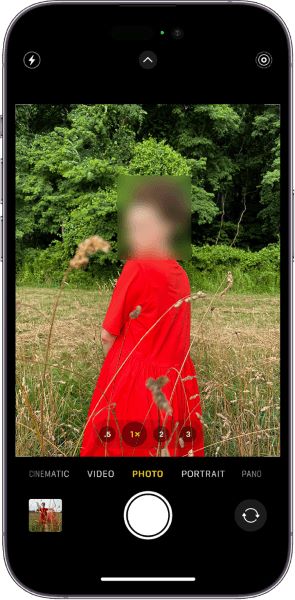
When your iPhone camera displays a black screen, switching between the front and rear cameras is one of the quickest fixes to try. Sometimes, only one camera module fails to initialize correctly, and switching cameras forces iOS to reload the camera connection. Here are the steps:
Step 1. Launch the Camera app on your iPhone.
Step 2. Tap the "Camera Switcher" icon (the two curved arrows) in the bottom-right corner of the screen.
Step 3. Switch from the rear camera to the front-facing (FaceTime) camera.
Step 4. Check whether the front camera displays an image. Then tap the icon again to switch back to the rear camera.
If switching cameras does not fix the problem, the next step is to restart the Camera app. A frozen application process can prevent the camera from connecting properly with the hardware. Closing and reopening the Camera app clears its current state and allows iOS to restart the camera service.
Here is how to do it:
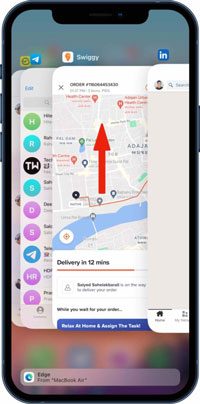
Step 1. Open the App Switcher by swiping up from the bottom of the screen and pausing (or double-click the "Home" button on iPhones with a Home button).
Step 2. Find the Camera app in the list of recently used apps.
Step 3. Swipe up on the Camera app preview to close it completely.
Step 4. Wait a few seconds, then reopen the Camera app and check if the black screen issue is fixed.
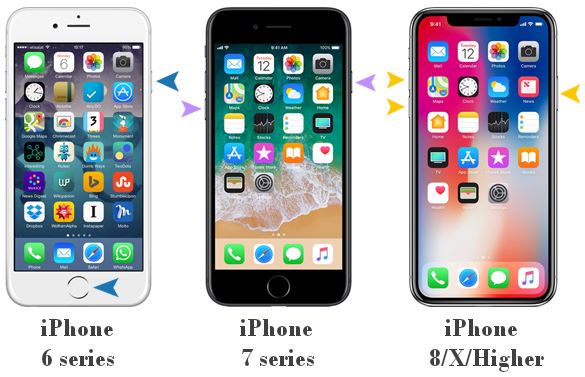
If closing the app normally does not fix the iPhone camera black screen issue, a force restart can refresh iPhone system processes and reinitialize the camera services. Follow the steps below to force restart your iPhone.
iPhone 8 and later:
iPhone 7/7 Plus:
iPhone 6s or earlier:
After restarting your device, open the Camera app and check if the black screen disappears.
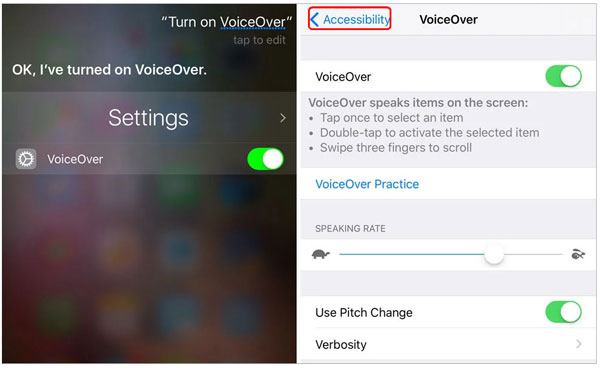
Some users have reported that disabling VoiceOver can help resolve an unresponsive black camera screen issue. Follow the steps below to turn it off:
Step 1. Open the "Settings" app on your iPhone.
Step 2. Scroll down and tap "Accessibility".
Step 3. Select "VoiceOver" from the top of the menu.
Step 4. Turn off the switch next to "VoiceOver".
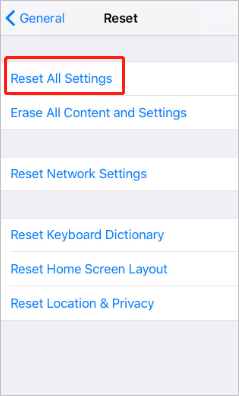
Incorrect system settings may cause the iPhone camera black screen after update issue. Resetting all settings can restore the default system configuration without deleting your personal data.
Here is how to do it:
Step 1. Open the "Settings" app and select "General".
Step 2. Scroll down and tap "Transfer or Reset iPhone".
Step 3. Tap "Reset" at the bottom of the screen.
Step 4. Choose "Reset All Settings", enter your iPhone passcode, and confirm the reset.
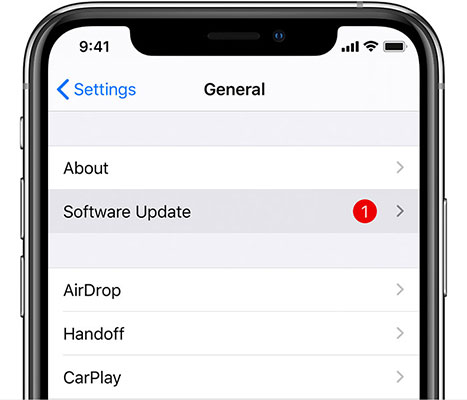
Apple releases iOS updates to fix system bugs and feature issues. If your iPhone camera black screen problem is caused by a software bug, updating iOS may help resolve it.
To update your iPhone, follow the steps below:
Step 1. Open the "Settings" app on your iPhone.
Step 2. Go to "General" and tap "Software Update".
Step 3. Wait for your iPhone to check for available updates.
Step 4. If a new update is available, tap "Update Now" and enter your passcode to start the installation. (iPhone software update failed?)
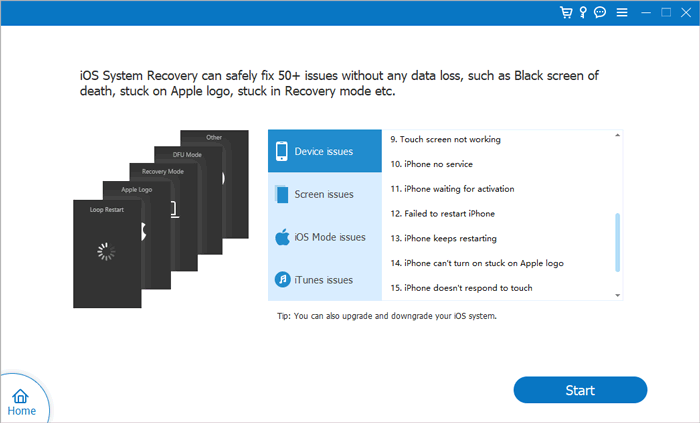
If your iPhone camera still shows a black screen after trying common fixes, the problem may be related to deeper iOS system errors. In this situation, an iOS system repair tool can help fix software issues without requiring complicated manual troubleshooting.
iOS System Recovery can fix various system issues, including iPhone black screen, system freezes, failed updates, and features not working properly. Most importantly, it repairs system problems while keeping all your data intact.
The highlights of iOS System Recovery:
Here is how to fix an iPhone camera black screen in apps using iOS System Recovery:
01Download and install iOS System Recovery on your computer, then launch the program and connect your iPhone via a USB cable.
02Select "iOS System Recovery" from the main interface and click "Start" to begin fixing the iPhone camera black screen issue.
03Choose "Standard Mode" to repair iOS system problems without deleting your data, then click "Confirm".
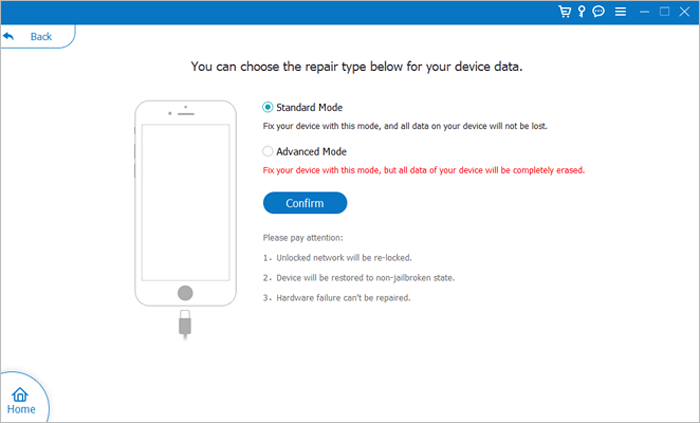
04Check your iPhone information, download the matching firmware package if required, and click "Repair" to start the recovery process.
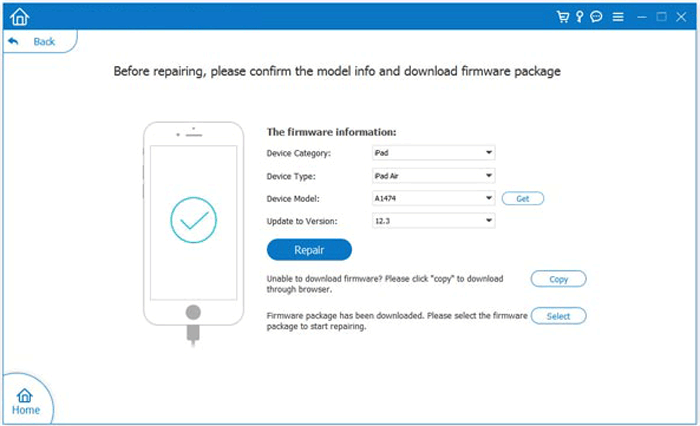
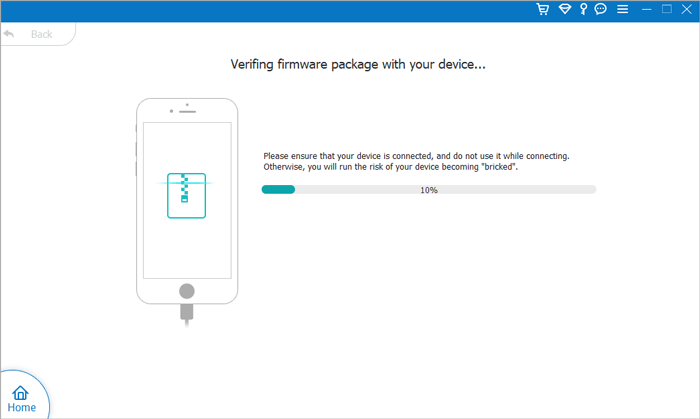
05Wait until the repair is complete. Your iPhone will restart automatically, and you can open the Camera app to check whether the black screen issue has been resolved.
If none of the above methods can fix the iPhone camera black screen issue, you can try restoring your iPhone to factory settings. Please note that this process will erase all data on your device, so it is recommended to back up your iPhone beforehand.
Here are the steps:
Step 1. Back up your iPhone using iCloud or a computer to protect your important data before resetting.
Step 2. Open the "Settings" app and go to "General".
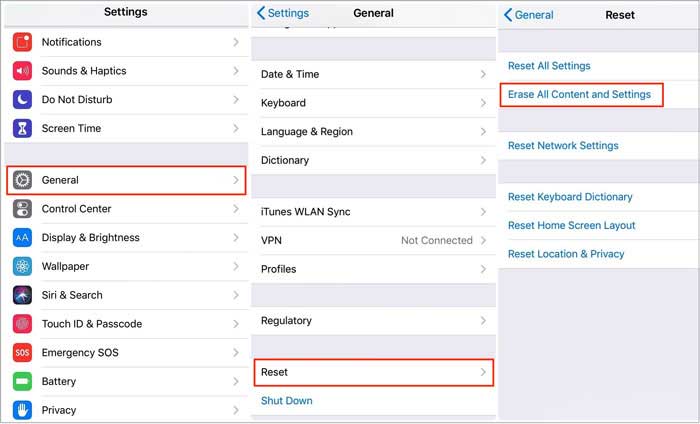
Step 3. Scroll down and tap "Transfer or Reset iPhone", then select "Erase All Content and Settings".
Step 4. Tap "Continue", enter your iPhone passcode and Apple Account password, then follow the on-screen instructions to erase your device.
If the viewfinder is still completely black after a factory reset, or you experience an iPhone camera black screen after a drop or water exposure, the issue is likely caused by hardware damage rather than a software problem. At this point, it is recommended to contact Apple Support or visit an Apple Store for professional device inspection.
With the methods introduced in this guide, you can troubleshoot and fix the iPhone camera black screen issue step by step, allowing your camera to work normally again. iOS System Recovery can help detect and repair various iOS system issues, restore your iPhone to normal operation, and reduce the risk of data loss. Download it now and give it a try!
Related Articles:
How to Solve iPhone Camera Not Working [12 Methods Included]
[Troubleshooting Guide] iPhone Images Showing Up as Black/Blank?
10 Ways to Fix iOS 26 Video Black Screen Issue: Complete Guide
How to Fix iPhone Camera Keeps Refocusing? 9 Quick Fixes Inside!




 Free Download for PC
  Free Download for Mac


