After the iOS 26 update, many users have reported encountering a video black screen issue while playing videos on their iPhone. The sound is still playing, but the video disappears. This problem can occur while using both native video players like Apple's Photos app and third-party apps like YouTube or Netflix. So, why is my iPhone screen black when playing videos? This article will analyze the reasons for the iOS 26 video black screen and provide detailed solutions to help you restore a normal video viewing experience.
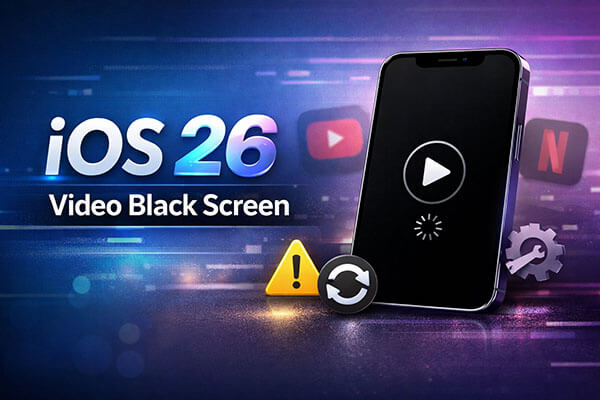
Why is my video playing, but the screen is black? Below are the possible reasons:
We've outlined several methods to fix the iOS 26 video black screen issue. Follow these steps one by one to resolve the problem on your device.
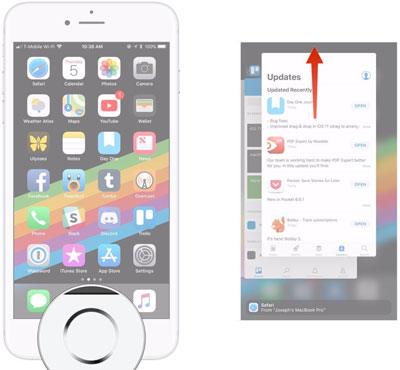
If the iOS video black screen issue occurs in a specific app, it's possible that the app is malfunctioning due to temporary glitches. Force-quitting the app and reopening it can clear the issue. Here's how to do it:
Step 1. Double-tap the "Home" button or swipe up on your device to open the app switcher.
Step 2. Find the app causing the issue, then swipe up on the app's preview to force close it.
Step 3. Reopen the app and attempt to play the video again.
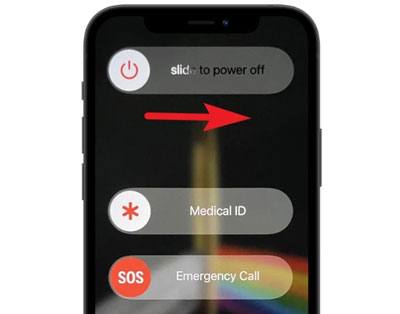
If the app restart doesn't resolve the issue, the next step is to restart your iPhone. Rebooting the device can clear out temporary system errors that may be affecting video playback. To restart your iPhone:
Step 1. Press and hold the "Side" button and "Volume Up" (or Down) button simultaneously until the slide to power off slider appears.
Step 2. Slide to turn off the iPhone, then wait for about 10 seconds.
Step 3. Press the "Side" button again to power on the device.
Step 4. Once the device is on, try playing the video again.
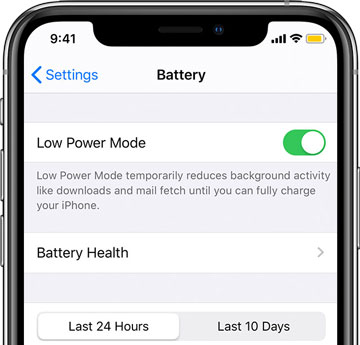
Low Power Mode limits background activity and visual effects to save battery. However, in iOS 26, it might disrupt GPU-based rendering. To disable it, follow the steps below:
Step 1. Open the "Settings" app.
Step 2. Scroll down and tap on "Battery".
Step 3. Toggle off "Low Power Mode".
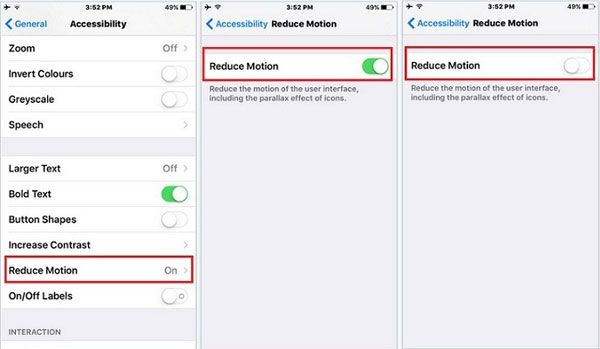
iOS provides motion control settings under Accessibility that can subtly impact how media content is displayed. When enabled, these settings may unexpectedly interfere with video rendering.
Here is how to adjust:
Step 1. Go to "Settings" > "Accessibility" > "Motion".
Step 2. Toggle "Reduce Motion" – if it's on, try turning it off; if it's off, try turning it on.
Step 3. Toggle "Auto-Play Video Previews" off and back on.
If the app you're using is outdated, it might not be fully compatible with iOS 26, leading to video black screen issues. Follow these steps to check for updates:
Step 1. Open the App Store.
Step 2. Tap on the "Profile" icon at the top-right corner.
Step 3. Scroll down to see available updates and tap "Update" next to the app that's having the issue.

If updating the app doesn't work, try uninstalling and reinstalling the app. This can help fix any corrupted files or settings within the app that may be causing the issue.
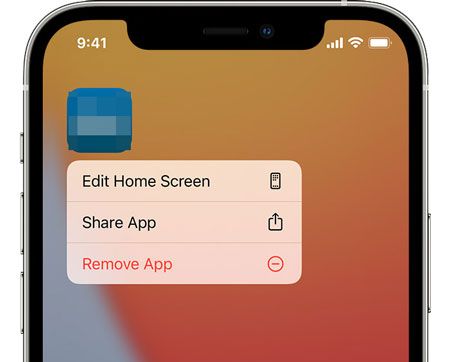
Step 1. Press and hold the app icon until the context menu appears.
Step 2. Tap "Remove App", then "Delete App". (Can't delete app on iPhone?)
Step 3. Go to the App Store, find the app, and reinstall it.
The iOS 26 video black screen issue might be a common bug in the initial release of iOS 26. Apple typically rolls out small follow-up updates to address such problems.
Step 1. Go to "Settings" > "General" > "Software Update". (iPhone won't update?)

Step 2. Your iPhone will check for any available updates. If one is found, tap "Update Now" to download and install the latest version.
Step 3. Follow the on-screen instructions to complete the update. This is often the most effective solution for OS-related bugs.
If the above methods don't resolve the video black screen issue after the iOS 26 update, you may need a professional iOS system recovery tool to fix the problem, such as iOS System Recovery. This tool can fix system-level issues, including video black screen problems, without losing any data.
Main features of iOS System Recovery:
Here's how to fix the iOS 26 video black screen using iOS System Recovery:
01Launch the program and connect your iPhone via USB. On the main interface, click "More Tools" and select "iOS System Recovery".

02Click "Start", and the program will automatically detect potential issues like the red screen of death, unresponsive screen, iTunes Error 21, iPhone Error 2009, and more.

03Confirm your iPhone model. If everything looks correct, click "Repair". If not, select the correct model and then click "Repair" to begin the fix.

If other methods don't work, you can try restoring your device to its factory settings. This will erase all data and settings, resolving any potential software conflicts. Since restoring to factory settings will delete all data on the device, make sure to back up your important files in advance.
Step 1. Open the "Settings" app.
Step 2. Go to "General" > "Reset" > "Erase All Content and Settings". (iPhone won't erase?)
Step 3. Follow the on-screen instructions to reset your device.

If you've tried all the methods and are still facing the video black screen issue, it's recommended to contact Apple Support. They can provide more detailed guidance or arrange repair services.
The video black screen issue in iOS 26 could be caused by several factors, but the methods outlined above have helped most users successfully resolve the problem. Especially with the use of iOS System Recovery, which can deeply fix system issues and restore your device to normal functioning. If you're still unable to resolve the issue, contacting Apple Support is a wise choice. We hope this article helps you restore video playback smoothly!
Related Articles:
How to Fix iPhone No Sound: Reasons and 11 Easy Solutions
Unable to Load Video on iPhone? Get the Solutions Here!
How to Solve iPhone Camera Not Working [9 Methods Included]
How to Fix iPhone 16/17 Black Screen of Death? - 6 Proven Fixes







 Free Download for PC
  Free Download for Mac


