TL;DR: If your iPhone is going straight to voicemail, it's usually due to a weak cellular signal, Airplane Mode, Focus/Do Not Disturb, Silence Unknown Callers, Call Forwarding, blocked contacts, outdated carrier settings, or iOS glitches. This guide covers 14 proven fixes, including checking network signal, disabling Airplane Mode, turning off Focus Mode, updating iOS, resetting network settings, and using professional tools like iOS System Recovery to restore normal incoming calls without data loss. Follow these steps to stop missed calls and ensure your iPhone rings properly.
"Contacts on my phone like doctor offices and business contractors are going to my voicemail. They are not blocked. They are added to my contact list, but they appear in red instead of black."
- from Apple Community
Ever noticed that when someone calls your iPhone, it doesn't ring and goes straight to voicemail? This is a common issue that many iPhone users face. Missing important client calls, family calls, or work notifications can be frustrating. So, why are incoming calls not ringing and going straight to voicemail, and how can you fix it?
In this article, we'll explore the most common reasons for your iPhone going straight to voicemail and share 14 tried-and-tested solutions to help you get your phone ringing again.
Before jumping into the fixes, it's important to understand what may be causing the issue. If your iPhone calls are going straight to voicemail without ringing, it is usually caused by one of the following reasons:
How do I fix my iPhone calls going straight to voicemail? Follow the methods below in order until your incoming calls start ringing normally again.
If your iPhone is going straight to voicemail without ringing, the first thing you should do is ensure that it is connected to a cellular network with a strong enough signal to receive incoming calls.
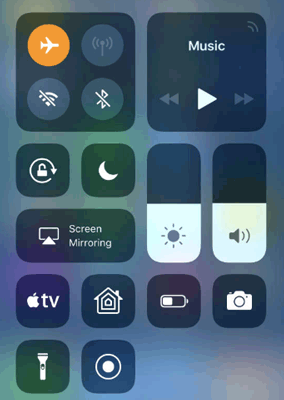
Airplane Mode disables all wireless communications, including cellular service. If it has been accidentally enabled, your iPhone won't receive incoming calls, causing them to go directly to voicemail.
Just open "Settings" and turn off "Airplane Mode" by switching the toggle to "OFF", or simply swipe down from the top of your screen to access the "Control Center", tap the "Airplane" icon, and see if the issue is resolved.
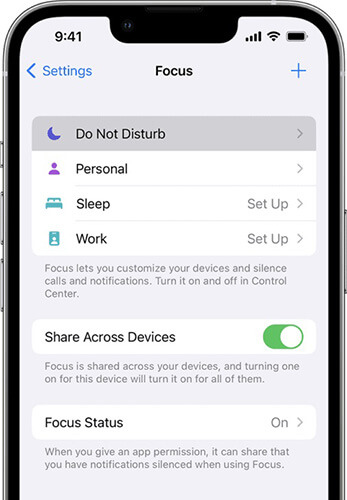
Focus Mode and Do Not Disturb are designed to reduce interruptions, but they can also prevent incoming calls from ringing. Depending on your settings, calls may be silenced completely and sent straight to voicemail. If you've recently enabled a Focus profile for work, sleep, or personal time, it's worth checking whether it is affecting incoming calls.
Here is how to do it:
Step 1. Open "Settings" on your iPhone, then tap "Focus".
Step 2. Choose a Focus mode (such as "Do Not Disturb") and toggle it off at the top.
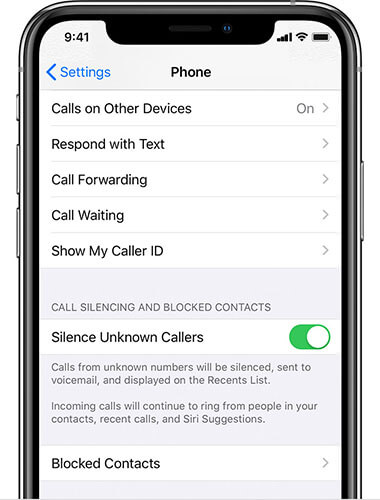
Apple introduced the Silence Unknown Callers feature to help users avoid spam calls. However, when enabled, calls from numbers not saved in your Contacts list are automatically silenced and sent directly to voicemail.
Therefore, it's recommended to turn this feature off and see if it resolves the issue. Go to "Settings" > "Phone" > "Silence Unknown Callers" and toggle the option off, then check if the problem persists.
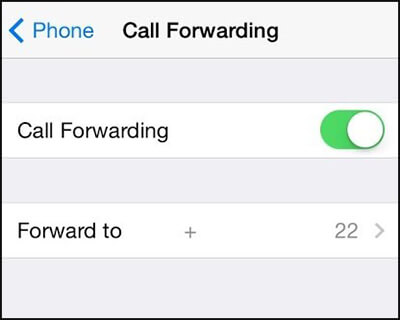
The Call Forwarding feature can also cause iPhone calls to go straight to voicemail. When it is enabled, all incoming calls are redirected to a specified number, which may include your voicemail. Here's how you can turn this feature off:
Step 1. Open the "Settings" app.
Step 2. Tap "Phone", then select "Call Forwarding".
Step 3. Turn off the "Call Forwarding" toggle.
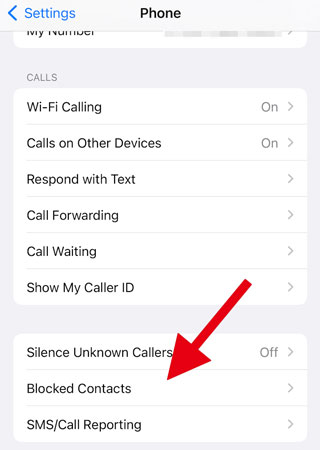
If your iPhone sends calls straight to voicemail from certain contacts, it's worth checking your blocked numbers. When you block someone, they may hear your phone ring before being redirected to voicemail, while your phone won't ring at all.
Here is how to do it:
Step 1. Open "Settings" on your iPhone, then tap "Phone".
Step 2. Tap "Blocked Contacts" to view your blocked numbers.
Step 3. To unblock a contact, swipe left on the number and tap "Unblock".
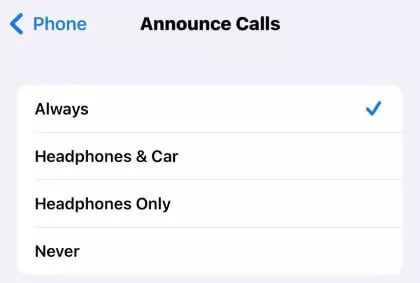
This is a relatively new feature in iOS. When Announce Calls is enabled, Siri will announce incoming calls by speaking the caller's name or number. Some users have reported that switching this setting to Always helps resolve the issue.
Here are the steps:
Step 1. Open the "Settings" app and tap "Phone", then select "Announce Calls".
Step 2. You'll see several options—simply choose "Always" to ensure your iPhone announces all incoming calls at all times.
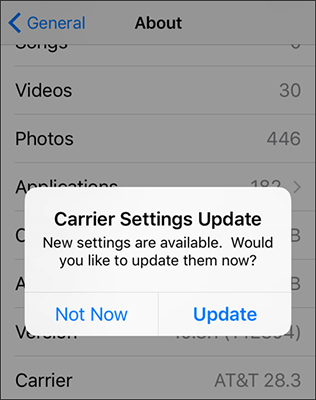
If your iPhone still has outdated carrier settings, it may cause calls to go straight to voicemail because your device cannot connect properly to the wireless network.
To fix this, connect your iPhone to Wi-Fi, then go to "Settings" > "General" > "About". If a carrier settings update is available, an alert will appear on the screen, allowing you to update it immediately.
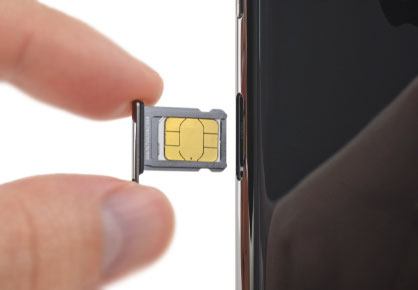
A loose or damaged SIM card can interrupt communication between your iPhone and your carrier network. When this happens, your device may fail to receive incoming calls, causing them to go directly to voicemail. This is a simple but often overlooked solution for resolving iPhone going straight to voicemail problems.
First, turn off your iPhone completely, then use a SIM ejector tool to remove the SIM tray. Check the SIM card for any dust or damage, and carefully reinsert it. Finally, restart your iPhone and test to see if incoming calls are working properly.
Force restarting your iPhone is one of the most common ways to fix minor issues. If your calls are going straight to voicemail, give this method a try.
iPhone 8 and later:
iPhone 7 / 7 Plus:
iPhone 6s and earlier:

An outdated iOS can cause your iPhone to send calls straight to voicemail. To fix this, make sure your iPhone is updated to the latest iOS version:
Step 1. Back up your iPhone to iCloud or a computer to prevent data loss.
Step 2. Open "Settings", tap "General", then select "Software Update".
Step 3. If an update is available, tap "Download and Install", enter your passcode, and agree to the terms.
Step 4. Tap "Update Now". The update may take a few minutes, and your iPhone will restart when it's complete.

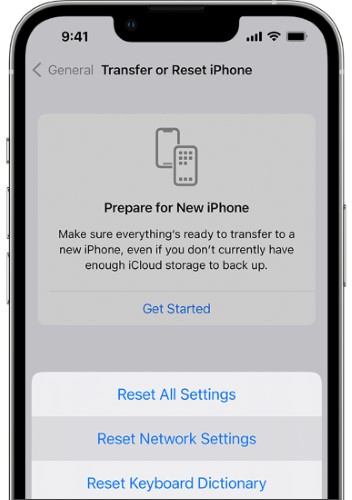
If your iPhone still sends calls straight to voicemail and the previous methods didn't help, you can reset the network settings. Corrupted network settings can prevent your iPhone from connecting properly to the cellular network. Follow these steps:
Step 1. Open "Settings" on your iPhone, and then tap "General".
Step 2. Scroll down and select "Transfer or Reset iPhone", then tap "Reset".
Step 3. Choose "Reset Network Settings", enter your passcode if prompted, and confirm the reset.
If you have tried all troubleshooting methods but your iPhone still goes straight to voicemail, the issue may be caused by deeper iOS system errors. In this case, using a professional iOS repair tool is the most efficient solution. A powerful option is iOS System Recovery, which is designed to fix various iPhone system issues without data loss.
What can iOS System Recovery do for you?
Here is how to fix iPhone calls going straight to voicemail using iOS System Recovery:
01Download and install iOS System Recovery on your computer. Launch the program and select "iOS System Recovery" from the main interface.
02Connect your iPhone to the computer using a USB cable and click "Start". Choose "Standard Mode" to repair the issue without data loss. If the problem is more serious, select "Advanced Mode" for a more comprehensive repair.

03Confirm the detected device information and click "Repair" to start fixing the iOS system. Once the repair is complete, your iPhone will restart automatically, and the issue should be resolved.

If your iPhone calls still go straight to voicemail after trying the solutions above, you may need to contact your mobile carrier and report the issue. If your current carrier has poor coverage in your area, you might also consider switching to a provider with better network service.
These are the most effective solutions for fixing iPhone calls that go straight to voicemail. Work through the methods above one by one to see which one resolves the issue on your device.
If none of the troubleshooting tips work and you suspect the problem is caused by an iOS system glitch, consider using iOS System Recovery. This professional repair tool is designed to fix various iOS system issues with a high success rate. Thanks to its user-friendly interface, you can repair your iPhone at home without technical expertise and, in Standard Mode, without risking your data.
Related Articles:
[100% Work] How to Fix iPhone Voicemail Won't Delete Quickly?
[Solved] How to Fix iOS 26 Call Screening Not Working on iPhone?
How to Fix iPhone Keeps Crashing: Step-by-Step Solutions
[Solved] How to Fix a Glitching iPhone Screen - 12 Easy Methods




 Free Download for PC
  Free Download for Mac


