An iPhone keyboard not working issue can be extremely frustrating, especially when you rely on your device for messaging, searching, or work-related tasks. Why is my keyboard not typing letters on my phone? How do I fix an unresponsive keyboard on my iPhone? You can find the answer in this troubleshooting guide. Let's look together.
Before attempting any fixes, it's important to understand the root cause of the issue. The reasons for an iPhone keyboard not working typically fall into the following categories:
Once the cause is identified, selecting the appropriate fix based on the specific situation is often the most effective approach.
After you know the reasons, here are 11 tricks you can use to fix the iPhone keyboard not working after an update, step by step.
When the iPhone keyboard is not working when charging, the most common causes are system process freezes or temporary bugs. Force restarting can reload the system core services and is the fastest and safest troubleshooting method. Here are the steps:

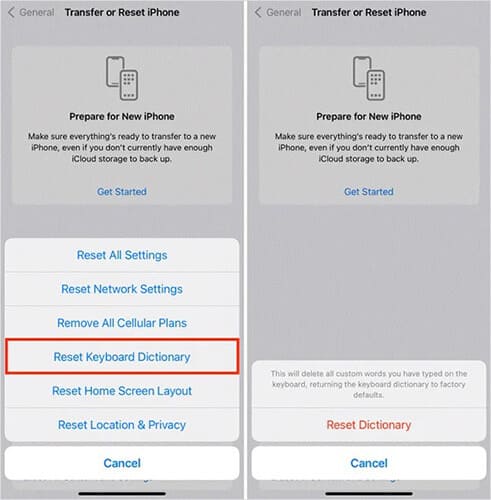
The iOS keyboard continuously learns from users' typing habits. If the keyboard dictionary data becomes corrupted, it may cause abnormal input behavior, lag, or unresponsive keys. Resetting the keyboard dictionary can clear this corrupted data. Here is how to do it:
Step 1. Open "Settings" on your iPhone.
Step 2. Tap "General" > Select "Transfer or Reset iPhone" > Tap "Reset".
Step 3. Choose "Reset Keyboard Dictionary".
Step 4. Enter your passcode if prompted.
Step 5. Tap "Reset Dictionary" again to confirm.
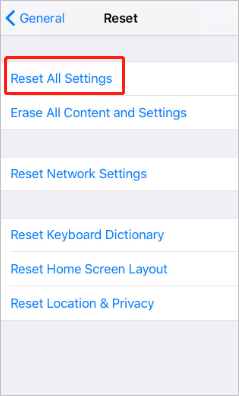
If it still isn't working, try resetting all settings by going to "Settings" > "General" > "Reset" > "Reset All Settings".
If certain letters on the iPhone keyboard are not working, the screen protector may be the cause. Try removing the screen protector, and also take off any case that fits too tightly around the edges and applies pressure to the screen.
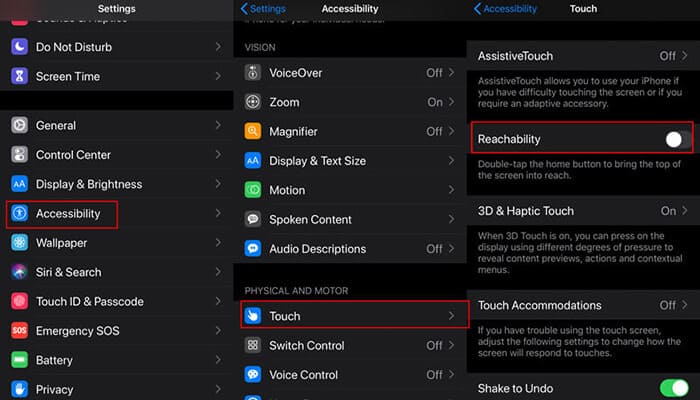
iPhone keyboard not working after screen protector? Although iPhone's Reachability feature is designed to make on-screen elements easier to access, it can sometimes interfere with keyboard functionality and cause the keyboard to hide automatically. Try turning off Reachability to see if it resolves the issue.
To do so, go to "Settings" > "Accessibility" > "Touch", then disable "Reachability".
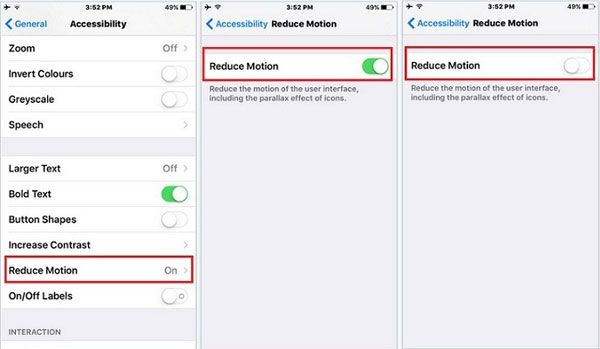
If you're having trouble typing or sending GIFs on the keyboard, disabling Reduce Motion may help resolve the issue.
To turn it off, open "Settings" and go to "Accessibility" > "Motion" > "Reduce Motion", then switch it off.
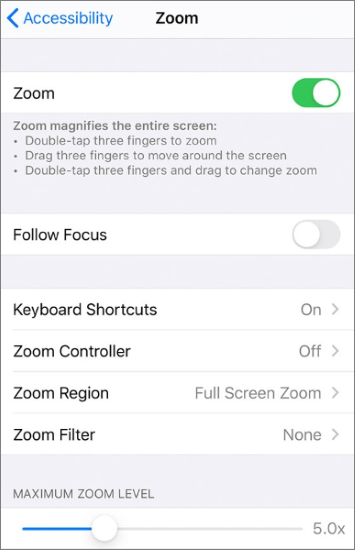
The iPhone's Zoom feature can sometimes affect keyboard functionality. Try turning it off to see if your keyboard starts working properly.
To disable Zoom, go to "Settings" > "Accessibility" > "Zoom" and switch the toggle to "OFF". This will turn off the feature on your device.
If the iPhone keyboard is not working on Instagram, the issue usually comes from that app itself. You can try uninstalling and then reinstalling the app to see if the problem is resolved. To do it, follow the steps below:
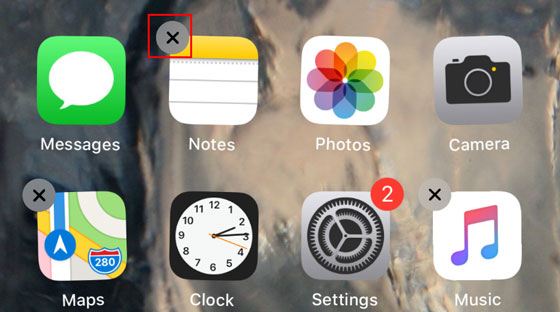
Step 1. To uninstall the app, press and hold the problematic app until it starts wiggling and an "×" appears. Tap the "×" to delete the app. (Can't delete app on iPhone?)
Step 2. Once it's uninstalled, open the App Store to download and reinstall the app.
Third-party keyboards may conflict with the iOS system keyboard, especially after a system update. Here is how to fix the iPhone keyboard not working properly after an update:
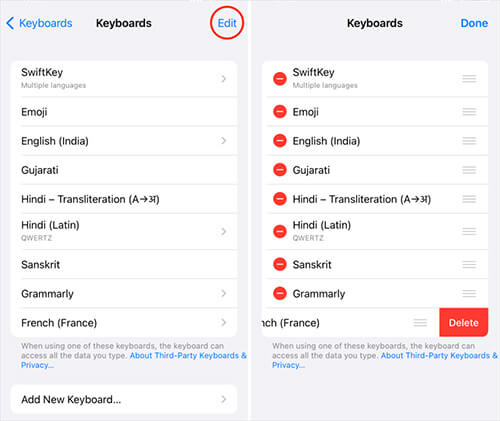
Step 1. Open "Settings" on your iPhone or iPad, then go to "General" > "Keyboard" > "Keyboards".
Step 2. Tap "Edit", then press the "red minus" button and tap "Delete" next to any unnecessary keyboards.
Step 3. Finally, tap "Done" to confirm.
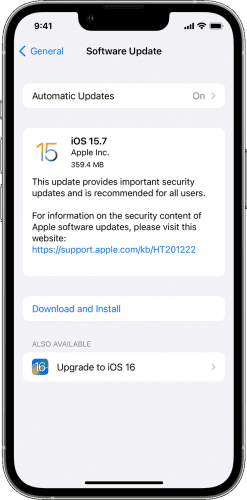
If the issue is caused by a system bug, Apple typically fixes it in a subsequent update. To update iOS to the latest version, follow the steps below:
Step 1. Open "Settings", then go to "General" > "Software Update". (iPhone software update failed?)
Step 2. Your iPhone will check for updates. If an update is available, tap "Download and Install" to get the latest iOS version.
If none of the above methods work, the last resort is to restore your iPhone to factory settings. However, this will erase all content and settings on your iPhone, essentially setting it up as a new device. You can back up your iPhone to a computer or a hard drive before doing it.
To factory reset an iPhone, follow these steps:
Step 1. Open "Settings" on your iPhone. Then, tap "General".
Step 2. Scroll down and select "Transfer or Reset iPhone".
Step 3. Tap "Erase All Content and Settings".
Step 4. Enter your passcode if prompted.

Finally, if none of the solutions work, your iPhone may have visible or internal hardware damage—especially in the screen—which could be preventing the keyboard from functioning. In this case, visit an Apple Store to have it repaired.
If the basic troubleshooting steps fail to resolve your iPhone keyboard issues, it may indicate a deeper system problem. In such cases, using a professional iOS repair tool like iOS System Recovery can help. This software can fix various iOS system errors, including unresponsive keyboards, without affecting your data, making it a reliable solution for stubborn keyboard problems.
Key features of iOS System Recovery:
Follow these steps to fix the iPhone keyboard not working when charging using iOS System Recovery:
01Launch the software on your computer and connect your iPhone via USB. On the main interface, click "More Tools" > "iOS System Recovery".

02The program will automatically detect problems on your iPhone, such as being stuck on the Apple logo, in recovery mode, screenshot malfunctions, or a disabled iPhone. Click "Start" to proceed.

03Confirm your iPhone's details when prompted. After verification, click "Repair" to begin fixing your device.

When you encounter the iPhone keyboard not working issue, there's no need to panic. The methods we mentioned above can help you resolve the problem. If the standard solutions don't work, iOS System Recovery is a highly recommended final solution, as it can efficiently fix system issues without causing any data loss.
Related Articles:
Troubleshooting the Bottom of iPhone Screen Not Working - 2026 Update
iPhone Typing on Its Own? Fix It with 8 Efficient Solutions
Troubleshooting for iPhone Stuck on Preparing Update [Top 10 Fixes]
Stop iPhone Screen Flickering: Troubleshooting Tips and Tricks




 Free Download for PC
  Free Download for Mac


