"My iPhone XS Max has just started to type on its own when I am trying to text, search, log in to apps, etc., and is not inputting the correct numbers or letters that I myself am trying to type. I have tried resetting the dictionary, unplugging, restarting, removing the cover, etc., as suggested online, but this has not rectified the issue. Can you please advise what else I can do to fix this, as it's starting to become unusable? Thanks for your help in advance!"
- from Apple Community
Nothing is more amazing than flaunting a new iPhone; with its many features, everyone will know you have the best. But sometimes, an iPhone can start typing on its own and open random apps. Of course, you'll wonder if it's some kind of secret AI mode that has been activated. But the truth is that it's nothing of the sort. This glitch is known as "Ghost Click", which sadly affects millions of iPhone users worldwide - including yourself if you're experiencing the issue. Don't worry; your phone is facing a common problem.
Luckily, you can solve this puzzle without any hassle. This post provides useful tips and tricks to help you quickly resolve the iPhone typing on its own problem.
Why is my iPhone typing on its own? When an iPhone starts typing on its own, it is usually caused by multiple factors rather than a single issue. Common reasons include:
My iPhone screen is typing by itself. How do I fix it? Well, if you're experiencing ghost clicks on your iPhone, there is no need to worry. We have compiled some tactics that will speedily and effectively resolve the problem in a jiffy!
The most overlooked cause of iPhone typing words on its own is a dirty or damp screen. So, occasionally clean your device's touchscreen using a soft cloth and dirt-removal solution. Be careful not to let any liquid enter the phone's openings, which can lead to more serious damage. Similarly, avoid using corrosive liquids or rough clothing that may scratch up the coating. If this trick fails to resolve your issue, you can try other troubleshooting methods.

Generally, we use phone cases and screen protectors to guard our devices against everyday wear and tear. However, if the protector is of lower quality or damaged, it can lead to the issue of the iPhone typing on its own and moving. So, should you find yourself in this unfortunate situation, take off your case first, then carefully remove the protector from one corner until it's completely removed. After removing it, clean the screen properly. If the issue persists, try the next method.

Force restarting your iPhone is an excellent way to resolve any issues you might face. This simple task often clears temporary system glitches that may cause the iPhone to type by itself. Here's how to force restart different iPhone models:
For iPhone 8 or later:
For iPhone 7 and 7 Plus:
For iPhone 6s and earlier:

After the restart, check if the issue of iPhone typing on its own is resolved.
Software bugs are a frequent reason behind my iPhone typing things by itself. Apple often fixes touch-related bugs through iOS updates.
How do I fix ghost touch on my iPhone?
Step 1. Ensure the iPhone has enough charge and connect it to Wi-Fi.
Step 2. Navigate to "Settings" and choose "General".
Step 3. Head to "Software Update" and click on the "Download & Install" option. (iPhone won't update?)
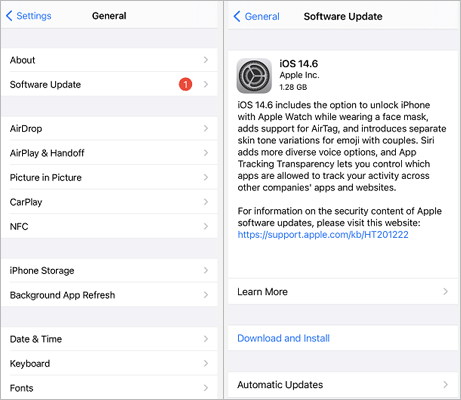
Step 4. Once done, click "Install" to update the phone. Enter the passcode when asked.
If incorrect system settings are causing the iPhone to press things by itself, resetting settings can help, without deleting your data.
Here is how to fix Apple iPhone typing on its own:
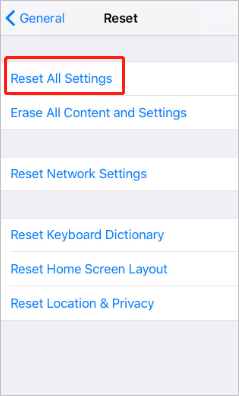
Step 1. Open "Settings" > "General".
Step 2. Tap "Transfer or Reset iPhone".
Step 3. Choose "Reset" > "Reset All Settings".
Step 4. Enter your passcode to confirm.
If your iPhone's typing on its own fix attempts keep failing, the issue is likely caused by corrupted iOS system files. iOS System Recovery is designed to fix system-level problems like iPhone typing by itself, ghost touch, and unresponsive screens—without data loss.
Main features of iOS System Recovery:
Here is how to stop self-typing on iPhone using iOS System Recovery:
01Install and launch the iOS System Repair software on your computer, then connect your iPhone via a USB cable. Next, select "More tools" > "iOS System Recovery" to continue.

02The program will automatically detect your iPhone's issue and display it on the interface. Click the "Start" button to proceed.

03Verify the device details on the interface. If needed, select the correct information from the dropdown lists. Then, click the "Repair" button to immediately resolve the issue of your iPhone typing by itself.

If you still can't fix the iPhone typing words on its own problem, performing a factory reset is highly recommended. This will help to eliminate any potential underlying software problems causing this issue. However, this action will erase all information stored on your phone! It's therefore highly recommended to back up your data beforehand - this way, you'll ensure no loss of important info.
Here is how to reset the iPhone:
Step 1. Go to "Settings" > "General".
Step 2. Tap "Transfer or Reset iPhone".
Step 3. Select "Erase All Content and Settings".

You've already tried the software solutions to no avail. If your iPhone is still plagued by ghost touch, it's time for a trip to the Apple Store. A hardware issue must be causing this problem. Improper display assembly or touchscreen seating are two possible culprits behind iPhone typing by itself. Therefore, make an appointment at your nearest Apple Store and get it seen promptly so you can enjoy using your device without interference from ghost touch.
Unless you are an experienced tech, it's best to leave any complex iPhone repairs to the professionals. Don't forget that trying a do-it-yourself repair may void your warranty.
If you're affected by the iPhone typing on its own issue, you know how annoying it can be. It keeps pressing touch controls even when you don't want to. It not only creates problems while typing but also launches unwanted apps. We hope this guide gives you a hand in solving your device's auto-typing issue for good.
To quickly and effectively fix any issue, iOS System Recovery is the way to go. It is a professional iPhone repair tool that resolves all iPhone problems without any data loss.
Related Articles:
How to Fix iPhone Keeps Locking Itself? - 6 Effective Fixes
9 Simple Ways to Fix the iPhone Keeps Restarting [Ultimate Guide]
Why Does My iPhone Call Log Delete Itself? Reasons and How to Recover
10 Practical Ways to Fix iPhone Keeps Turning Off and On Randomly




 Free Download for PC
  Free Download for Mac


