TL;DR: Is your iPhone power button stuck or not working? This guide covers 9 effective fixes, including cleaning the button, removing the phone case, enabling AssistiveTouch, updating iOS, and using iOS System Recovery to repair system issues without data loss. If none of the fixes work, professional Apple repair may be required.
"The power button gets stuck on my new iPhone 12 Pro. I have had it for 3 weeks, and when I use guided access, the power button fails to respond to my presses. Also, there is no click like when I press the volume buttons."
- from Apple Community
A stuck iPhone power button is a very common yet frustrating problem. You may experience the button becoming unresponsive, failing to provide feedback when pressed, or even being unable to lock the screen or restart the device properly. This issue not only affects daily use but can also cause inconvenience in emergency situations. Why is your iPhone power button stuck? How can you fix a stuck iPhone power button?
This article will guide you step by step to identify the possible causes and provide several effective solutions.
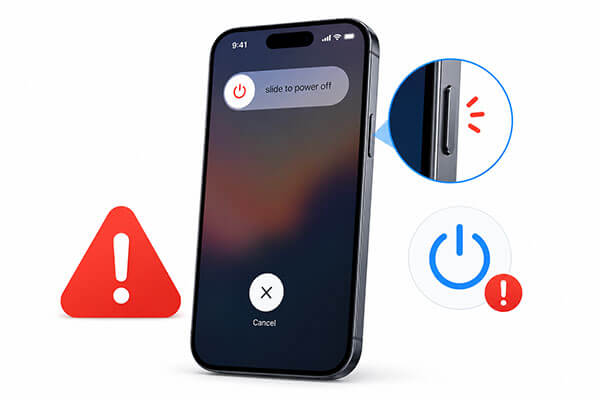
Before jumping into solutions, it is important to understand what may be causing the issue. If your iPhone 17/16 power button is stuck, the following are some possible reasons:
Now that you know the possible causes, let's go through the best solutions to fix the issue.
Your iPhone power button may be stuck due to dirt buildup around the button or because the button has shifted slightly out of place. Try blowing around the button area or using a vacuum to remove dust and debris. In some cases, this can help the power button return to its normal position and function properly again. If the issue continues, gently rotate or press the button from different angles to see if it becomes responsive.
Many users overlook the impact of their phone case. Some rugged cases or worn-out cases may continuously press against the power button, making it seem like the button is broken. Before trying more advanced repairs, it is recommended to remove the phone case and test the power button first.

If your power button is temporarily unusable, AssistiveTouch can act as a virtual replacement button on the screen. This feature allows you to lock your screen, restart your iPhone, and perform other actions without using the physical power button. This is a great temporary workaround while troubleshooting the problem.
Here is how to do it:
Step 1. Open "Settings", go to "Accessibility", and tap "Touch".
Step 2. Select "AssistiveTouch" and turn it on.
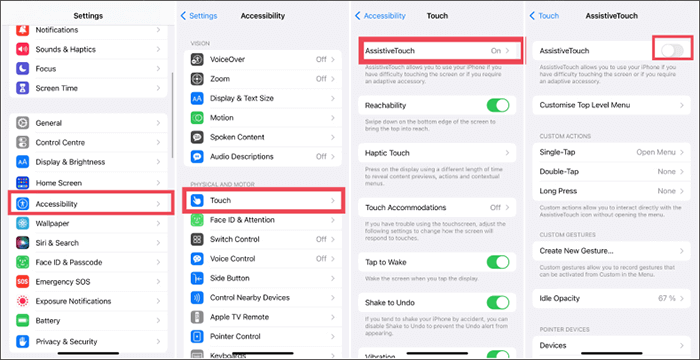
Step 3. Once enabled, a virtual AssistiveTouch button will appear on your screen. With AssistiveTouch, you can perform many functions without using the power button, including:
It is a convenient alternative when your iPhone power button is stuck or not responding. After enabling AssistiveTouch, you can also try restarting your iPhone to see if the power button starts working again.
Is your AssistiveTouch not moving or working? Don't worry. You can read this article to learn the reasons and solutions.
[100% Work] How to Fix Assistive Touch Not Moving/Working?You can use your iPhone Tap to Wake and Back Tap features to perform certain actions without using the power button. This is especially useful when the iPhone power button is stuck or not responding.
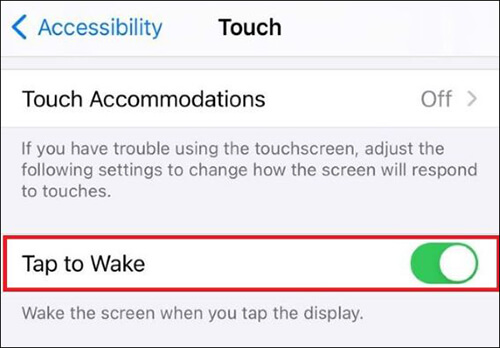
To enable Tap to Wake: Go to "Settings" > "Accessibility" > "Touch" and turn on "Tap to Wake". Once enabled, you can simply double-tap the screen to wake your iPhone without pressing the power button.
To enable the Back Tap feature: Go to "Settings" > "Accessibility" > "Touch" > "Back Tap". Select "Double Tap" and assign an action to it. After setup, double-tapping the back of your iPhone can trigger actions such as:
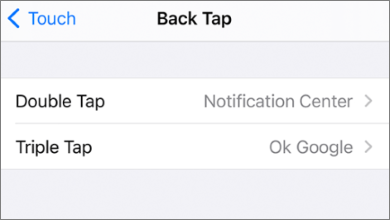
These features provide a convenient way to control your iPhone when the power button is stuck.
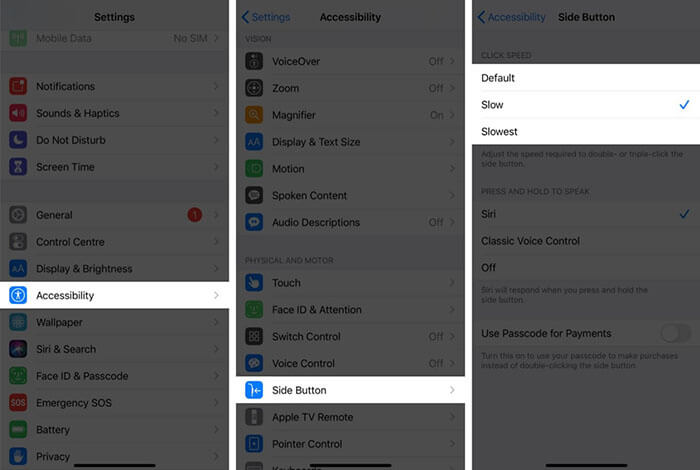
You can also adjust the side button click speed on iPhone X or later if the power button is not working properly. To do this, follow the steps below:
Step 1. Go to "Settings" > "Accessibility" > "Side Button".
Step 2. Try different options such as "Default", "Slow", or "Slowest" to see if the power button becomes more responsive.
Software bugs can sometimes cause an iPhone power button stuck issue or make the button seem unresponsive. Updating iOS may fix system-related problems affecting button functionality. To update your iPhone, follow the steps below:
Step 1. Open "Settings" and tap "General".
Step 2. Select "Software Update", then tap "Update Now".
Step 3. Enter your screen passcode to begin the update process. (iPhone software update failed?)

If none of the basic fixes work, the issue may be caused by deeper iOS system corruption. In that case, using a professional iPhone repair tool like iOS System Recovery can help. This software is designed to fix various iOS issues, including frozen screens, unresponsive buttons, boot loops, and system crashes without requiring advanced technical skills. In addition, no data will be lost in standard mode.
The highlights of iOS System Recovery:
Here's how to fix an Apple iPhone power button stuck without data loss:
01Download and install the software on your computer. It will launch automatically.
02Connect your iPhone using a working USB cable, select "iOS System Recovery", and click "Start".

03Choose a repair mode—Standard or Advanced—and click "Confirm".

04Check your device information, click "Repair", and wait for the process to complete. Your iPhone will return to normal once finished.

If the iPhone 16/17 power button stuck issue still cannot be resolved, you can try restoring the device to factory settings. This can completely remove system errors, but it will also erase all data on the device. Therefore, it is strongly recommended that you back up your iPhone in advance.
Here is how to do it:
Step 1. Open "Settings" and go to "General".
Step 2. Tap "Transfer or Reset iPhone", then select "Erase All Content and Settings".
Step 3. Tap "Continue", then choose "Erase iPhone". Enter your screen passcode to confirm and complete the process.

If the power button is still stuck after trying all the methods, the issue is likely related to hardware damage, such as a faulty button module, a damaged flex cable, or a motherboard issue. In this case, it is recommended to visit an official Apple repair center for inspection.
When you encounter the "iPhone power button stuck" issue, there is no need to rush into replacing your phone. In many cases, simply cleaning the button or removing the phone case can restore normal functionality. If the problem is related to a system-level issue, it is recommended to first try professional tools such as iOS System Recovery, which can fix system problems without data loss and is a safer option than resetting the device.
However, if the issue involves physical damage, the final solution will still require official Apple repair services to fully resolve it.
Related Articles:
iPhone Won't Turn On? Causes and 7 Fixes That Actually Work
[100% Work] How to Fix iPhone Stuck in Boot Loop in Minutes?
5 Ways to Fix the iPhone Frozen on Lock Screen Issue with Ease
[100% Useful] How to Fix iPhone Stuck on Spinning Wheel in 2026?




 Free Download for PC
  Free Download for Mac


