TL;DR: Experiencing iPhone scrolling on its own? This guide explains why your iPhone screen keeps scrolling up by itself and provides 9 proven fixes to stop automatic scrolling. Learn how to troubleshoot the issue quickly and use iOS System Recovery to repair iPhone system problems and restore smooth performance with a high success rate.
"My iPhone 11 has started scrolling on its own. I've restarted and reset, and it's still happening. I cleaned the screen. Everything, any ideas? "
- from Apple Community
Have you ever encountered a situation where your iPhone starts scrolling automatically without any touch input? Whether you are browsing websites, checking social media, or using apps, unexpected scrolling can make your iPhone difficult to control. So, why does my iPhone screen keep scrolling up on its own? How do I stop my iPhone from scrolling on its own?
In this guide, we will explain the reasons behind iPhone scrolling on its own and provide practical solutions to stop unwanted scrolling and restore your iPhone to normal operation.
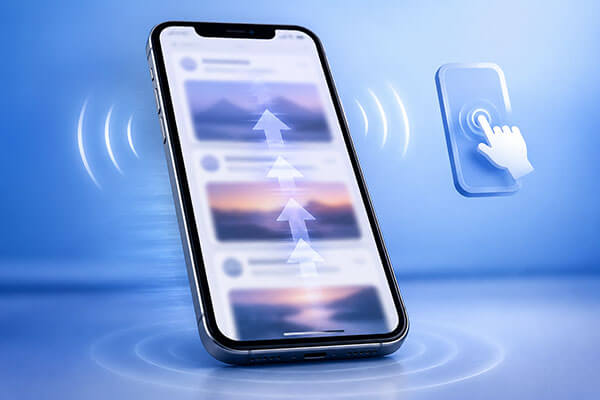
Before fixing the issue, it is important to understand the common causes behind why your iPhone screen keeps scrolling up on its own. If your Apple iPhone keeps scrolling up, the following are some common reasons:
After you know the reasons for iPhone 17 scrolling up on its own, you can try the following fixes to resolve it by yourself.
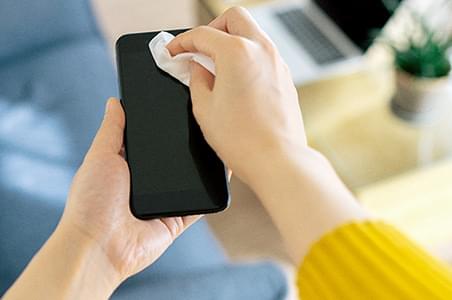
Any dirt, dust, or fingerprints on your iPhone screen can affect touch sensitivity and cause iPhone scrolling on its own issues. Cleaning the screen is one of the simplest fixes you can try first.
Before cleaning your iPhone screen, turn off your device and disconnect any connected accessories. Then, use a clean, soft microfiber cloth to gently wipe the screen and remove any dirt or residue.
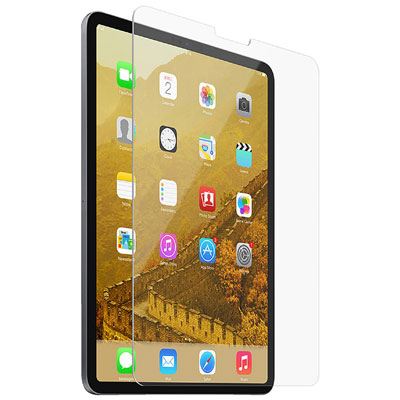
Many iPhone users install screen protectors and cases to prevent scratches, dirt, and accidental damage. However, a poorly fitted protector, air bubbles, or a tight case may interfere with touch sensitivity and cause the iPhone screen to keep scrolling up on its own.
Try removing the screen protector and case temporarily, then check whether the automatic scrolling problem is resolved. If your iPhone works normally afterward, the accessory may be causing the touch interference.
External accessories can sometimes cause touchscreen problems, especially when using third-party charging cables or damaged adapters.
If you notice that your iPhone is scrolling on its own while charging, the charger may be creating electrical interference. Disconnecting all accessories helps you identify whether the problem is caused by external devices.
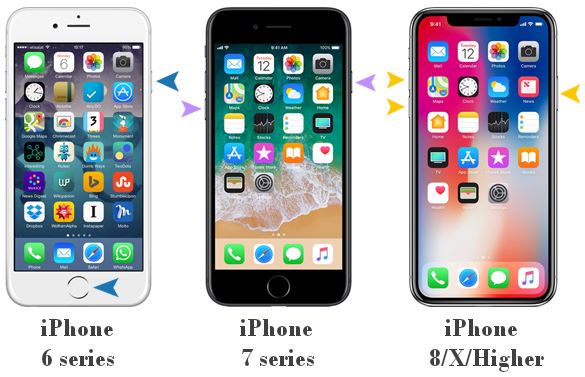
Sometimes, temporary software glitches on your iPhone can cause the Apple iPhone keeps scrolling up issue. A force restart can clear these temporary system errors without affecting your personal data. To force restart the iPhone, follow the steps below:
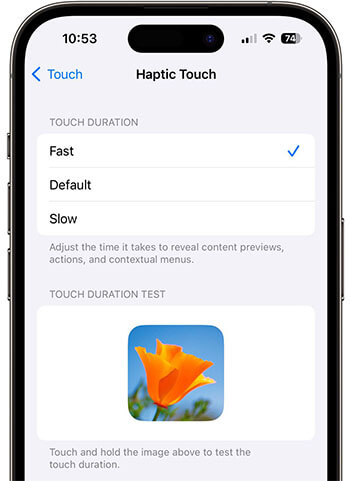
If your iPhone responds too quickly to touch inputs, adjusting the Haptic Touch settings may help resolve the issue. Here is how to do it:
Step 1. Open "Settings" > "Accessibility" > "Touch" > "Haptic Touch" on your iPhone.
Step 2. Change the touch duration from "Fast" to "Slow" and check if the scrolling issue is fixed.
If your iPhone only scrolls automatically in a specific app, such as iPhone email scrolling on its own or iPhone messages scrolling on its own, the problem may be caused by the app rather than your iPhone. Try uninstalling and reinstalling the app to see if the issue is resolved.
Here is how to do it:
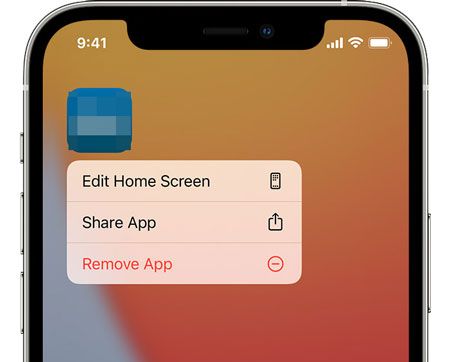
Step 1. Find the problematic app on your Home Screen, press and hold its icon, then select "Remove App" > "Delete App" to confirm. (Can't delete app on iPhone?)
Step 2. Open the App Store, search for the app you deleted, and tap the "Download" button to reinstall it on your iPhone.
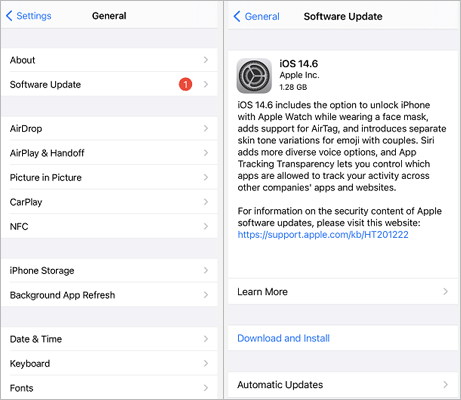
Sometimes, iPhone scrolling on its own can be caused by iOS software bugs. If Apple identifies the issue, it may release a system update to fix the problem. Therefore, updating your iPhone to the latest iOS version can help resolve unexpected scrolling issues.
To update iOS, follow the steps below:
Step 1. Go to "Settings" > "General" > "Software Update" on your iPhone. (iPhone software update failed?)
Step 2. If a new version is available, tap "Download and Install" to complete the update.
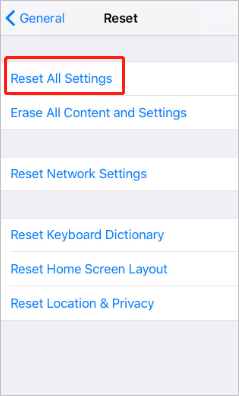
If your iPhone keeps scrolling up on its own after trying other fixes, resetting all settings may help resolve the issue. This process will restore system settings to default, but it will not delete your personal data. However, you will need to reconfigure settings such as Wi-Fi passwords and preferences afterward.
Here are the steps:
Step 1. Go to "Settings" > "General" > "Transfer or Reset iPhone".
Step 2. Tap "Reset" > "Reset All Settings", then enter your passcode to confirm.
Step 3. Your iPhone will restart after the reset. Once it turns back on, check whether the automatic scrolling problem has been fixed.
If you have tried all basic solutions but your iPhone still keeps scrolling up on its own, the issue may be caused by deeper iOS system errors. Problems such as corrupted system files, failed updates, or software conflicts can affect touchscreen performance.
In this case, using a professional iOS repair tool may be a more effective solution. iOS System Recovery is designed to fix various iOS system issues, including iPhone automatic scrolling problems, without causing data loss.
Key features of iOS System Recovery:
Here is how to fix an iPhone screen that keeps scrolling up on its own without data loss:
01Install and launch iOS System Recovery on your computer, then connect your iPhone with a USB cable.
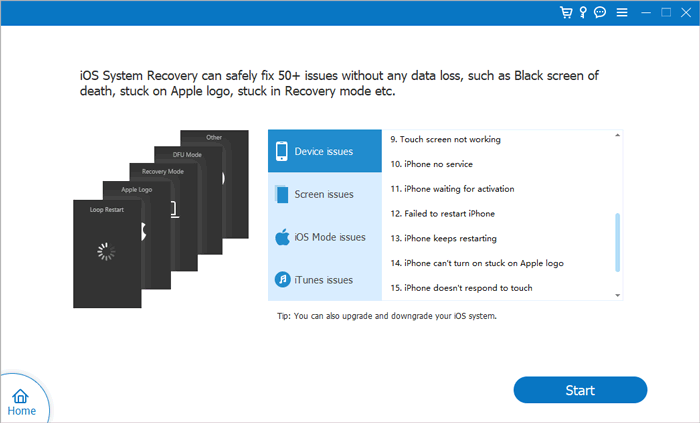
02Select "iOS System Recovery" from the main interface and click "Start" to detect iOS system issues that may cause your iPhone to scroll on its own.
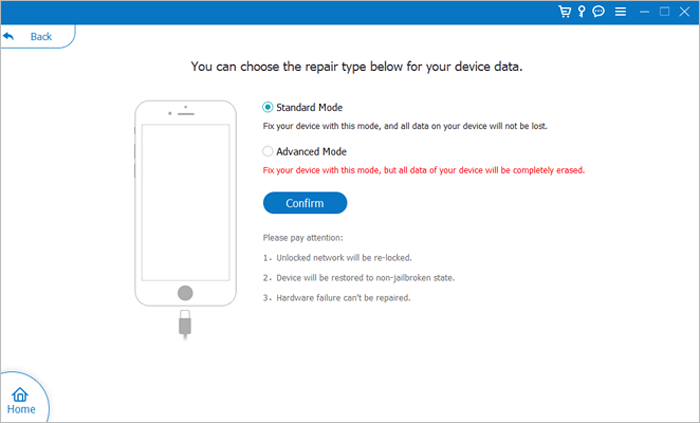
03Choose "Standard Mode" to fix iOS system errors without deleting your personal data, then click "Confirm" to continue.
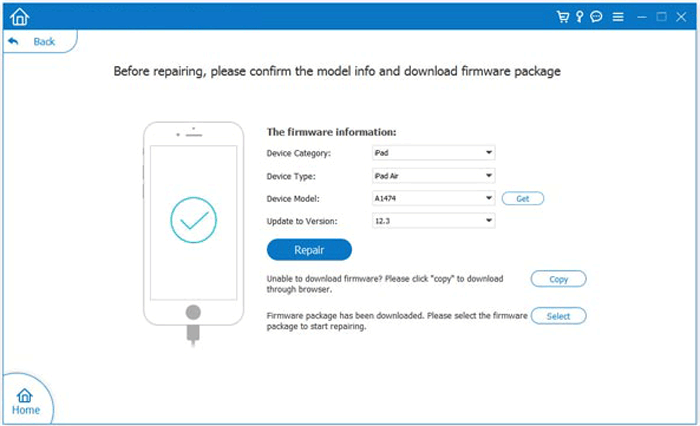
04Check your iPhone information, download the matching firmware package, and click "Repair" to fix the system problems causing automatic scrolling.
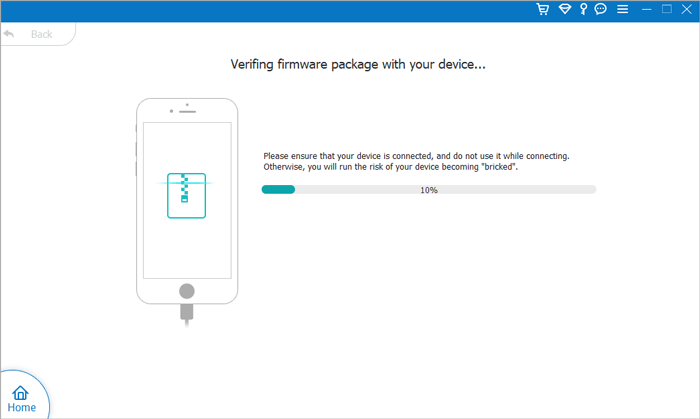
05Wait for the repair process to finish. Your iPhone will restart automatically. After that, check whether the iPhone scrolling on its own issue has been resolved.
If your iPhone keeps scrolling on its own and affects your daily use, finding a reliable solution can help restore a smooth and stable experience. iOS System Recovery provides a simple and efficient way to repair iPhone system issues and improve device performance with just a few clicks. Whether you are dealing with unexpected screen behavior or other iOS problems, this professional tool can help get your iPhone back to normal quickly and conveniently.
Related Articles:
How to Fix iPhone Keeps Locking Itself? - 6 Effective Fixes
iPhone Touch Screen Not Working or Responding? Here's The Fix
iPhone Deletes Text Messages Automatically? Why and How to Recover
Top 9 Ways to Fix iPhone Clicking on Its Own Without Effort?




 Free Download for PC
  Free Download for Mac


