"I'm hoping that someone might be able to help me clear this, as it's driving me nuts. On my Home Screen, the messages icon says I have 3 unread messages, but I really don't. I have restarted, cleared everything, but nothing gets rid of these 3 phantom messages. Any ideas?"
- from reddit
Sometimes, you may notice that the "Messages" icon on your iPhone shows a number indicating unread messages, but when you open the Messages app, you find that there are actually no unread messages. This phenomenon is known as an iPhone ghost message. It can be confusing and may interfere with your daily use.
Why does my message notification show an unread message, but I don't see it? This article will thoroughly explain the reasons why iPhone shows unread messages but there are none, and provide 11 basic solutions, as well as advanced repair tools, to help you safely and efficiently clear these phantom unread messages.
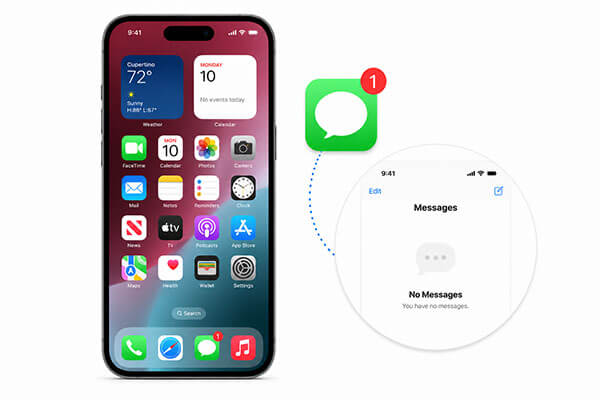
When your Message app shows unread messages but there are none iPhone, several underlying causes may be at play. Understanding the source of the problem can help you choose the most effective solution. The main causes include:
iOS System Recovery is a powerful iOS system repair tool that can fix various iOS issues, including the "iPhone ghost messages" problem, and its Standard Mode does not cause any data loss. With this tool, you can easily restore your system to normal without worrying about losing messages or dealing with complicated procedures.
What can iOS System Recovery do for you?
How to fix iPhone 16/17 shows unread messages but there are none without losing data:
01Download and install the software on your computer. It will launch automatically after installation.
02Connect your iOS device to the computer using a working USB cable. Select "iOS System Recovery" and click "Start".

03Choose a repair mode—"Standard" or "Advanced"—and click "Confirm".

04Verify your device information and click "Repair" to begin. Once the process is complete, your iPhone will be restored to normal.

If your iPhone shows 3 unread messages but there are none, here are 11 basic fixes you can try without any professional software. These methods are simple and easy to follow, and many users have successfully resolved the issue using them.
This method often works for stubborn ghost messages because Siri accesses the message database directly, bypassing any visual glitches in the app.
Activate Siri by holding the "Side" button or saying "Hey Siri", then say, "Read my unread messages". Siri may reveal hidden spam or old messages, and once they're read, the system marks them as read, usually clearing the red badge immediately.
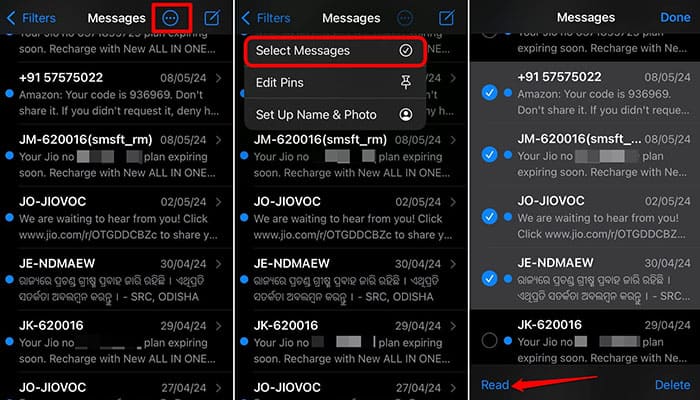
If Siri doesn't find any unread messages, you can manually reset the status of all threads in your Messages app to refresh the notification counter. Here is how to do it:
Step 1. Open the Messages app and tap "Edit" or the "…" icon in the top right corner.
Step 2. Select "Select Messages" from the menu.
Step 3. Tap "Read All" in the bottom left corner. Even without selecting specific messages, this signals the system to mark everything as read.
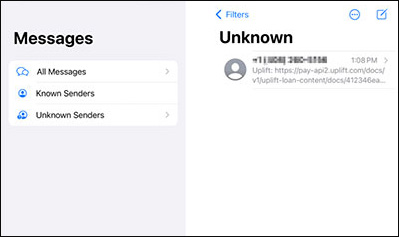
Sometimes the unread message isn't a ghost—it's just hidden. Apple's filtering system moves potential spam or texts from unknown senders to a separate folder, keeping them out of your main inbox. To fix it, follow these steps:
Step 1. Open Messages and tap the "Filters" button in the top left. (If it's missing, go to "Settings" > "Messages" and enable "Filter Unknown Senders".)
Step 2. Tap "Filters", then select "Unknown Senders".
Step 3. Look for any bold blue dots indicating unread messages. Opening these will usually clear the notification badge from your main inbox.
Sometimes the notification badge doesn't match your iPhone's actual unread messages. Turning Badges off and on forces the system to refresh the notification state and can fix the issue. Here are the steps:
Step 1. Go to "Settings" > "Notifications".
Step 2. Select "Messages", toggle "Badges" off, then turn it back on.
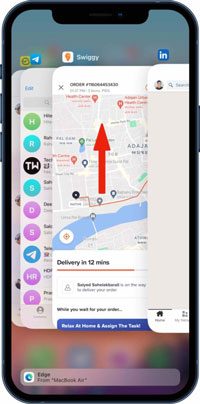
Another way to resolve the "iPhone shows unread text messages but there are none" issue is by force-quitting the Messages app and reopening it. This can help clear temporary system glitches.
Step 1. Double-click the "Home" button—or swipe up and pause—to view all running apps.
Step 2. Swipe up on the Messages app to close it.
Step 3. After a few seconds, reopen the app to see if the issue is resolved.
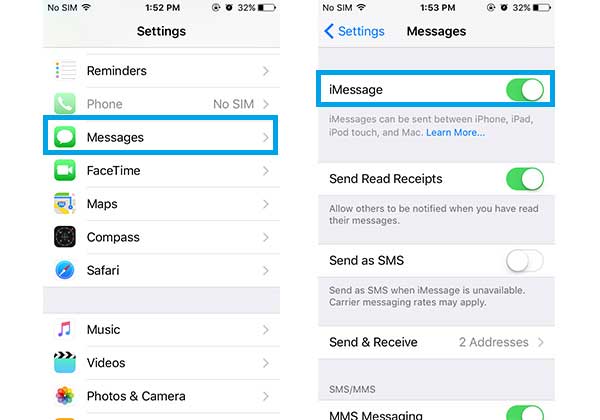
If your iMessage shows an unread message but there isn't one, you can fix it by turning iMessage off and then back on. Follow these steps:
Step 1. Open "Settings" > "Messages" > "iMessage".
Step 2. Toggle iMessage off. Wait a few moments, then toggle it back on. (iMessage not working?)
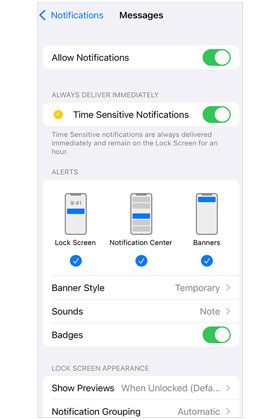
If your iPhone shows 3 unread messages but there are none, you can try turning Notifications off and on again to fix the issue. Here are the steps:
Step 1. Open "Settings" > "Notifications" > "Messages".
Step 2. Toggle "Allow Notifications" off, wait a few seconds, then toggle it back on.
A force restart can effectively refresh your iPhone and eliminate any bugs that might be causing the issue. Here's how to perform a force restart on different iPhone models:

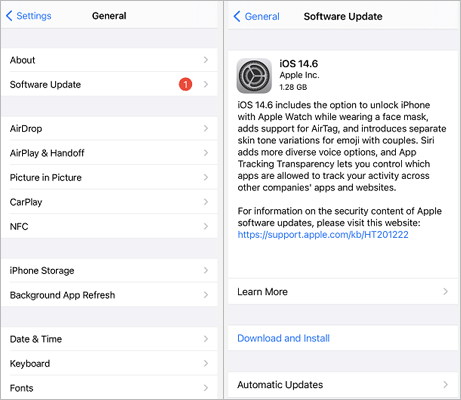
If the iPhone ghost message is due to iOS bugs, make sure your device isn't running an outdated version. Updating to the latest iOS can help eliminate these false message notifications. To do this, follow the steps below:
Step 1. Connect your iPhone to a power source and a stable Wi-Fi network.
Step 2. Go to "Settings" > "General" > "Software Update". (iPhone software update failed?)
Step 3. If an update is available, tap "Download and Install" and follow the on-screen instructions to complete the update.
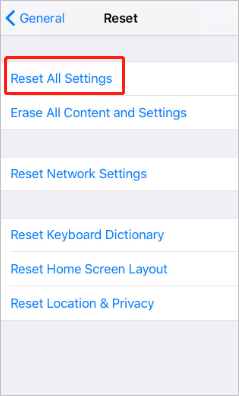
If your iPhone settings are misconfigured, it can also cause the iPhone to show unread text messages but there are none. Resetting all settings can help resolve this issue.
Step 1. Go to "Settings" > "General" > "Transfer or Reset iPhone".
Step 2. Tap "Reset" > "Reset All Settings". This won't delete your data, but it will reset Wi-Fi, notifications, and other system preferences.
If the problem continues, the final step is to delete all conversations and messages from your iPhone. Many people hesitate to do this because their messages may contain important or confidential information. To avoid losing anything valuable, you can first export or back up your important messages before deleting them.
Step 1. Open the Messages app.
Step 2. Tap "Edit" in the top-left corner.
Step 3. Select the messages you want to delete, then tap "Delete" in the bottom-right corner.
The issue of iPhone showing unread messages when there are none is common, but in most cases, it can be resolved using the basic methods mentioned above. If these methods don't work, it is recommended to use iOS System Recovery, which can safely repair iOS system issues, completely eliminate ghost unread messages, and preserve your data. Whether using basic methods or professional tools, users can choose the solution that best suits their needs to get their iPhone back to normal.
Related Articles:
[Solved] iPhone Messages Disappeared But Still Taking up Space
How to Fix iMessage Doesn't Say Delivered in 9 Workable Ways
iPhone Deletes Text Messages Automatically? Why and How to Recover
9 Practical Ways to Fix iPhone Not Sending iMessages/Text Messages




 Free Download for PC
  Free Download for Mac


