"Hi everyone, recently, my Apple Music app won't allow any songs to play, regardless of what I press. When I press the play button, shuffle button, or a song, it registers that I have pressed it, but the bottom continues to say nothing is playing. I've restarted my phone multiple times and signed in and out of iCloud. This issue also happened both before and after I updated iOS to the latest version."
- from Apple Community
When you want to relax and listen to music, but suddenly find that it's not playing on your iPhone, tap play, and there's no sound, or the song skips, freezes, or won't play at all—it can be incredibly frustrating. Whether you're using local music, Apple Music, or Spotify, the issue of iPhone music not playing can happen at any time.
Don't worry. This article will guide you step by step through the common causes of "music not playing on iPhone" and provide detailed solutions to help you get your music playing normally again quickly.
Why isn't my iPhone playing my music? Before fixing the issue, understanding the common causes can help you identify the problem more quickly. If your iPhone won't play music, it is usually related to one of the following situations:
What to do if your phone won't play music? Below are 12 solutions arranged from simple fixes to more advanced troubleshooting methods. It's recommended to try them in order.
One of the most overlooked reasons for music not playing on an iPhone is simple: the volume may be muted, or the Silent switch is turned on. Before trying technical fixes, always verify basic sound settings.
Here are the steps:
Step 1. Press the "Volume Up" button on the side of your iPhone.
Step 2. Check the Silent switch (if you see orange, Silent Mode is enabled).
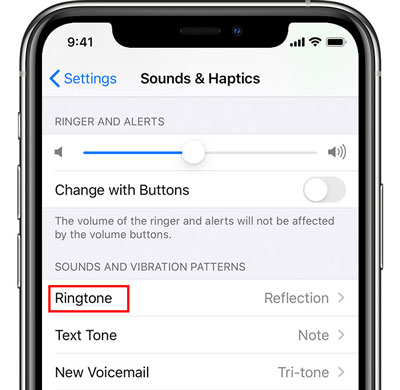
Step 3. Go to "Settings" > "Sounds & Haptics".
Step 4. Adjust the volume slider and test playback again.
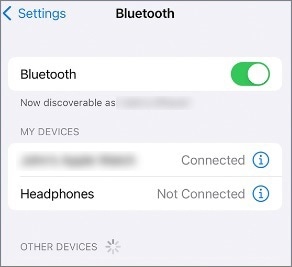
If your iPhone is connected to AirPods, a Bluetooth speaker, or a car system, the sound may be playing through that device instead of your phone's speaker. This often happens automatically if you've previously connected to Bluetooth accessories.
To check it, follow the steps below:
Step 1. Open "Settings" > "Bluetooth".
Step 2. Check if any device shows "Connected".
Step 3. Tap the device name and select "Disconnect". Alternatively, turn off Bluetooth completely.
If you're streaming via Apple Music, Spotify, or other services, poor internet can cause music not to play on your iPhone. Streaming requires a stable Wi-Fi or cellular connection.
Step 1. Go to "Settings" > "Wi-Fi" and confirm the connection.
Step 2. Switch between Wi-Fi and mobile data.
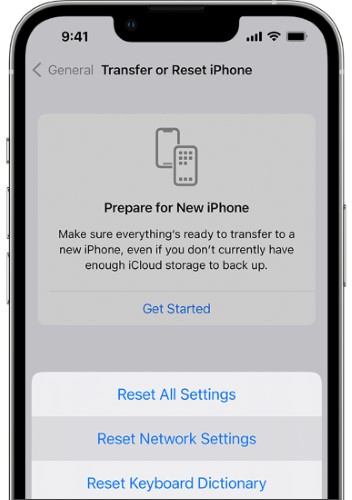
Step 3. If it still doesn't work, try resetting your network settings. Simply go to "Settings" > "General" > "Transfer or Reset iPhone" > "Reset Network Settings".
If your Apple Music subscription has expired, certain tracks may appear but won't play. Subscription issues are a common cause of playback failure.
Here is how to fix purchased music not playing on iPhone:
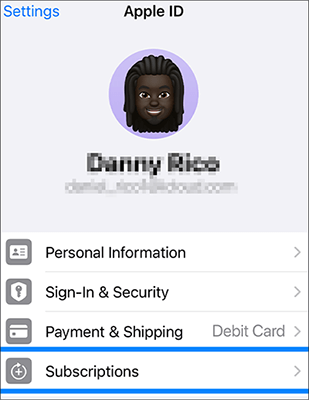
Step 1. Open "Settings" and tap your "Apple ID" at the top.
Step 2. Select "Subscriptions" to check if Apple Music is active.
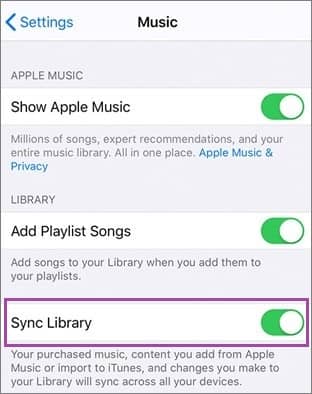
If Sync Library is disabled, downloaded or purchased songs may not be accessible across devices. This can result in songs appearing greyed out or unplayable.
To enable it, follow the steps below:
Step 1. Go to "Settings" > "Music".
Step 2. Turn on "Sync Library"/"iCloud Music Library" and wait for syncing to complete.
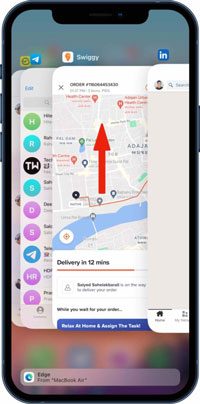
If the Music app is frozen or experiencing a temporary glitch, music may fail to play. Force-closing refreshes the app environment.
Swipe up from the bottom of the screen (or double-press the "Home" button), locate the Music app, and swipe up to close it. Then, reopen the app and test playback.
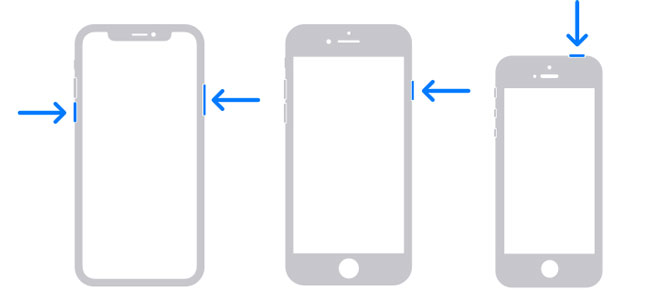
Sometimes, minor system bugs cause music not to play on an iPhone. Restarting clears temporary caches and refreshes system processes.
Restart iPhone X, 11, 12, 13, or Later:
Restart iPhone 6, 7, 8, or SE (2nd/3rd Gen):
Restart iPhone SE (1st Gen), iPhone 5, or Earlier:
If only specific songs won't play, the audio file may be corrupted. Re-downloading often resolves file-related errors. Here is how to fix downloaded music not playing on iPhone:
Step 1. Open Apple Music and go to "Library" > "Songs".
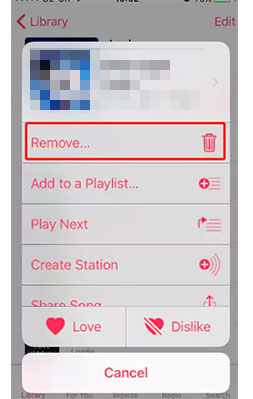
Step 2. Locate the song that isn't playing, then press and hold it.
Step 3. Select "Remove", and choose "Remove Download".
Step 4. After that, find the same song again and tap the "cloud" icon to download it once more.
Outdated iOS versions may contain bugs that cause playback issues. Keeping your device updated ensures system stability.
Update iOS:
Step 1. Go to "Settings" > "General" > "Software Update". (iPhone software update failed?)
Step 2. Tap "Download and Install" if available.

Update Music App:
Step 1. Open the App Store.
Step 2. Next, tap your profile picture, scroll down to find "Apple Music", and select "Update" if an update is available.
If the iPhone music still won't play, try deleting and reinstalling the Apple Music app. This can clear out corrupted or outdated files and give the app a fresh start.
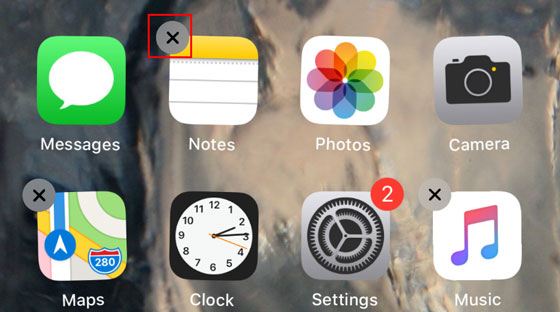
To do this, press and hold the Apple Music app icon until it begins to jiggle. Tap the "X" to delete it, then download and install it again from the App Store. (iPhone won't delete app?)
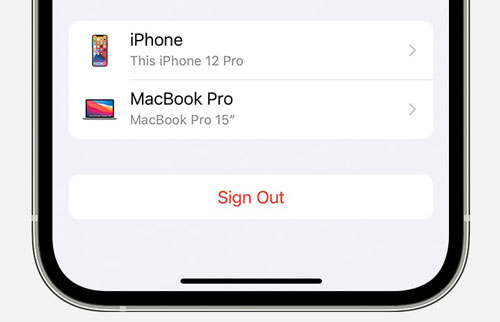
Signing out of your Apple ID and then signing back in can refresh your connection to Apple Music and help resolve account-related problems. Here is how to do it:
Step 1. Open Settings on your iPhone.
Step 2. Tap your name at the top of the screen.
Step 3. Scroll down and tap "Sign Out". (Can't sign out of your Apple ID?)
Step 4. Wait a few moments, then sign back in with your Apple ID.
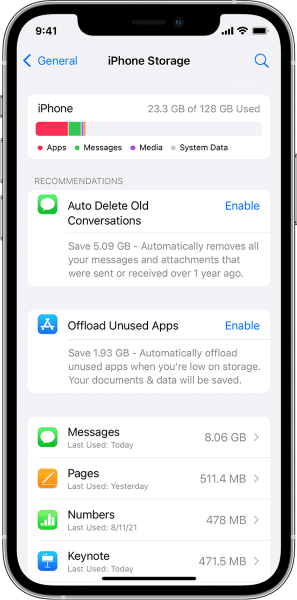
Low storage can prevent proper caching and streaming, which may cause music not to play on the iPhone. Keeping enough free space improves performance.
Here is how to free up iPhone space:
Step 1. Go to "Settings" > "General" > "iPhone Storage".
Step 2. Review storage usage. Ensure at least 1–2GB of free space.
Step 3. If it is not enough, delete unused apps, photos, or large files.
If none of the above solutions fix your music not playing on iPhone issue, the problem may be deeper within the iOS system. In that case, a professional iOS repair tool like iOS System Recovery can help. It is designed to fix over 50 iOS system problems without data loss.
The highlights of iOS System Recovery:
How do I fix videos and music not playing on iPhone without losing data?
01Launch the program on your computer and connect your iPhone using a USB cable. From the main interface, select "More Tools" > "iOS System Recovery".

02The software will automatically detect issues on your device, such as being stuck on the Apple logo, Recovery Mode, screenshot malfunctions, or a disabled iPhone. Click "Start" to continue.

03Verify your iPhone information as prompted. Once confirmed, click "Repair" to begin fixing your device.

If you're dealing with music not playing on iPhone, don't panic. In most cases, the issue can be resolved with simple settings. However, if the issue persists and appears system-related, using a reliable repair tool like iOS System Recovery can save time and restore normal playback quickly.
Follow this guide step by step, and your iPhone should be playing music smoothly again in no time.
Related Articles:
Music Disappeared from iPhone Unwittingly? Try 8 Fixes Here!
How to Fix iPhone No Sound: Reasons and 11 Easy Solutions
How to Fix This Song Is Not Synced Across Your Devices: 7 Workable Ways
[Solved!] How to Fix iPhone Won't Sync to iTunes after Upgrading to iOS 26/18?




 Free Download for PC
  Free Download for Mac


