"Why is my iPhone 15 Pro Max not vibrating in silent mode? Today I got my new iPhone 15 Pro Max. Before this one, I got the 13 Pro Max, and that phone always vibrated on silent mode until a few months ago. I thought that maybe my phone was the problem and searched and watched every YouTube video I could find to try to find a solution, but nothing worked. Today, on my 15 Pro Max, it still doesn't vibrate, and I've tried everything. It may sound weird, but I really dislike the phone and message sounds in general. Does someone know what's going wrong?"
- from Apple Community
When your iPhone doesn't vibrate for incoming calls, messages, or notifications, it's easy to miss important alerts. Many users encounter the "iPhone vibration not working" issue after updating iOS, dropping their phone, or accidentally changing settings. Whether your iPhone doesn't vibrate for calls, doesn't vibrate in silent mode, or has completely lost all haptic feedback, in most cases, the problem can be fixed on your own.
This article will explain the common causes of iPhone vibration failure and provide 12 effective solutions to help you quickly restore your iPhone's vibration function.
Before jumping into the fixes, it is important to understand what may cause the issue. If your iPhone vibration is not working in silent mode, the following are some possible reasons:
After we know the reasons for iPhone vibration not working on incoming calls, here are 11 solutions you can try to fix it without effort.
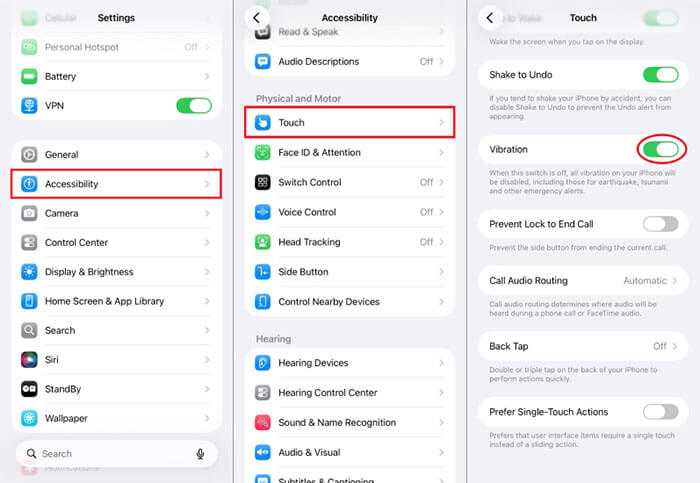
One of the most common reasons for the iPhone vibration not working properly is that the vibration option has been accidentally disabled. This can happen after a system update, resetting settings, or changing accessibility options. Before trying advanced troubleshooting methods, you should first verify that vibration is enabled on your iPhone.
Here is how to fix iPhone vibration not working after an update:
Step 1. Open "Settings" > "Accessibility" > "Touch".
Step 2. Scroll to "Vibration" and make sure the toggle is ON.
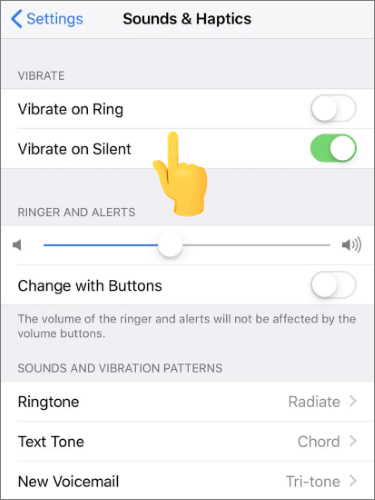
If your iPhone vibration is not working in silent mode, the issue may be related to your Sound & Haptics configuration. Apple allows users to separately control vibration behavior for Ring mode and Silent mode. If one of these options is disabled, your iPhone may stop vibrating under certain conditions.
Here is how to fix the iPhone vibration not working in silent mode:
Step 1. Open "Settings" on your iPhone and then tap "Sounds & Haptics".
Step 2. Make sure "Vibrate on Ring" and "Vibrate on Silent" are ON.
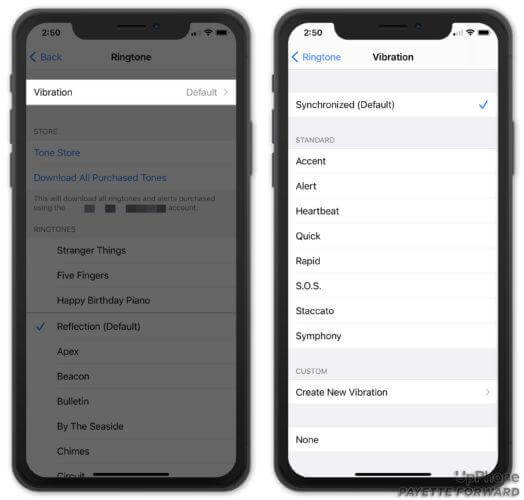
Your iPhone won't vibrate if a vibration pattern hasn't been selected or is set to "None". Follow the guide below to choose a vibration pattern.
Step 1. Open the "Settings" app, go to "Sound & Haptics", and tap "Ringtone".
Step 2. Select "Haptics" or "Vibration", then choose your preferred vibration pattern from the "Standard" options.
If your iPhone still does not vibrate after adjusting the settings, you should check whether the vibration motor is physically working. This is especially important if your iPhone was recently dropped or exposed to water.
Here is how to check if your iPhone's vibration motor is working:
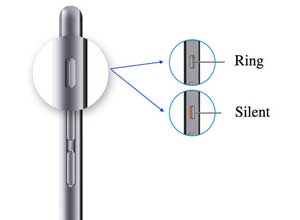
Step 1. Flip the Ring/Silent switch on the side of your iPhone a few times to toggle between modes.
Step 2. If "Vibrate on Ring" and "Vibrate on Silent" are enabled in your settings, you should feel the device vibrate.
If you feel the vibration, it means the motor is working, and the problem is likely caused by a software issue rather than hardware.
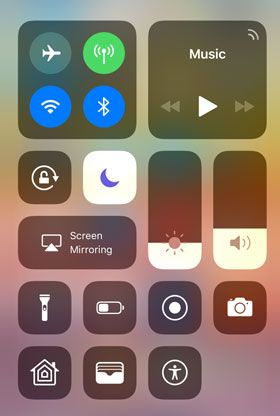
Focus Mode is another major reason behind the iPhone vibration not working on incoming calls. When Focus Mode or Do Not Disturb is enabled, notifications and calls may arrive silently without vibration alerts. Many users accidentally leave Focus Mode enabled without realizing it.
To disable it, swipe up from the bottom of the screen to open the Control Center, then tap the "moon" icon to turn off Do Not Disturb.
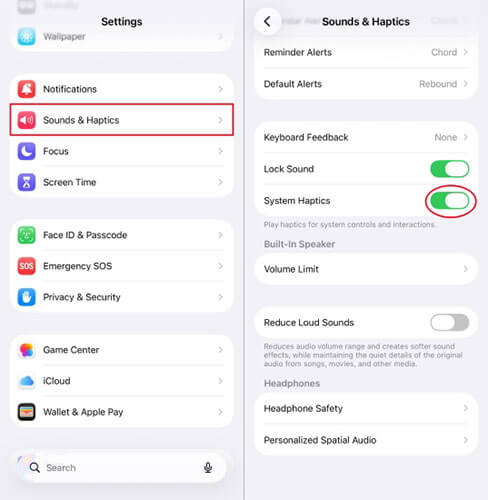
Haptic feedback on your iPhone provides a subtle vibration or pulse when you interact with the device. If System Haptics is turned off, your iPhone won't vibrate at all.
To enable it, go to "Settings" > "Sounds & Haptics", then toggle on "System Haptics".
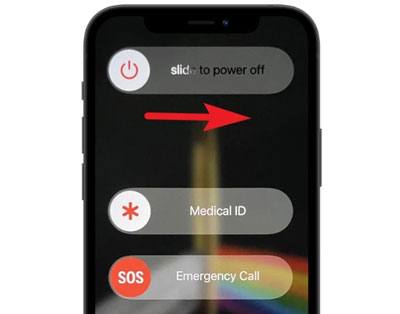
Temporary software glitches can also cause vibration not to work on the iPhone 17. Restarting the device refreshes the system and clears temporary bugs. Although simple, this method often works surprisingly well.
Here is how to restart the iPhone:
Step 1. Press and hold the "Volume" button + "Side" button.
Step 2. Drag the power slider to turn off the device.
Step 3. Wait 30 seconds and turn the iPhone back on.
Some iOS versions may have haptic feedback bugs, especially in Beta releases or after a failed update, which can cause the vibration function to behave abnormally. Apple usually fixes these issues in subsequent updates, so keeping your iOS system up to date is an effective way to resolve them.
Here is how to update the iPhone:
Step 1. Open "Settings", go to "General", then tap "Software Update" to check for a new version.
Step 2. If an update is available, tap "Download and Install".

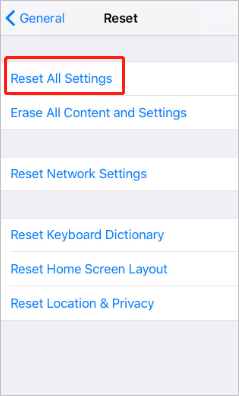
If the "Apple iPhone vibration not working" issue is caused by a system configuration conflict, resetting all settings usually restores normal function. This action won't delete your photos, contacts, or messages—it only resets system settings.
To reset all settings, follow these steps:
Step 1. Open the "Settings" app, go to "General", then tap "Transfer or Reset iPhone".
Step 2. Select "Reset", then choose "Reset All Settings" from the menu.
If none of the above methods fix the issue, it may indicate that the system files are severely corrupted. In this case, you can try performing a factory reset. However, note that a factory reset will erase all data, so it's recommended to back up your iPhone beforehand.
Here is how to erase your iPhone:
Step 1. Open "Settings", go to "General", then tap "Transfer or Reset iPhone".
Step 2. Select "Erase All Content and Settings" and enter your Apple ID password.
Step 3. Wait for the device to complete the reset process.

If you have tried all software troubleshooting methods but your iPhone still doesn't vibrate at all, it is likely a hardware issue. It is recommended to contact Apple Support or a professional repair center for inspection.
If you've tried all the solutions above and the issue persists, you can use iOS System Recovery. This powerful tool efficiently fixes a wide range of iOS and iPadOS system problems. It can resolve over 150 issues, including iPhone not vibrating in Silent mode and more. What's more, you won't lose any data in Standard Mode.
The highlights of iOS System Recovery:
Here is how to fix iPhone vibration not working on silent without losing data:
01Download and install the software on your computer. It will launch automatically after installation.
02Connect your iOS device to the computer with a working USB cable. Select iOS System Recovery and click "Start" on the next screen.

03Choose either "Standard Mode" or "Advanced Mode", then click "Confirm" to continue.

04Check that your device information is correct, then click "Repair" to begin the process. Once completed, your device will be restored to normal.

If your iPhone's vibration is not working, the methods mentioned above should help resolve the issue. If the standard solutions don't work, consider using iOS System Recovery. It can quickly fix various iOS system problems without any data loss, making it ideal for ordinary users who aren't tech-savvy.
Related Articles:
Is iPhone Keeps Beeping? Why & How to Fix It in 8 Useful Ways
iPhone Died and Won't Turn On? 6 Quick Solutions to Fix the Issue
iPhone Force Restart Not Working? - 8 Effective Solutions Inside!
iPhone Touch Screen Not Working or Responding? Here's The Fix




 Free Download for PC
  Free Download for Mac


