"My iPhone 7 Plus is on iOS 11 beta 4 (15A5327g) right now, and I need to downgrade to iOS 10. I'm using a manual, and it says to get into recovery mode. But I can't - I keep holding Power and Volume buttons, but the iPhone just keeps booting into iOS. I tried it many times, but the only result was a hot phone that got tired of reboots. Looks like it just doesn't want to downgrade. But how do I force it?"
- from Apple Community
When you're preparing to upgrade or downgrade iOS, fix system issues, or resolve problems such as being stuck on the Apple logo or a black screen, you'll usually try to put your iPhone into recovery mode. However, many users find that their iPhone won't go into recovery mode, no matter how they press the buttons.
Don't worry; this article will analyze the common reasons why an iPhone cannot enter recovery mode and provide step-by-step, practical solutions to help you successfully complete the system repair.
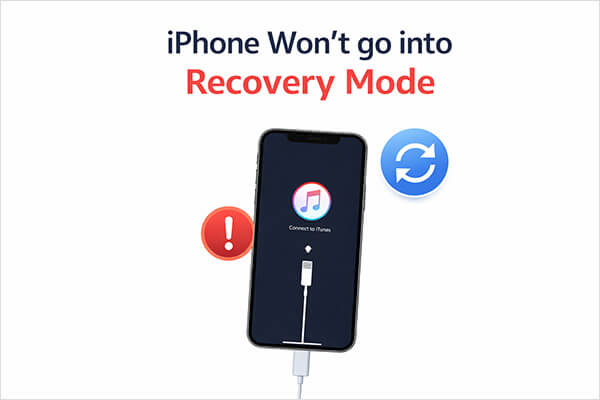
Recovery Mode is a special startup state on Apple devices that allows you to reinstall or repair the iOS system through a computer. It usually requires iTunes or Finder to complete the process. If your iPhone 17/16 won't go into recovery mode, the following are some possible reasons:
How to fix a phone not going into recovery mode? Here are 7 effective ways you can try.
One of the most common reasons an iPhone won't enter recovery mode is incorrect button timing. The steps to enter recovery mode vary completely depending on the iPhone model, so the first thing you should do is make sure you're following the correct procedure.
Here is how to force an iPhone 15/16/17 into recovery mode:
For iPhone 8 and Later:
For iPhone 7 / 7 Plus:
For iPhone 6s and Earlier:
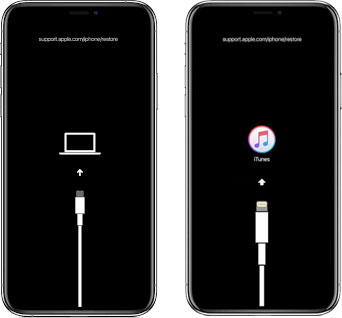
If your iPhone still won't go into recovery mode after following the correct steps, the issue might not be the device itself but the connection. Recovery Mode requires stable communication between your iPhone and the computer.
Here is how to fix an iPhone not going into recovery mode:
Step 1. Use an original or MFi-certified Lightning cable.
Step 2. Plug directly into your computer (avoid USB hubs).
Step 3. Try a different USB port.
Step 4. Restart your computer.
Step 5. On Windows, update or reinstall iTunes.
Sometimes your iPhone won't go into recovery mode because the system is frozen. A force restart can reset the device's hardware state without erasing data. To force restart the iPhone, follow the steps below:
iPhone 8, iPhone X, and Later (Including iPhone SE 2nd/3rd Gen):
iPhone 7 and iPhone 7 Plus:
iPhone 6s, iPhone 6s Plus, and iPhone SE (1st Gen):

If your device is still functional but refuses to enter Recovery Mode, outdated iOS software may be the cause. System bugs can interfere with boot processes. Updating iOS may resolve hidden software conflicts. Here is how to do it:
Step 1. Open "Settings" on your iPhone, then go to "General" > "Software Update". (iPhone stuck on software update?)
Step 2. If an update is available, tap "Update Now" to download and install the latest version of iOS.

If recovery mode keeps failing, you can try using DFU mode (Device Firmware Update). However, please note that restoring in DFU mode will erase all data, so make sure to back up your device in advance. Here are the steps:
Step 1. Connect your iPhone to the computer and open iTunes (PC or macOS Mojave and earlier) or Finder (macOS Catalina and later).
Step 2. Put your iPhone into DFU mode:
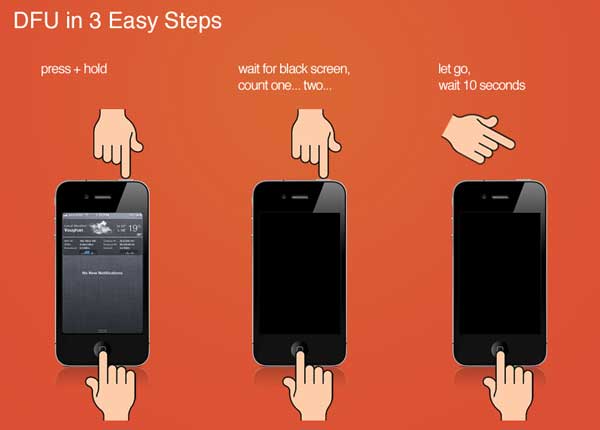
Step 3. When iTunes or Finder shows a message, click "Restore" and then "OK", keeping the device connected until the restore finishes.
If none of the above methods work, it may indicate that the system is severely damaged. Compared to DFU mode, it is recommended to use a professional repair tool—iOS System Recovery. It is designed to fix over 50 iOS system issues, including iPhone stuck on the Apple logo, black screens, boot loops, frozen screens, iPhone won't go into recovery mode, etc. Its biggest advantage is that it can repair the system in standard mode without causing data loss.
The Main features of iOS System Recovery:
How to fix iPhone won't go into recovery mode without losing data:
01Launch the program on your computer and connect your iPhone via a USB cable. From the main interface, go to "More Tools" > "iOS System Recovery".

02The software will automatically detect issues on your device. Click "Start" to continue.

03Verify your iPhone information as prompted, then click "Repair" to begin fixing your device.

If none of the above methods work, the issue is likely due to hardware problems such as a faulty power button, damaged volume buttons, or motherboard failure. In this case, it's recommended to contact official support by scheduling a repair through Apple's website or visiting an Apple Authorized Service Provider, and check if your device is still under warranty. Professional diagnostics can confirm whether it's a hardware issue.
If you encounter the issue of your iPhone not going into recovery mode, don't panic. By following the steps in this guide and checking each method, the problem can usually be resolved. If you want a higher success rate, avoid data loss, and don't want to repeatedly try complex procedures, iOS System Recovery is a more efficient and safer choice.
We hope this guide helps you fix the issue and get your iPhone back to normal operation.
Related Articles:
How to Fix iPhone Won't Restore in Recovery Mode? - 7 Effective Ways
iPhone in Recovery Mode Not Recognized by iTunes? - 8 Quick Fixes
[2026 Updated] How to Fix iPhone 17 Stuck in Recovery Mode?
How to Enter and Exit Recovery Mode on iPhone/iPad [Complete Guide]




 Free Download for PC
  Free Download for Mac


