"My friend found her iPhone in recovery mode after a failed update. Updating through iTunes doesn't work. She wants to recover her photos (no backup), but the iPhone is not recognized by the Windows Photos app. Is there hope?"
- from reddit
When an iPhone gets stuck on the Apple logo, won't turn on, or keeps restarting after a failed update, putting the device into Recovery Mode is often the only way to fix the system. However, once an iPhone enters Recovery Mode, many users immediately worry about one thing: Is it still possible to recover photos from iPhone in recovery mode?
Photos often carry important memories and work-related data, and once lost, the consequences can be serious. In this guide, we'll explain whether photo recovery is possible, and how to recover photos from iPhone in recovery mode step by step.
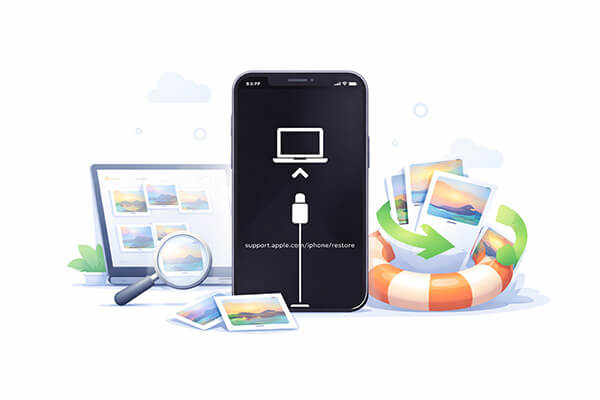
The answer is: It's possible. Many users immediately assume that their data is completely lost when they see the words Recovery Mode. However, the situation is not that absolute. Whether or not photos can be recovered from an iPhone in recovery mode mainly depends on the following factors:
If you have not yet performed a restore operation in recovery mode, the chances of successfully recovering the photos are higher.
Here are 3 ways to recover photos from an iPhone stuck in recovery mode. You can choose based on your own situation.
If you don't want to restore the entire iPhone, third-party recovery tools are usually the best option. Coolmuster iPhone Data Recovery allows you to preview the content backed up to iCloud and iTunes, and then directly extract photos from iTunes and iCloud backups, even if the iPhone is in recovery mode. This method is ideal for users who wish to selectively recover photos without overwriting existing data.
Key features of Coolmuster iPhone Data Recovery:
Click the download button below to install this tool on your computer and follow the steps to recover photos from your iPhone in recovery mode.
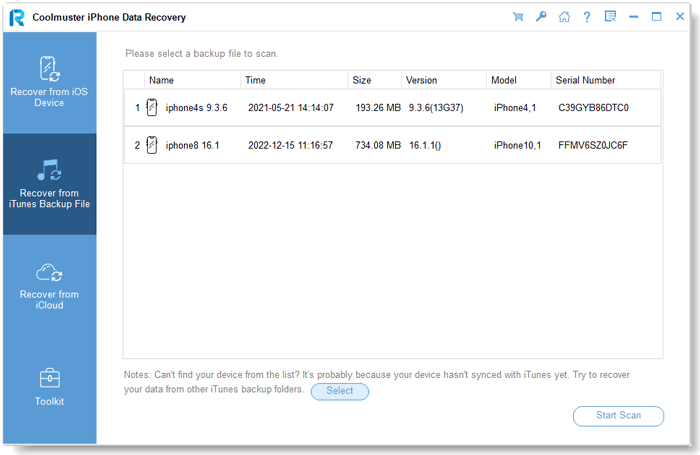
01Launch the program after installation. On the left side of the screen, select the "Recover from iTunes Backup File" option. The program will automatically scan the iTunes backup on your computer. Choose the desired backup file from the list and click "Start Scan".
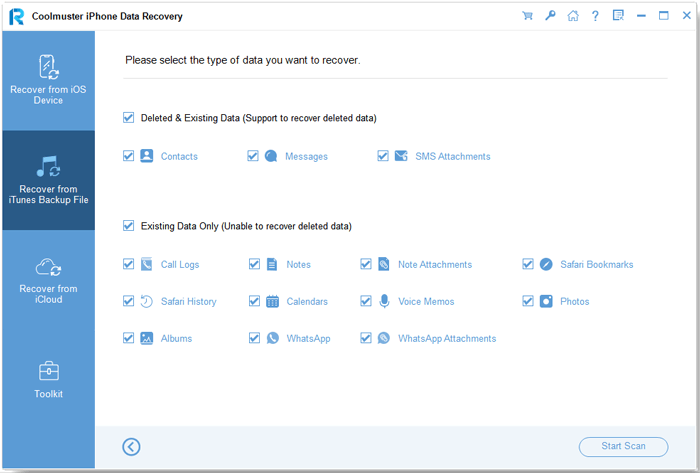
02Select "Photos" and click the "Start Scan" button in the top-right corner.
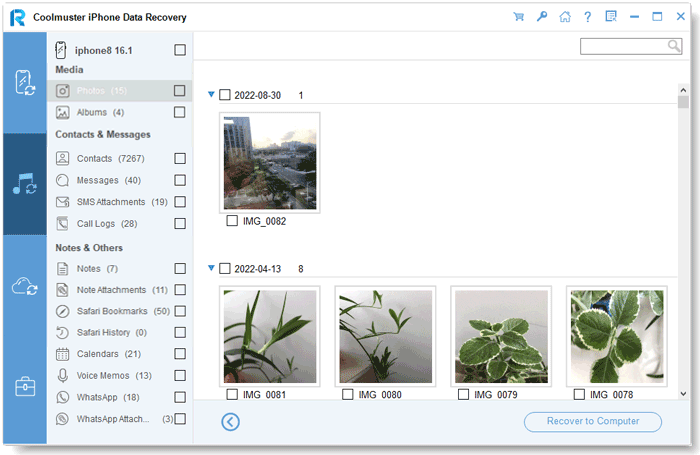
03Once scanned, choose the specific photos you want to restore. To recover your photos from the iTunes backup, click "Recover to Computer", and the restoration process will begin.
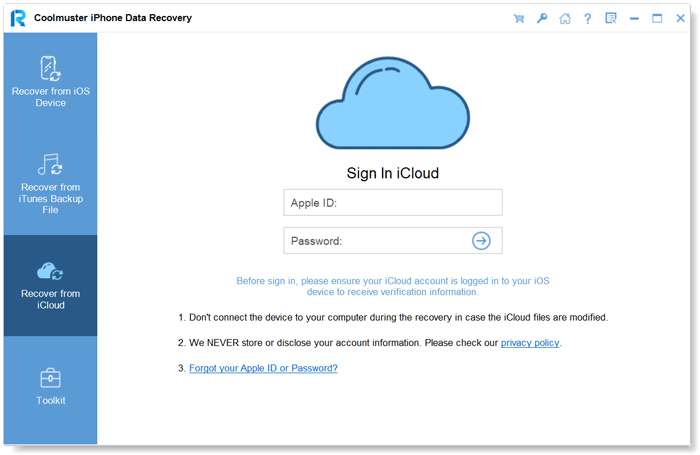
01Open the software and switch to "Recover from iCloud" mode. Sign in to your iCloud account when prompted. (Note: If two-factor authentication is enabled, enter the verification code sent to your iOS device and click "Verify" to proceed.)
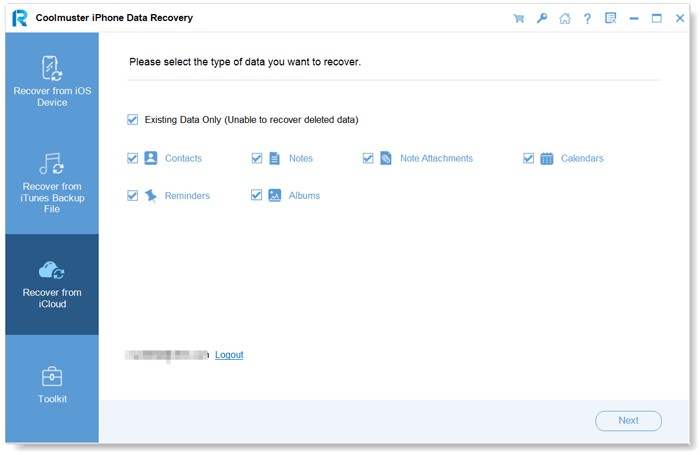
02Select "Albums" and click "Next" to begin a quick scan. This will allow you to preview detailed information from your iCloud backup.
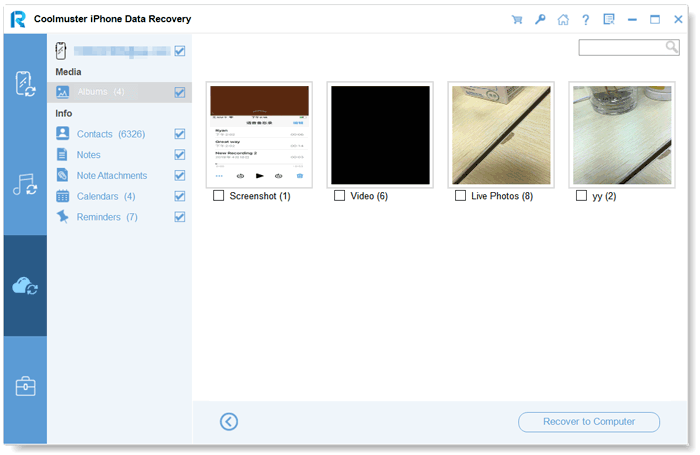
03After selecting the photos you wish to restore, click "Recover to Computer" to save them to your device.
Video Tutorial:
If you have enabled iCloud Photos or performed an iCloud full device backup earlier, you can recover your photos through the iCloud website or another iPhone without relying on third-party tools. However, make sure you're logged into the same Apple ID and that the backup is still valid. There are two specific methods to do this:
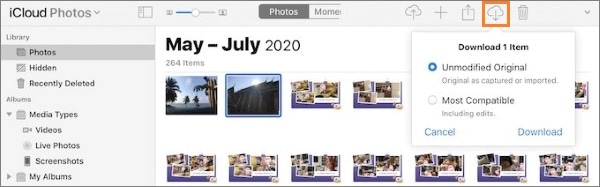
Step 1. Open a browser on your computer or another device and go to iCloud.com. Log in with the Apple ID associated with your iPhone. If two-factor authentication is enabled, enter the verification code to complete the login.
Step 2. Click on the "Photos" option, browse, and select the photos you want to recover. Click the "download" button to save the photos to your current device.
Step 1. Connect your iPhone to a computer and restore the system from Recovery Mode. After the iPhone restarts, follow the setup process.
Step 2. Set up the new iPhone until you reach the "Apps & Data" screen, then choose "Restore from iCloud Backup".
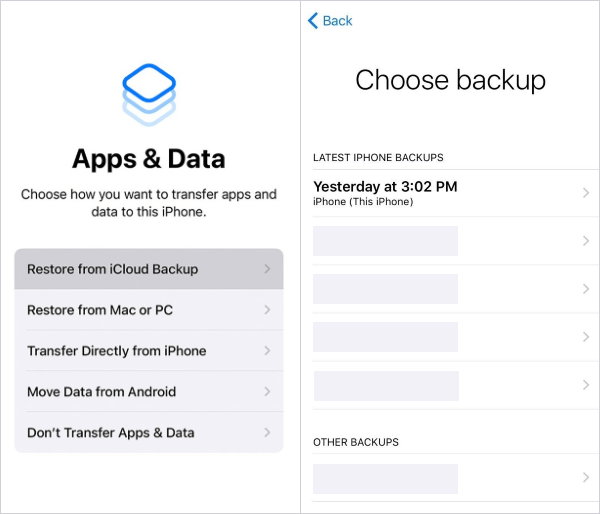
Step 3. Log in with the same Apple ID, select the latest backup file that contains the photos you need, and wait for the restore to complete. The photos will then sync to the new device.
Please note that this method will overwrite the existing data on the new device.
If you have previously connected your iPhone to a computer and performed a local backup using iTunes (on Windows or macOS Mojave and earlier) or Finder (on macOS Catalina and later), you can also restore your photos from the iTunes backup. Please note that this process will overwrite the existing data on the device, and you will not be able to preview or selectively restore files.
Here is how to do it:
Step 1. Make sure the latest version of iTunes is installed on your computer. Connect the iPhone in recovery mode to the computer. iTunes will automatically detect the device and prompt you with the options to "Restore" or "Update".
Step 2. Click the device icon in iTunes to go to the "Summary" page, then choose "Restore Backup".
Step 3. From the backup list that appears, select the latest backup containing the photos you need, and click "Restore". Wait for the synchronization to complete. Once the device restarts, the photos from the backup will be restored to the iPhone.
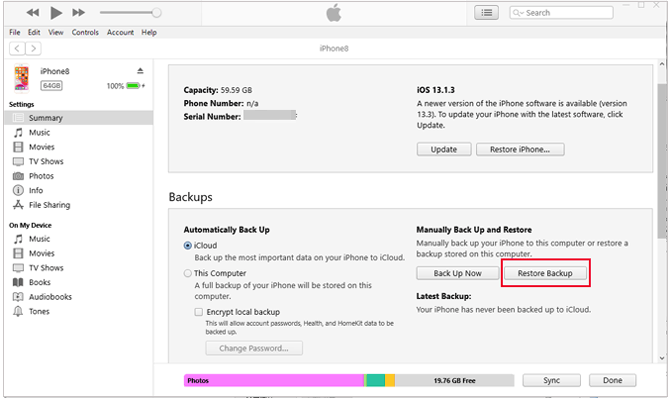
Note: If you click "Restore" instead of "Restore Backup" while in recovery mode, it will erase the device's data and reinstall the system, causing any unbacked-up photos to be lost.
Once you know how to recover photos from iPhone in recovery mode, the next question is: how do you get out of recovery mode on your iPhone? iOS System Recovery is a professional tool designed to fix various iOS issues and iTunes errors. It's user-friendly and allows you to easily exit recovery mode without any data loss.
Key features of iOS System Recovery:
Here's how to use iOS System Recovery to fix an iPhone stuck in recovery mode:
01Download and launch the tool on your computer, then connect your iPhone using a USB cable. From the welcome screen, go to the "iOS System Recovery" section.

02The tool will automatically detect your iPhone stuck in recovery mode. Once detected, click "Start" to proceed. Next, select the repair mode and click "Confirm" to continue.

03Verify your iPhone's details, then click "Repair" to begin fixing the issue. Once the process is complete, your iPhone will restart, and you will see that it has successfully exited recovery mode.

That's everything you need to know about how to recover photos from iPhone in recovery mode. If your iPhone is stuck in recovery mode, it doesn't mean your data is gone. If you have a backup, tools like Coolmuster iPhone Data Recovery can help you restore important data from iTunes or iCloud without losing anything. Additionally, if you want to fix the device without losing data, iOS System Recovery is a highly recommended solution to try.
Related Articles:
[100% Successful] Recover Photos After Factory Reset iPhone Without Backup
How to Recover Photos from iPhone That Won't Turn On? (Comprehensive Guide)
Does Recovery Mode Delete Everything on iPhone? Here's the Answer!







 Free Download for PC
  Free Download for Mac


