TL;DR: Getting the "Update Unavailable with This Apple ID" error on your iPhone or iPad? This guide explains why it happens and provides 7 practical fixes. If the problem is caused by deeper system issues, iOS System Recovery can help repair iOS without deleting your personal data and get your App Store updates working again.
"Recently purchased my first Mac. I went to the App Store & saw 5 apps needed updating. I clicked Update. It says, Update unavailable with this Apple ID. This update is not available for this Apple ID either because it was bought by a different user or the item was refunded or canceled. It's the Apple Apps GarageBand, Pages, Keynote, Numbers, and iMovie. Please help!"
- from Apple Community
When you try to update apps on your iPhone or iPad, you may encounter the error message "Update Unavailable with This Apple ID", preventing the app from being updated properly. So why does this issue happen, and how can you fix it? You can find the answers in this article.
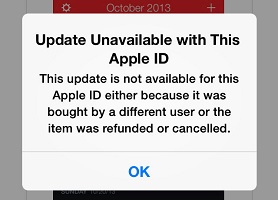
The "Update Unavailable with This Apple ID" error usually occurs because the current Apple ID does not have permission to update the app. Common reasons include:
If you encounter the "Update Unavailable with This Apple ID" message, you can follow the methods below to troubleshoot the issue step by step.
While running, the App Store may encounter cache errors or background service issues that cause Apple ID verification to fail. Force quitting the App Store can refresh the App Store process and allow the system to establish the connection again.
Here is how to do it:
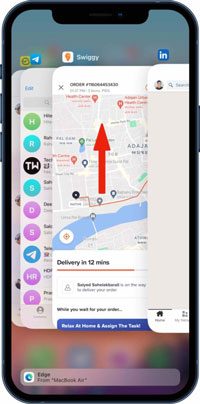
Step 1. Swipe up from the bottom of the screen to open the App Switcher.
Step 2. Find the App Store and swipe up to close it.
Step 3. Wait a few seconds, then reopen the App Store.
Step 4. Try updating the problematic app again.
If the issue is caused by an App Store cache error, this method can usually restore the update function quickly.
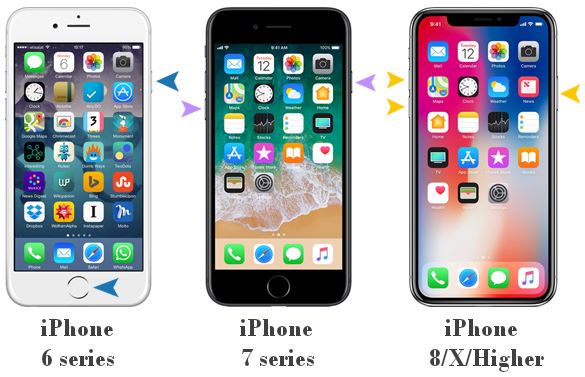
If you have restarted the App Store but the "Update Unavailable with This Apple ID" error still persists, the next step is to force restart your iPhone. A force restart can clear temporary iOS glitches that may affect Apple ID verification, App Store services, or app update functions.
To force restart the iPhone, follow the steps below:
After restarting, open the App Store and try updating the app again.
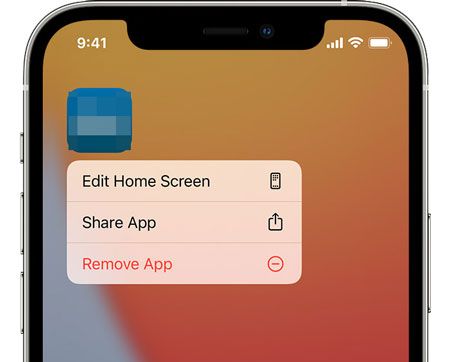
If the "Update Unavailable with This Apple ID" error only appears for a specific app, the issue may be related to that app being linked to a different Apple ID. In this case, deleting and reinstalling the problematic app can remove the account association and allow you to download it again with your current Apple ID.
Here are the steps:
Step 1. To delete the app from your iPhone, touch and hold the app icon, tap "Delete App", then tap "Delete" to confirm.
Step 2. To reinstall the app, open the App Store, go to "Purchased", find the app, and tap the "iCloud download icon" to reinstall it.
Sometimes the Apple ID itself is not the problem, but an App Store login issue can trigger the "Update Unavailable with This Apple ID" error by preventing update permissions from being verified. Signing out and signing back in can refresh your Apple ID authorization and reconnect to Apple services.
Here is how to do it:
Step 1. Open "Settings" on your iPhone/iPad.
Step 2. Tap your "Apple ID" account at the top.
Step 3. Select "Media & Purchases".
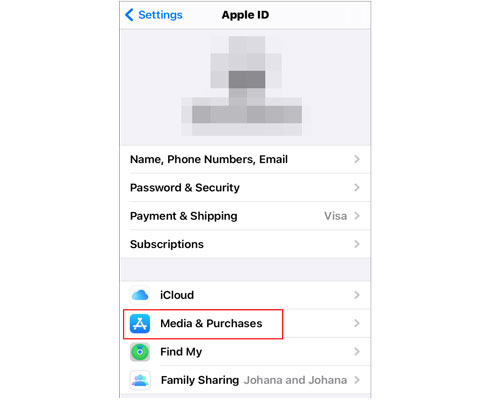
Step 4. Tap "Sign Out". (Can't sign out of your Apple ID?)
Step 5. Sign in again with your Apple ID.
App Store updates require a stable connection to Apple servers. If there are issues with your Wi-Fi, VPN, or network settings, Apple ID verification may fail. Resetting network settings can remove incorrect configurations without deleting your photos, apps, or personal files.
To reset network settings, follow the steps below:
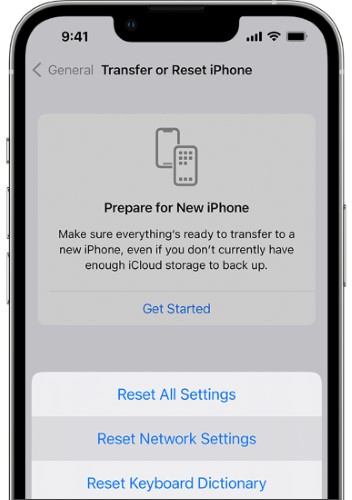
Step 1. Go to "Settings" > "General" > "Transfer or Reset iPhone" > "Reset".
Step 2. Tap "Reset Network Settings", enter your passcode, and confirm the reset.
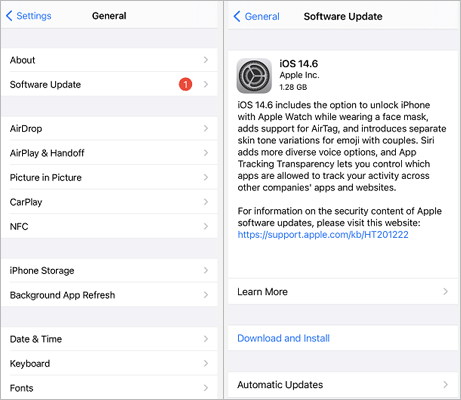
If your iPhone is running an outdated version of iOS, compatibility issues with App Store services may occur, which can trigger the "Update Unavailable with This Apple ID" error. To solve it, follow the steps below to update your iPhone to the latest version.
Step 1. Go to "Settings" > "General" > "Software Update".
Step 2. Follow the on-screen instructions to download and install the update if one is available.
If your Apple ID is working properly but you still see the "Update Unavailable with This Apple ID" error, the issue may be caused by abnormal iOS system components affecting App Store functions. In this case, you can try a professional iOS repair tool, such as iOS System Recovery.
It can help fix various iPhone system issues, including App Store problems, failed iOS updates, and Apple service connection errors. Compared with a factory reset, this type of tool can usually repair system issues without deleting your device data.
The highlights of iOS System Recovery:
Here is how to fix the "Update Unavailable with This Apple ID" error using iOS System Recovery:
01Download and install iOS System Recovery on your computer, then launch the program and connect your iPhone using a USB cable.
02Select "iOS System Recovery" from the main interface and click "Start" to diagnose iOS system issues.
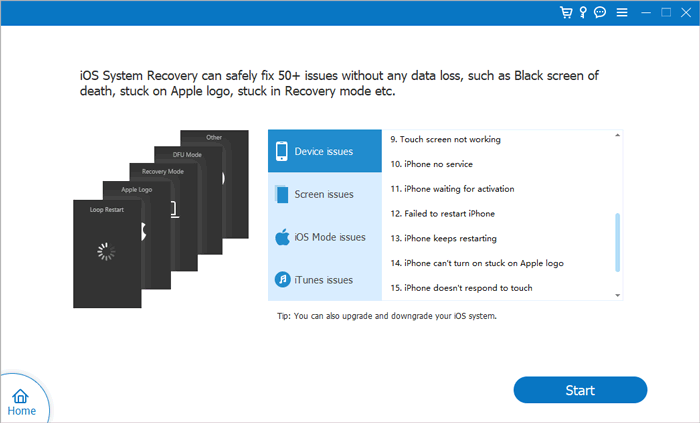
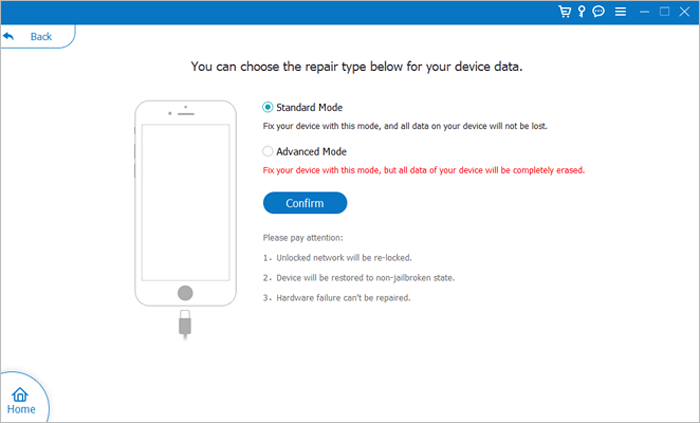
03Choose "Standard Mode" to repair iOS system problems without deleting your personal data, then click "Confirm" to continue.
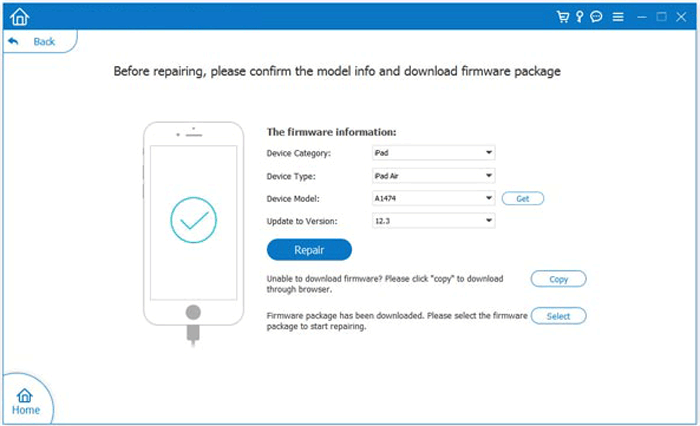
04Verify your iPhone information, download the matching firmware package, and click "Repair" to fix system issues affecting Apple ID verification and App Store updates.
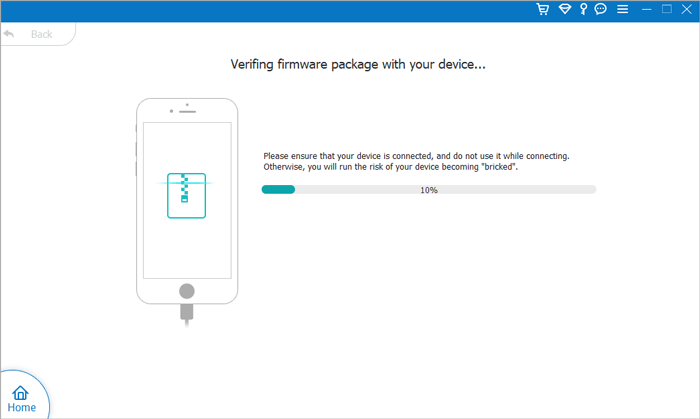
05Wait for the repair process to finish. Your iPhone will restart automatically. After that, open the App Store and try updating the app again to check whether the "Update Unavailable with This Apple ID" error has been resolved.
That's all about how to fix the "Update Unavailable with This Apple ID" error on your iPhone. With the right solution, you can quickly restore app updates and enjoy a smoother iPhone experience. If the issue is caused by iOS system errors, using a professional iOS repair tool like iOS System Recovery can help detect and fix iOS problems, restore your iPhone to normal operation, and resolve various difficult-to-diagnose system issues.
Related Articles:
How to Fix Updating Apple ID Settings Stuck on iPhone/iPad/Mac?
Sign Out Is Not Available Due to Restrictions? - 5 Quick Fixes
How to Fix the iPhone/iPad App Store Not Working? - 10 Solutions




 Free Download for PC
  Free Download for Mac


