TL;DR:
This guide covers several ways to factory reset a Redmi phone. Here's a quick overview of each method:
A factory reset is a useful solution when your Redmi phone becomes slow, experiences software issues, or you want to erase all personal data before selling or giving it away. By restoring the device to its original factory settings, all apps, accounts, files, and customized settings will be removed.
So, how to factory reset Redmi phone? Depending on your situation, you can reset your Redmi device through the built-in Settings app, Recovery Mode, Xiaomi Find Device, third-party erasing tools, or ADB commands. In this guide, we will walk you through 5 practical methods to factory reset Redmi phones.
Before you begin, remember that a factory reset permanently deletes all data on your Redmi phone. To avoid losing important files, it's recommended to create a backup first. If you prefer backing up your Android device to a computer, Coolmuster Android Backup Manager provides an easy way to save contacts, messages, photos, videos, music, documents, and other data before performing the reset.
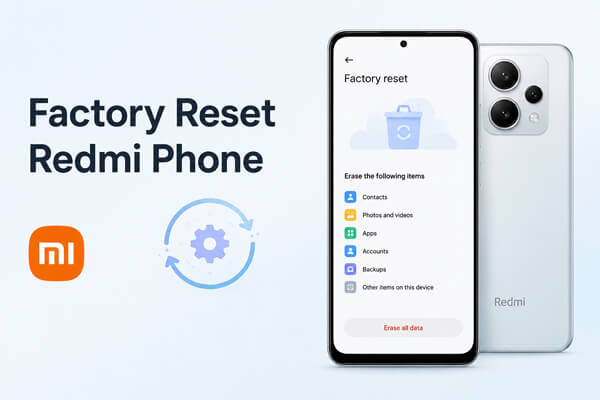
If your Redmi phone is working normally and you can access the screen, using the built-in Settings option is the easiest and safest way to perform a factory reset. This official method does not require a computer or any additional tools.
Steps to factory reset Redmi phone through Settings:
Step 1. Unlock your Redmi phone and open the Settings app.
Step 2. Tap "About phone" from the Settings menu.
Step 3. Scroll down and select "Factory reset".
Step 4. Tap "Erase all data" and review the information about the data that will be deleted.
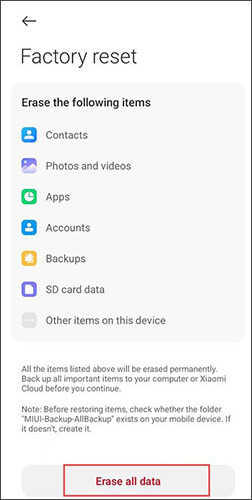
Step 5. If needed, create a backup of your important files, then confirm the reset operation.
Step 6. Enter your lock screen password, PIN, or pattern to verify your identity.
Step 7. Tap the confirmation button to start the factory reset process.
Your Redmi phone will restart automatically and remove all stored data. Once completed, it will return to the initial setup screen, just like a new device.
Note: The exact names or locations of some options may vary slightly depending on your Redmi model and whether it runs MIUI or HyperOS.
A hard factory reset through Recovery Mode is useful when your Redmi phone cannot enter the system normally. It can help fix problems such as a forgotten password, frozen screen, boot loops, or a device stuck on the Redmi/Mi logo.
Unlike a normal reset from Settings, this method works outside the Android system. However, it will also permanently delete all data stored on your phone.
Steps to hard reset Redmi phone using Recovery Mode:
Step 1. Turn off your Redmi phone completely. If the device is frozen, press and hold the "Power" button for several seconds to force it to shut down.
Step 2. Press and hold the "Power" button and "Volume Up" button at the same time until the Redmi/Mi logo appears.
Step 3. Release the buttons when the Recovery Mode menu appears.
Step 4. Use the volume buttons to navigate through the menu and press the "Power" button to confirm selections.
Step 5. Choose "Wipe Data" and then select "Wipe All Data".
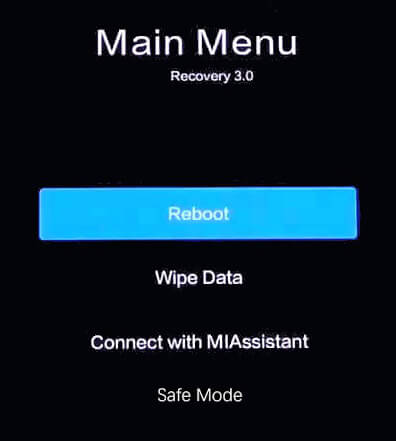
Step 6. Confirm the operation and wait while Recovery Mode removes all data from your device.
Step 7. After the process finishes, select "Reboot" or "Reboot System" to restart your Redmi phone.
After rebooting, your Redmi phone will start as a new device with the original factory settings.
Xiaomi Find Device is an official remote management feature that allows you to erase data from your Redmi phone through a web browser. It is especially helpful when your phone is lost, unavailable, or you need to remove personal information remotely.
To use this method, your Redmi phone must meet these requirements:
Steps to factory reset Redmi phone remotely:
Step 1. Open a browser on another device and visit Xiaomi Cloud.
Step 2. Sign in with the Xiaomi Account linked to your Redmi phone.
Step 3. Select "Find Device" from the available services.
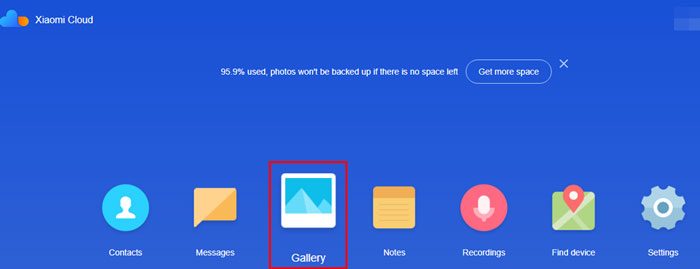
Step 4. Choose the Redmi phone you want to erase from the device list.
Step 5. Click "Erase Data" and review the warning about permanent data deletion.
Step 6. Confirm the action and enter your Xiaomi Account password if required.
After confirmation, your Redmi phone will receive the erase command when it connects to the internet. The device data will then be deleted and restored to factory settings.
Note: After a remote reset, you may need to sign in with the previously linked Xiaomi Account during the setup process due to Xiaomi's security protection.
If you're planning to sell, recycle, or give away your Redmi phone, a standard factory reset may not completely remove your personal information. In some cases, deleted data can still be recovered using professional recovery software.
For a more secure solution, you can use Coolmuster Android Eraser. This professional tool not only helps factory reset your Redmi phone but also permanently wipes your data by overwriting the storage, making it much more difficult to recover sensitive information.
Key features of Android Eraser:
How to factory reset a Redmi phone with Android Eraser?
01Download, install, and launch Android Eraser on your Windows or Mac.
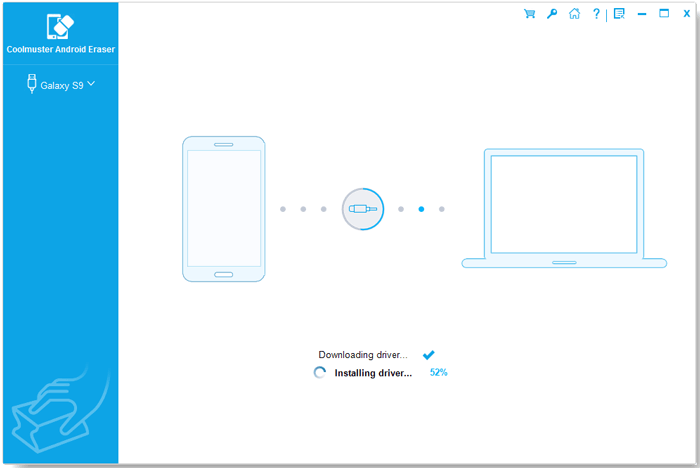
02Connect your Redmi phone to the computer using a USB cable. Enable USB debugging on the device if prompted, grant the required permissions, and click "OK" after the program detects your phone.
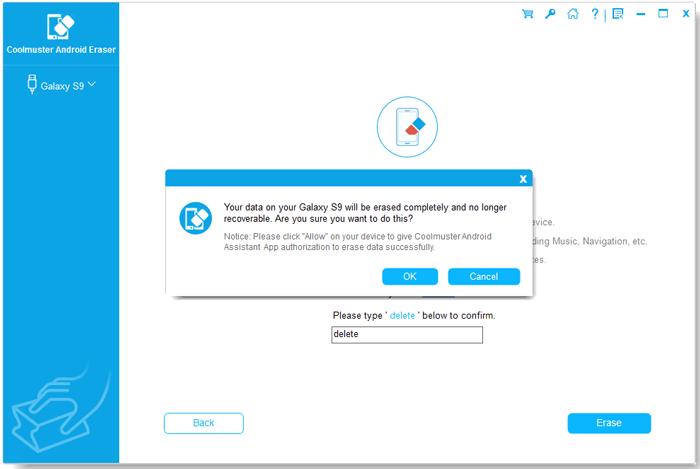
03Click "Erase", choose your preferred security level (Low, Medium, or High), and click "OK". Enter delete in the confirmation box, then click "Erase" again and confirm the operation to begin wiping your device.
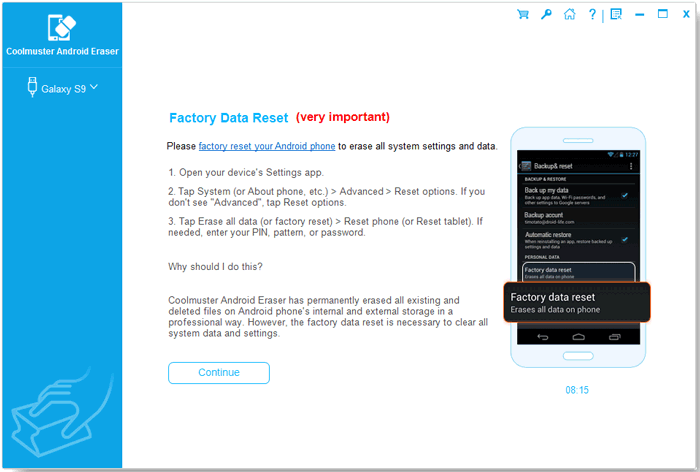
04When prompted, follow the on-screen instructions to perform a factory reset on your Redmi phone through Settings, then complete the initial device setup after the reset finishes.
If you prefer a visual walkthrough, you can also watch the following video tutorial to see the entire process step by step.
ADB (Android Debug Bridge) is a command-line tool that lets you communicate with your Android device from a computer. If USB debugging has already been enabled on your Redmi phone, you can use ADB to reboot the device into Recovery Mode and perform a factory reset.
Keep in mind that this method is intended for advanced users. It won't work if USB debugging wasn't enabled before the phone became inaccessible. Here is how to factory reset a Redmi phone through ADB:
Step 1. Download and install the Android SDK Platform Tools on your Windows PC, Mac, or Linux computer.
Step 2. Connect your Redmi phone to the computer with a USB cable and make sure USB debugging is enabled.
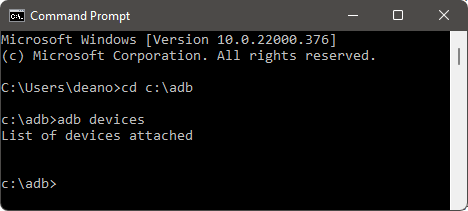
Step 3. Open Command Prompt, Terminal, or PowerShell, then navigate to the Platform Tools folder.
Step 4. Type the following command and press "Enter" to verify that your device is detected: adb devices. If your Redmi phone appears in the device list, you can continue.
Step 5. Run the following command to reboot your phone into Recovery Mode: adb reboot recovery.
Step 6. Once your Redmi phone enters Recovery Mode, use the "Volume" buttons to select "Wipe Data", then choose "Wipe All Data" and confirm the operation with the "Power" button.
Step 7. After the reset is complete, select "Reboot" to restart your Redmi phone. Your device will reboot with its factory default settings, and all user data stored on the phone will be erased.
No matter which method you choose, a factory reset will erase all data stored on your Redmi phone, including your apps, photos, contacts, messages, and personal settings. To avoid permanent data loss, it's always a good idea to back up important files before getting started.
If you're resetting your Redmi phone before selling or recycling it, consider using Coolmuster Android Eraser to permanently wipe your personal data and reduce the risk of data recovery. By following the appropriate method in this guide, you can safely factory reset your Redmi phone and get it ready for a fresh start.
Related Articles:
Xiaomi/Redmi Stuck on Mi Logo: Causes and Proven Fixes
How to Restore Deleted Contacts on Redmi with/without Backup
How to Recover Deleted Files from Redmi: 4 Simple Methods
How to Perform Redmi Backup and Restore: Step-by-Step Methods







 Free Download for PC
  Free Download for Mac


