Copy My Data is a popular app for transferring contacts, photos, and other files between phones. However, many users encounter issues such as connection failure, transfer stuck at a certain percentage, or devices not being detected at all.
If you are facing the Copy My Data app not working problem, don't worry. This guide will walk you through the most common causes and provide practical solutions to fix it. If none of the fixes work, you can also try a more reliable alternative to complete the transfer smoothly.
There are several factors that can cause Copy My Data to stop working properly. In many cases, the issue is not caused by a single problem, but by a combination of environmental and system-related factors.
Below are six detailed methods to help you fix Copy My Data if it's not working. Start with the simpler solutions first, as they often resolve most issues without extra effort. Follow each method carefully to ensure a smooth transfer.
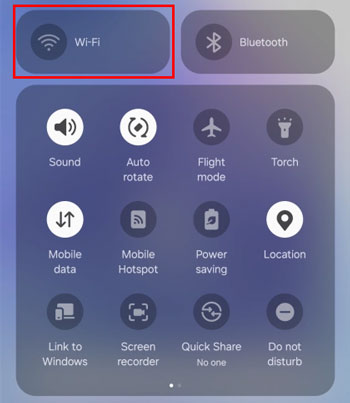
Since Copy My Data depends on a stable network for wireless transfers, this is the first step to troubleshoot. Here's what to do:
Ensure both the source device (the one with the data you want to copy) and the target device (the one receiving the data) are connected to the same Wi-Fi network. Prefer a private, trusted network (e.g., your home Wi-Fi) over public Wi-Fi (coffee shops, hotels), as public networks often have restrictions that block device-to-device communication.
Test your Wi-Fi connection by opening a website in your browser. If the website loads slowly or fails to load, restart your router: unplug it for 30 seconds, then plug it back in. This resets the router and fixes temporary connectivity issues.
Avoid using mobile data for transfers, as it's slower and may incur high data charges. If you must use mobile data, check that your data limit is intact and that Copy My Data has permission to use mobile data (in your device's settings).
A simple restart can fix temporary glitches that cause Copy My Data to malfunction. Restarting clears your device's RAM, resets background processes, and resolves minor software conflicts.
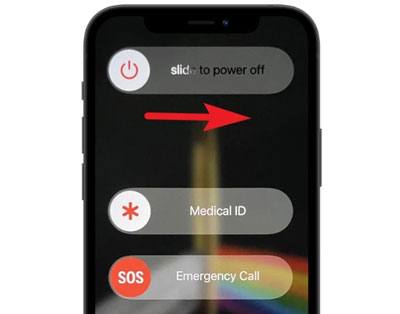
For iOS devices: Hold the "power" button (or "power" + "volume down" button) until the slider appears, then slide to power off. Wait 30 seconds, then turn the device back on.
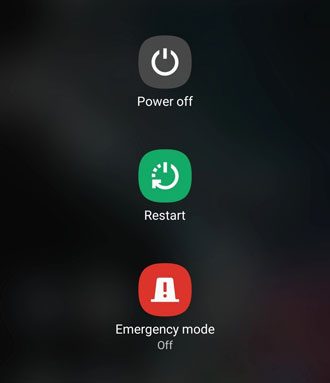
For Android devices: Hold the "power" button until the power menu appears, then tap "Restart". If your device doesn't have a restart option, power it off, wait 30 seconds, then power it back on.
After both devices restart, open Copy My Data on both and try the transfer again.
Outdated or corrupted app installations are common causes of Copy My Data not working. Updating or reinstalling the app can fix bugs and restore functionality. Follow these steps:
Update the app: Go to the App Store (iOS) or Google Play Store (Android), search for "Copy My Data", and tap "Update" if an update is available. Developers often release updates to fix known issues and improve compatibility with new OS versions.
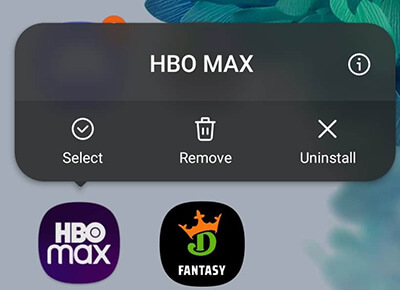
Reinstall the app: If updating doesn't work, uninstall Copy My Data first. On iOS, press and hold the app icon until it jiggles, then tap the "X" to uninstall. On Android, go to "Settings" > "Apps" > "Copy My Data" > "Uninstall". After uninstalling, download and reinstall the app from the App Store or Google Play. This fixes corrupted installations and clears any problematic files.
VPNs and firewalls can block Copy My Data's network access, preventing it from connecting to other devices or transferring data. Here's how to disable them temporarily:
Turn off VPN: On iOS, go to "Settings" > "General" > "VPN" and toggle off the VPN connection. On Android, go to "Settings" > "Connections" > "VPN" and disable the active VPN.
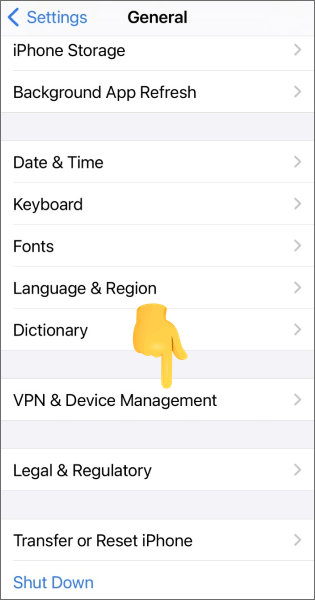
Turn off Firewall: On your device, disable any third-party firewall apps (e.g., antivirus apps with firewall features) temporarily. For router firewalls, log into your router's settings (via a browser) and disable the firewall or add Copy My Data to the exception list.
Note: Remember to re-enable your VPN and firewall after the transfer is complete for security.
Transferring large amounts of data can overload Copy My Data, causing it to stall or crash. Reducing the data size can make the transfer smoother. Here's what to do:
Delete unnecessary files: Remove duplicate photos, videos, or large files that you don't need to transfer. This reduces the total data size and speeds up the transfer process.
Compress files: Compress large photos or videos into a ZIP folder before transferring. This reduces the file size without losing significant quality (for photos/videos, you can use apps like WinZip or Google Photos to compress files).
Transfer in batches: Instead of transferring all data at once, split it into smaller batches. For example, transfer photos first, then videos, then contacts. This prevents the app from being overloaded.
Incorrect network settings can prevent Copy My Data from connecting to other devices. Resetting your device's network settings can fix DNS issues, IP conflicts, and other connectivity problems. This will reset your Wi-Fi passwords, so make sure you have them handy before proceeding.
For iOS: Go to "Settings" > "General" > "Transfer or Reset" [Device] > "Reset" > "Reset Network Settings". Confirm the reset, and your device will restart.
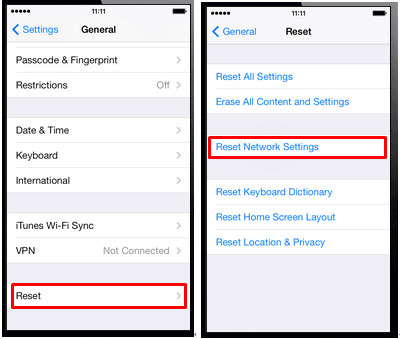
For Android: Go to "Settings" > "System" > "Reset" > "Reset Network Settings". Tap "Reset Settings" to confirm. Some Android devices may have this option under "Settings" > "Connections" > "Reset Network Settings".
After resetting, reconnect both devices to the same Wi-Fi network and try using Copy My Data again.
If you've tried all the fixes above and Copy My Data is still not working, or if you need a more reliable data transfer tool, Coolmuster Mobile Transfer is the best alternative. It's a powerful, user-friendly tool that solves the limitations of Copy My Data and ensures seamless data transfer between devices. Coolmuster Mobile Transfer stands out for its reliability, speed, and versatility.
Key features of Coolmuster Mobile Transfer:
Now that you know why Coolmuster Mobile Transfer is the best alternative, here's how to use it step by step:
01Download the software from the official website and install it on your computer (Windows or Mac). Launch the program after installation.
02Use USB cables to connect both your source device (the one with the data) and your target device (the one receiving the data) to the computer. Make sure the devices are recognized. The program will display them as Source and Destination.
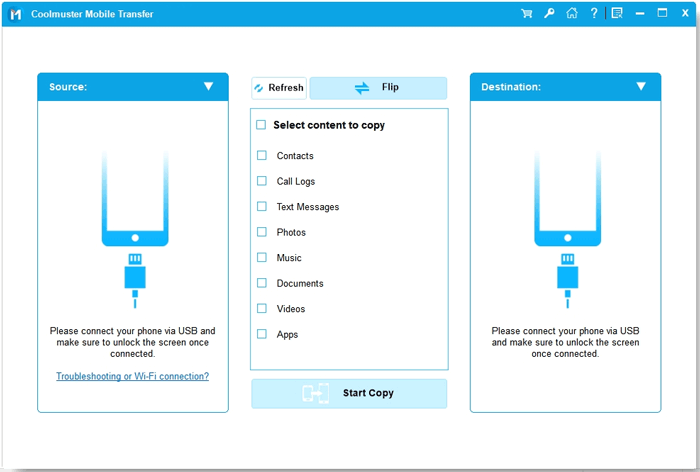
03On the main interface, select the types of data you want to copy. You can choose all data or only specific types depending on your needs.
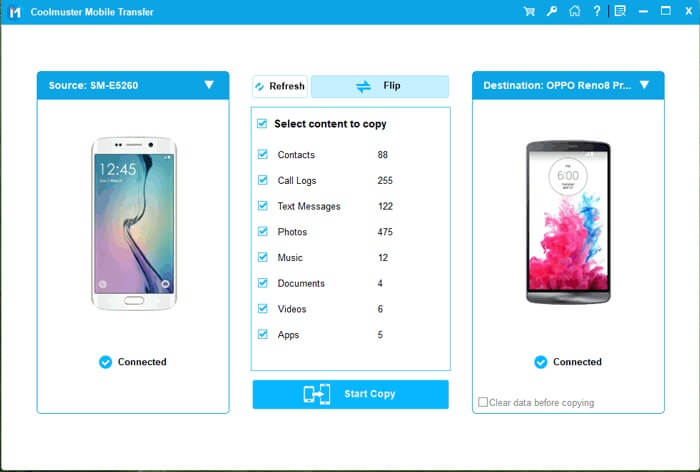
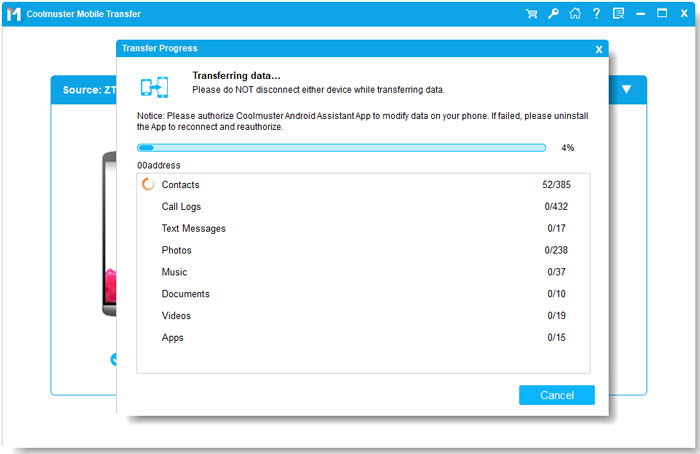
04Click the "Start Copy" button. The software will transfer the selected data from the source device to the target device quickly and safely. A progress bar will show the status of the transfer.
For a visual guide, you can also watch the step-by-step video tutorial, which demonstrates the entire process from connecting devices to completing the transfer.
1. Why is Copy My Data not detecting my other device?
This usually happens when both devices are not on the same Wi-Fi network, or the network has restrictions (like public hotspots or VPNs). Make sure both devices are connected to the same private network and that no VPN or firewall is blocking connections.
2. Can I use mobile data instead of Wi-Fi for Copy My Data?
While technically possible, mobile data is not recommended. Transfers may be slower, unstable, or consume large amounts of data. Wi-Fi is the safest and fastest method.
3. What should I do if the app keeps freezing during transfer?
Large data volumes can overload Copy My Data. Delete unnecessary files, compress large media, or transfer in smaller batches. Restarting the devices and updating or reinstalling the app may also resolve freezing issues.
By following the 6 methods outlined in this guide, you'll be able to fix most issues with Copy My Data not working quickly. However, if you want a more reliable and faster solution, Coolmuster Mobile Transfer is highly recommended. It simplifies the process with one-click transfers, supports all major data types, and works across Android and iOS devices without the network limitations that Copy My Data may encounter. With this tool, transferring your data becomes stress-free and efficient.
Related Articles:
Top 7 Phone Transfer Apps Help with Phone to Phone Transfer
How to Transfer Data from Android to Android Wirelessly in 7 Methods
From iOS to Android: The Best iPhone to Android Transfer App [Top 9]
Best App to Transfer Data from Android to iPhone [Latest Update as of 2026]







 Free Download for PC
  Free Download for Mac


