When you switch from an iPhone to a OnePlus, or simply want to share a video with a friend who uses OnePlus, you'll find that it's not as straightforward as transferring between iPhones via AirDrop. Due to the differences between iOS and Android systems, video transfer requires using some intermediary methods. This article will introduce five practical methods and teach you how to send videos from an iPhone to a OnePlus. Whether you're looking for speed, video quality, or ease of use, you'll find the right solution.
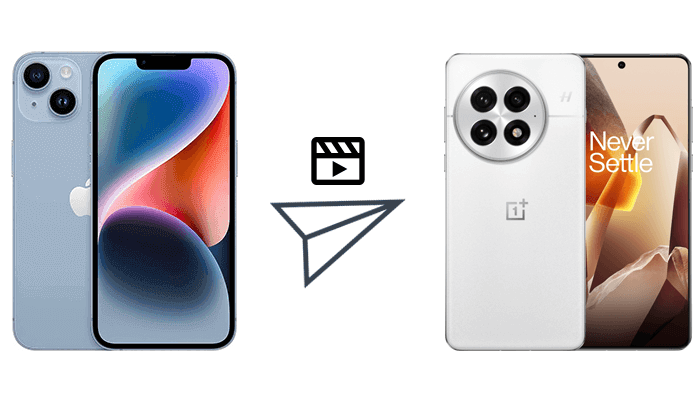
If you want to quickly, efficiently, and transfer a large number of videos to your OnePlus in one go, a professional phone transfer software is the best choice. Coolmuster Mobile Transfer is one such tool. It supports cross-system, one-click transfers, ensuring that the videos remain intact without compression, making it especially suitable for high-definition videos and bulk file transfers.
The highlights of Coolmuster Mobile Transfer:
How do I transfer videos from iPhone to OnePlus in 1 click? Here are the steps:
01First, download and install the tool on your computer. Open the program and connect your iPhone and OnePlus phone to the computer using their respective USB cables. Ensure both devices are recognized by the software.
02Once connected, your iPhone will be set as the source device and the OnePlus phone as the target. If this is not the case, simply click "Flip" to swap the devices.
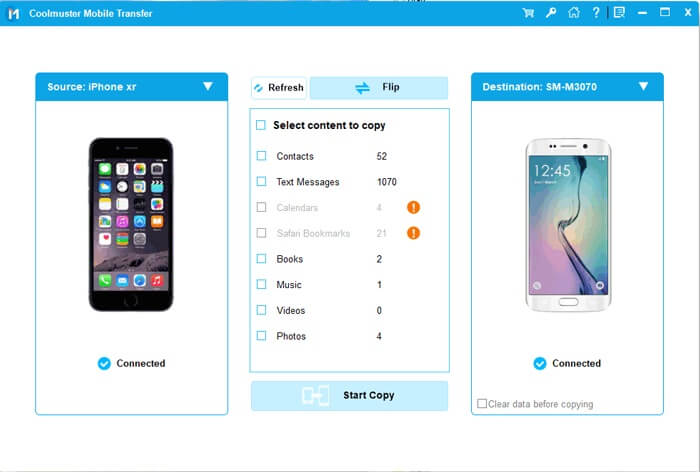
03The program will display a list of files from your iPhone. Select the "Videos" category. Once you've chosen the videos you want to transfer, click the "Start Copy" button. The transfer will begin, moving the videos from your iPhone to your OnePlus.
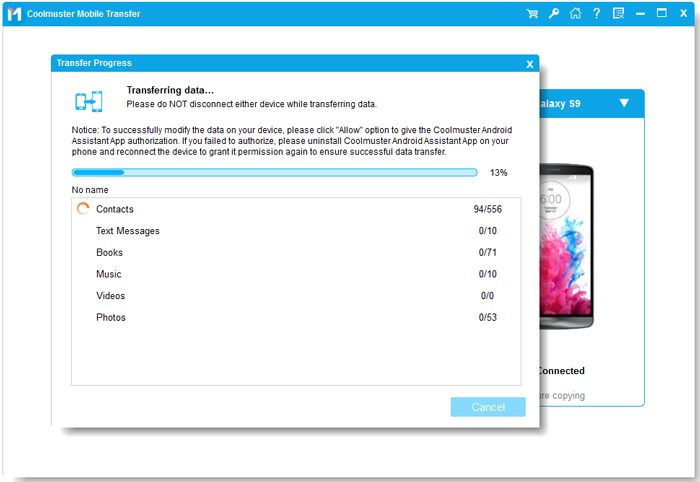
Video guide
Advantages:
* One-click transfer, very fast.
* Support large video files and batch transfers.
* Maintain original video quality.
Disadvantages:
* Require a computer.
If you frequently use Apple's ecosystem, iCloud can act as a bridge to transfer your videos. Upload videos to iCloud from your iPhone and then download them to OnePlus. This method is wireless but depends on storage space and network speed.
Here is how to sync videos from iPhone to OnePlus via iCloud:
Step 1. On your iPhone, go to "Settings" > "Apple ID" > "iCloud", and enable "iCloud Photos" or "iCloud Drive". (iCloud Photos not syncing?)
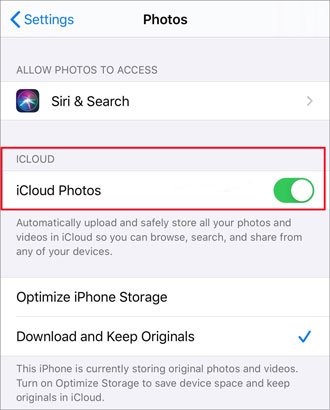
Step 2. Wait for your videos to fully upload to iCloud (ensure a stable Wi-Fi connection).
Step 3. On your OnePlus, open a web browser and visit icloud.com, then log in with the same Apple ID.
Step 4. Select the videos you want and download them to your OnePlus device.
Advantages:
* Wireless transfer.
* No need for USB cables.
Disadvantages:
* Limited by iCloud storage.
* Download speed depends on the internet connection.
For users who prefer manual file management, using Windows File Explorer allows you to move videos without installing any third-party software. This method is suitable for small to medium batches of files.
Here is how to copy videos from iPhone to OnePlus with File Explorer:
Step 1. Connect your iPhone to the computer with a USB cable, unlock it, and tap "Trust" on the device.
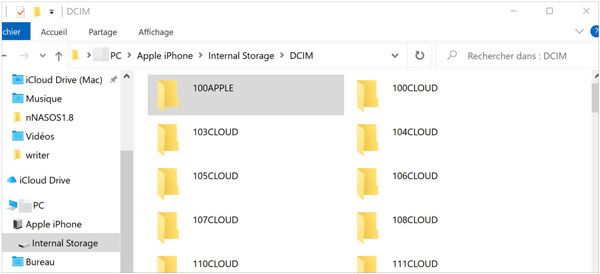
Step 2. Open "This PC" and navigate to the iPhone's "DCIM" folder. Copy the videos you want to a folder on your computer.
Step 3. Disconnect the iPhone and connect your OnePlus to the computer.
Step 4. Open the OnePlus storage folder and paste the videos into your desired location.
Advantages:
* No need for additional software.
* Complete control over file organization.
Disadvantages:
* Multiple steps required.
* Not ideal for frequent large transfers.
Send Anywhere is a cross-platform app that enables wireless transfer between iPhone and OnePlus. It's convenient for users who want a mobile-only solution, though transfer speed depends on network conditions.
Here is how to send video from iPhone to OnePlus by Send Anywhere:
Step 1. On your iPhone, open the App Store and download Send Anywhere. On your OnePlus, open Google Play and download the same app. Install it on both devices.
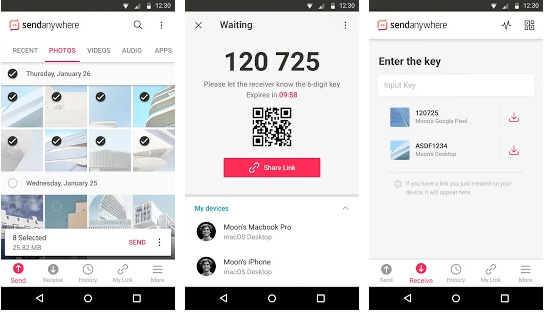
Step 2. Launch Send Anywhere on your iPhone. In the app, browse through your photo and video library, then select all the video files you want to transfer. Make sure the videos are fully saved in your iPhone's Photos or local storage before starting.
Step 3. After selecting the videos, tap the "Send" button. Send Anywhere will immediately generate a unique 6-digit code and a QR code that can be scanned by the receiving device.
Step 4. On your OnePlus, open Send Anywhere and choose the "Receive" option. Keep the app open and ensure your phone is connected to a stable Wi-Fi or mobile data network.
Step 5. Enter the 6-digit code shown on the iPhone into the OnePlus app, or use the OnePlus camera to scan the QR code displayed on the iPhone. This establishes a secure connection between the two devices.
Step 6. Once the connection is established, the video files will start transferring from the iPhone to the OnePlus. Keep both apps open and do not switch to another network or close the app during the transfer to prevent interruptions.
Step 7. Depending on the video size and network speed, the transfer may take a few seconds to several minutes. Once completed, the videos will automatically save to the default storage location on the OnePlus device, ready to view in the gallery or any video player app.
Step 8. After confirming all videos have been successfully received, you can safely close the app on both devices. You now have full access to the transferred videos on your OnePlus.
Advantages:
* Fully wireless, no computer required.
* Cross-platform and easy to use.
Disadvantages:
* Speed depends on internet connection.
* Large videos may take longer.
For quick sharing of small videos, email can be a simple option. This method is convenient but limited by the attachment size imposed by email providers.
Here is how to migrate videos from iPhone to OnePlus using email:
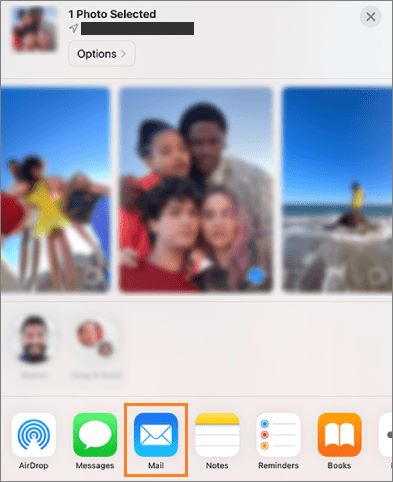
Step 1. Open the Photos app on your iPhone, select the videos you want, and tap "Share".
Step 2. Choose "Mail", enter your own email address, and send the email.
Step 3. On your OnePlus, open your email inbox and download the attached videos.
Advantages:
* Easy and direct.
* No additional apps needed.
Disadvantages:
* Limited by email attachment size.
* Not suitable for large videos or batch transfers.
If you only occasionally transfer small videos, Email, iCloud, or Send Anywhere should be sufficient. However, when you need to quickly, securely, and in bulk transfer videos from iPhone to OnePlus, Coolmuster Mobile Transfer is undoubtedly the most time-saving and hassle-free option.
It not only supports one-click video transfers but also ensures that the video quality remains intact without being affected by network issues, making it perfect for users who are switching devices or migrating large amounts of data. If you're looking for an efficient solution on how to send videos from iPhone to OnePlus, this tool is definitely worth considering.
Related Articles:
How to Send Video from iPhone to Android Effectively [Solved]
Step-by-Step Guide to Transfer Photos from iPhone to OnePlus
Top 5 OnePlus Switch Alternative: Complete Guide for Data Transfer
[Solved] How to Transfer Files from iPhone to Android via Bluetooth?







 Free Download for PC
  Free Download for Mac


