TL;DR:
To set up a new iPhone without an old phone, you can sign in with your Apple ID and start fresh, restore your data from an iCloud backup, or use an iTunes/Finder backup stored on your computer. If your old iPhone is still available, Coolmuster Mobile Transfer also lets you transfer supported data directly between two iPhones without creating a backup first.
When you purchase a new iPhone 18 but find that your old phone is lost, damaged, or completely unusable, you might worry about how to set up the new device. The good news is that even without your old iPhone, you can still set up the new device smoothly. This article will guide you through several methods on how to set up new iPhone without old phone, helping you get started with your new device quickly.
The answer is yes. While Apple's Quick Start feature requires having your old iPhone nearby, it's not the only option. If you remember your Apple ID or have an iCloud/iTunes backup, you can set up your new iPhone without the old device.
Even if you don't have any backups, your new iPhone can still be set up and used as a brand-new device.
Without the old phone, there are three common setup methods, each suitable for different user scenarios.
If you don't mind losing your old data or just want to start using your new iPhone as quickly as possible, setting it up directly with your Apple ID is the simplest and most reliable method. This approach treats the new iPhone as a brand-new device, syncing only the basic services related to your Apple ID.
Here is how to set up a new iPhone 17/18 without an old phone directly with your Apple ID:
Step 1. Turn on the new iPhone, then choose your language and country/region.
Step 2. Connect to Wi-Fi or a cellular network.
Step 3. On the "Apps & Data" screen, select "Don't Transfer Apps & Data".
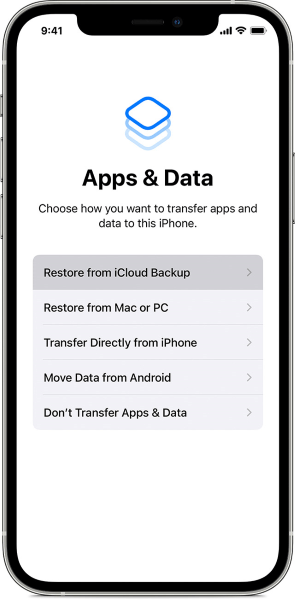
Step 4. Sign in with your Apple ID.
Step 5. Follow the prompts to complete Face ID/Touch ID and basic setup.
Step 6. Once completed, you can re-download apps from the App Store, and contacts, notes, and other data from iCloud will automatically sync (provided you had iCloud enabled before).
Want to know how to set up your iPhone without an Apple ID? Here is an article you can't miss.
[Step-by-Step Guide] How to Set Up iPhone Without Apple ID?If your old iPhone had iCloud backup enabled, you can still remotely restore your data, even if the old phone is not with you. Here is how to transfer data to a new iPhone if an old phone is lost:
Step 1. Turn on the new iPhone and complete the initial setup.
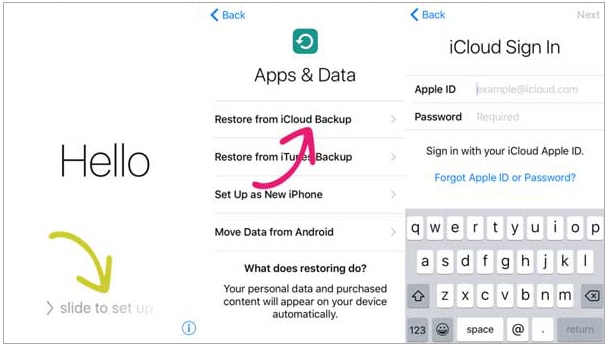
Step 2. When you reach the "Apps & Data" screen, tap "Restore from iCloud Backup".
Step 3. Sign in with your Apple ID and select the most recent backup.
Step 4. Wait for the data to download and restore.
Step 5. Complete the remaining setup steps.
If you previously backed up your iPhone to a computer, restoring from an iTunes or Finder backup is one of the most reliable ways to set up a new iPhone without the old phone. This method does not require access to the old device itself, as long as the backup file is still stored on your computer.
Here is how to transfer data to a new iPhone without the old phone from an iTunes backup:
Step 1. Turn on your new iPhone and begin the initial setup process. Choose your preferred language and region, then connect the device to a stable Wi-Fi network or cellular data so the activation can proceed.
Step 2. When setting up your new iPhone and reaching the "Apps & Data" screen, select "Restore from Mac or PC". Then, connect your new iPhone to your computer using a USB cable.
Step 3. Open iTunes on a Windows PC, or open Finder on a Mac running macOS Catalina or later. If prompted on the iPhone, tap "Trust This Computer' and enter your device passcode.
Step 4. In iTunes or Finder, locate your iPhone when it appears in the device list. Select the option "Restore Backup".
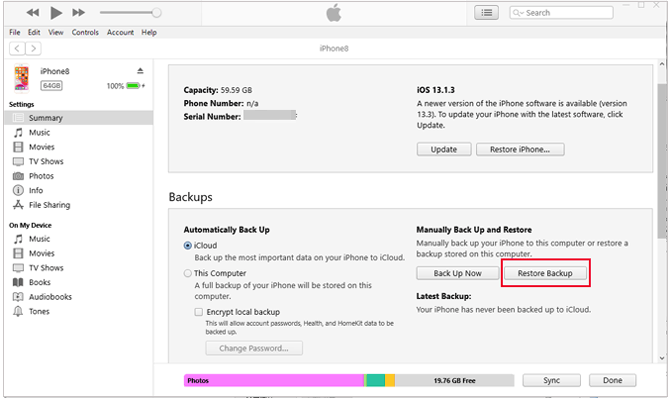
Step 5. Choose a backup from the list of available backups. Pay attention to the backup date and size to ensure you are selecting the most relevant and complete version.
Step 6. If the selected backup is encrypted, enter the backup password to continue. This step is required to restore sensitive data such as Health data, Wi-Fi passwords, and app credentials.
Step 7. Wait patiently while iTunes or Finder restores the backup to your new iPhone. Keep the device connected to the computer throughout the entire process, and do not disconnect the cable until the restoration is fully complete.
Step 8. Once the restore finishes, the iPhone will restart automatically. Follow the on-screen instructions to complete the remaining setup steps, including signing in with your Apple ID and configuring system settings.
We have already discussed too much about how to set up a new iPhone without the old phone. If you still have your old phone, a more efficient and intuitive method than the official solutions is to use a professional phone-to-phone transfer tool. Coolmuster Mobile Transfer is one such tool. It supports direct data transfer between two iPhones, without the need for backups or relying on a network.
Key features of Coolmuster Mobile Transfer:
Here is how to transfer data from an old iPhone to a new iPhone in 1 click:
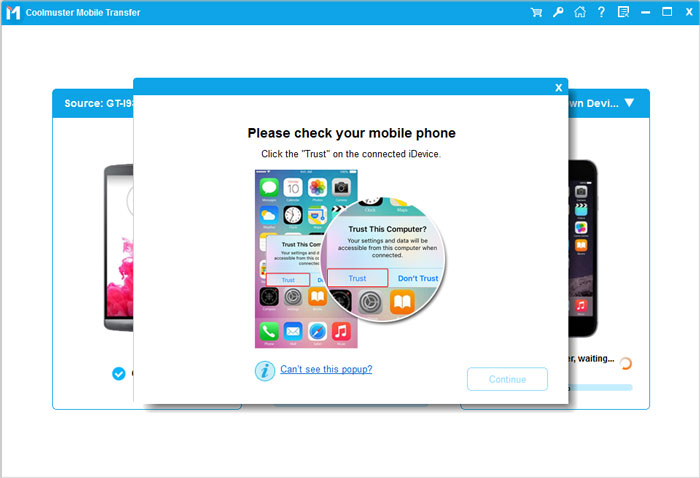
01Download, install, and launch the tool on your computer. Connect both iPhones to the computer using USB cables. When prompted, tap "Trust" on each iPhone to establish the connection.
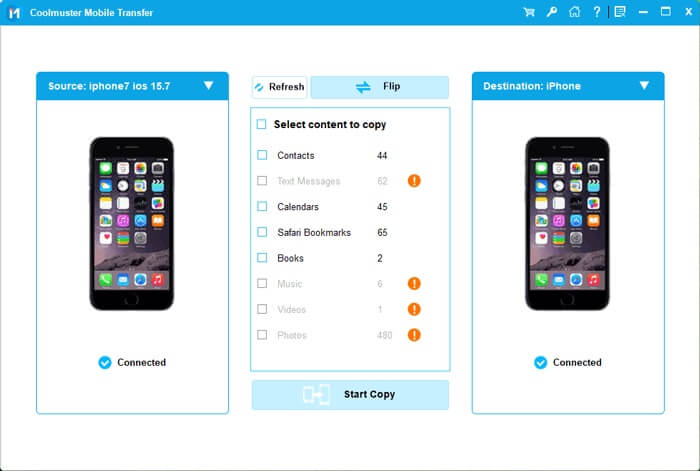
02Once both devices are connected, the program interface will appear. Ensure that the source and target devices are correctly identified. If not, click the "Flip" button to switch their positions.
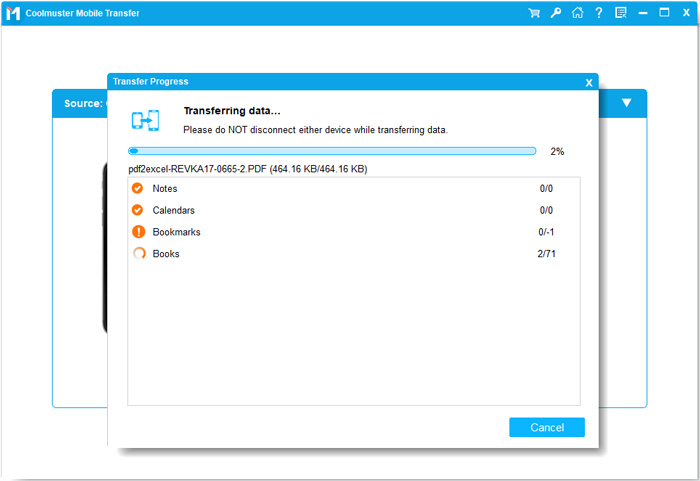
03Select the items you wish to transfer from the content list, such as Contacts, Notes, Calendars, Bookmarks, and Books. Then, click the "Start Copy" button to begin the transfer process automatically.
Video Tutorial:
Q1. Can I use Quick Start without an old phone?
No. Quick Start requires two iPhones to be nearby at the same time. Without the old phone, it cannot be used.
Q2. Can I set up a new iPhone if I forget my Apple ID?
You can perform basic setup, but core features like iCloud and the App Store will be unavailable. It's recommended to recover your Apple ID or reset your password through Apple's official website.
Q3. Can I set up a new iPhone without a SIM card?
Yes. As long as you're connected to Wi-Fi, you can still complete the setup. The SIM card can be inserted later.
Q4. Can I set up a new iPhone without internet?
No. The initial setup requires an internet connection to activate the device.
Q5. Can I restore data after setup?
Yes. You can either erase all content and settings to restart the setup process or use a computer tool to import data. (How to transfer data from iPhone to iPhone after setup?)
Even without the old phone, you can still complete the setup of your new iPhone smoothly using your Apple ID, iCloud backup, or iTunes backup. Different methods are suited for different scenarios, and the key factors are whether you have a backup and whether you need a full data transfer.
If you still have your old phone and want a faster, hassle-free way to switch devices, professional tools like Coolmuster Mobile Transfer can be an efficient option worth considering.
Related Articles:
[Solved] How to Transfer iCloud to New iPhone Without Old Phone?
[SOLVED!] 7 Quick Fixes to Solve Apps Didn't Transfer to New iPhone







 Free Download for PC
  Free Download for Mac


