TL;DR:
Samsung Smart Switch is one of the easiest ways to transfer contacts, photos, videos, apps, and other data from your old phone to a new Galaxy device. While the wireless transfer feature is convenient, it's not always reliable. Many users report that Smart Switch won't connect to Wi-Fi, can't find the other device, or gets stuck on the "Connecting" screen.
The good news is that most connection issues are caused by simple problems, such as network settings, missing permissions, outdated software, or temporary system glitches. In many cases, you can restore the connection in just a few minutes without losing your data.
In this guide, we'll explain why Smart Switch is not connecting to Wi-Fi and walk you through 7 proven solutions. If none of them work, we'll also introduce a reliable Smart Switch alternative that lets you transfer data without relying solely on Smart Switch.
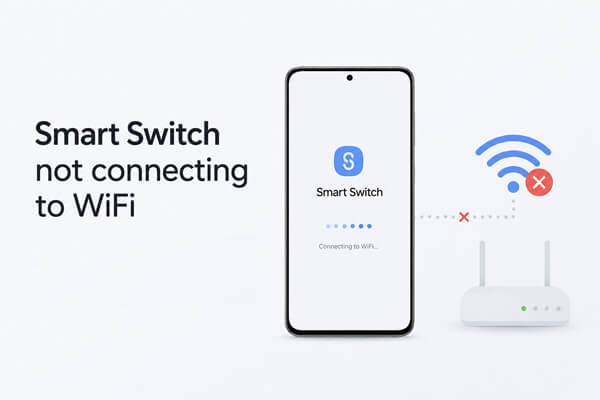
If Samsung Smart Switch isn't connecting to Wi-Fi, the issue doesn't necessarily mean the app is broken. Wireless transfers depend on both devices, the Wi-Fi network, and the app working together. If any part of the process fails, Smart Switch may be unable to detect the other device or establish a stable connection.
Here are the most common reasons why Smart Switch won't connect over Wi-Fi:
1. Wi-Fi or Network Problems
Poor network stability, incorrect Wi-Fi settings, or temporary router issues can prevent Smart Switch from discovering nearby devices.
2. App or Device Configuration Issues
Outdated software, missing permissions, battery optimization, or corrupted app cache may stop Smart Switch from establishing a wireless connection.
3. External Interference
VPNs, mobile data, firewall software, or antivirus programs can interfere with the communication required for a successful transfer.
If Smart Switch won't connect over Wi-Fi, don't worry. In most cases, the problem can be resolved by adjusting your network settings, updating the app, or changing a few system configurations.
We recommend trying the following solutions in order, as the earlier fixes are the ones that work for most users.
Smart Switch uses your local Wi-Fi network to discover nearby devices and transfer data wirelessly. If the two phones are connected to different networks, even if both have Internet access, they won't be able to communicate with each other.
Here's what to check:
Step 1. Open "Settings" > "Network & internet" > "Wi-Fi" on both devices.
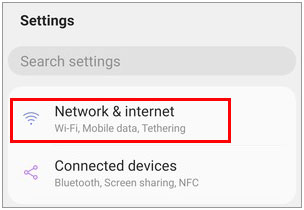
Step 2. Verify that both phones are connected to the same Wi-Fi network (SSID).
Step 3. If your router broadcasts separate 2.4 GHz and 5 GHz networks, try connecting both devices to the same band.
Step 4. Avoid using a Guest Wi-Fi network, as it may isolate connected devices and prevent Smart Switch from detecting them.
Note: Place both devices close to the router during the transfer to reduce the chance of connection interruptions.
Temporary software glitches or network errors can sometimes prevent Smart Switch from establishing a stable connection. Restarting your devices and router refreshes the network and clears temporary system issues.
Follow these steps:
Step 1. Restart your old phone and your new Samsung device.
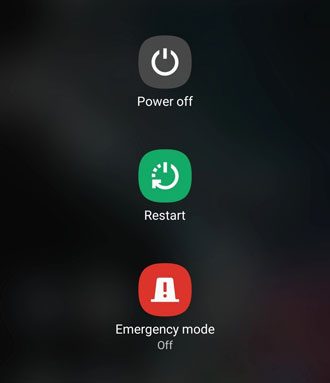
Step 2. Turn off your Wi-Fi router, wait about 30 seconds, and then turn it back on.
Step 3. Once the Wi-Fi connection is restored, reconnect both devices to the same network.
Step 4. Launch Smart Switch again and try the transfer.
Some system features can interfere with Smart Switch's wireless connection, even when your Wi-Fi appears to be working normally.
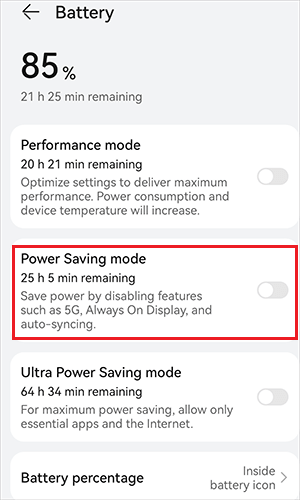
For example, Mobile Data may cause your phone to switch away from Wi-Fi automatically, while a VPN can reroute network traffic and prevent Smart Switch from detecting nearby devices. Battery Saver or Power Saving Mode may also restrict background activity, affecting device discovery and the transfer process.
Before trying Smart Switch again, temporarily disable these features:
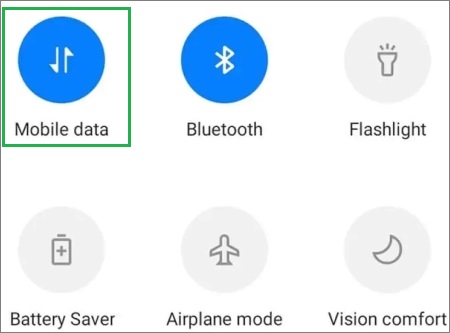
Turn off Mobile Data: Swipe down from the top of the screen and tap the "Mobile Data" icon, or go to "Settings" > "Connections" > "Data Usage" and disable "Mobile Data".
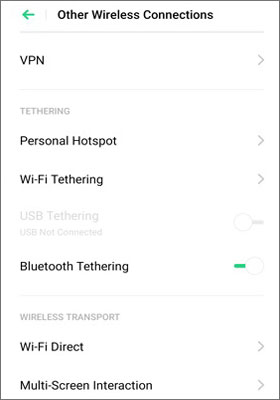
Disconnect your VPN: Open "Settings" > "Connections" > "VPN" (or "Network & Internet" > "VPN" on some Android devices), then disconnect or turn off the active VPN.
Disable Battery Saver: Go to "Settings" > "Battery" (or "Battery and Device Care" > "Battery") and turn off "Power Saving Mode" or "Battery Saver".
Once you've disabled these settings, reconnect both devices to the same Wi-Fi network and launch Smart Switch again.
If your phone has features like Wi-Fi Assistant, Smart Network Switch, or Switch to Mobile Data Automatically, consider turning them off temporarily to prevent unexpected network switching during the transfer.
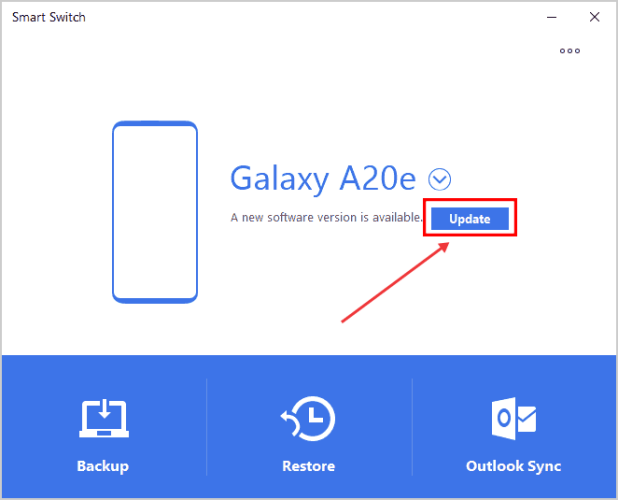
An outdated version of Smart Switch may contain bugs or compatibility issues that affect wireless transfers, especially after a major Android, One UI, or iOS update. Keeping Smart Switch up to date not only fixes known Wi-Fi connection issues but also improves compatibility with newer devices and operating systems.
To update Smart Switch:
Step 1. Open the Google Play Store or Galaxy Store.
Step 2. Search for Samsung Smart Switch.
Step 3. Tap "Update" if a newer version is available.
Step 4. Restart the app and try connecting again.
If you're transferring data through a computer, make sure you've also installed the latest version of Samsung Smart Switch for Windows or Mac.
Smart Switch needs certain system permissions to discover and communicate with nearby devices over Wi-Fi. If these permissions are disabled, the app may fail to detect your other phone or remain stuck while connecting.
To check the permissions:
Step 1. Open "Settings" > "Apps" > "Smart Switch" > "Permissions".
Step 2. Make sure permissions such as "Nearby Devices, Location" (if required by your Android version) and other requested permissions are enabled.
Step 3. Restart Smart Switch after updating the permission settings.
Note: Permission requirements vary by Android version. If Smart Switch prompts you to grant additional access, allow it before attempting another transfer.
Over time, Smart Switch may accumulate cached data related to previous transfers and network connections. If this data becomes corrupted, it can cause unexpected connection problems.
To clear the cache:
Step 1. Go to "Settings" > "Apps" > "Smart Switch".
Step 2. Tap "Storage".
Step 3. Select "Clear Cache".
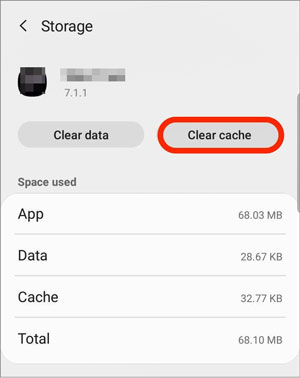
Step 4. Reopen Smart Switch and try connecting again.
If the issue persists, you can also try "Clear Data". Keep in mind that this will reset the app's settings, but it won't delete the data stored on your phone.
If you're using Samsung Smart Switch on a Windows PC, your firewall or antivirus software may mistakenly block the connection between your phone and computer, preventing Smart Switch from detecting your device over the local network.
To check whether your security software is causing the issue:
Step 1. Open "Windows Security" from the "Start" menu.
Step 2. Go to "Firewall & network protection" and temporarily turn off the active firewall.
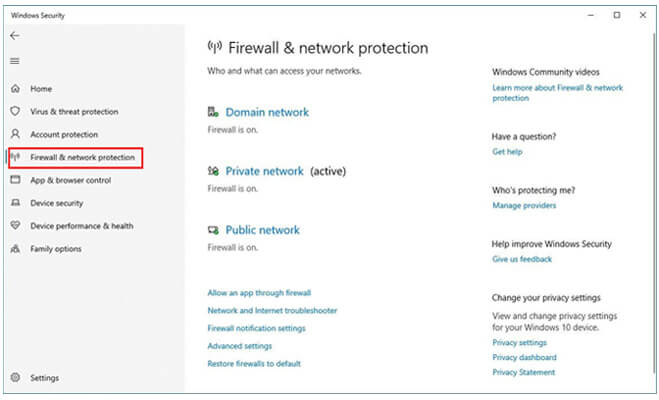
Step 3. If you're using third-party antivirus software, temporarily disable its real-time protection.
Step 4. Restart Smart Switch on your computer and try connecting your phone again.
If Smart Switch works after disabling the security software, re-enable your firewall and antivirus immediately, then add Samsung Smart Switch to the allowlist or exceptions to prevent future connection issues without compromising your PC's security.
Only disable your firewall or antivirus temporarily for testing purposes, and avoid downloading files or browsing unknown websites while the protection is turned off.
If Smart Switch still won't connect to Wi-Fi after trying all the fixes above, it may be time to switch to a more dependable transfer solution. Coolmuster Mobile Transfer is a great alternative that lets you move data between phones without relying solely on Smart Switch's wireless connection.
Whether you're upgrading to a new Samsung phone or transferring data between Android and iPhone, the software offers both USB and Wi-Fi connection options, making the transfer process more flexible and less likely to fail because of network issues.
Why choose Mobile Transfer?
The following example demonstrates how to transfer data from an Android phone to a Samsung device. The steps for the other three transfer modes are very similar.
01Download and install Mobile Transfer on your Windows or Mac computer, then launch the program.
02Connect both phones to the computer using compatible USB cables. Follow the on-screen instructions to enable USB debugging (for Android devices) and grant any required permissions until both devices are recognized successfully.
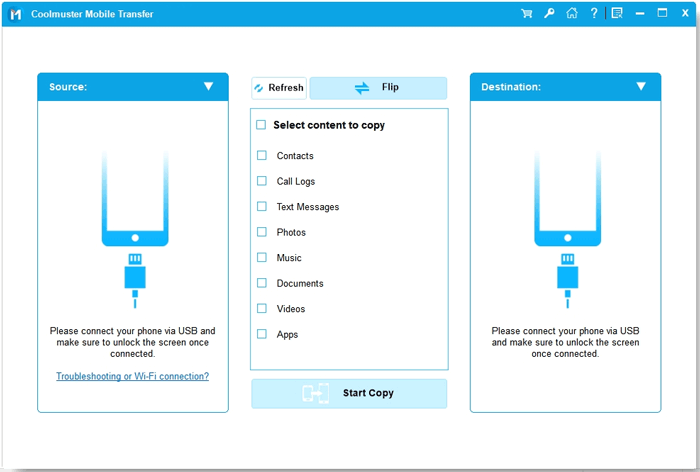
03After the connection is established, you'll see Connected beneath each device. Verify that your old phone is listed under Source. If the source and destination devices are reversed, simply click "Flip" to swap them.
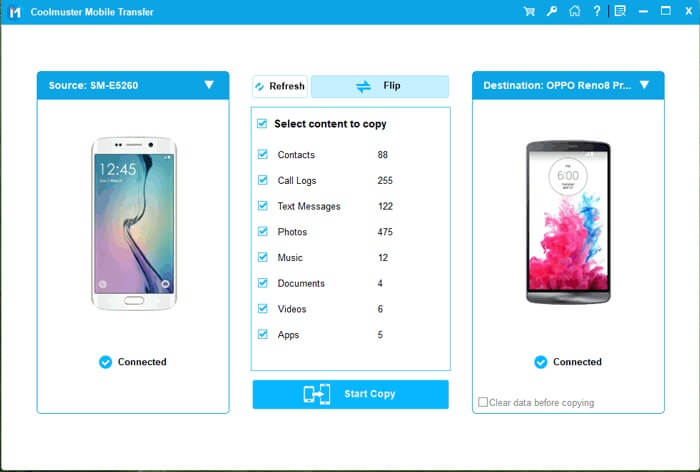
04Select the data categories you want to transfer, then click "Start Copy" to begin the migration. Keep both devices connected until the transfer finishes.
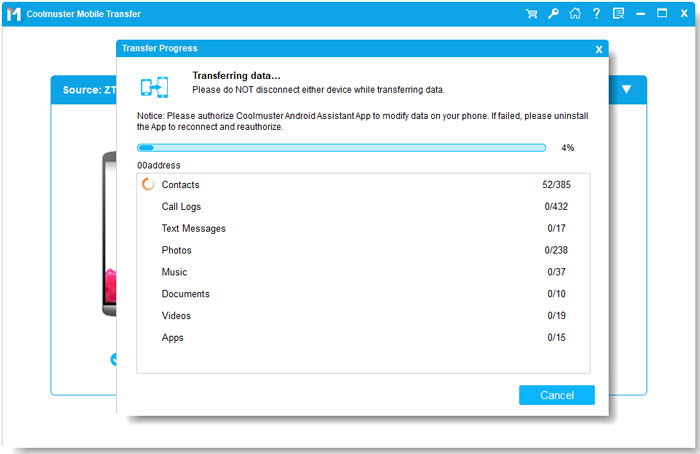
Prefer a visual walkthrough? Watch the video tutorial below to see the entire transfer process in action before getting started.
Smart Switch not connecting to Wi-Fi is usually caused by network issues, system restrictions, outdated software, or temporary app glitches. In many cases, simply checking your Wi-Fi connection, updating the app, or granting the required permissions is enough to restore the connection.
If Smart Switch still doesn't work after trying all the solutions above, don't waste time troubleshooting the same issue repeatedly. A dedicated tool like Coolmuster Mobile Transfer can provide a more stable and flexible way to move your data using either Wi-Fi or USB, helping you complete the transfer quickly and smoothly.
Related Articles:
Smart Switch Failed to Connect the Device? Step-by-Step Fix Guide
Smart Switch Keeps Disconnecting? 7 Proven Fixes + 1 Alternative
Samsung Smart Switch Stuck? Here’s How to Fix It Effectively
Does Smart Switch Need Wi-Fi to Send Data? Can It Send Data without Wi-Fi?






 Free Download for PC
  Free Download for Mac


